Dynamic Workflows
With dynamic workflows, ZCode Agent first writes an orchestration script, then follows it to dispatch many subagents in parallel, consolidate their results phase by phase, and hand the outcome back to the main conversation. Workflows suit large tasks with many steps that benefit from division of labor, for example:
- Batch processing: apply the same rules to a large number of files, documents, or records.
- In-depth research: gather material from many sources in parallel, then organize it into a report.
- Large codebase work: repository-wide audits, code comprehension, bulk migrations, and bulk testing and fixing.
- Cross-checking: have several subagents produce results, then have another group review them and send work back.
Compared with Subagents, dynamic workflows fit tasks that need a fixed process, high concurrency, and phase-by-phase consolidation. For a simple split into one or two pieces, subagents are enough.
Turn On Dynamic Workflows
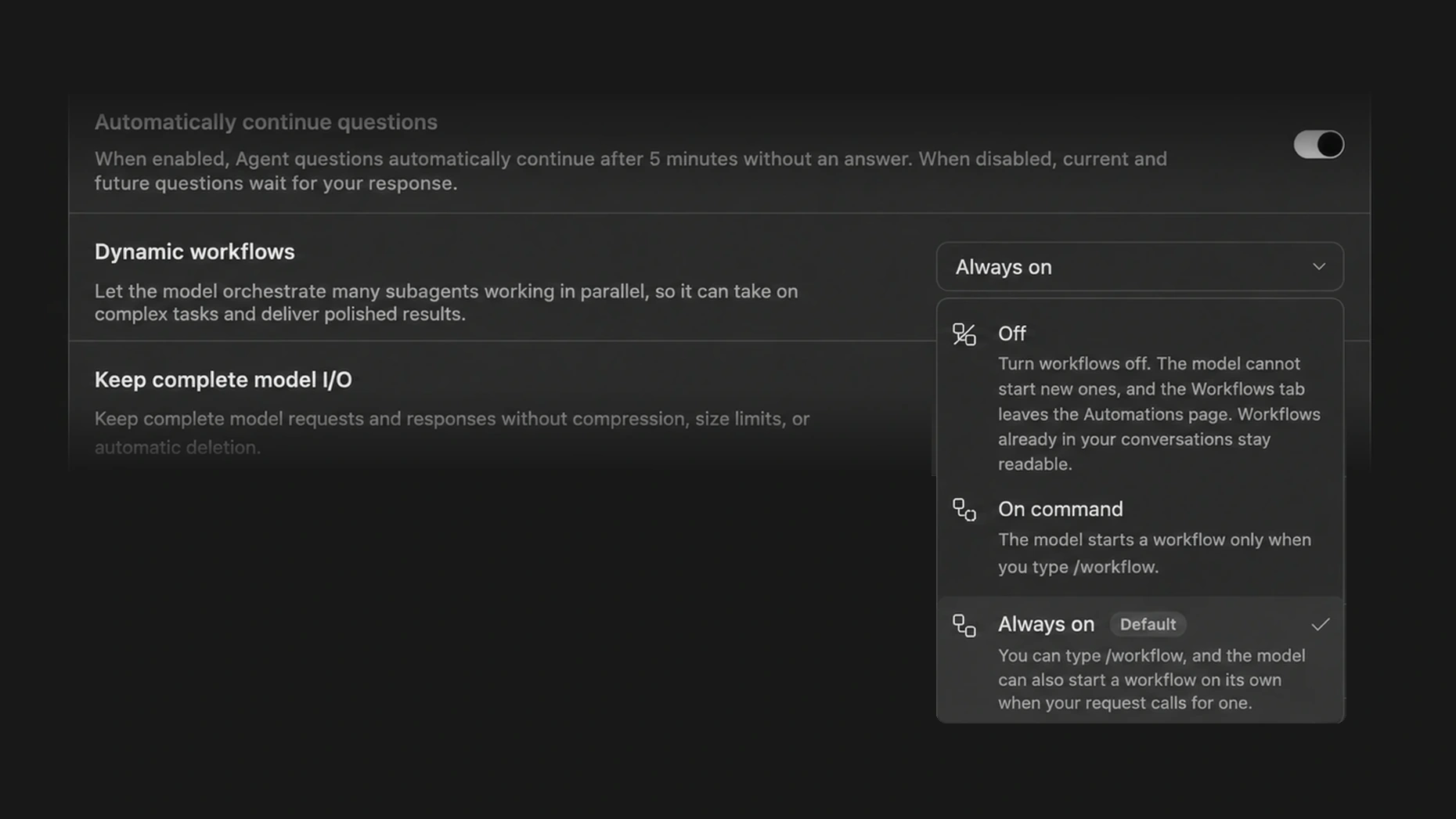
Open Settings → Behavior and tools → Dynamic workflows and choose how workflows run:
| Option | Description |
|---|---|
| Off | New workflows cannot be created, and the Workflows tab no longer appears on the Automations page. Workflows already in your conversations stay readable |
| On command | A new workflow runs only when you type the /workflow command |
| Always on | Besides the /workflow command, ZCode Agent can also start a workflow on its own when your request calls for one |
The option marked Default is the default for your account. Changes apply to new or resumed sessions.
Start a Workflow
Type /workflow in the composer, followed by a clear description of the task, for example:
/workflow Do an in-depth study of how solid-state batteries are being commercialized worldwide: the main technical routes, the leading companies and their mass-production timelines, and costs and bottlenecks. Finally, generate an HTML research report under reports/ in a McKinsey style with high information density.
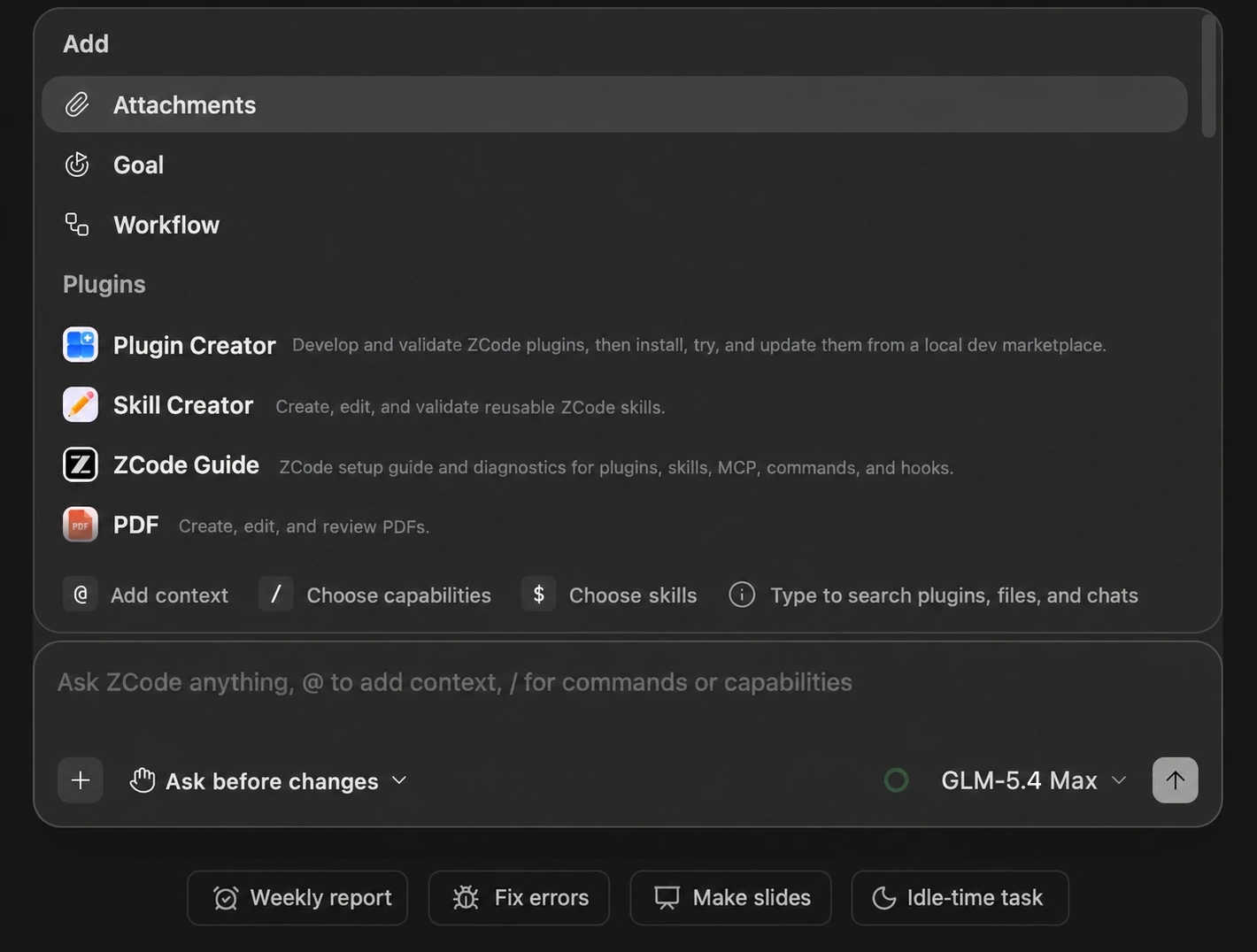
You can also click + at the lower left of the composer and choose Workflow to insert the command. With Always on, writing "use a workflow for the following task" in your request also starts one, and ZCode Agent may start one on its own when it judges the task a good fit.
The more specific the request, the better the orchestration. You can state these directly in the request:
- Max concurrency: for example, "set this workflow's max concurrency to 8". The default is chosen automatically between 4 and 16 based on your CPU core count.
- Subagent model: for example, "use GLM-5.3-Flash for the workflow's subagents". The main conversation's model plans while the Flash model executes, balancing quality and cost.
Confirm the Run
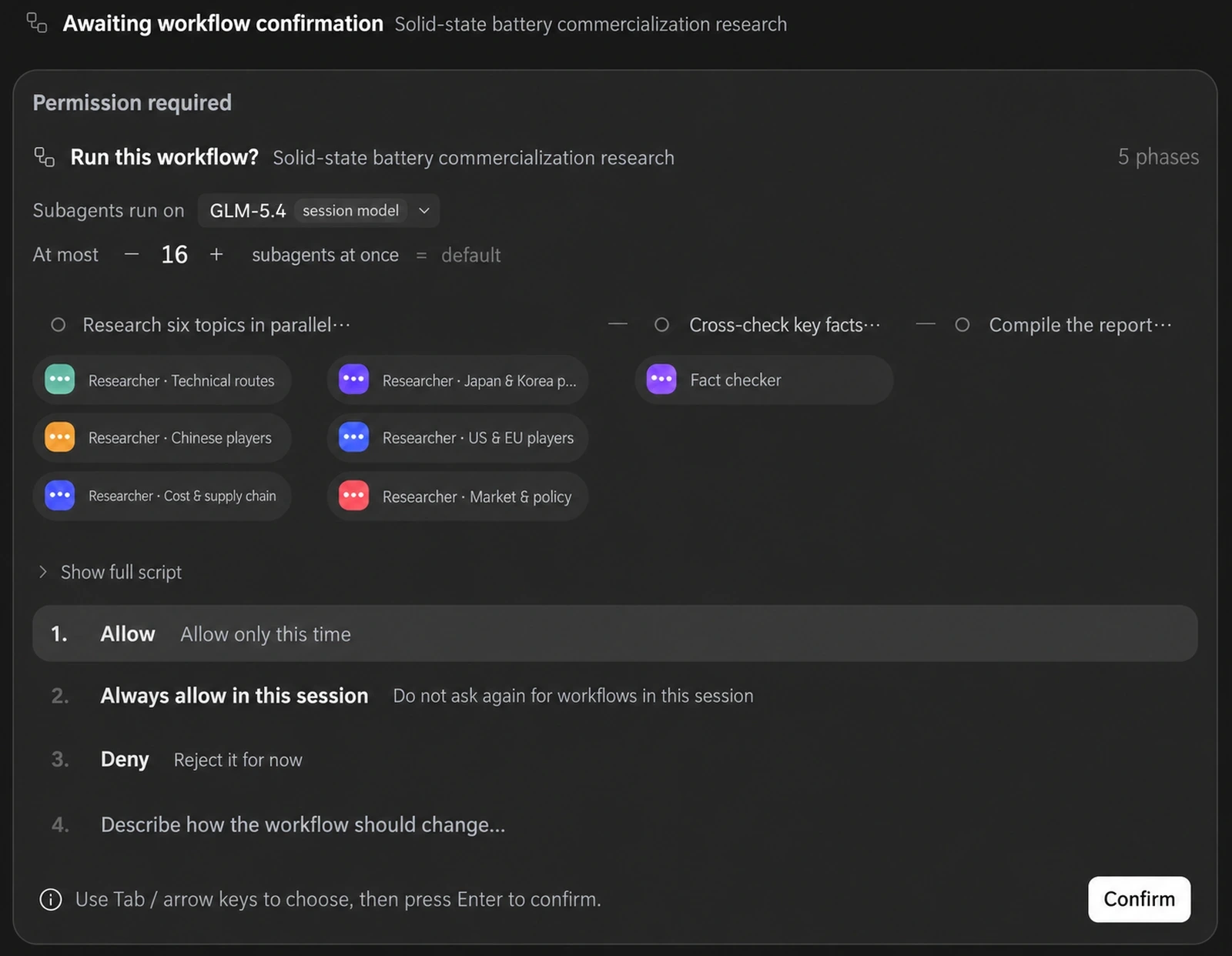
Once ZCode Agent has written the orchestration script, a workflow confirmation card appears in the conversation. It shows the workflow name, its phases, the subagent roles in each phase, the subagent model, and the max concurrency. Expand Show full script to read the script. You can choose:
- Allow: run it this time only.
- Always allow in this session: don't ask again for workflows in this session.
- Deny: don't run it.
- Describe how the workflow should change: write your feedback, and ZCode Agent adjusts the workflow and asks you to confirm again.
You can also change the subagent model and max concurrency before confirming.
Monitor Progress
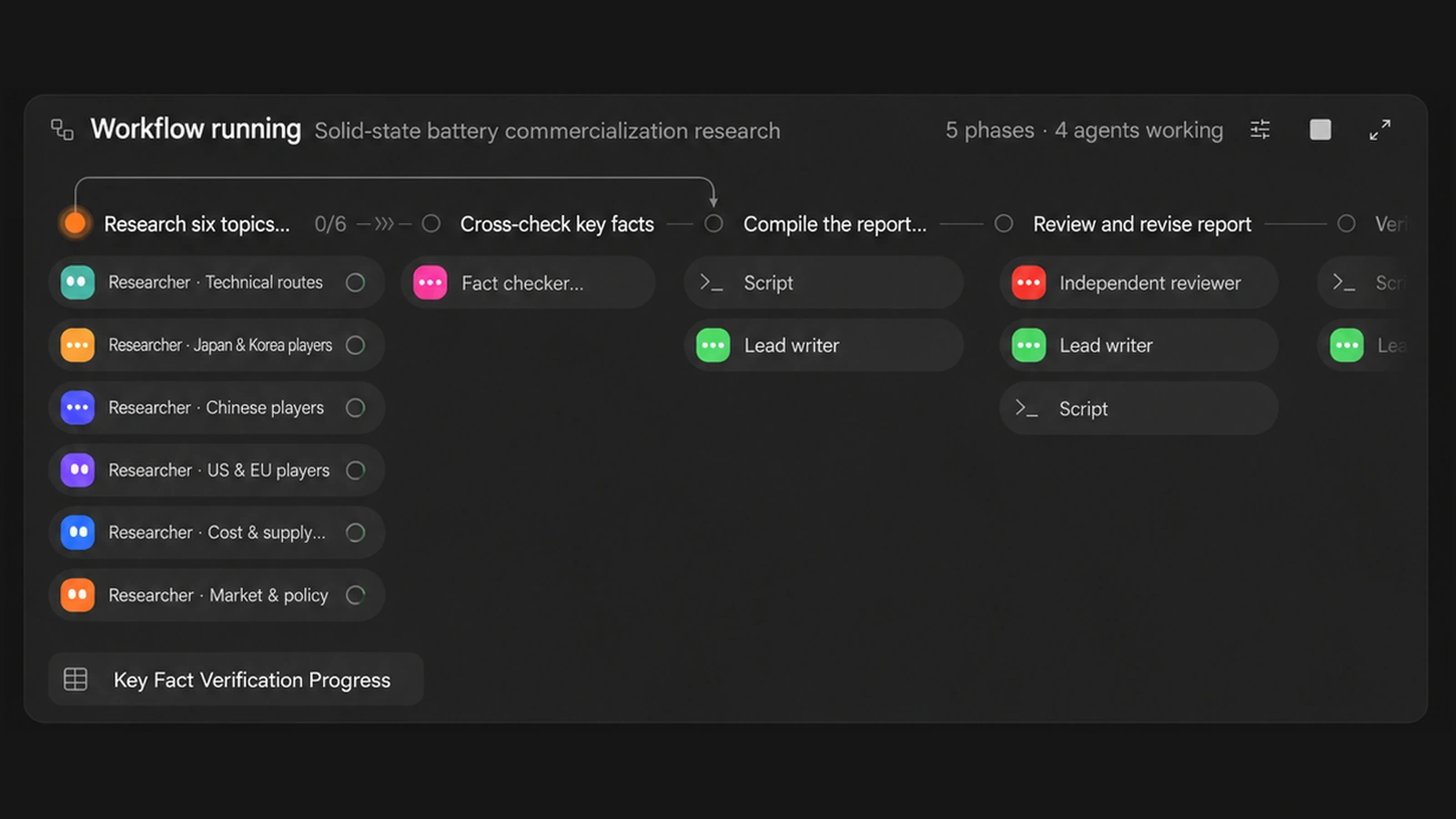
While a workflow runs, a timeline card appears in the conversation (see the figure at the top of this page). Each phase is a stop on the timeline, and each subagent is a chip showing pending / running / done / failed; click a chip to open that subagent's transcript. The icons at the card's upper right are Configure workflow, Stop run, and Open run details. Run details opens a side panel with each phase and each subagent's task progress, steps, and token usage.
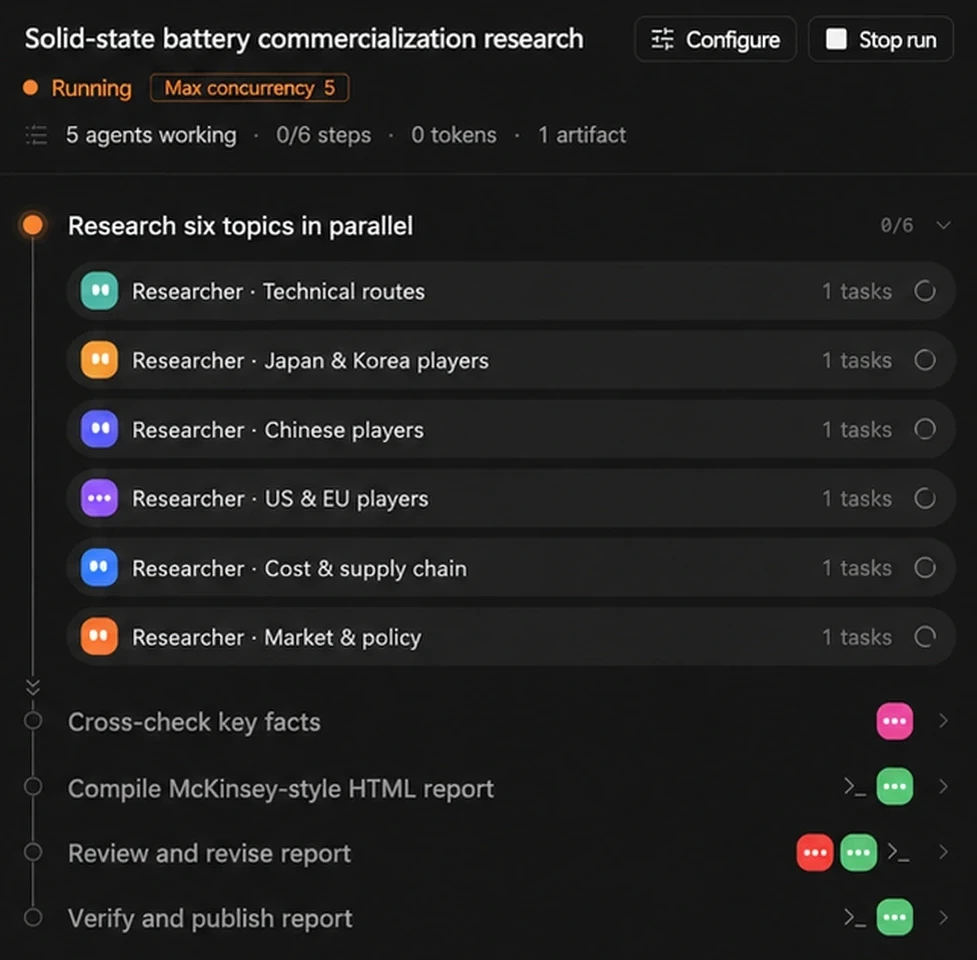
While it runs, you can:
- Stop run: you can Resume run at any time afterward, and completed steps are kept.
- Configure: change the subagent model or max concurrency. Changing only the concurrency applies to the current run immediately; changing the model stops the current run and restarts it with the new settings, keeping completed steps.
In the session list, a session running a workflow shows its current progress underneath, so you can follow several tasks at once.
Results and Saving
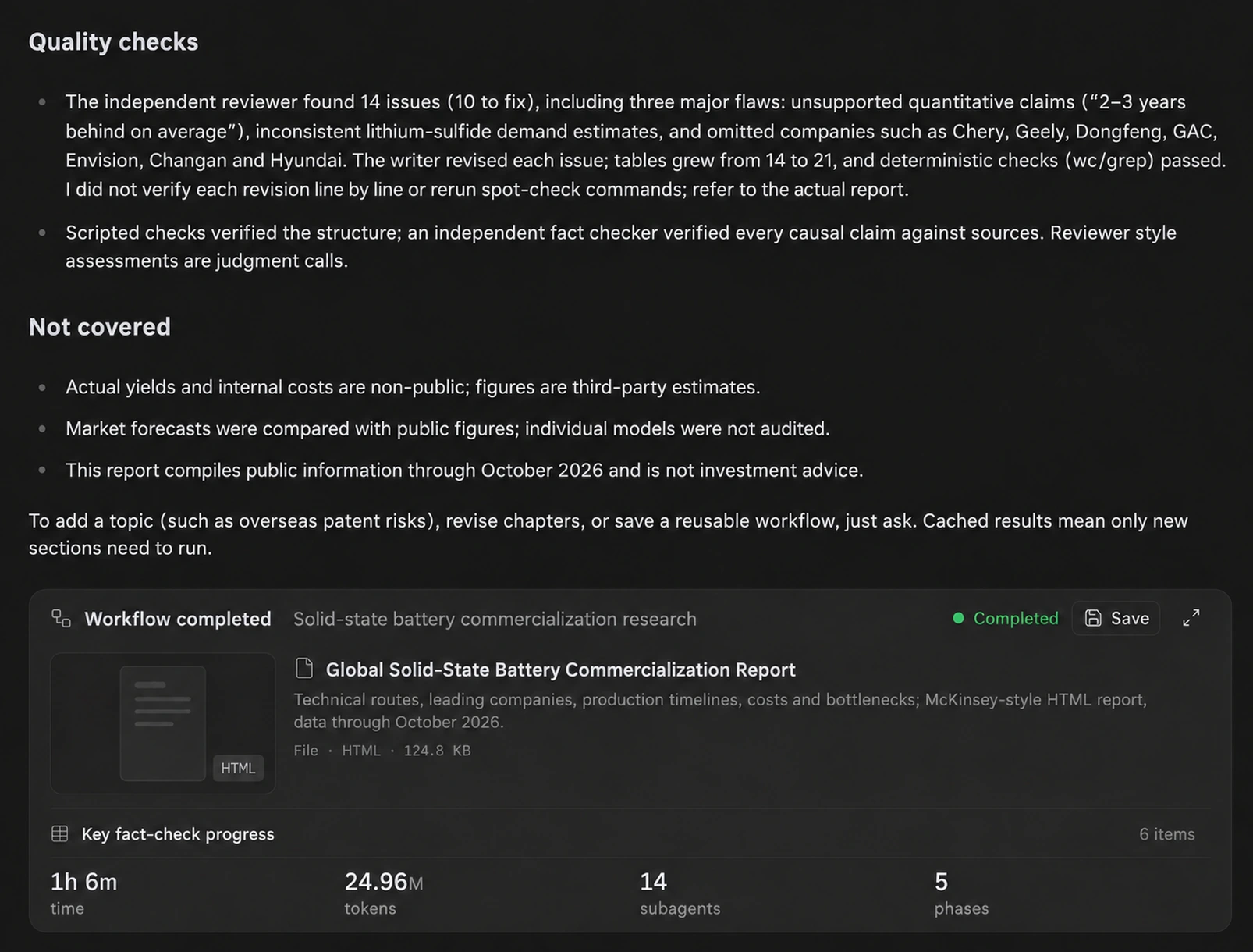
When the workflow finishes, ZCode Agent summarizes the results in the main conversation. The completion card shows the elapsed time, tokens, number of subagents, and number of phases. Reports, tables, and other artifacts the workflow publishes appear as cards you can click to open.
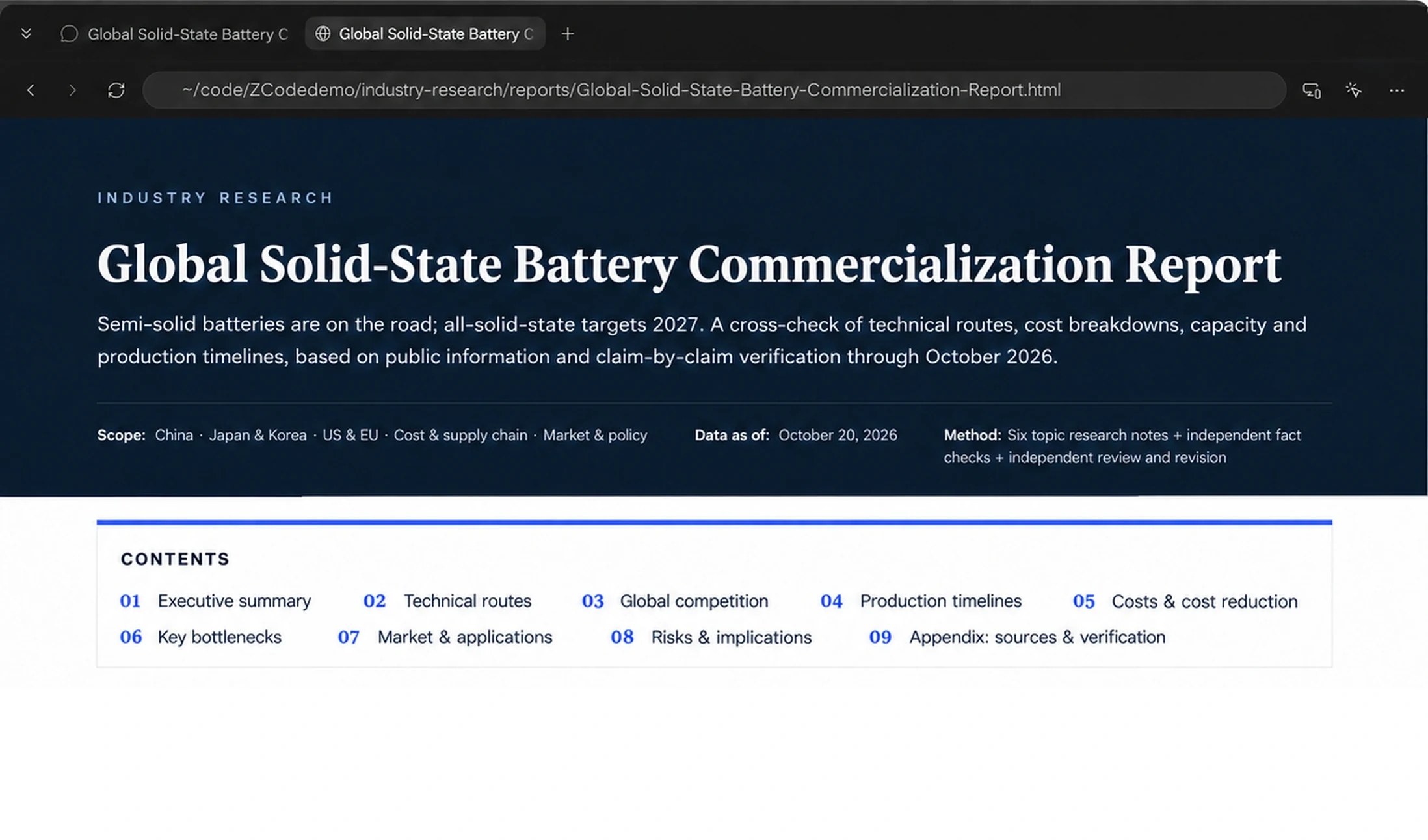
Open the report on the card to preview it in ZCode; the file is also saved in the project directory:
If you'll use this process again, click Save on the completion card:
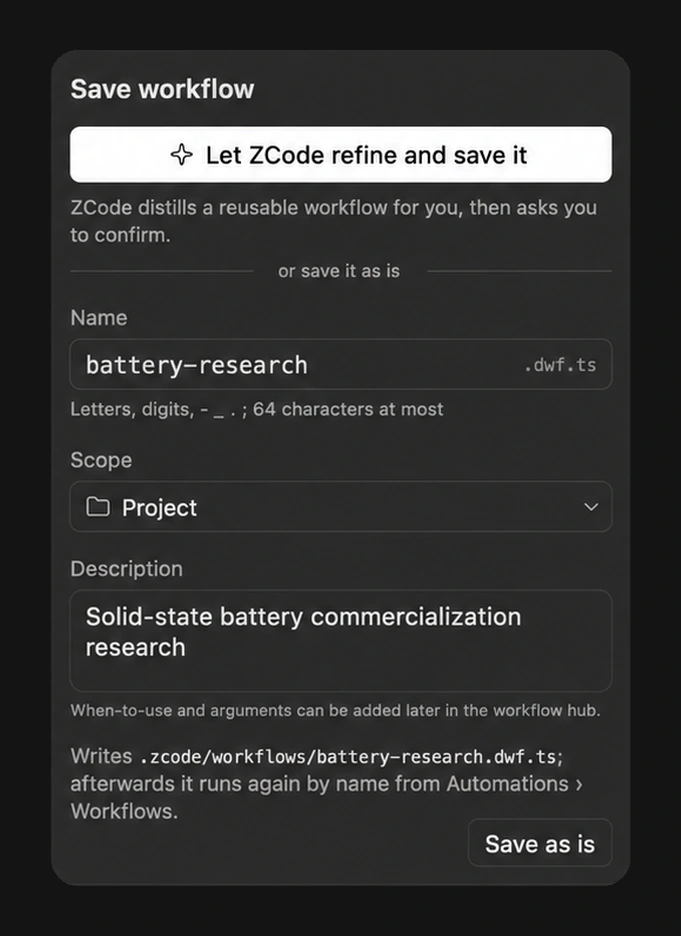
- Let ZCode refine and save it: ZCode Agent distills the run into a reusable workflow that takes arguments, then asks you to confirm.
- or save it as is: enter a name (letters, digits,
-,_,., up to 64 characters), choose a scope (Project or Global) and a description, then click Save as is.
Manage Saved Workflows
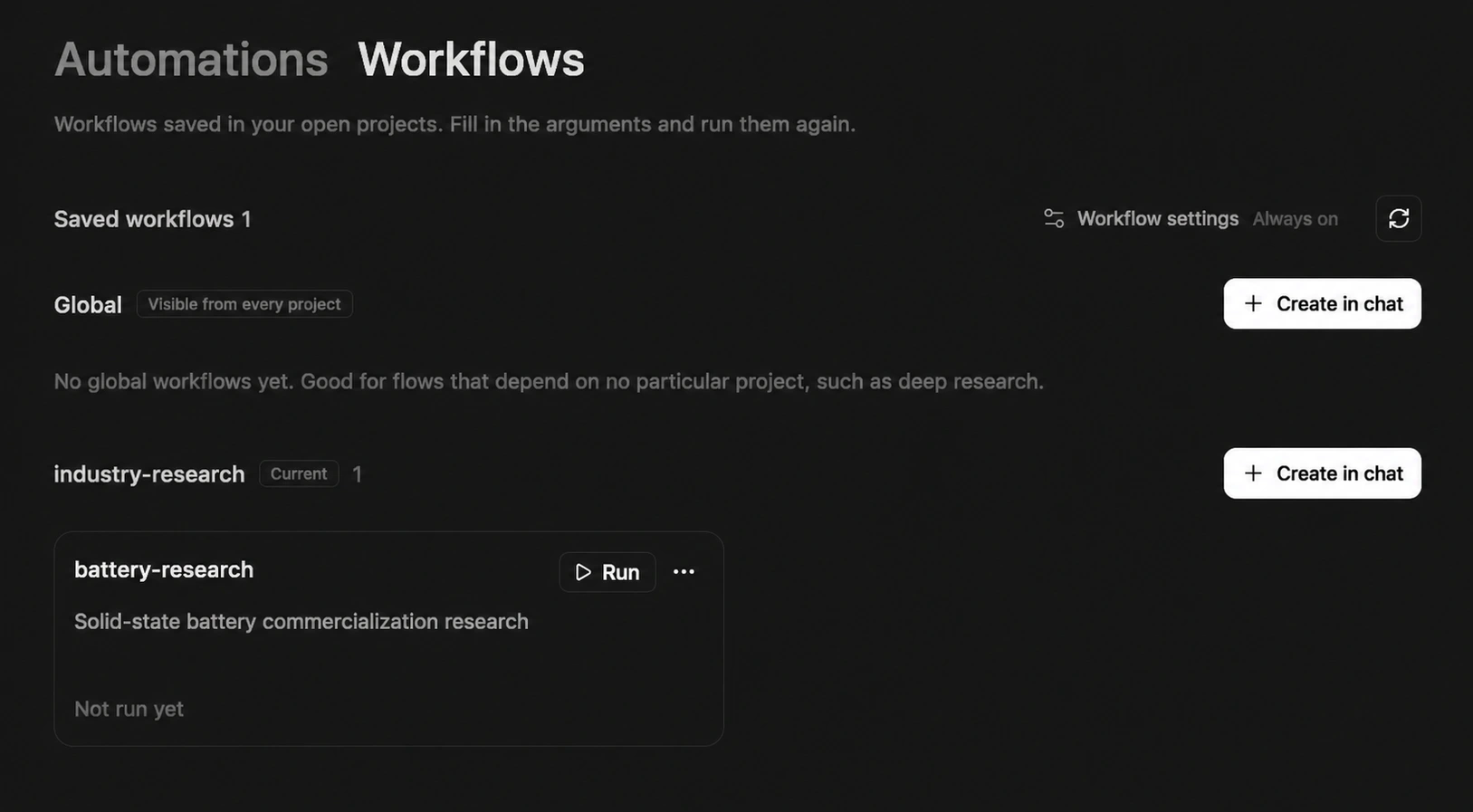
Saved workflows appear under Automations → Workflows, grouped into Global and each project. Click Run on a card, fill in the arguments, and run it again; the … menu offers View details, Revise in chat, Copy path, Promote to global or Move to project…, and Delete workflow (existing run records are kept). Create in chat starts a new workflow from a conversation, and Workflow settings jumps to the setting above. Workflows are saved as .dwf.ts files:
| Scope | Location |
|---|---|
| Project | <project directory>/.zcode/workflows/ |
| Global | ~/.zcode/workflows/ |
When a project workflow and a global workflow share a name, the project version is used.
Notes
- Every subagent in a workflow calls the model independently, so token usage grows with the number of subagents and the size of the task. For large jobs, consider a more economical model such as Flash for subagents.
- Workflow subagents cannot start new workflows, and workflows don't run in Idle-time Tasks.
- If the model returns a quota, authentication, or similar error, the workflow stops and is marked as a model-side error; transient network issues are retried automatically.