Bot Channel
Bot Channel connects external chat tools to ZCode. After setup, you can open the current workspace from WeChat or Feishu, check task progress, and keep sending instructions to ZCode Agent.
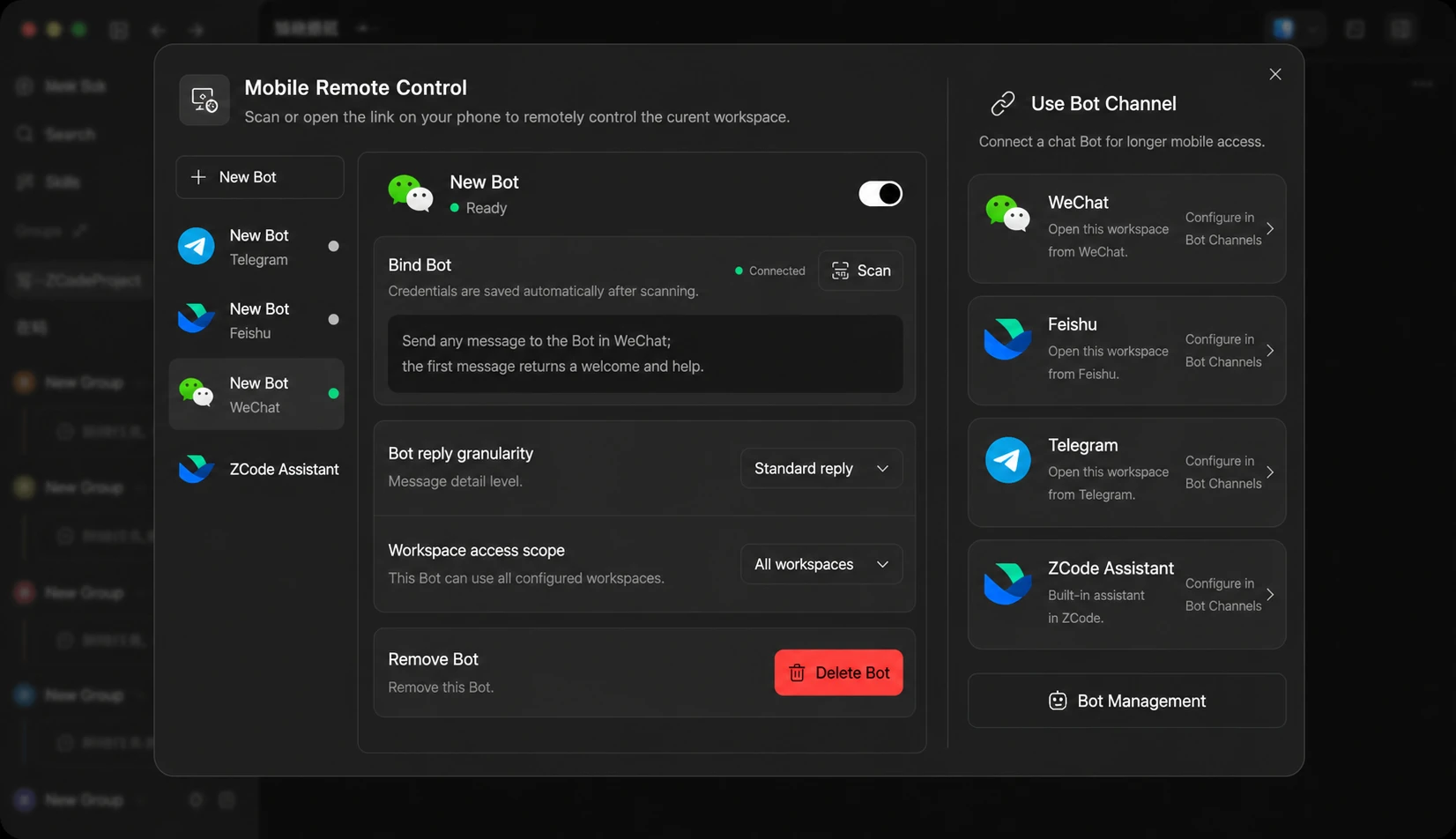
Create A Bot Channel
Open the Mobile Remote Control dialog; the Bot Channel entry is on its right side. Click the chat tool you want to connect to start setup, or open Manage bots at the bottom to see existing bots.
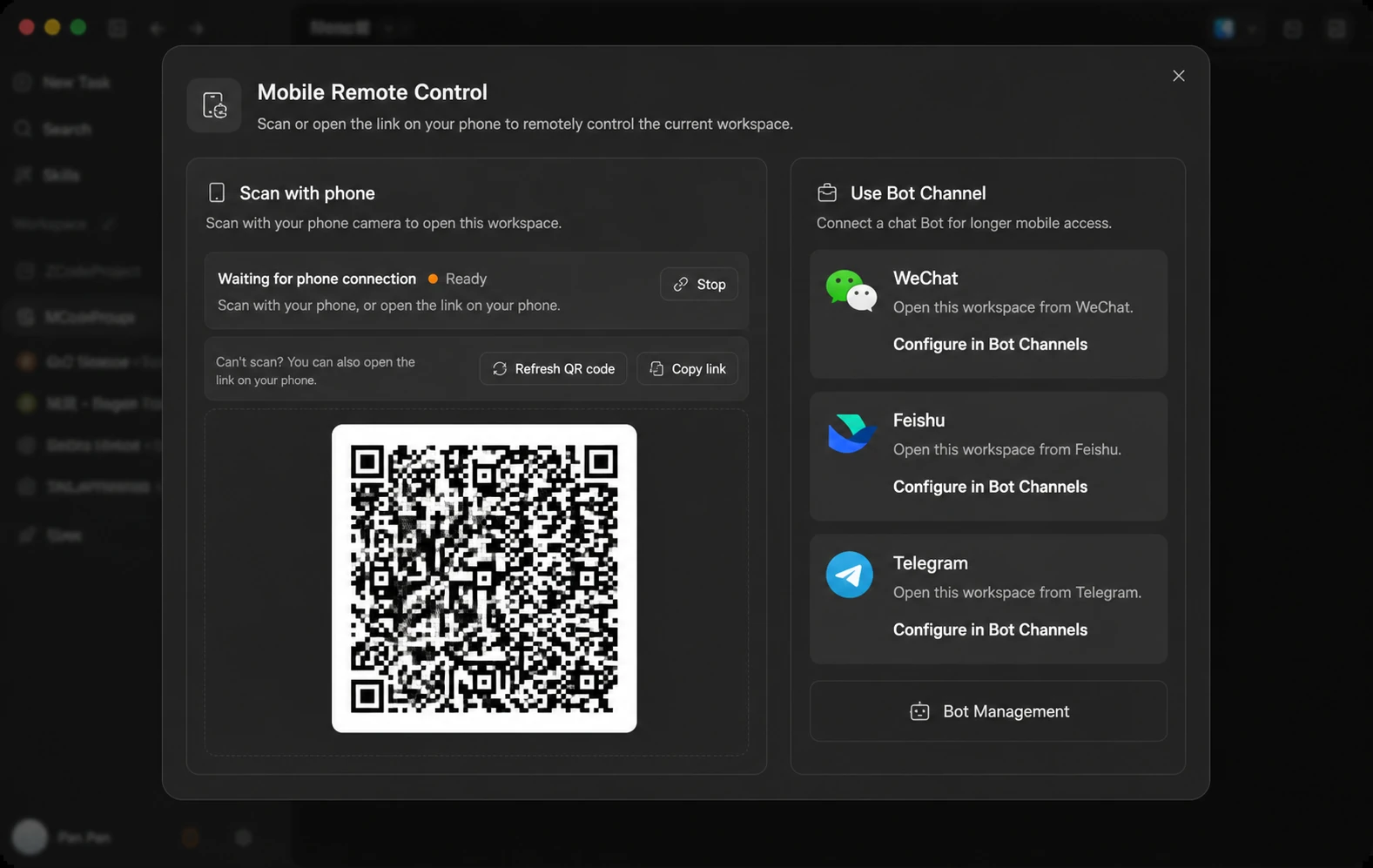
Available channels include:
- WeChat: scan to sign in and bind automatically.
- Feishu: scan to create an app, then bind through messages.
DingTalk, Discord, and WeCom support will be completed in later versions.
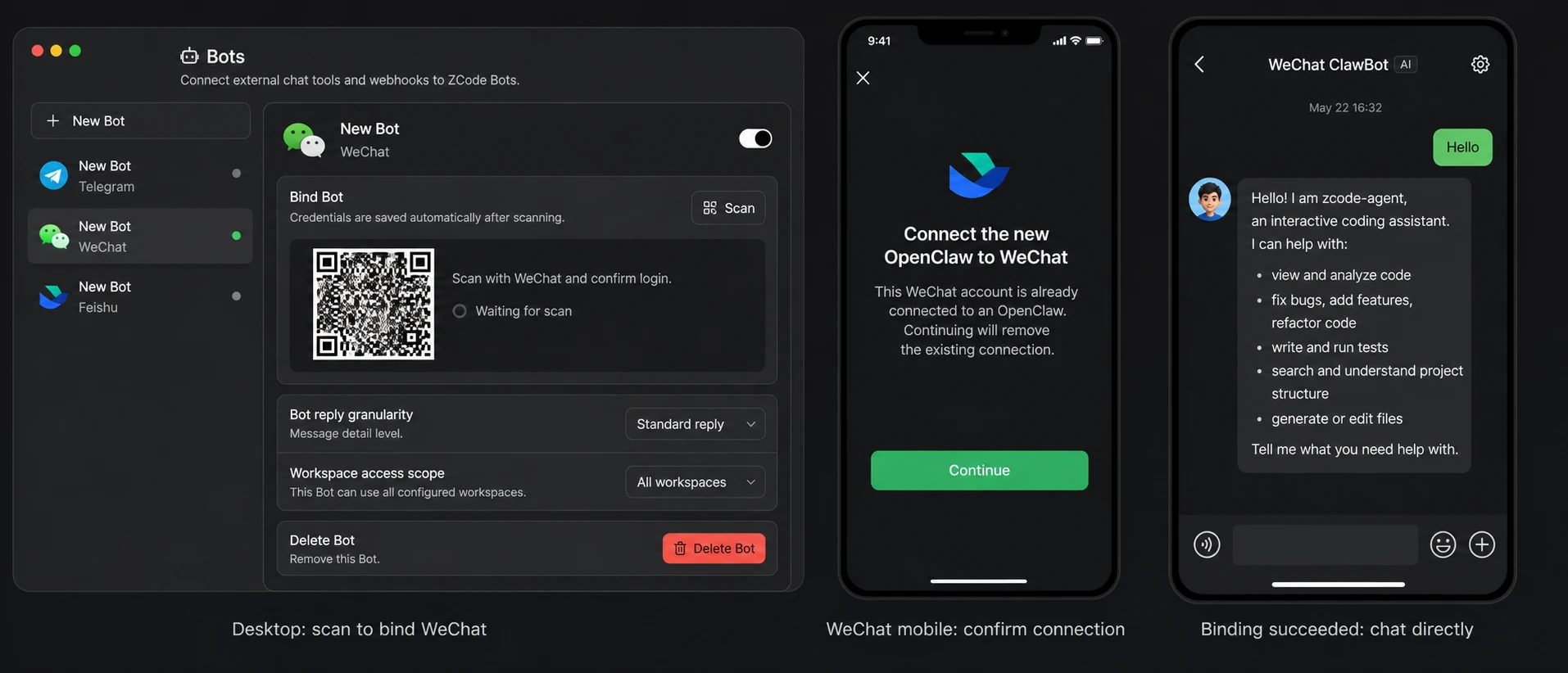
WeChat Pairing
WeChat is the simplest to connect: choose WeChat on the bots page, scan the QR code with WeChat on your phone and confirm the connection, and the credentials are saved automatically. Once bound, just chat with the Bot inside WeChat.
Feishu Pairing
Feishu takes two steps. First, create the app: choose Feishu in ZCode and scan the QR code. Feishu Open Platform opens on your phone; confirm the agent app's name and avatar, tap Create now, and wait for setup to finish.
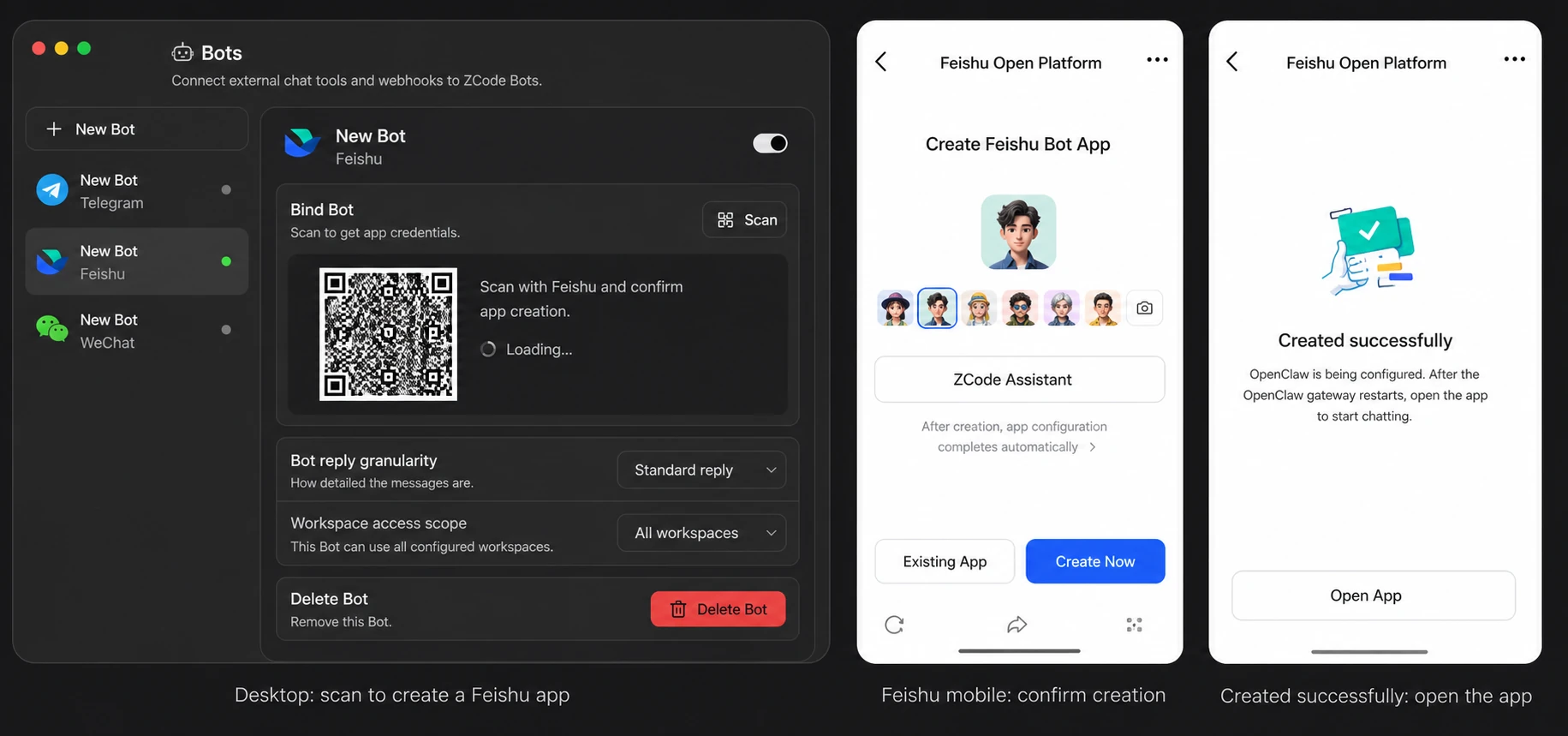
Second, bind the conversation: ZCode generates a time-limited bind command (such as /bind C67356). Send that command to the agent in Feishu; the bot replies that binding succeeded and lists all available commands.
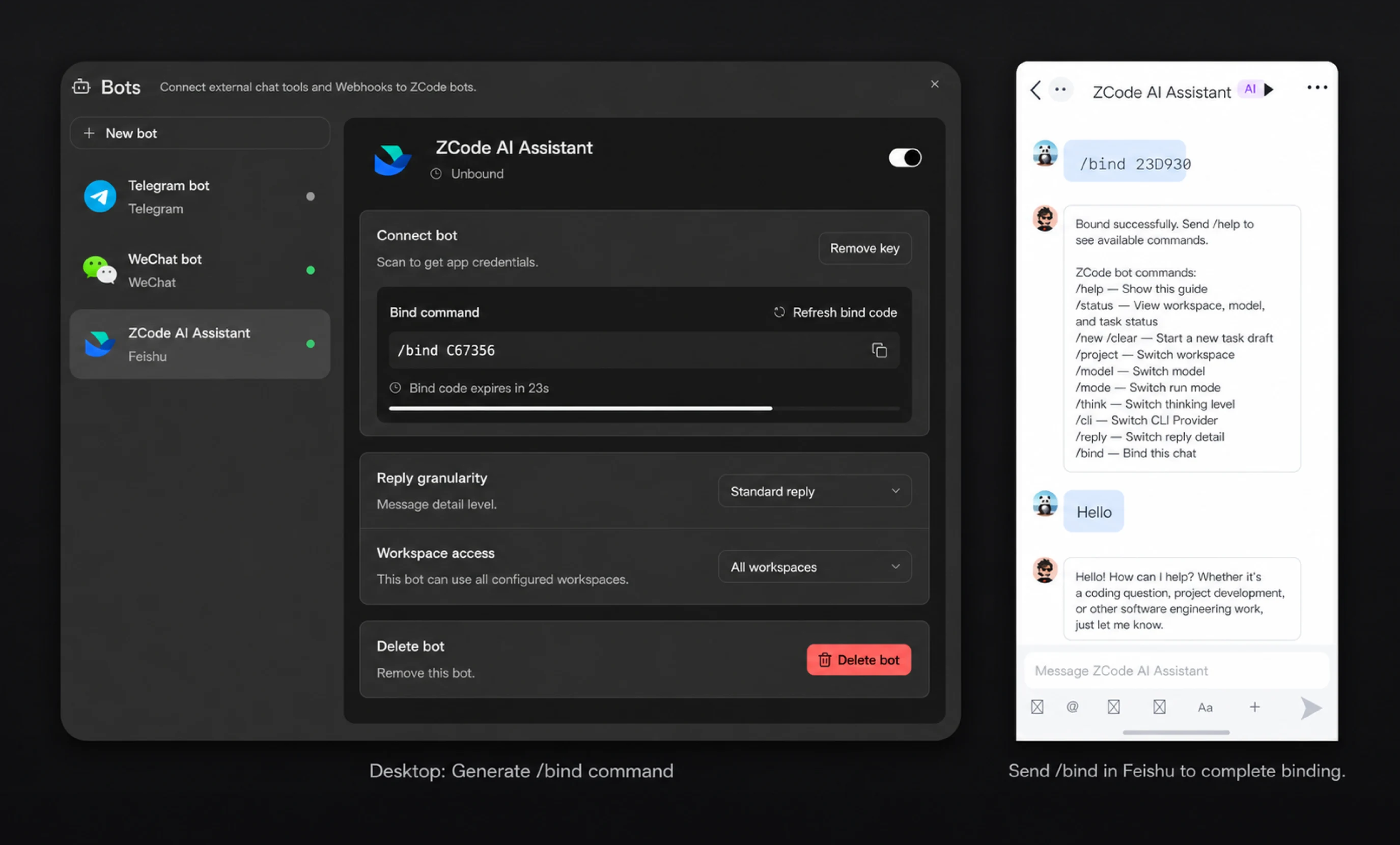
After binding succeeds, the Feishu Bot returns the available commands. Common ones let you check status, create tasks, switch projects, switch models, change run mode, and adjust reply detail. From then on you can message ZCode Agent directly from Feishu, which is handy for following long-running tasks on your phone.
Manage Bots
After creation, bots appear in the left list. Here you can enable or disable a bot, check its connection status, set reply granularity, and limit which workspaces it can access.
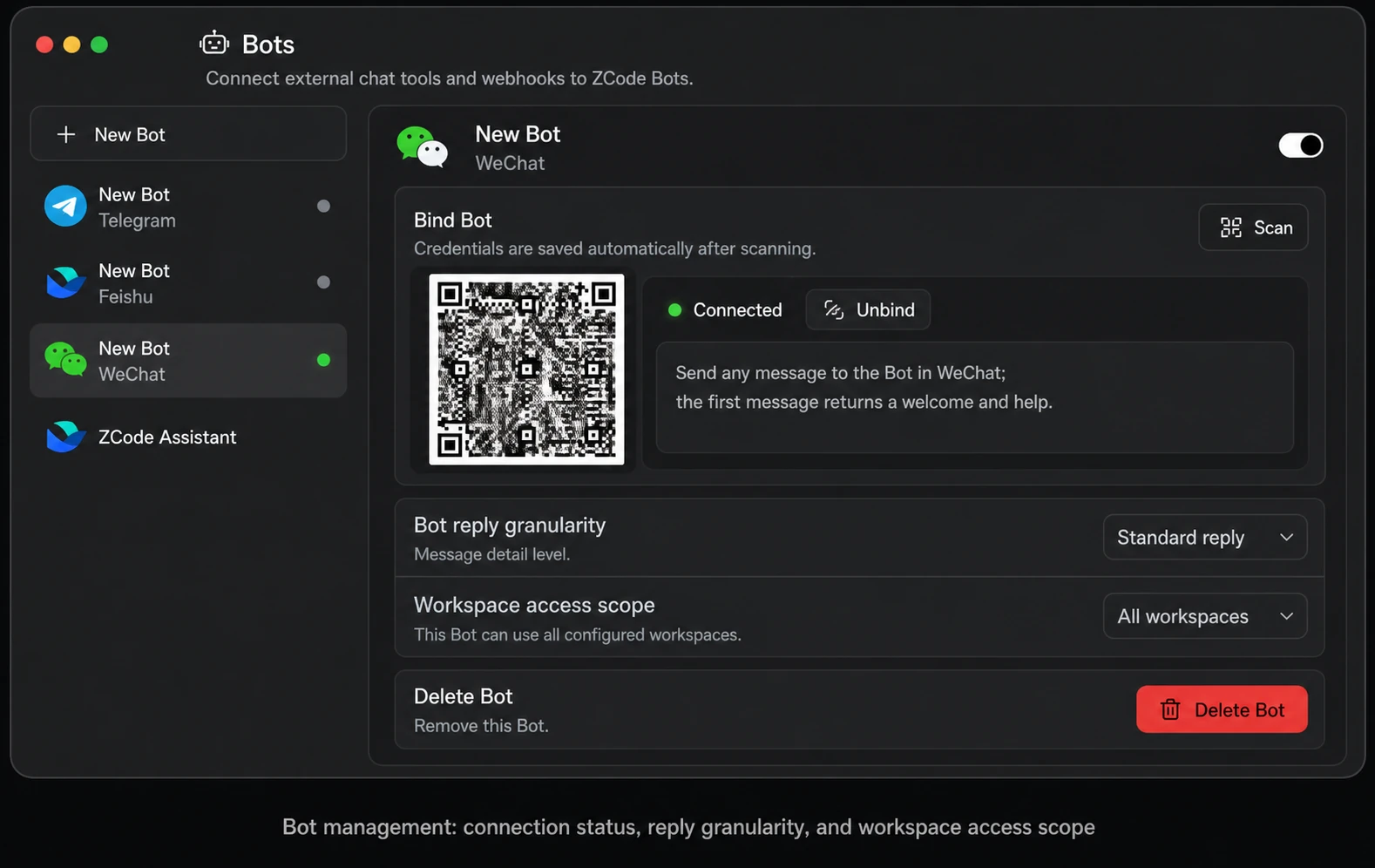
Common settings include:
- Link bot: scan or follow the UI prompts to bind credentials; a connected bot can be unbound at any time.
- Reply granularity: control how much detail the Bot sends back.
- Workspace access scope: limit which workspaces the Bot can open.
- Delete bot: remove a channel you no longer use.
Streaming Cards on Feishu
Feishu and Lark always reply with a streaming card, so there is no granularity option there — the Standard, Full, and Summary levels apply only to the other channels.
In practice this means replies no longer arrive as a stream of separate messages. Everything updates in place inside one card, so you watch the answer take shape. The card interleaves prose and tool activity in order, with tool calls shown as collapsed summaries you can expand — raw output never floods the chat.
When the Agent needs a decision from you — choosing an approach, approving an operation, confirming a plan — the current card is frozen as-is and the question arrives on its own separate card. After you answer, a fresh card carries the rest of the reply.
Enter From Chat Tools
After Bot Channel is configured, send a message to the Bot in the chat tool. The Bot forwards the request to ZCode Agent and returns task progress or a workspace entry.
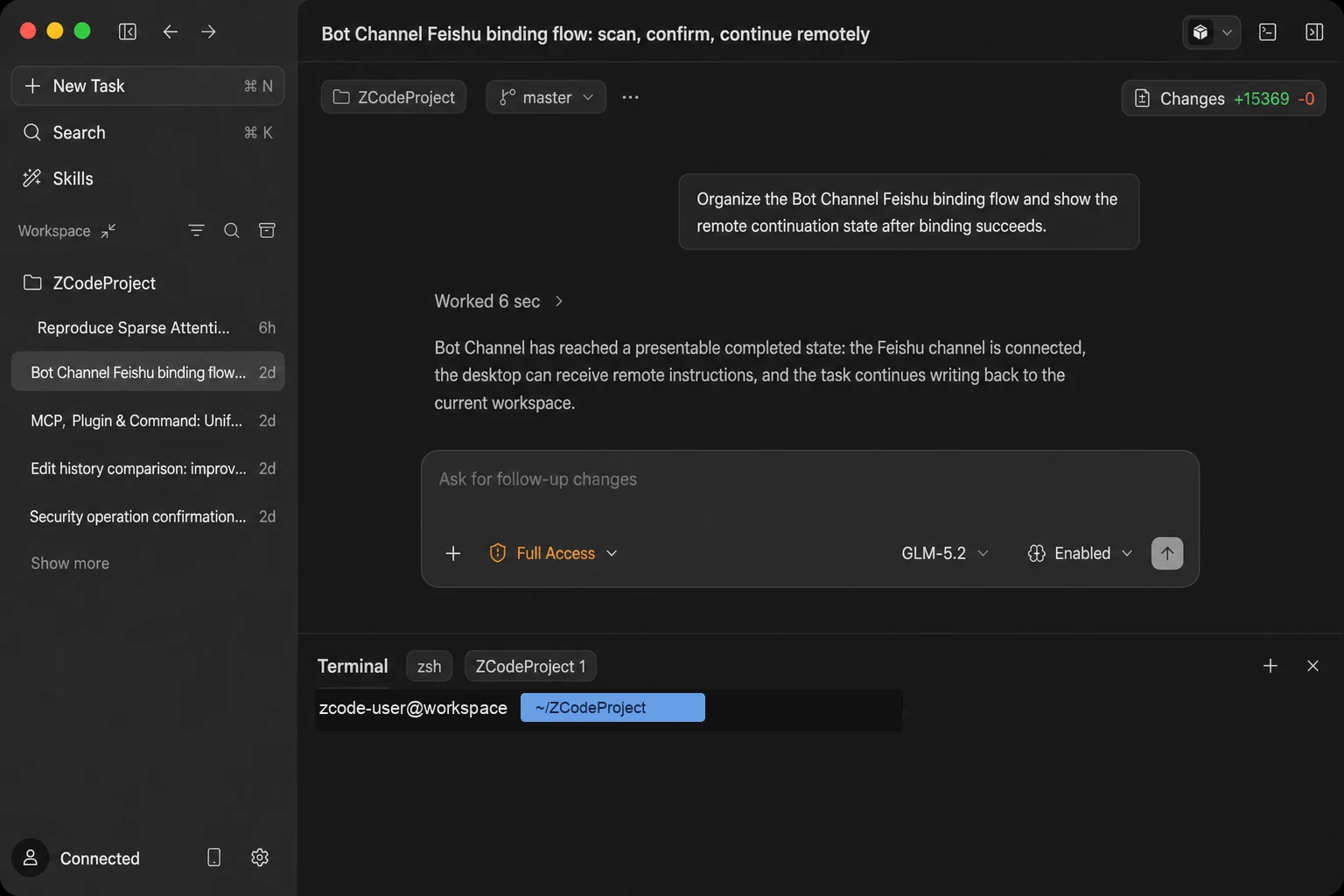
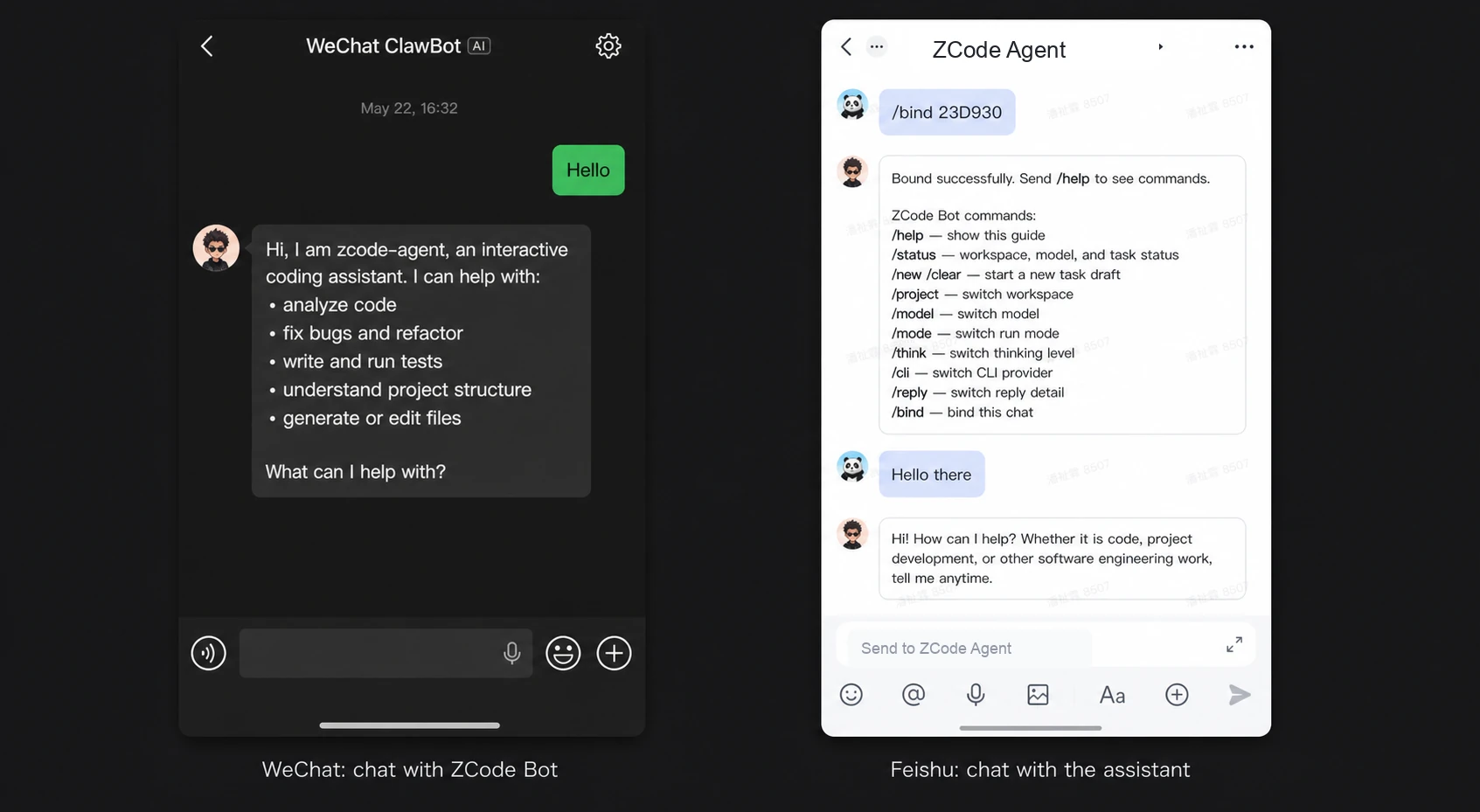
This is useful for long-running mobile follow-up: you can keep messaging the Bot from WeChat or Feishu, then open the workspace whenever you need the full session.
Scanning A Code Or Using A Bot
There are two ways to keep a task moving once you've left the computer, and they differ in the entry point:
- Bot Channel: the entry point lives in a WeChat or Feishu conversation, which suits revisiting the same workspace over a longer period.
- Remote Control: scan from your phone — quick to open, quick to drop.
Both drive a session that already exists on the desktop, and the code still runs wherever that workspace was connected. If what you want to change is where the code runs, that's remote development.