Edit History
Edit History lets you revise messages that have already been sent to ZCode Agent. When an instruction is unclear, missing a file path, missing a constraint, or needs a different direction, you can edit the original message and let the Agent understand the task from the updated context instead of starting over.
This is especially useful for long-running tasks. You can keep the same model, workspace, branch, and task context, then adjust only the key instruction so the following work continues from the corrected goal.
Find The Edit Entry
In the conversation history, hover over a message you sent. A quick action area appears on the right side of the message. The pencil icon is the Edit entry, alongside other common actions such as copy.
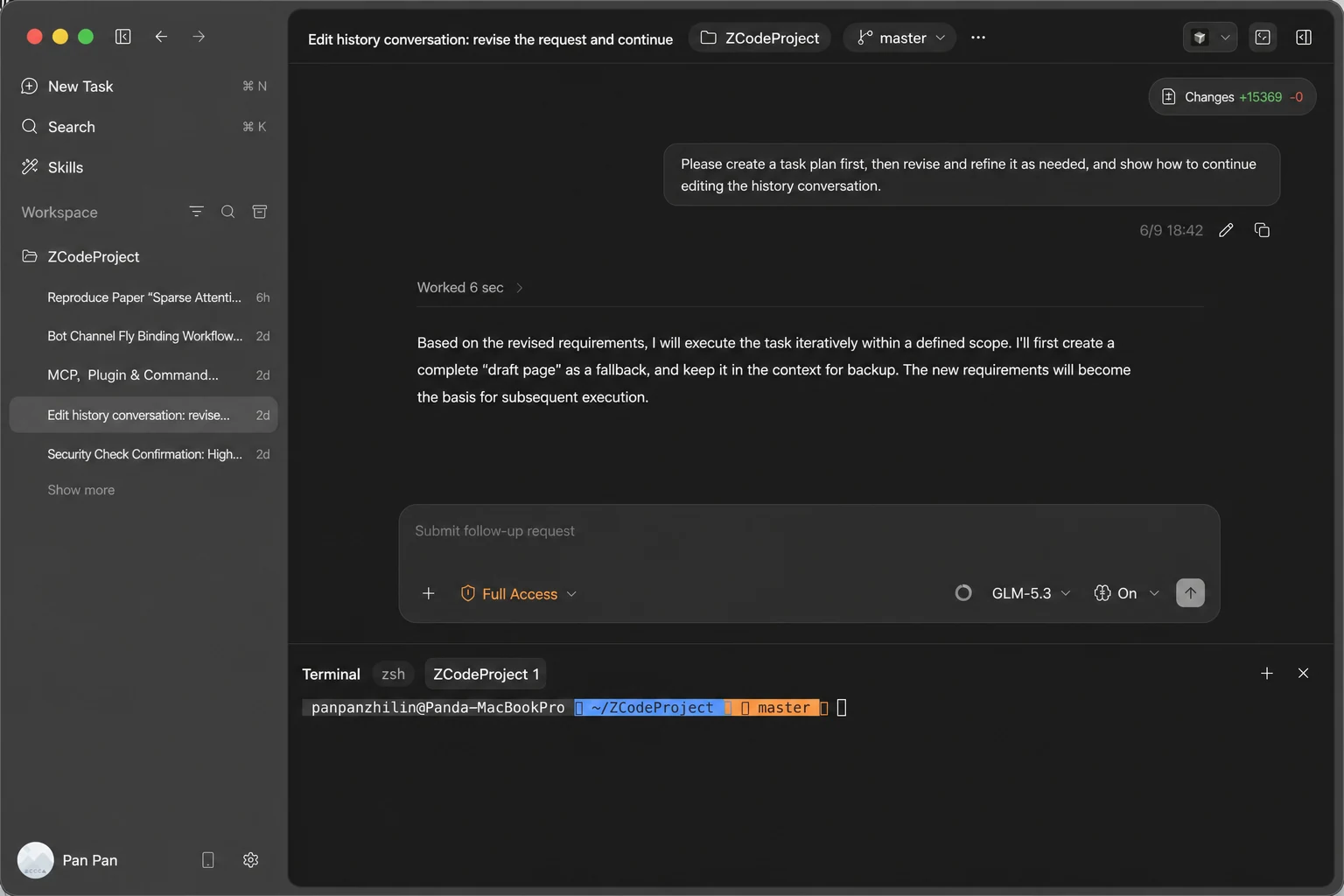
Entry Behavior
- Only for user messages: the edit entry changes your submitted instruction, not the Agent response itself.
- Applies to the latest turn: only the user message of the last turn can be edited, and editing is unavailable while the task is running or has queued messages.
- Designed for quick correction: fix a target, path, or constraint without creating a new task.
Edit And Send Again
After clicking Edit, the original message expands into an editable input. You can rewrite the text directly, continue using @ to reference files, or use / to insert commands. Click Send when the revised instruction is ready, and ZCode Agent will continue from the updated message. Click Cancel to leave the original message unchanged.
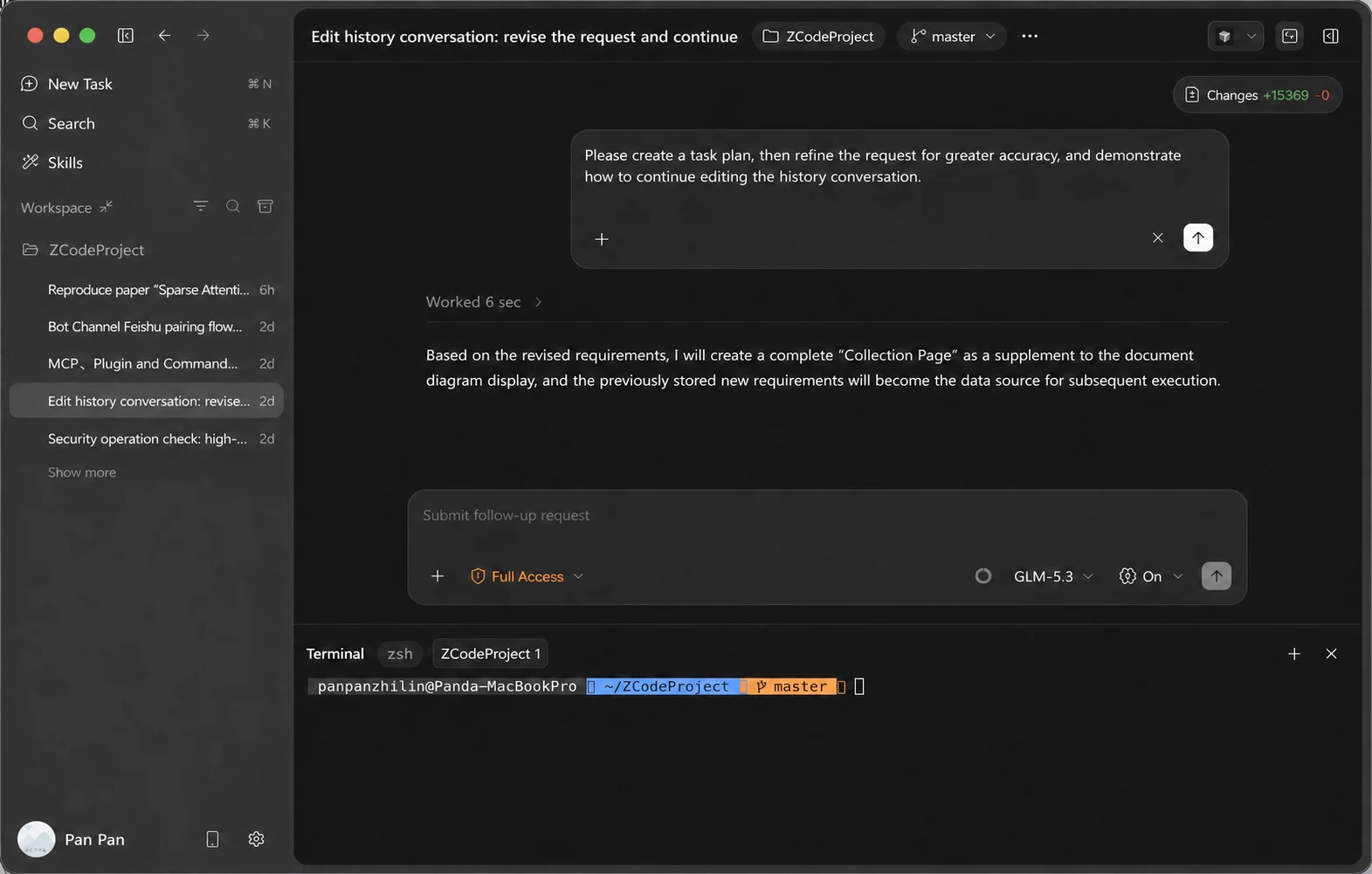
Interaction Flow
- Enter edit mode: click the pencil icon on the right side of your message.
- Revise the instruction: update the original content, add files, paths, goals, or constraints.
- Submit or cancel: click Send to continue with the revised instruction, or Cancel to keep the original message.
Resetting Files Along With the Chat
When the last turn didn't just misspeak but had the Agent edit files based on the wrong understanding, Reset chat + files in the editor does both at once: it restores the files this turn changed, then resends your revised message.
If some file can't be restored safely — say you edited it yourself in the meantime — ZCode shows a "Files can't be reset safely" notice and offers Reset conversation only and send. The button is unavailable while a task is running, while context is being compacted, or when the turn made no restorable file changes.
Editing Queued Messages
Anything you type while the Agent is still replying goes into a queued messages list. Spot a mistake before it's sent? Hover the entry in the queue panel and click Edit.
This behaves differently from editing history: rather than editing in place, it returns the whole message and its attachments to the input box, removing it from the queue so you can revise and send it again.
Two prerequisites: the input box can't already hold a draft or an uploading attachment, otherwise you'll be asked to send or clear it first; and queued /compact commands have no edit option — you can only run or delete them.
Undoing Files the Agent Changed
The file change summary under each reply has an Undo button. It opens a confirmation dialog listing which files in that turn can be safely undone, which can't, and which will be ignored; nothing is written until you confirm. Afterwards the button becomes Reapply so you can put the changes back.
One rule matters here: it's all or nothing. If any file in the set can't be safely restored, ZCode undoes none of them, so you never end up half-reverted.
Some changes can't be undone this way: files with no pre-change snapshot, files you edited by hand in the meantime, and anything changed by a terminal command — those are skipped entirely and are yours to handle with Git.
Common Use Cases
- Correct the requirement: fix an earlier instruction that was wrong, incomplete, or ambiguous.
- Add key context: append a file path, error log, screenshot note, API parameter, or missing constraint.
- Change task direction: move from "analyze this" to "fix this", or from "implement this" to "plan first".
- Avoid repeated setup: keep the existing task context instead of explaining the same background again.