Feedback & Support
To help the technical team diagnose and resolve issues more efficiently, it is recommended to include detailed usage context, the steps you took, and any related error logs when sending feedback. You can reach us through any of the following channels:
- Feedback Email: send details to user_feedback@aminer.cn for a one-shot submission with all the details.
- In-app feedback: use the unified feedback menu in the top-right corner or the Feedback action on an error banner. See In-app Feedback Entrypoints below.
- GitHub Issues: open an issue at zai-org/feedback — best for issues you want to track over time or discuss with the team in public.
- Discord: join the ZCode Discord community for discussion and quick updates.
In-app Feedback Entrypoints
ZCode has a unified feedback system. Whether you want to submit a suggestion or quickly report an error, you can complete the process directly in the app.
Unified Feedback Entry
Open the feedback menu in the top-right corner to access the common feedback and support options:
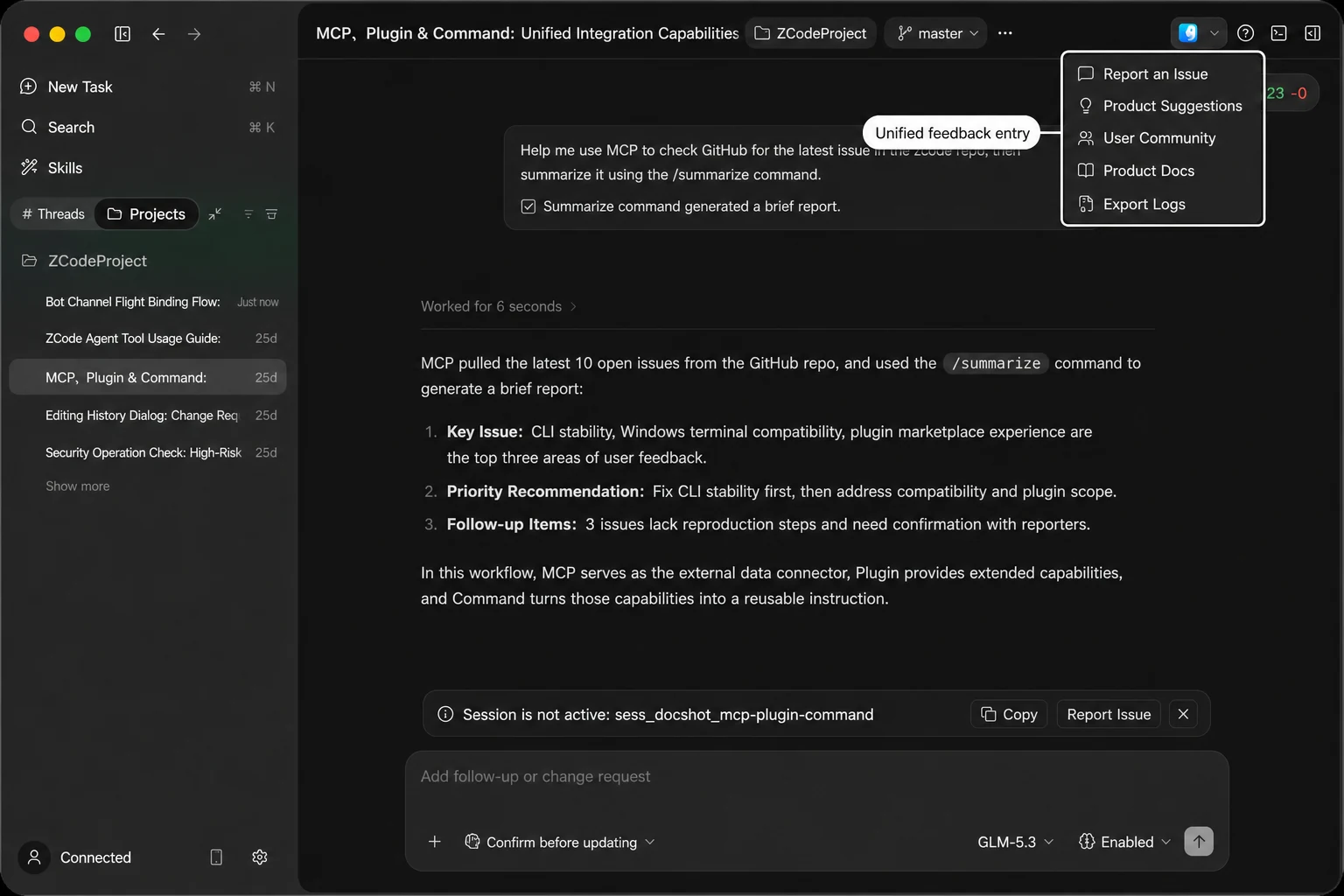
- Report an Issue: open the feedback panel to report bugs or unexpected behavior, with screenshots and logs when needed.
- Product Suggestions: send requests for new capabilities or experience improvements directly to the product team.
- User Community: join a community group to ask questions and share feedback.
- Product Docs: open the documentation to find usage instructions and troubleshooting guidance.
- Export Logs: package local logs for manual submission or further investigation.
Error Banner Entry
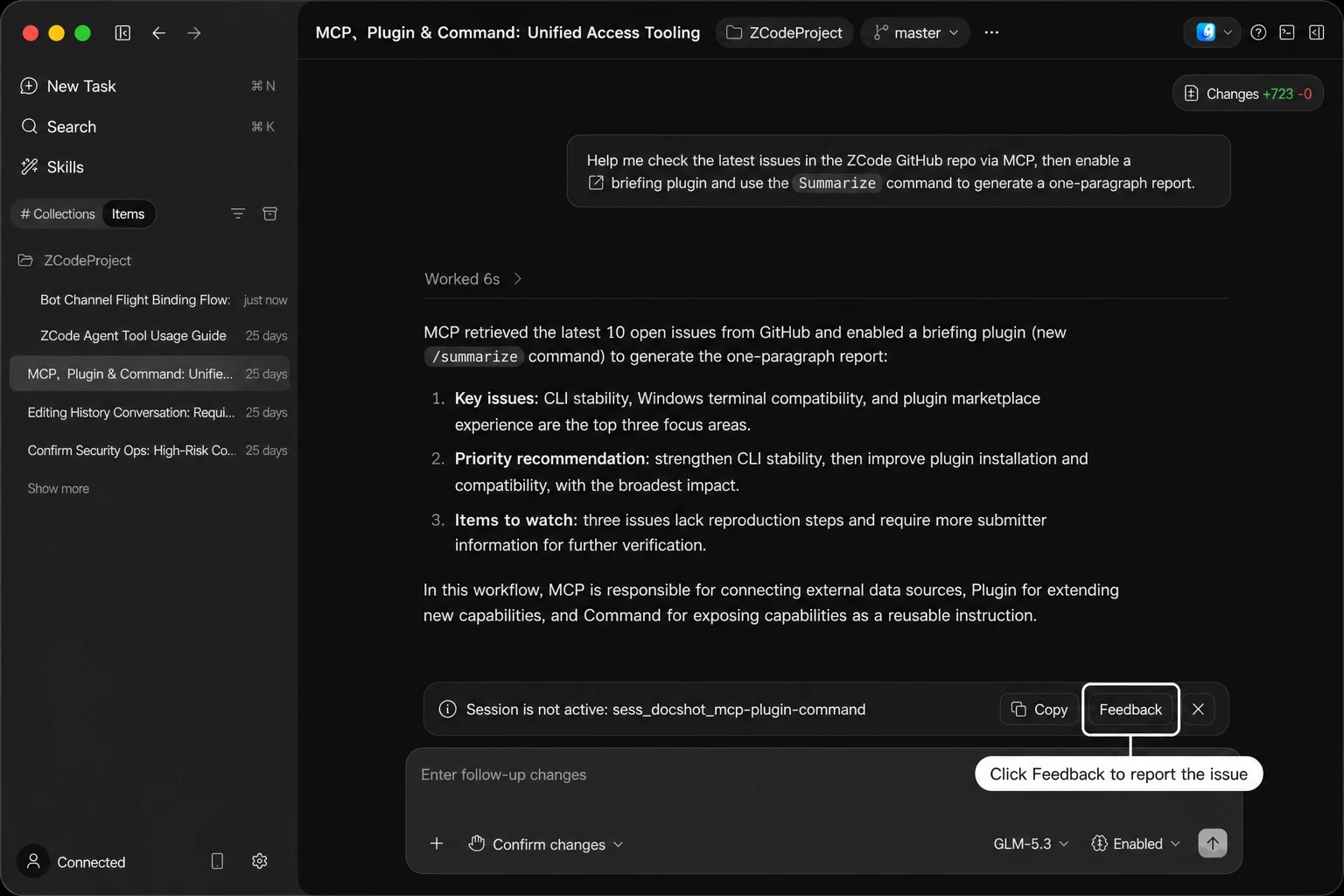
When an error banner appears, click Feedback on the banner. This entry automatically includes the error summary, a screenshot, and the current session context, making it useful for initialization failures and runtime errors.
Fill In and Submit Feedback
After opening the feedback panel, complete the following fields and submit:
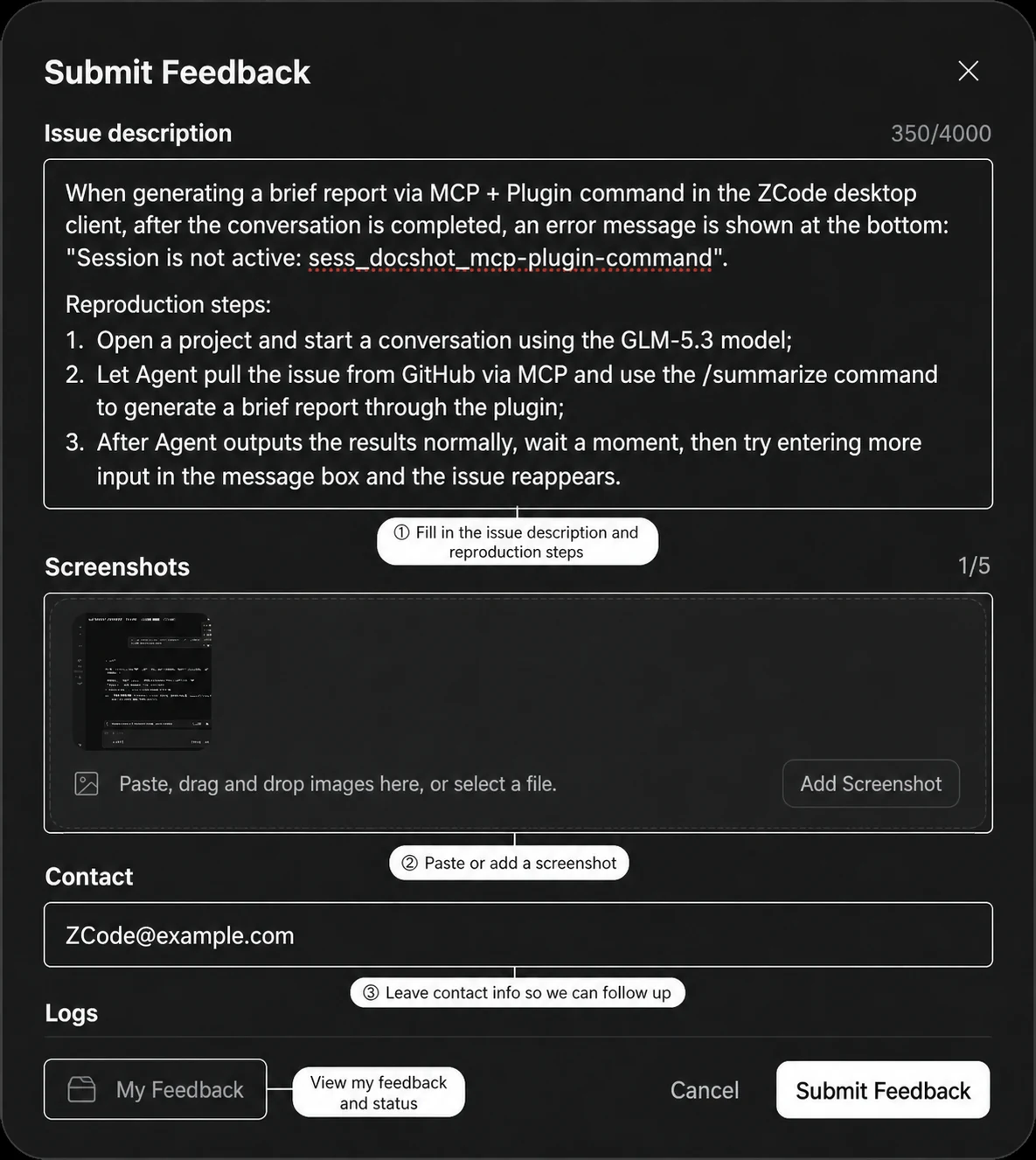
- Issue description: explain what happened and provide reproduction steps. More specific details help us locate the problem faster.
- Screenshots: paste, drag, or select image files. Up to five screenshots can be attached; reports opened from an error banner include the current screenshot automatically.
- Contact: leave an email address or another way to reach you so the team can follow up.
- Logs: click Upload diagnostic logs and the log upload option at the bottom is switched on by default; you can turn it off at any time. Uploaded logs are redacted to protect your privacy as much as possible.
My Feedback: Status and Ticket ID
Click My Feedback in the bottom-left corner of the feedback panel to track each report through Submitted, In development, and Resolved. Every report gets a globally unique ticket ID (such as fb-20260712-9f21); click the icon on the right to copy it.
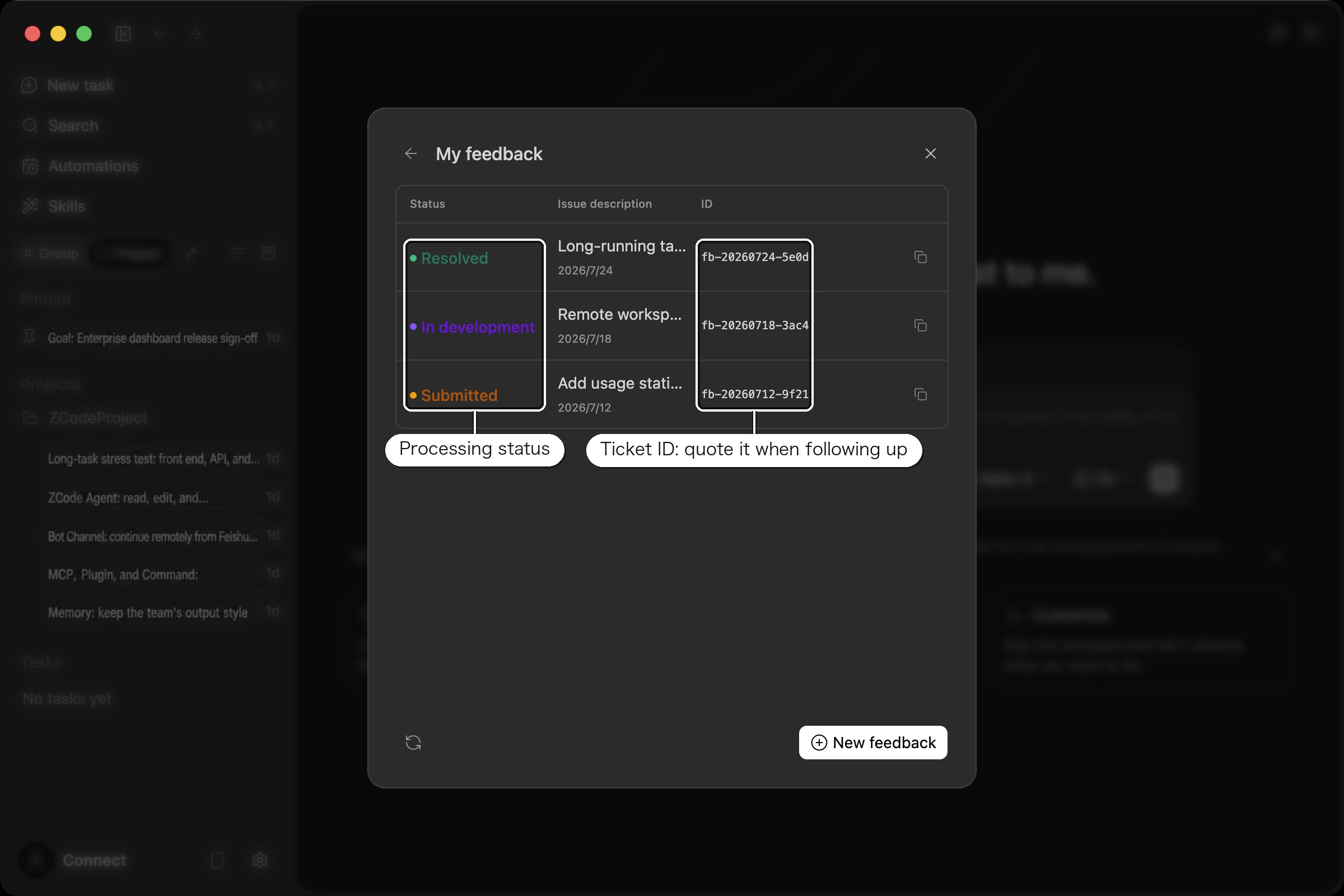
The ticket ID is the unique index of that report on the feedback platform and links your issue description, screenshots, diagnostic logs, and environment details. When you follow up in the community or ask about progress, include the ticket ID: the team can pull up the full context directly, skipping repeated descriptions and information gathering, which noticeably shortens the time to locate, reproduce, and fix the problem.
GitHub Issue Format
To help us reproduce and triage issues quickly, please follow this format when opening an issue at zai-org/feedback:
- Title: a one-sentence summary of the problem, e.g. "Blank screen on macOS launch" or "Bot @ trigger has no response".
- Environment: OS and version, ZCode version, and the model channel you are using, such as Z.ai or an enterprise channel.
- Steps to reproduce: numbered steps the team can follow to hit the problem reliably.
- Expected vs. actual behavior: what you expected to happen versus what actually happened.
- Logs & screenshots: attach a log archive following How Do I Package Logs?, and include screenshots or screen recordings whenever possible.
If you aren't sure whether something is a bug or a usage question, feel free to submit anyway — we will help categorize and follow up.
How Do I Package Logs?
It is recommended to use the built-in Export Logs feature first. If export fails, you can manually locate the logs directory as described below.
macOS
- Click the unified feedback entry in the top-right corner to open the feedback menu.
- Click Export Logs and save the generated compressed archive.
- Attach the archive to your feedback email or in-app feedback report.
- If export fails, open Finder, choose Go -> Go to Folder..., enter
~/.zcode, and manually compress thelogsfolder.
Windows
- Click the unified feedback entry in the top-right corner to open the feedback menu.
- Click Export Logs and save the generated compressed archive.
- Attach the archive to your feedback email or in-app feedback report.
- If export fails, open File Explorer, enter
%USERPROFILE%\\.zcodein the address bar, and press Enter. - Select the
logsfolder, then right-click and choose Send to -> Compressed (zipped) folder.
Join the Community
Join the ZCode Discord community to talk with other users and get help from the team. For product news and updates, follow @zcode_ai on X.
Discord

Scan or click to join the ZCode Discord community
X
Follow @zcode_ai for product news and updates