Remote Development
ZCode remote development lets you run a workspace inside a remote host, a WSL distribution, or a local container. After the connection succeeds, file reads, terminal commands, Git operations, and ZCode Agent execution happen in the target environment; the desktop client still handles your account, model configuration, task entry points, and interface.
This is useful for projects that need a server, an internal machine, a GPU development box, or a containerized environment. You keep the ZCode desktop experience on your machine while the Agent directly accesses the code, dependencies, and command line in the target environment.
When To Use It
- Project code and dependencies only exist on a remote Linux server.
- You need GPU resources, internal services, databases, or a dedicated toolchain on a remote machine.
- You work on Windows but the project needs a Linux environment, and you want it to run directly in WSL.
- You want to isolate dependencies inside a local Docker container instead of changing your host environment.
- Your local machine is not the right place to run the project, but you still want ZCode Agent to develop, debug, and verify it.
Before Connecting
The target needs a POSIX shell. Connecting to a native Windows remote host isn't supported. If you want the Linux environment on your own Windows machine, choose WSL.
Before using SSH, confirm that:
- Your machine can reach the target host through SSH.
- You know the host address, port, and username.
- The target host supports password login, or you have the private key file and optional key passphrase ready.
- If you use
~/.ssh/config, you can runssh <HostAlias>in a terminal first to confirm the alias works.
Before using WSL, confirm that:
- You're on the Windows desktop client — that's what makes the WSL option appear.
- WSL is installed with at least one distribution available.
- If you want a specific Linux user, that user already exists in the distribution.
Before using Docker, confirm that:
- The local Docker daemon is running.
- The target container has already started.
- The container can access the project directory and has the shell, Git, Node.js, or other toolchain required by the project.
- If the container list does not show the target container, you can still enter the container name or container ID manually.
Open A Remote Connection From ZCode
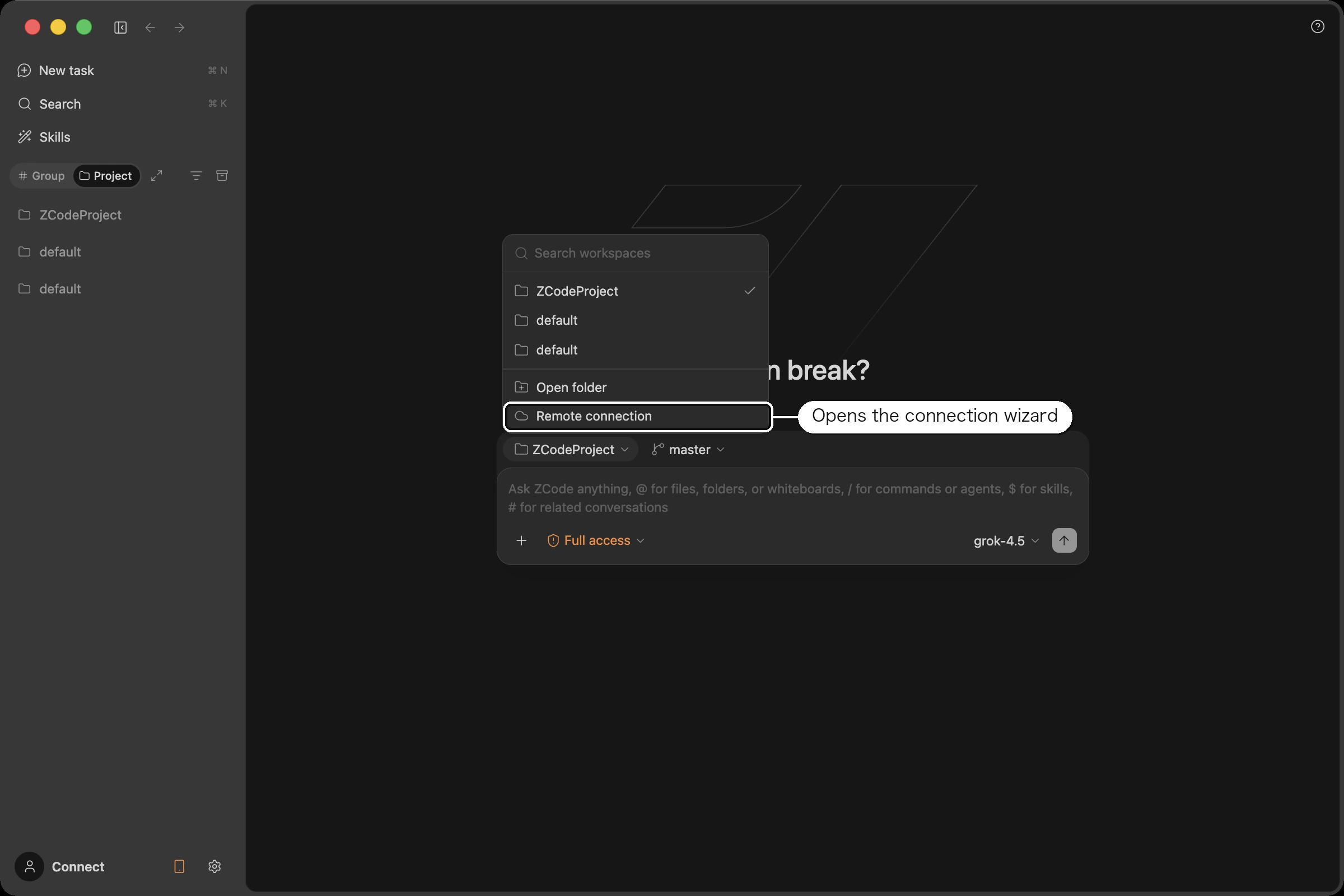
In the left sidebar, click + next to Projects and choose Remote Connection. The workspace picker on the new task page offers the same entry, and the project name menu in the lower-right corner still works too.
The wizard first asks you to choose a connection type:
| Type | Connects to | Availability |
|---|---|---|
| SSH | A remote host | All platforms |
| WSL | Windows Subsystem for Linux on this machine | Windows desktop only |
| Docker | A running container on this machine | All platforms |
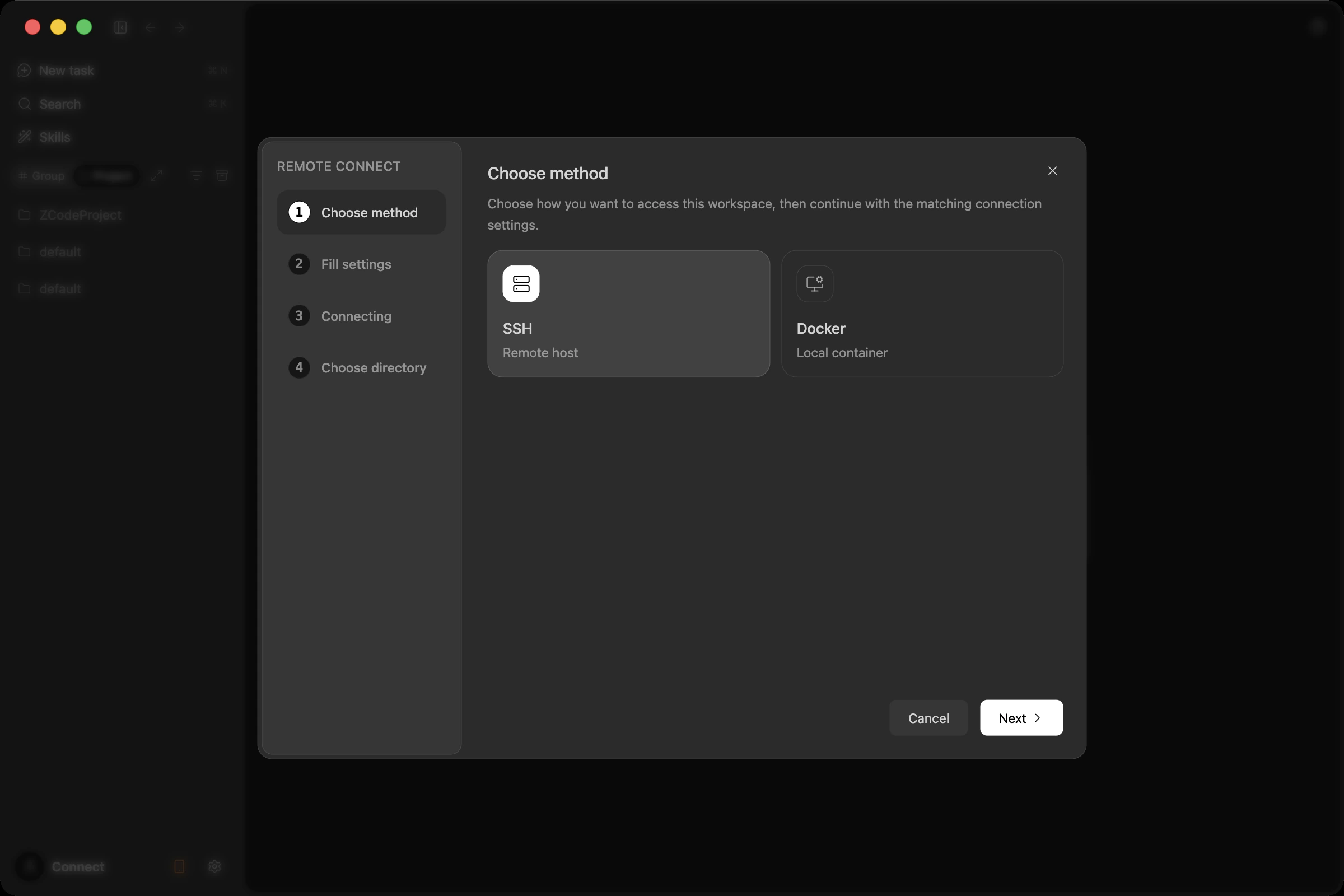
After choosing the type, click Next to open the corresponding configuration page. The left side of the wizard shows the current steps: choose type, fill configuration, connecting, and choose directory. If the connection takes a while, use the log to understand the current progress.
Connect To A Remote Host With SSH
The SSH page is where you enter remote host connection details.
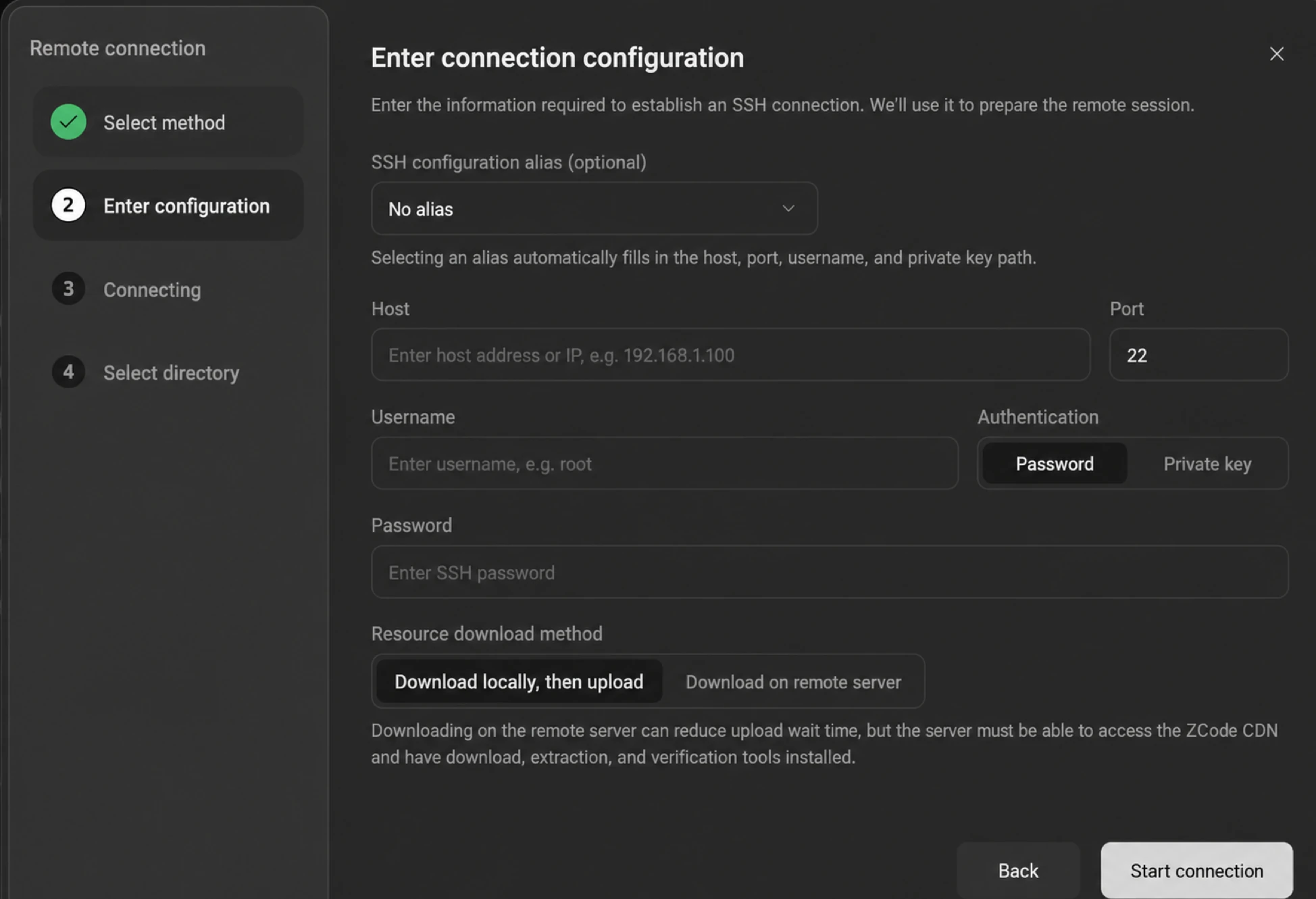
Configure it in this order:
- SSH config alias (optional): ZCode reads available aliases from your local SSH config. Selecting an alias fills the host, port, username, and private key path automatically. If you do not use an alias, keep "Do not use alias" and fill the fields manually. Note: ZCode connects with a built-in SSH client, and aliases are only used to pre-fill those four fields —
ProxyJump/ProxyCommandjump-host settings do not take effect, and an alias containing them is treated as a direct host. To reach a host behind a bastion, set up local port forwarding first (e.g.ssh -L) and point ZCode at the forwarded port. - Host: enter the remote host address or IP, such as
192.168.1.100ordev.example.com. - Port: the default is
22. If the server uses a bastion port or custom port, enter the real port. - Username: enter the remote login user, such as
root,ubuntu, ordeploy. - Authentication: choose Password or Private key. For private key authentication, enter the key file path; if the key has a passphrase, enter that too. Passwords and key passphrases are never written to connection history in plain text; after a successful connection they're stored encrypted in your local credential store for reconnecting later.
- Resource download method: on first connection, ZCode prepares the components required on the remote side. Download locally then upload lets the desktop download resources and upload them to the remote host. Download on remote server lets the remote host access the ZCode CDN directly, which can reduce upload time, but the remote host must have network access plus download, extraction, and checksum tools.
After filling the form, click Start connection. When the connection succeeds, ZCode moves to remote directory selection, where you choose the directory to open as the workspace.
Connect To Local Linux With WSL
The WSL option only appears on the Windows desktop client. It fits projects that depend on a Linux toolchain or runtime.
There are only two settings, and both can be left blank:
- Distribution: ZCode detects the WSL distributions installed on your machine so you can pick one. Leave it blank to connect to the system default distribution. Even if nothing is detected, you can still leave it blank and try connecting to the default.
- Linux user: this decides which user ZCode works as inside WSL. Leave it blank to use the distribution's default user; if you fill it in, the Agent, terminal commands, Git operations, and file reads and writes all use that user's identity and permissions. The user you enter must already exist in the distribution.
Be careful with root. After connecting as root, files created in the workspace may end up owned by root, which a regular user then can't modify. Unless you specifically need it, use the ordinary account you develop with.
Once you're connected and have picked a workspace directory, file reads and writes, terminal commands, Git operations, and the Agent all run inside the WSL environment you selected. Like SSH, WSL also supports manually syncing your local Skills, MCP configuration, and Plugins into the current WSL user's environment.
Connect To A Local Container With Docker
The Docker page is where you choose or enter a running local container.
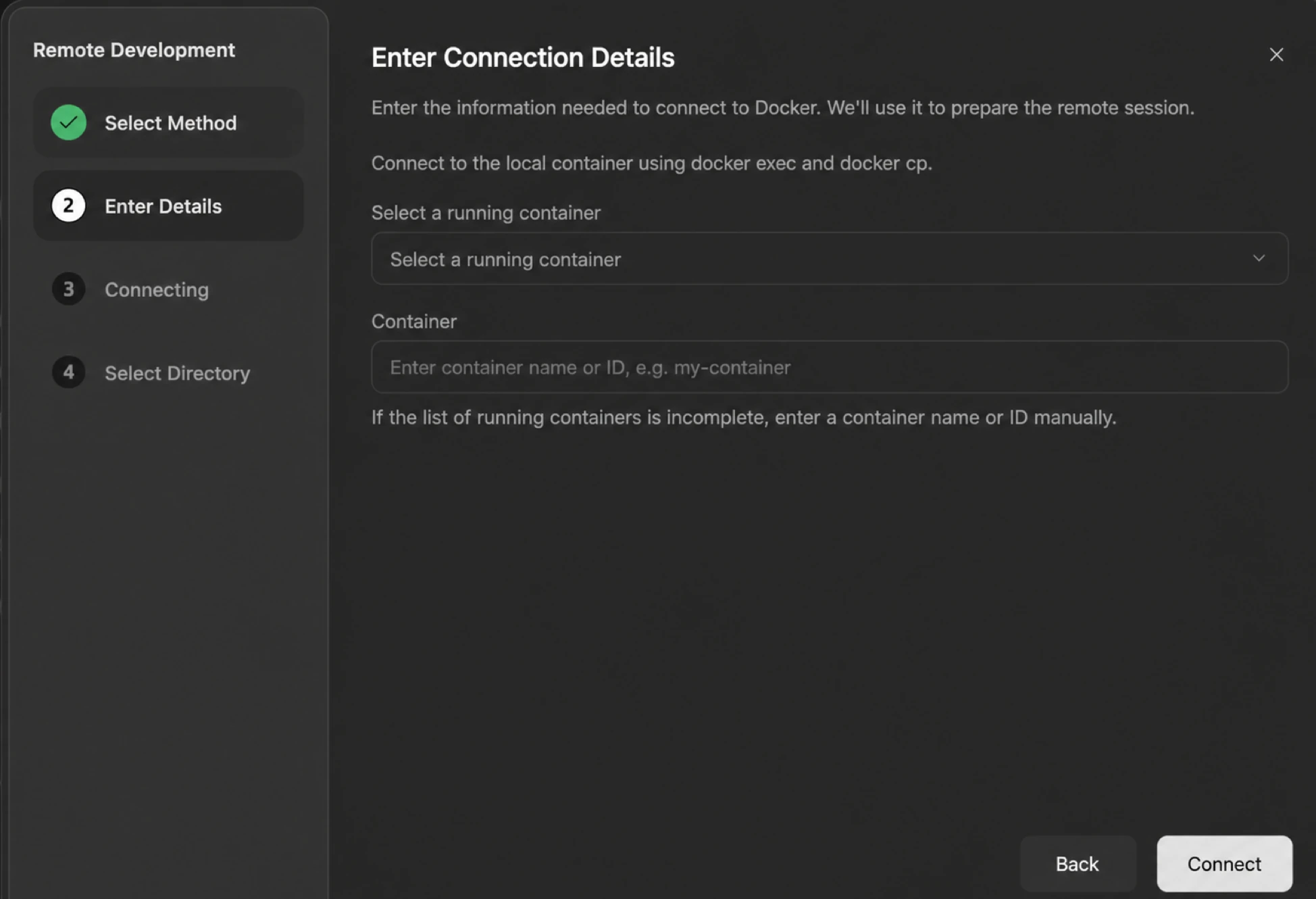
If ZCode detects running containers, choose one from Select a running container. Opening the dropdown refreshes the container list so you do not pick a stopped container.
If the list is empty, or Docker does not return the full list, manually enter the container name or container ID in the Container field, for example:
zcode-dev
7f3a8c2d9e10
Docker connections use docker exec and docker cp to enter the local container. This is best for development containers that already have the project environment prepared. If the container has not started, run docker ps in a terminal first and confirm it is visible.
First Connection And Logs
After you click Start connection, the wizard enters the Connecting page. It shows a live connection log, including environment checks, remote resource preparation, runtime initialization, and failure reasons.
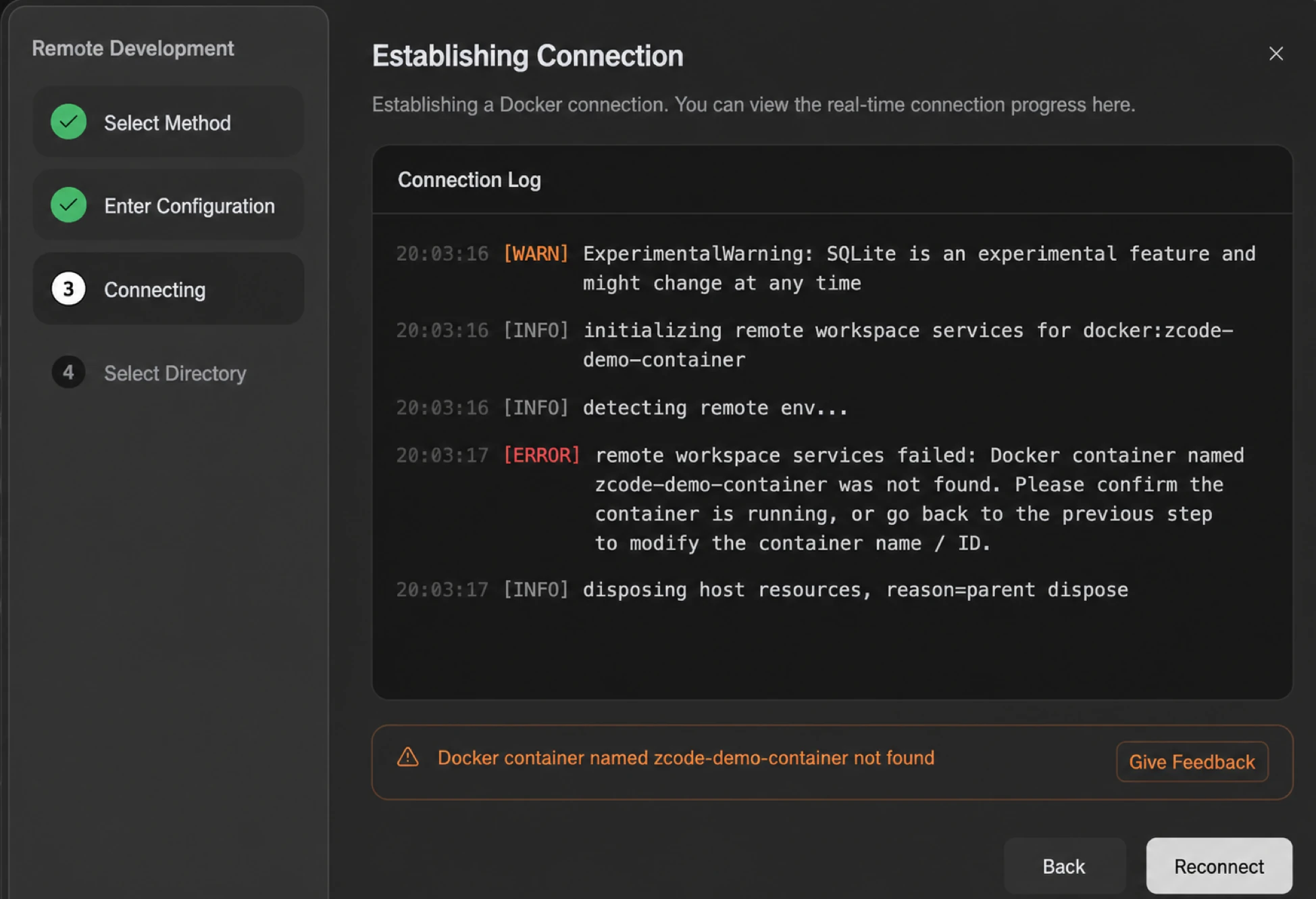
The first connection is usually slower than later ones because ZCode needs to prepare the remote service and Agent runtime in the target environment. Later connections reuse prepared resources unless the version changes or resources are missing.
If the connection fails, the bottom of the page shows an error summary. Click Back to adjust configuration and retry, or click Feedback so ZCode can include the current connection log and screenshot for troubleshooting.
After Entering A Remote Workspace
After the connection succeeds and you choose a directory, ZCode opens that directory as a remote workspace. You can use it much like a local workspace:
- View and edit remote files in the file tree.
- Ask the Agent to read code, modify files, run tests, or execute commands.
- Use the terminal to operate the shell inside the remote host or container.
- Use Git to inspect status, branches, and commits.
- Re-enter or reconnect recent remote workspaces from the workspace list.
Project files, command execution, and the Agent runtime stay in the target environment. Model providers, login accounts, global settings, and usage information remain on the desktop client.
Syncing Local Configuration to the Remote
The Agent in a remote workspace runs on the target host, so the skills, MCP servers, and plugins configured on your machine don't come along by default. ZCode offers three sync actions to move them over.
There are several entry points. The earliest is inside the connection wizard — for SSH and WSL, the Select remote directory step already lets you sync configuration across, before the workspace even opens. Once connected, the Sync dropdown in the workspace header offers Sync Skill, Sync MCP, and Sync Plugin. The same actions appear in the workspace row's "more" menu in the sidebar and on the corresponding Skills, MCP, and Plugins settings pages. Local workspaces don't show these menus.
| Sync action | What moves |
|---|---|
| Skill | Your user-level skills |
| MCP | Your user-level MCP server configuration |
| Plugin | Your user-level plugins; marketplace plugins are reinstalled on the remote |
All three share the same rules:
- You pick items individually and trigger the sync manually — nothing syncs automatically.
- Anything already present on the remote is skipped, never overwritten. Those entries are flagged and left unchecked.
- Only user-level content syncs. Project-level skills, workspace-level MCP servers, and plugin-provided MCP servers are out of scope.
- If ZCode can't write to the remote directory, or the connection times out, it tells you before anything is copied.
- A partial failure doesn't affect items that already succeeded; failures are listed with their reasons.
A few things deserve extra attention:
Syncing doesn't guarantee it works. ZCode doesn't check whether the remote has npx, the right Python dependencies, or whatever command-line tools a skill needs. When something doesn't start on the remote, installing the missing dependency there is usually the fix.
Secrets in MCP configuration are written to the remote as-is. If an MCP server config contains an API key or an Authorization header, the sync carries it over verbatim — so only do this with hosts you trust.
Sensitive plugin settings aren't synced. Options marked sensitive and path-type options are skipped, and the dialog tells you how many need to be filled in manually on the remote. Marketplace plugins are reinstalled remotely, which means the remote must be able to reach the marketplace source.
Synced plugins execute on the remote. Their skills, commands, hooks, and MCP servers all load and run in the remote environment, so make sure you trust a plugin before sending it over.
SSH and WSL remotes support these sync actions today.
FAQ
Why does my SSH config alias not appear?
ZCode reads aliases it can parse from your local SSH config. If the list is empty, check that ~/.ssh/config exists and is formatted correctly, then run ssh <alias> in a terminal to verify it. Even if the alias does not appear, you can still fill the host, port, username, and authentication details manually.
When should I choose "Download on remote server"?
Choose Download on remote server when the remote host can reach the ZCode CDN faster, or when uploading from your local machine is slow. The remote host needs curl or wget, tar, and at least one checksum tool such as sha256sum, shasum, or openssl. If the remote host cannot access the public internet (intranet or offline environments), use the default Download locally then upload: the desktop downloads all components, uploads them over SFTP, and installs them to ~/.zcode/server — the remote host never needs internet access.
Do remote connections use the HTTP proxy from Settings?
No. Neither SSH connections nor the Web Remote Control channel go through the HTTP proxy in Settings — the proxy only covers outbound requests such as model APIs and MCP. See What the HTTP Proxy Covers for the full scope. If the remote server itself needs a proxy, configure it in the remote shell environment.
What if the Docker page shows no containers?
Run this in a terminal first:
docker ps
If no running container appears, start the container first. If the terminal shows a container but ZCode's list is empty, enter the container name or container ID manually and connect.
Where should I look when a connection fails?
Start with the last ERROR in Connection log or the error summary at the bottom of the page. Common causes include an unreachable SSH host, wrong port, wrong username or password, incorrect private key passphrase, missing download / extraction tools on the remote host, or a Docker container that is not running. If the error does not provide enough detail, click Feedback to submit the log.
Can Mobile Remote Control create or connect a remote workspace?
It can't create a new SSH, WSL, or Docker connection — entering connection parameters has to happen on the desktop. But if a remote workspace is already registered in the current desktop window and merely shows as disconnected, Remote Control can trigger a reconnect; the desktop still performs the actual connection.