ADE Tools
ZCode is not only an Agent prompt box. It is a full Agent Development Environment for real development work. You can manage tasks, organize conversations by workspace, enter remote development environments, preview pages, select browser elements as context, and review Agent-generated changes in one window.
Workspace And Task List
The left sidebar follows the current workspace and shows your task list. The top row has New Task, Search, and Skills entries, and below them tasks are grouped under each workspace (such as ZCodeProject). Every row shows the task title, a relative time (like "1d"), and status dots for running, unread, or failed tasks. Once a task produces changes it also shows that task's +/- line counts, so you can quickly see how much the Agent touched in each task.
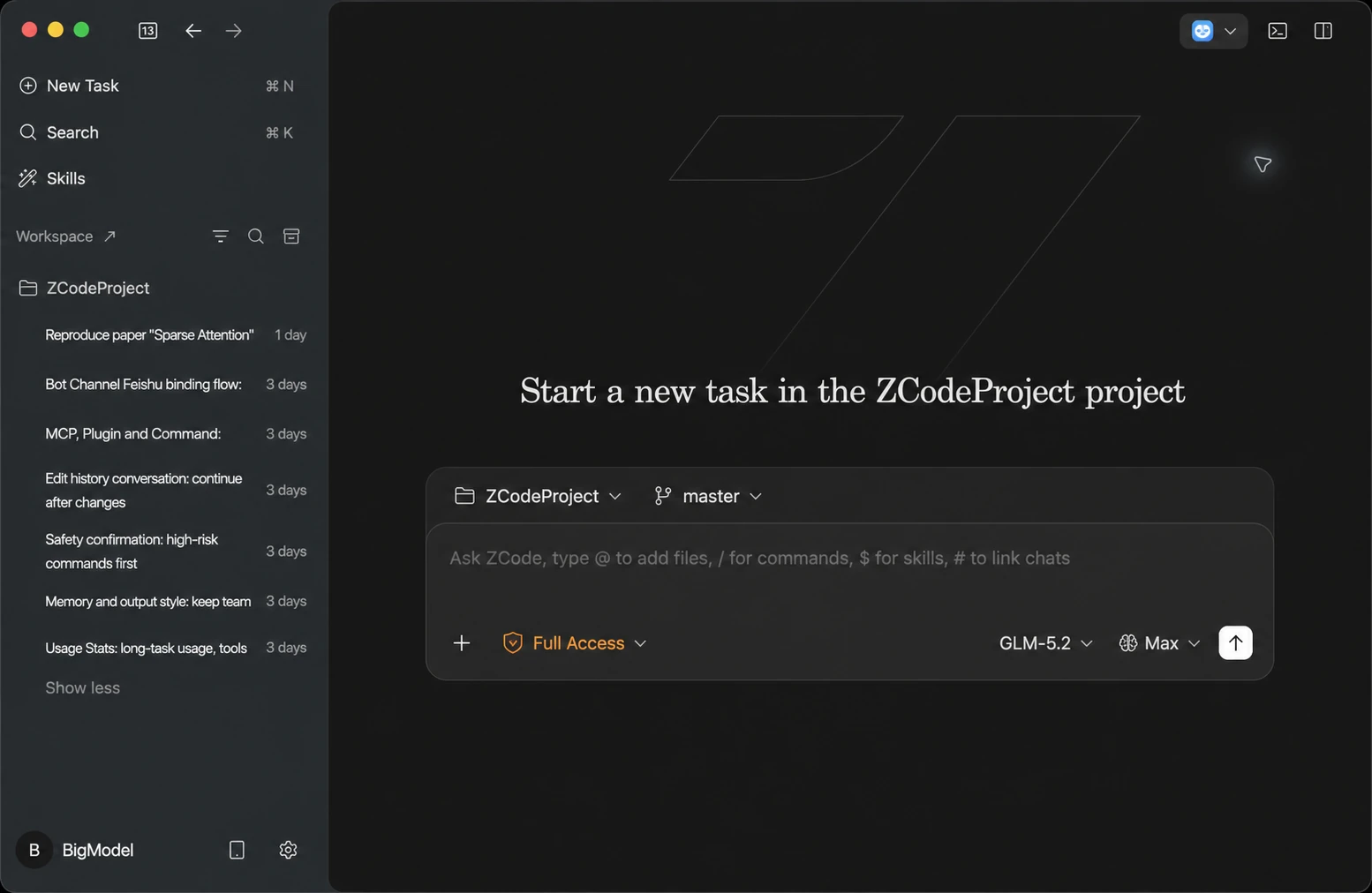
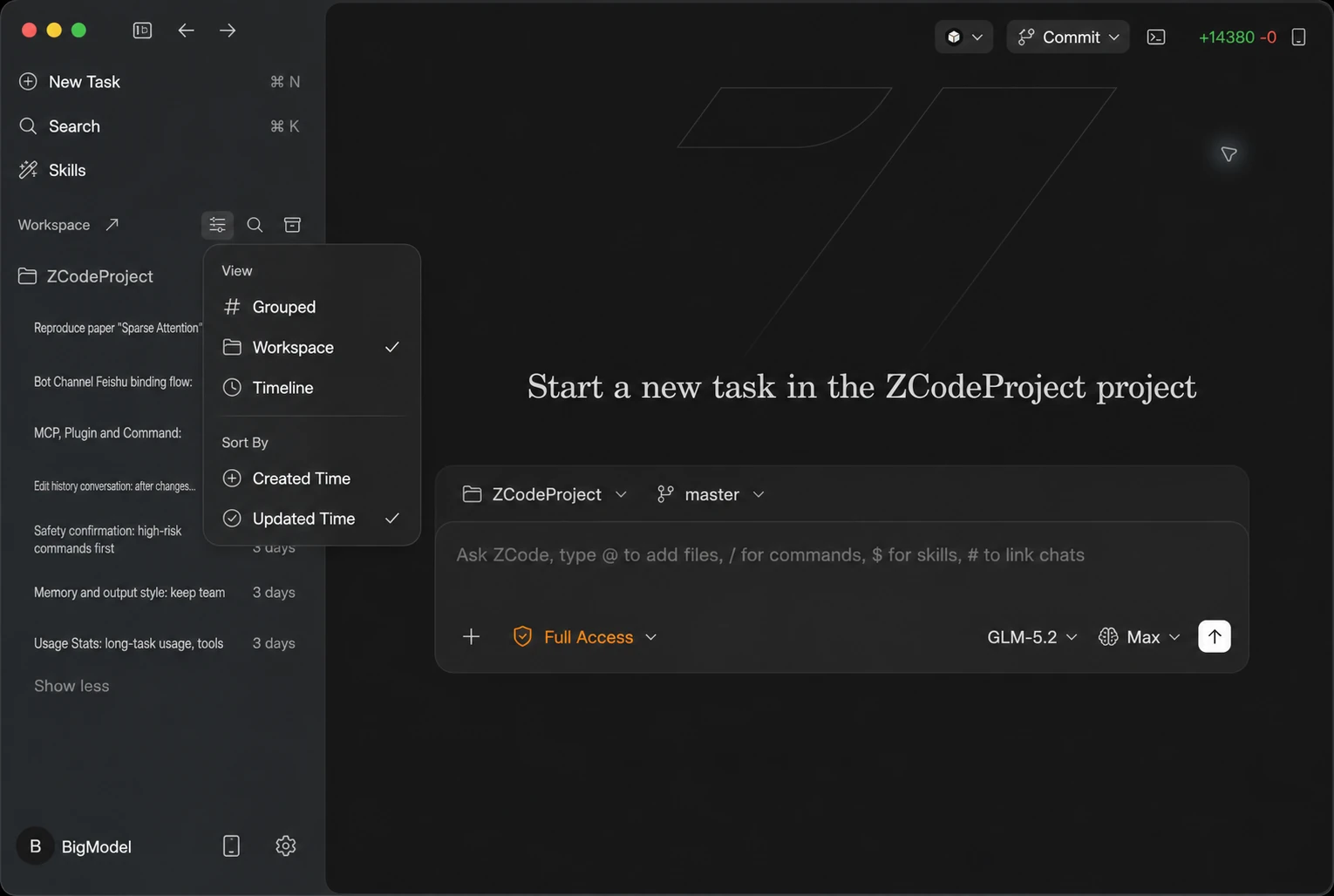
The view button above the list switches how tasks are organized: Grouped, Workspace, and Timeline. Outside the grouped view you can also choose the sort order, by created time or updated time.
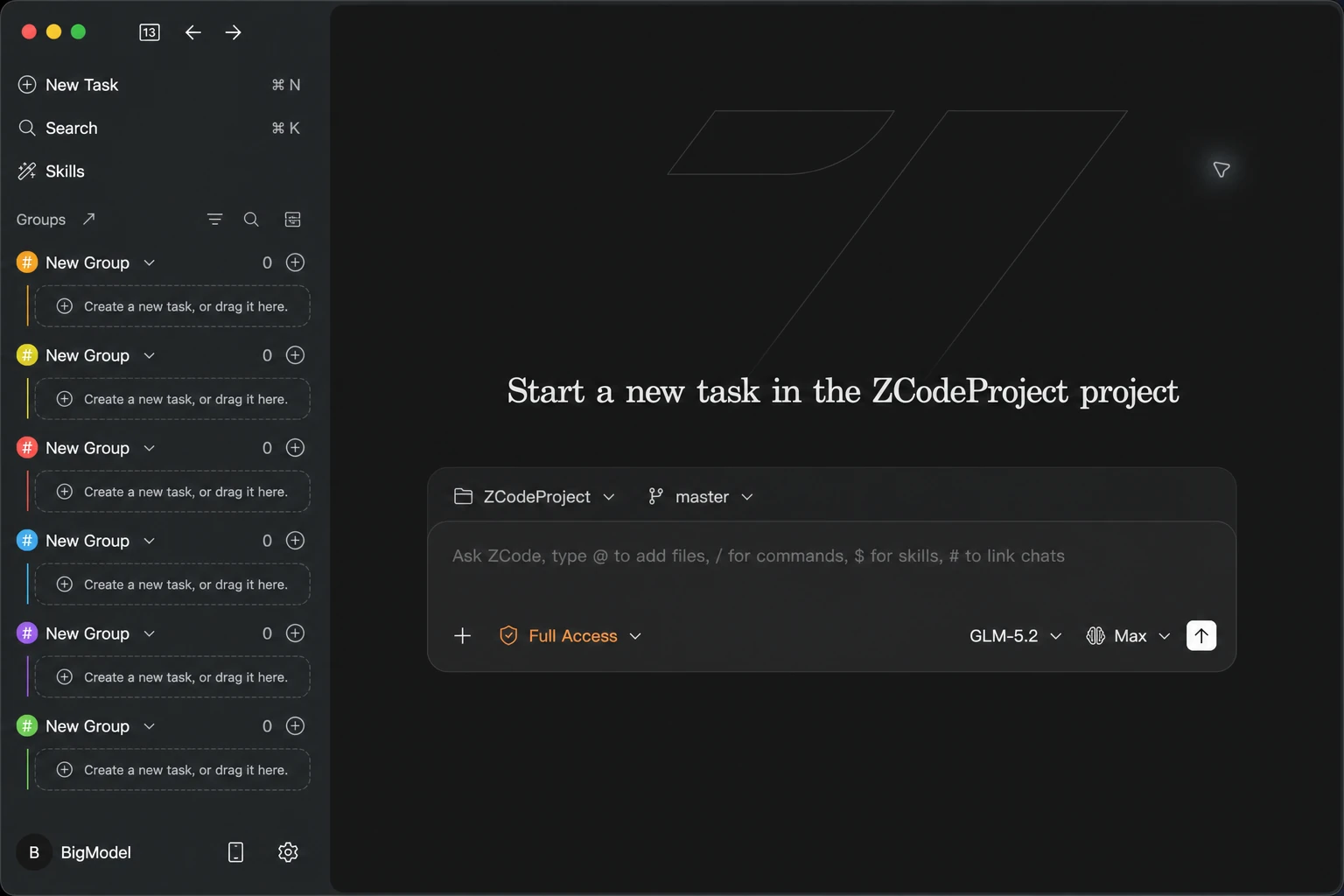
In Grouped view you can create new groups and organize related tasks into custom groups — handy for collecting long-running tasks by project, requirement, or topic.
Archived Tasks
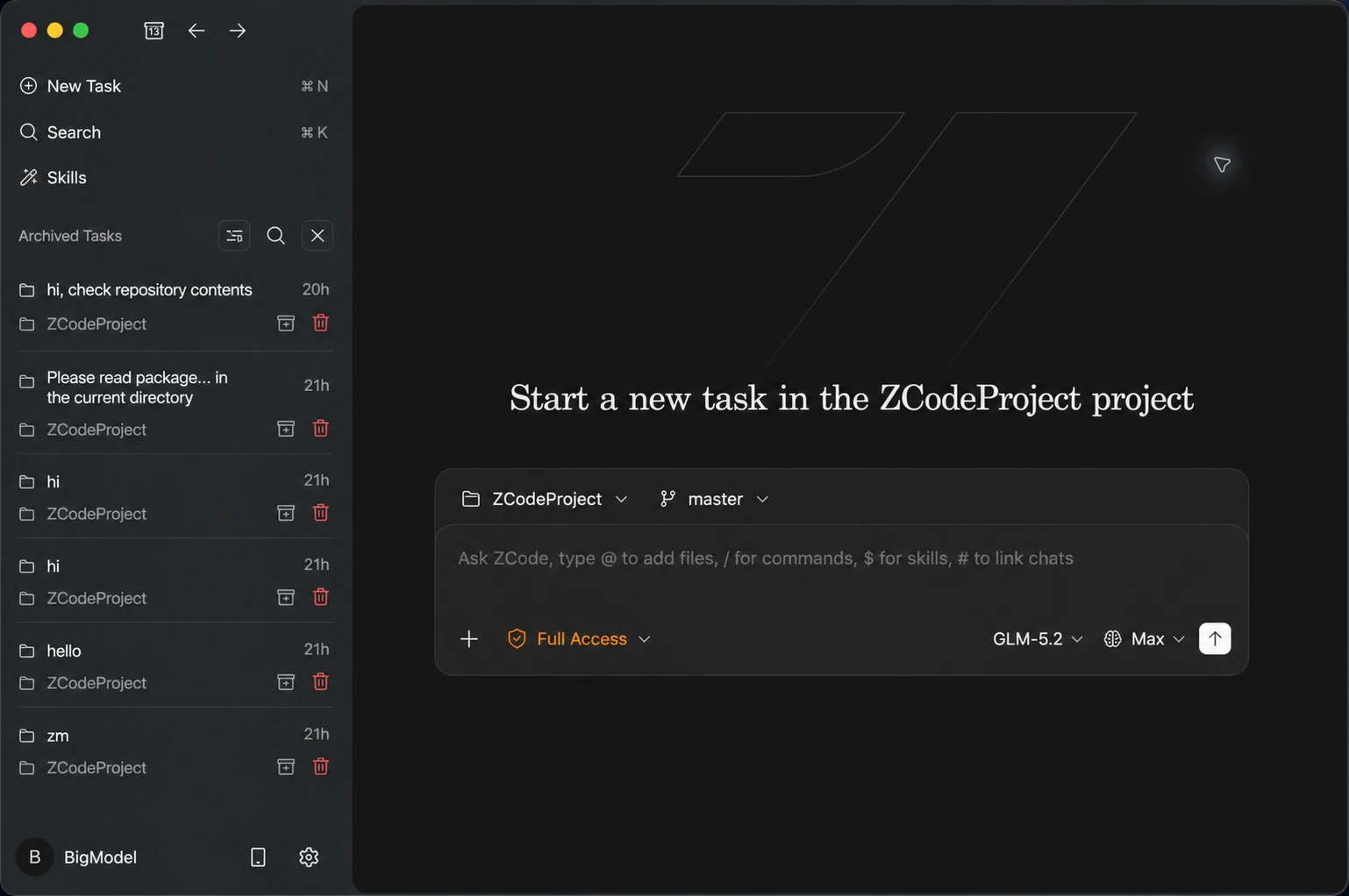
Tasks that are no longer active can be archived and collapsed out of the main list. The archived view shows a flat list of all archived tasks, each row keeping its title, relative time, change counts, and owning workspace, with Restore and Delete actions. Restore an old task whenever you need to revisit it, and delete it permanently once you are sure it is no longer needed.
Command Center
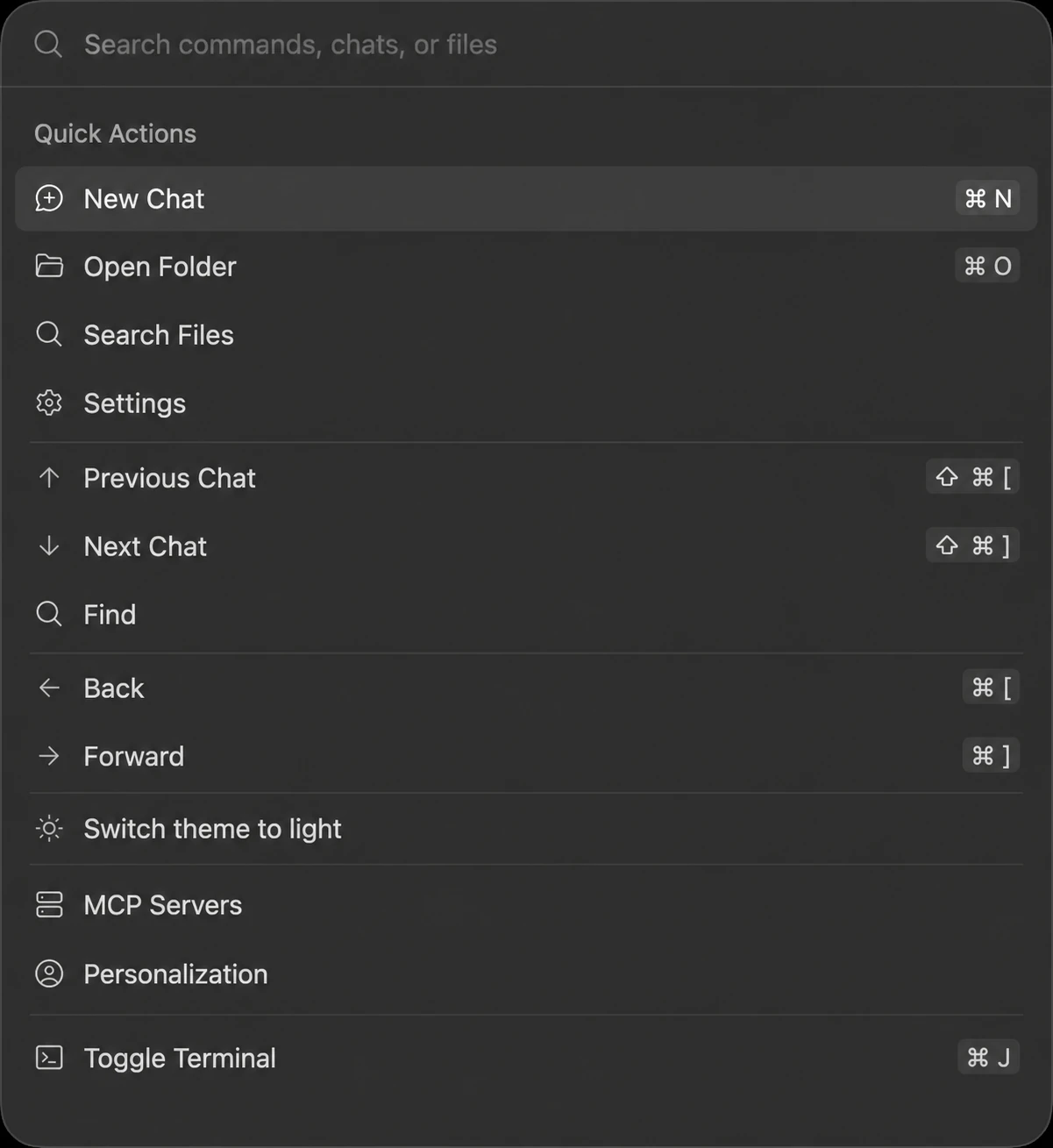
Press Command + K (or click the search entry in the top bar) to open the Command Center and reach common actions and navigation from one panel. It covers commands, conversations, and files at once: new chat, open folder, search files, settings, previous / next chat, find, back / forward, switch theme, MCP servers, personalization, toggle terminal, and more — all runnable without hunting through menus.
Remote Development (SSH / Docker)
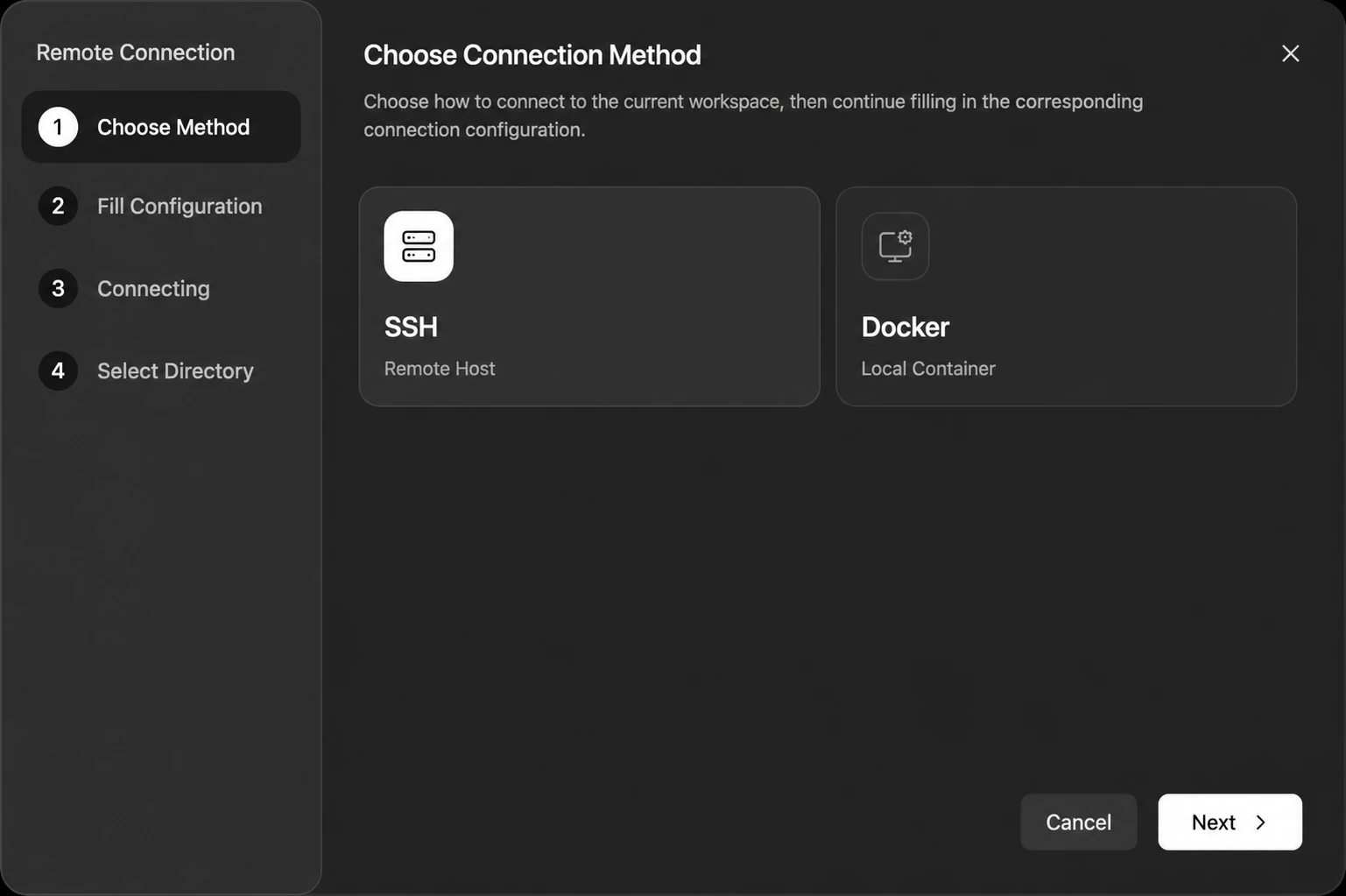
From the Open Workspace page, you can choose a local folder or start a remote connection. Remote development is useful when you want ZCode Agent to work inside a server, development machine, or container environment, so the Agent reads files, runs commands, and advances tasks in the real runtime.
Remote development starts with the connection method. ZCode currently shows SSH remote host and Docker local container options. SSH is for remote servers or development machines; Docker is for entering an existing local container environment.
Built-in browser
ZCode has a built-in browser panel for opening local dev servers or live pages inside the app. It has an address bar plus back, forward, reload, and DevTools buttons, and handles http, https, and file URLs. Besides browsing it yourself, you can let the Agent drive it. The browser panel is desktop-only.
Turn page elements into context
Open a Browser tab, enter a URL, then click the element picker button in the toolbar to enter picker mode.
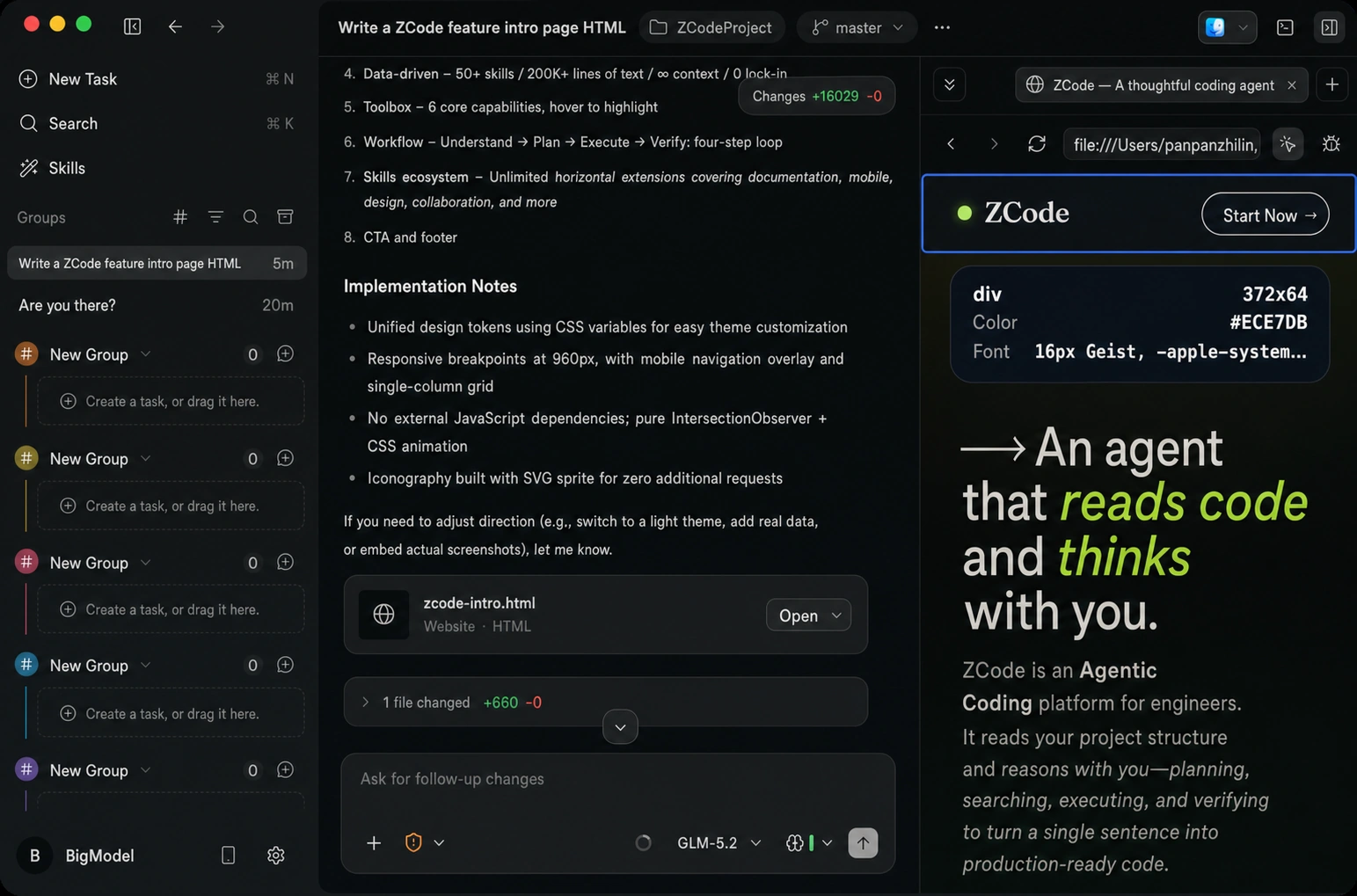
Click a button, card, heading, or any other element on the page. ZCode captures the page title, URL, element text, selector, position, and a safe HTML summary, then adds that to the current chat. You can then ask the agent to modify "the selected card" or improve "this button copy" without describing where it sits on the page.
Let the agent drive the browser
With built-in browser control enabled, the agent can open URLs, click, fill forms, and verify results, and you can watch it happen in the panel. The switch, Chrome data import, and cleanup all live under Settings → Browser — see Browser Automation for the full details.
Previewing Files and Content
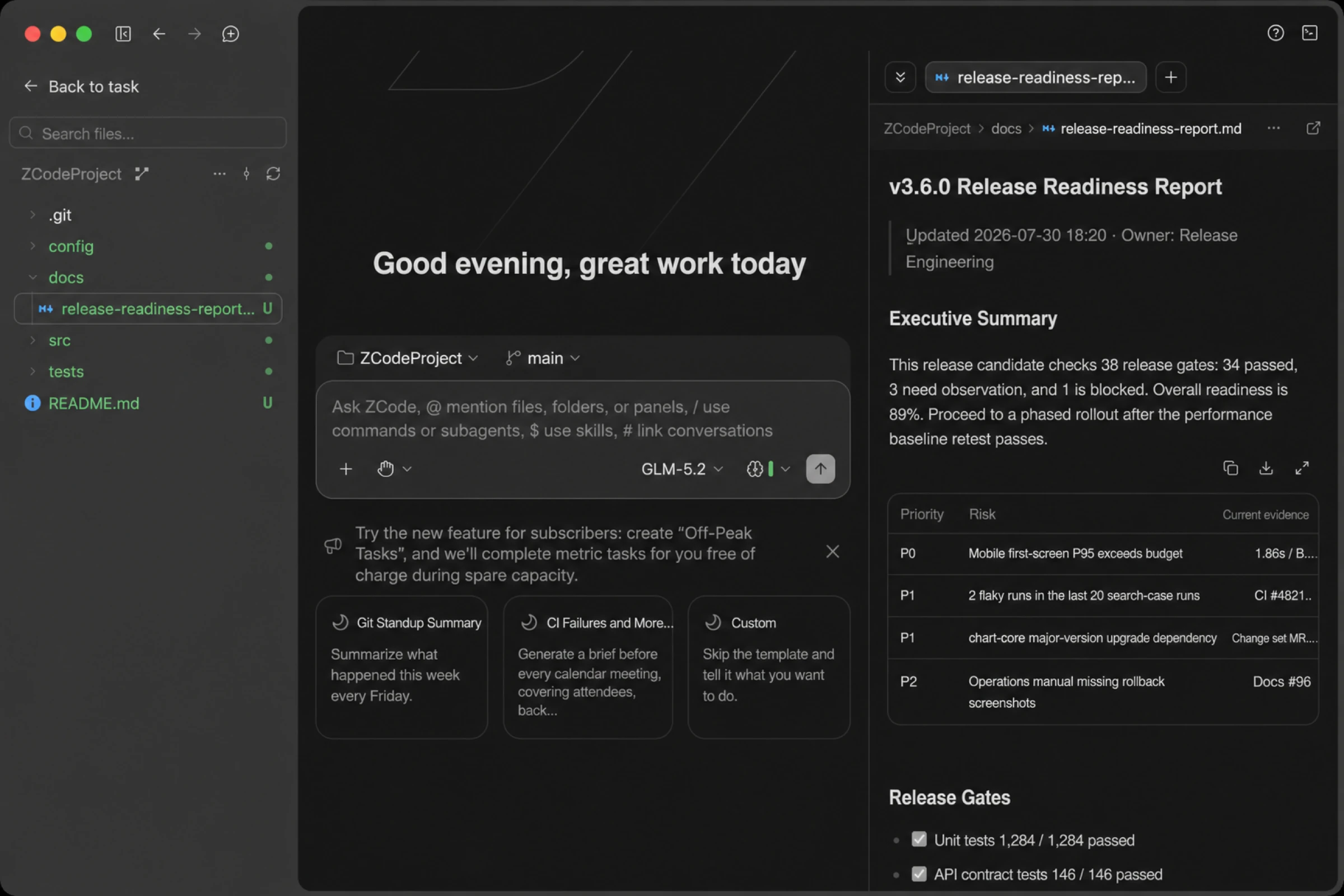
Clicking a file in the file tree opens it in the preview pane on the right, and several common formats beyond code render natively.
PDFs open with page navigation, jump-to-page, and zoom — Command / Ctrl + scroll zooms around the pointer. You can select and copy text, but not edit or annotate.
HTML files open through the file tree's right-click menu via Open in built-in browser, which renders them in a new browser tab. This menu item appears for local workspaces only, not remote ones.
Content inside the conversation has its own viewers:
- Mermaid diagrams:
mermaidcode blocks in a reply render as diagrams. Click the expand button in the corner or double-click the diagram to open it full size, with zoom and drag-to-pan;Esccloses it. While a message is still streaming you'll see the source, which switches to the diagram once it finishes. - Images: Markdown images open in a preview overlay, and consecutive images group into a gallery you can page through with the arrow buttons or arrow keys. Zoom, pan, and download the current image are all available.
- Tables: Markdown tables come with a toolbar to copy them as Markdown, download them as CSV, or open a larger preview where the header sticks while you scroll. Wide tables can also expand their scroll area to claim more horizontal space, and collapse back with a second click.
Terminal And Debugging
Use the terminal button in the upper-right corner or Command + J to open the terminal panel. You can run builds, tests, development servers, and logs inside the same workspace, then continue the conversation with the Agent. The terminal is also available as a tab inside the preview panel, so you can watch a preview and run commands side by side.
The built-in browser also includes a DevTools entry for frontend debugging, so preview, DOM inspection, console output, and Agent work stay close together.
Running Long Commands in the Background
For long-running commands like starting a dev server or running a full test suite, the Agent can push execution to the background: the command keeps running, the current turn doesn't wait for it, and you can keep asking questions or move on to something else, checking the output when you need it. Subagents support background execution too.
Enhanced Find and Grep
Searching a large repository can be slow, and results vary with whichever versions of find and grep happen to be installed on your machine. ZCode bundles faster replacements and the Agent uses them by default, so searches are quicker and behave the same everywhere.
The switch is Settings → General → Enhanced Find and Grep, on by default. Changes apply to new sessions — conversations already open keep their current behavior. On Windows only grep is replaced. Remote workspaces (WSL / SSH / Docker) aren't covered yet.
Remote Access
ZCode remote access splits into two kinds. Remote development decides which machine runs your code and commands, while Remote Control and Bot Channel are entry points for operating from away — both drive a session that already exists on the desktop.
Remote Development
Open a workspace on an SSH host or Docker container so the Agent runs in the target environment.
Remote Control
Connect to the current ZCode workspace from your phone.
Bot Channel
Open a workspace from chat tools through Bot Channel.