Safety Confirmation
ZCode brings ZCode Agent permission control into the task UI. The execution mode picker sits near the composer, so you can choose how the Agent should execute based on task risk.
The goal is simple: before allowing execution, review what the Agent is about to do. Commands, file changes, network calls, and script execution are surfaced in the task. When a high-permission or fully automatic mode is active, ZCode keeps the risk state visible in the toolbar.
ZCode Agent Permission Modes
ZCode Agent is ZCode's first-party Agent. It is tuned closely for the GLM 5.3 model family and is a good default for long-running, multi-step development work.
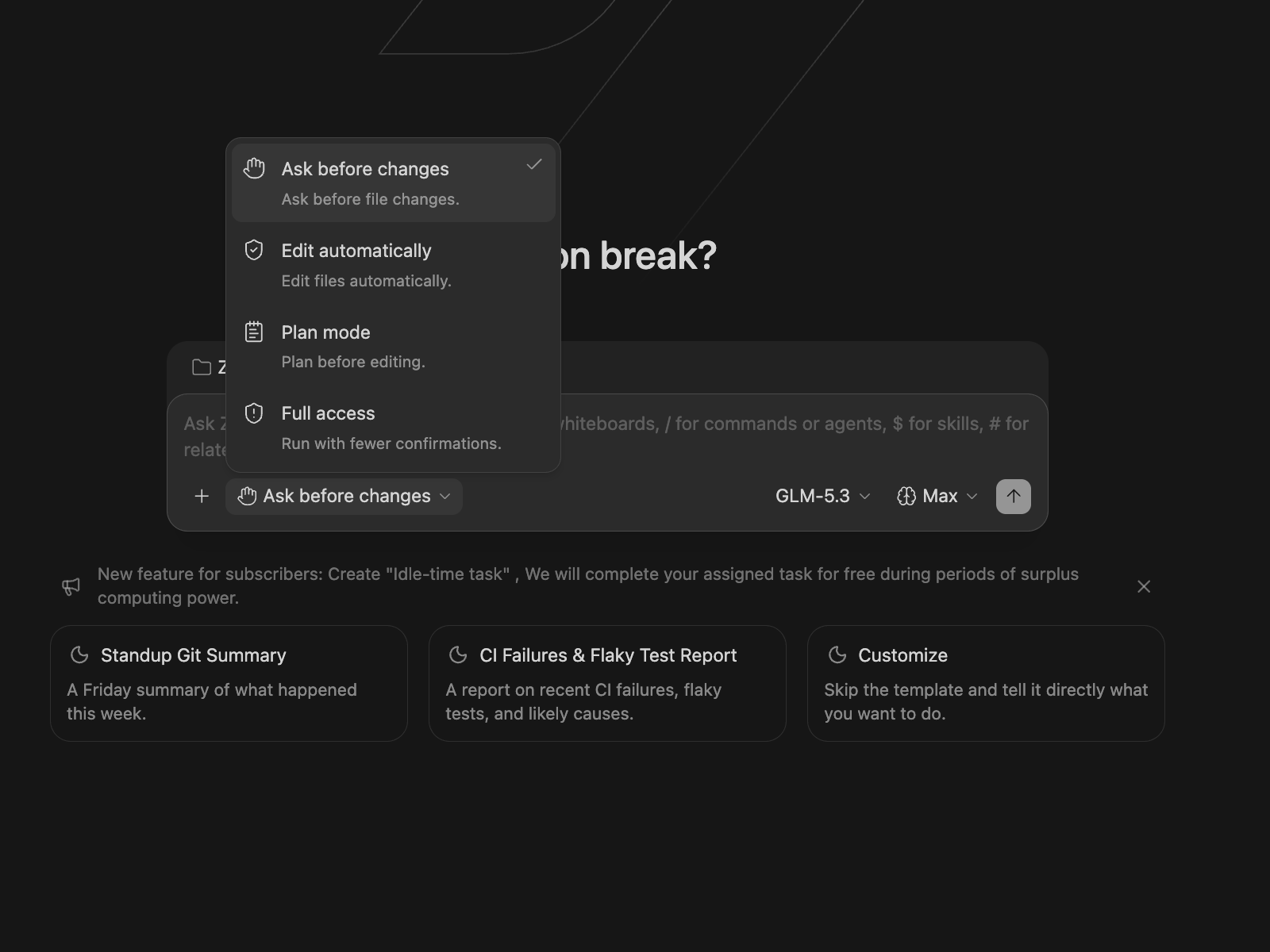
There are four execution modes. Press Shift + Tab while the chat input is focused to cycle through them:
| Mode | Description | Best For |
|---|---|---|
| Ask before changes | Ask for confirmation before every file edit or command; this is the default. | Critical code and production configs. |
| Edit automatically | Apply file edits automatically; commands still require confirmation. | Routine iteration work. |
| Plan | Plan first, then wait for confirmation before implementation. | Refactors, migrations, and long-horizon work. |
| Full access | Run with fewer confirmations. | Trusted contexts where continuous execution is preferred. |
Workflow
- Trigger confirmation: when an Agent sends a permission-gated request, the current task pauses and the composer is blocked so the next action cannot be queued accidentally.
- Show the request: ZCode displays the exact command, file change, or tool action the Agent plans to run.
- User decision: the Agent continues only after you approve the request; rejecting it stops the current operation or returns the task to an adjustable state.
- Sync task state: permission requests are scoped to the task. If you switch away and come back, the pending request is still there, and the sidebar can show the task as waiting for confirmation.
Decision Options
| Option | Description | Recommended Scenario |
|---|---|---|
| Allow | Authorize only this one action. | Temporary or uncertain one-off tasks. |
| Always Allow | Authorize this and future actions of the same type without asking again. | Trusted repeated operations, such as routine builds. |
| Reject | Prevent the Agent from running the current action. | The command, path, or risk does not match expectations. |
| Always Reject | Block this and future actions of the same type. | Operations you never want the Agent to perform. |
In some scenarios, finer-grained options such as Allow for this session or Always allow for this project are also available.
Questions That Continue on Timeout
Beyond permission requests, the Agent sometimes just asks you a question — "approach A or approach B?". These wait five minutes by default, with a countdown appearing in the panel as the time runs low. If you don't answer, the Agent carries on using its own judgment, and that step is marked "Unanswered, auto-continued" in the conversation history.
Any sign of activity — moving the pointer onto the panel, starting to choose, clicking the countdown, or clicking "stop timer" in the sidebar — stops the countdown permanently, so take your time thinking.
If you'd rather it never continue on its own, turn off Settings → General → Automatically continue questions; every question will then wait indefinitely. Note that the switch isn't retroactive: questions raised while it was off stay in the waiting state even after you turn it back on.
The countdown applies only to these ordinary questions. Permission requests and plan approvals always wait and are unaffected.
Typical Scenarios
- Running third-party scripts: Python, Shell, or Node.js scripts inside your project.
- Network requests: external API access through
curlor similar tools. - File changes: creating, editing, deleting, or renaming files. ZCode shows a file-change summary with open and undo actions.
- System-level commands: commands that may change system configuration, install dependencies, or delete files.
Best Practices
- Review the command, path, and file names before allowing execution.
- Use Allow when you are unsure; avoid jumping straight to Always Allow.
- Always Allow and Full access mode reduce future prompts, so use them only when the operation is trusted.
- For large changes, use Plan first, confirm the plan, then implement.