Remote Control
Remote Control temporarily opens the current ZCode desktop window to your phone. Once connected, you can browse and switch between the workspaces, tasks, and sessions already open in that window, and keep sending instructions to the Agent.
The phone is a control surface: it doesn't sync code and never creates a runtime of its own. Every instruction you send is carried out by whichever machine that workspace was already connected to on the desktop.
When To Use It
- A desktop task is already running and you need to step away.
- You receive a quick update and want to add one more instruction from your phone.
- A long task is running and you want to check the Agent status without returning to the computer.
Connect From Phone
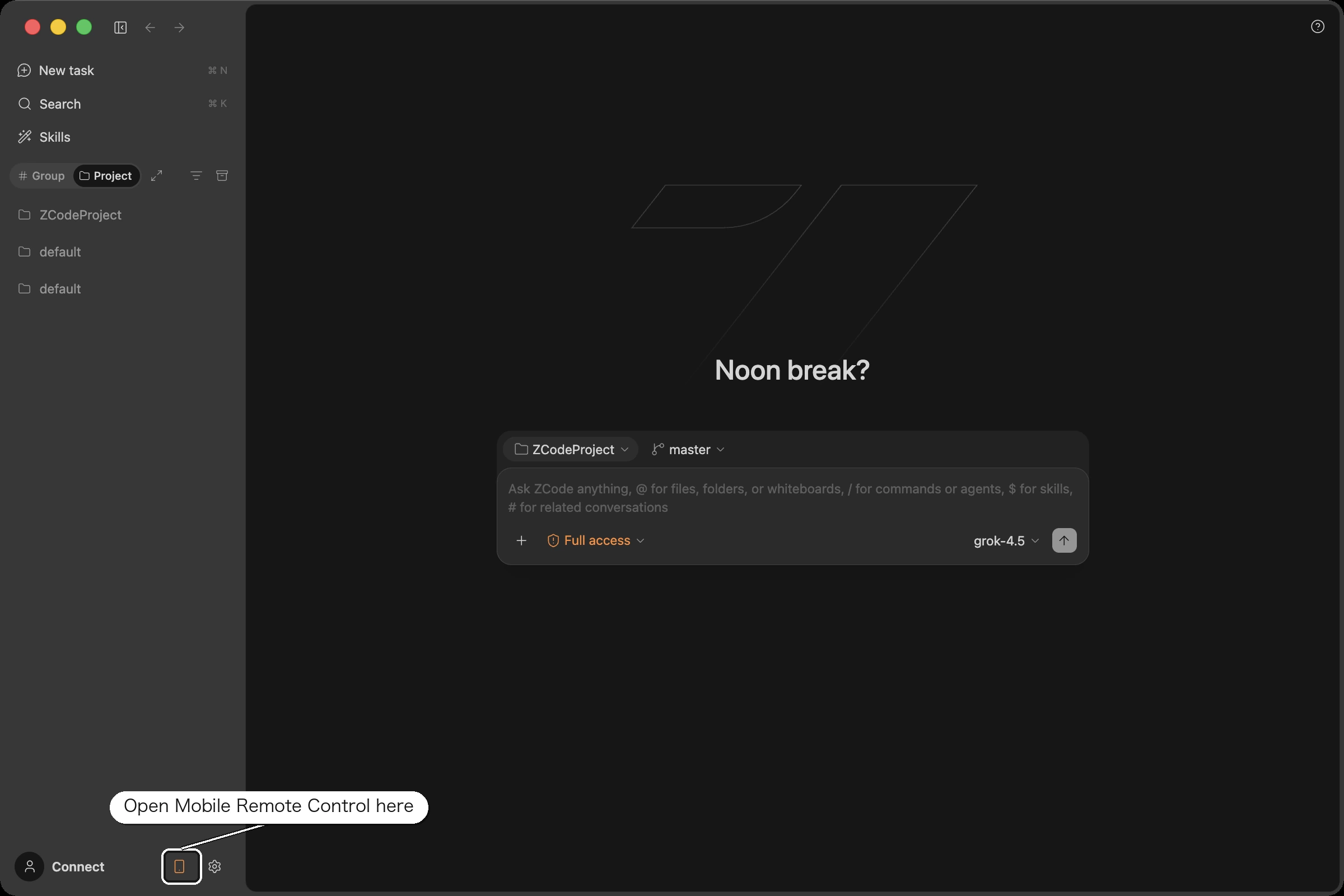
Click the phone icon in the lower-left sidebar of ZCode to open Mobile Remote Control.
The left side of the dialog generates a QR code and a link; the right side offers Bot Channel — scanning suits a quick session, while a Bot suits coming back over a longer period. Scan the code with your phone, or copy the link and open it in a mobile browser.
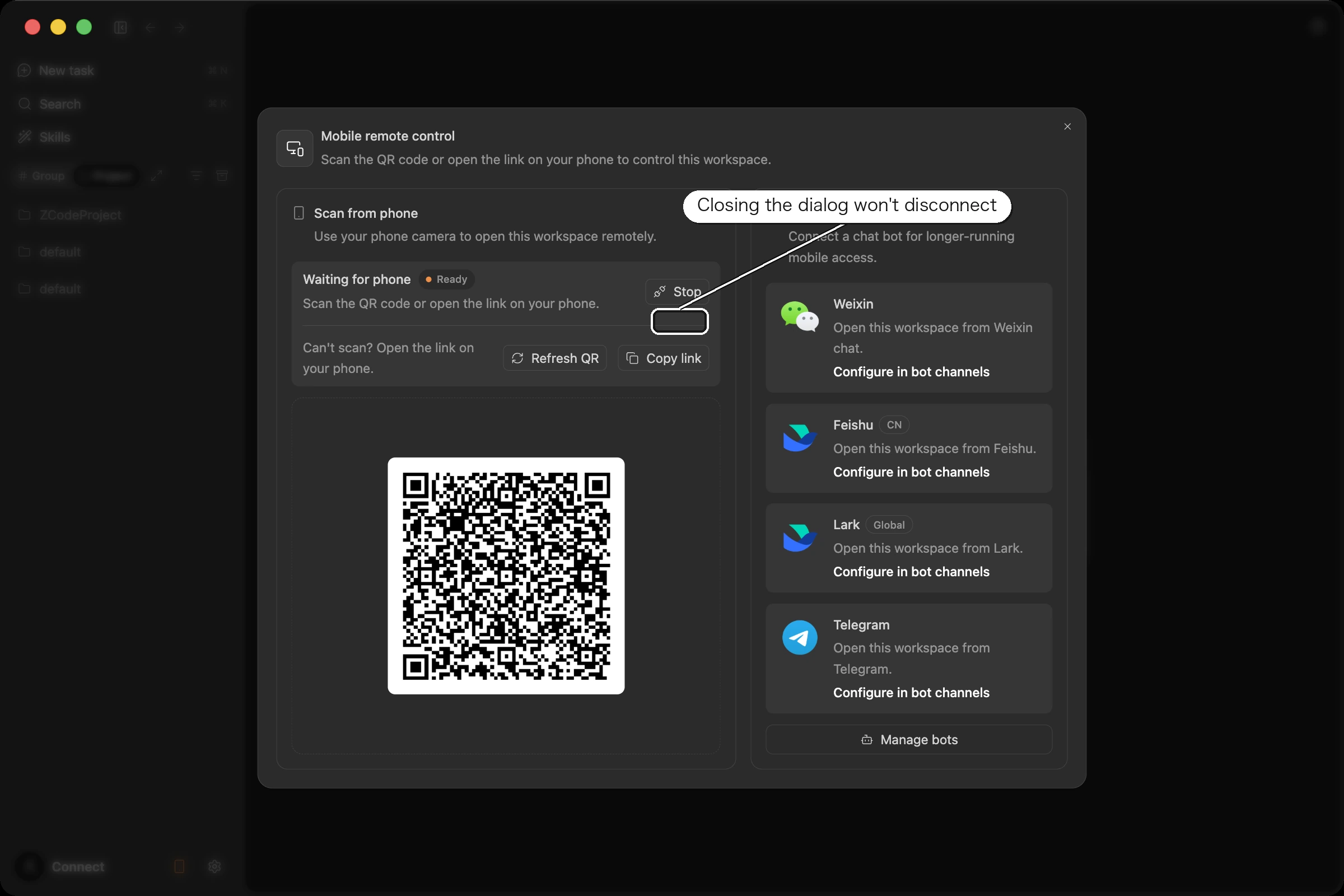
Once connected, your phone reaches the entire desktop window, not just the workspace you happened to be looking at when you scanned.
What You Can Do From The Phone
Task home
The first screen lists the workspaces and tasks in this window. You can:
- Organize tasks by workspace or by timeline.
- Sort by creation time or update time.
- Refresh the list to pull the latest state from the desktop.
- Create a task inside an existing workspace.
- Reconnect a remote workspace that shows as disconnected.
Each workspace is tagged with its kind — local, remote, or conversation — and each task shows its run status.
Session view
Opening a task takes you to the session. Agent replies, execution steps, and progress all appear here, and you can keep the task moving by typing into the input box at the bottom. Each reply offers copy and thumbs-up / thumbs-down feedback, plus forking when the session supports it.
Only one phone page can be connected at a time. If you already have one open elsewhere, close it first.
Which Machine Actually Runs The Commands
The phone is only a control surface; it never creates a runtime of its own. Where things actually execute depends on how that workspace was connected on the desktop:
| Workspace kind | Where code and commands run |
|---|---|
| Local | Your desktop computer |
| SSH | The remote host |
| WSL | The chosen WSL distribution |
| Docker | The target container |
In other words, your phone never opens a remote connection itself — it hands instructions to the one the desktop already established.
Stopping And Safety
The connection link carries remote-control authorization on its own: anyone holding it can operate your window. A few things worth knowing.
Closing the dialog does not stop Remote Control. Click Stop when you're done to actually end the session.
Refresh the QR code if the link may have leaked. Refreshing immediately invalidates any previously copied or scanned link, and connected phones have to scan again.
Never post or forward the link. Treat it as a temporary key.
The desktop also needs to stay running and online for the duration — once it disconnects or the window closes, the phone can't continue.
FAQ
Can the phone create or connect a remote workspace?
It can't create a new SSH, WSL, or Docker connection — entering connection parameters has to happen on the desktop. But if a remote workspace is already registered in the current window and merely disconnected, the phone can trigger a reconnect; the desktop still performs the actual connection.
Can the phone open a project the desktop hasn't opened?
No. The phone can only reach workspaces already open or registered in the current desktop window. It can't browse arbitrary directories on that machine, nor connect to anything outside the window.