Skill
A Skill is a reusable working instruction. It is usually defined by a SKILL.md file that describes when the skill should be used, how the Agent should work, and what kind of output is expected.
In ZCode, this page focuses on skills for ZCode Agent:
- ZCode Agent: Recommended for ZCode's built-in Agent workflows, such as project development, documentation, testing, and team-specific operations.
Manage Skills
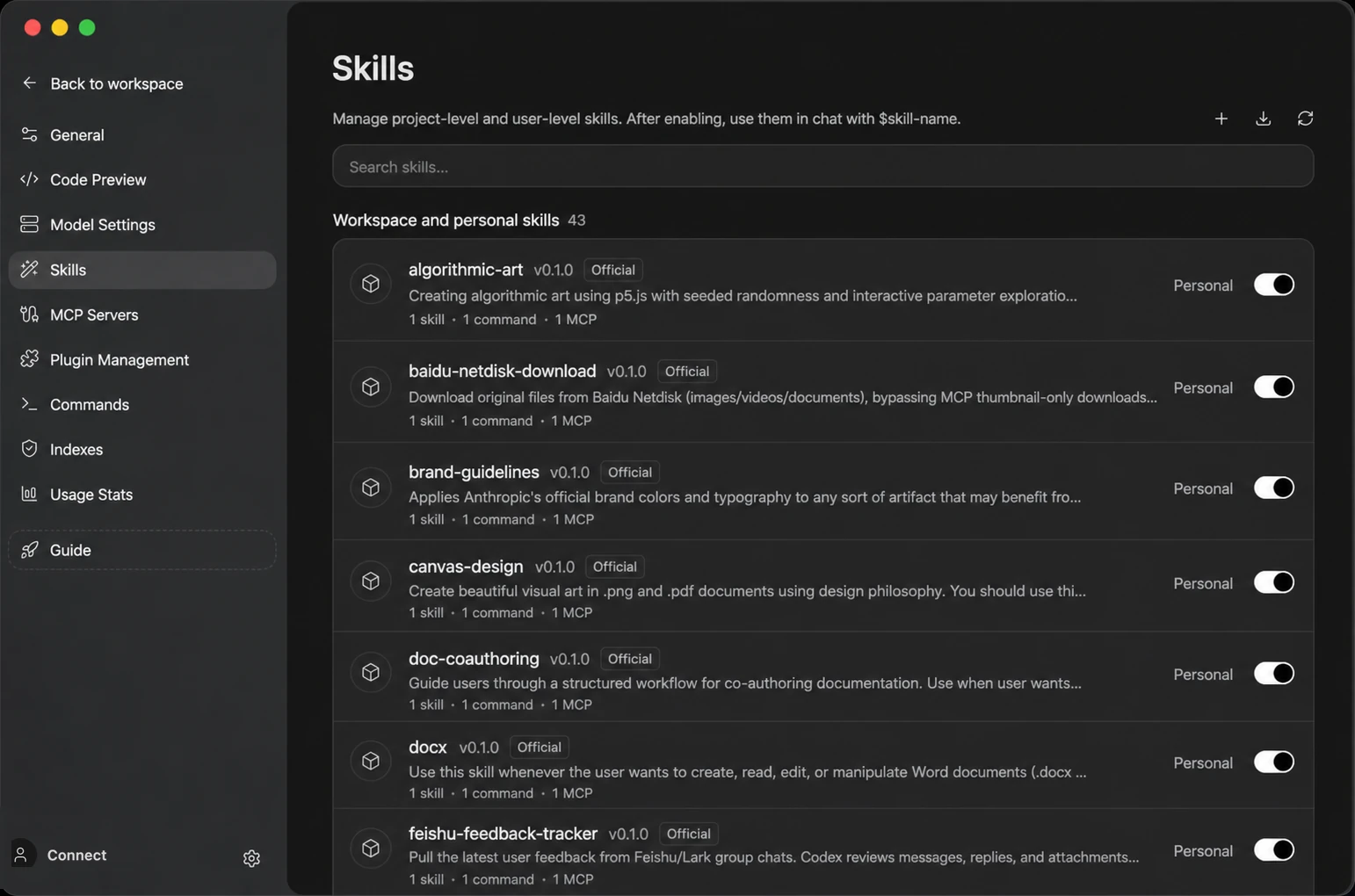
Open Settings -> Skills to view skills by source. Each row shows the skill name, source tag, description, and enable switch.
From this page, you can:
- Search skills by name.
- Enable or disable a skill with the switch on the right.
- Click New Skill in the upper-right corner, and ZCode will guide you through generating a new skill with the Agent in chat.
Create A Skill
A skill is a directory with a SKILL.md file inside. The directory name is the skill name, and that is the name you reference in chat.
User-level skills for ZCode Agent:
~/.zcode/skills/<skill-name>/SKILL.md
A minimal SKILL.md looks like this:
---
name: code-review-checklist
description: Review code changes with a focused checklist for correctness, regressions, tests, and maintainability.
---

# Code Review Checklist

Use this skill when reviewing a pull request, merge request, or local diff.

Focus on correctness, regressions, missing tests, risky API changes, and maintainability.
After creating or editing a skill, return to Settings -> Skills, click Refresh, and confirm the skill appears under the correct source with the switch enabled.
Format Limits
- The frontmatter must include
nameanddescription; a skill missing either is ignored, with the reason shown in the settings-page diagnostics. descriptionis capped at 1024 characters. Going over drops the whole skill (the diagnostic reads "descriptionexceeds 1024 chars") rather than truncating it — put long instructions in the body instead.- A
SKILL.mdbody over 100KB is truncated when loaded.
Skill Count and Context Usage
Each turn injects the metadata of every enabled skill (name plus a description excerpt of up to 250 characters) into the model context; bodies are loaded on demand only when a skill is invoked. All skills share one fixed metadata budget: install enough skills to blow past it and the injection degrades to names only, leaving the model unable to tell when to use which skill — automatic trigger rates drop sharply. Keep only the skills you actually use enabled; disabled skills are neither injected nor invocable.
"Visible in the / panel, but the model never uses it"
The / panel and the model see the same skill list — there is no switch that shows a skill to the panel but hides it from the model. If a skill is visible but never triggers automatically, check in this order:
- Degraded metadata: with too many skills installed, the budget above is exceeded and the model only sees skill names (descriptions dropped) — disable unused skills to recover.
- Vague description: if
descriptiondoesn't spell out when to use the skill, the model can't decide. The more specific the trigger conditions, the more reliable auto-triggering becomes. - Inside a subagent: if a subagent definition declares a custom
toolsallowlist, the skill tool may not be on it, and the subagent then cannot invoke any skill — remove thetoolsfield or add the skill tool to the allowlist. - Parent plugin disabled: disabling a plugin removes its skills from the session immediately; the panel list may refresh with a slight delay.
Distributing Skills
ZCode has no standalone skill marketplace. To distribute a set of skills to a team, package them as a plugin (a flat skills/<skill-name>/SKILL.md layout) and ship it through a plugin marketplace — marketplaces support custom sources (a GitHub repo, git URL, or local directory). Note that skills inside a plugin must sit in that flat layout; skills nested under grouping directories are not picked up by the Agent.
Import Skills From An External Agent
If you already maintain skills in other AI coding tools such as Claude Code, Codex CLI, OpenClaw, Augment, or Windsurf, there's no need to recreate them in ZCode. On the Settings -> Skills page, click the Import icon in the top-right corner. ZCode scans those external Agents' skill directories and lists the skills you can import in one click.
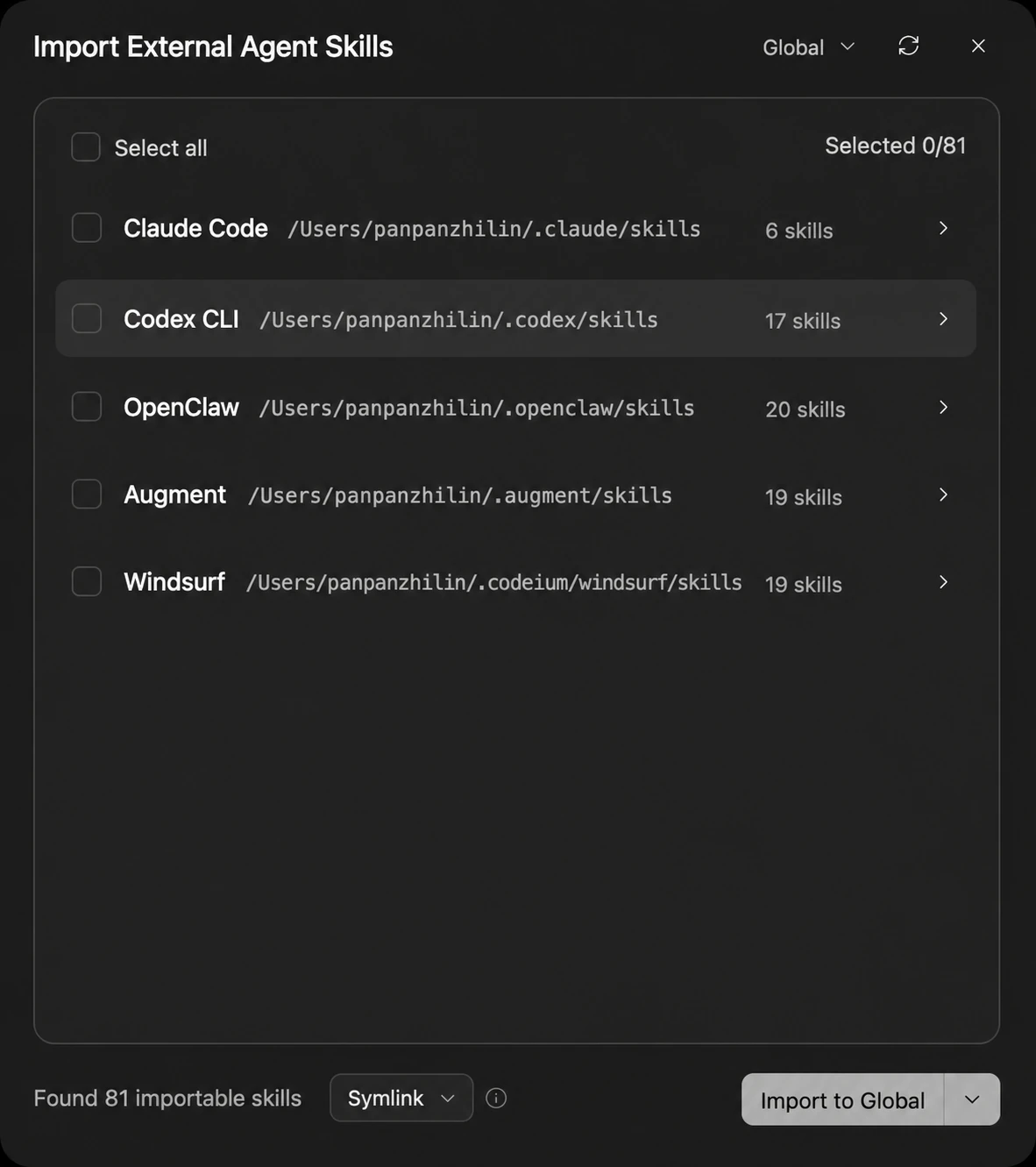
In the dialog you can:
- Browse detected skills grouped by external Agent; each source shows its skill directory path and how many skills are available.
- Select the skills you want, or use Select All; the selected count updates at the top.
- Choose an import mode:
- Symlink: create a link to the external skill directory. ZCode follows later changes in the source, but the skill depends on the source path staying available.
- Copy: copy the skill into ZCode as an independent copy, decoupled from the source, so later changes in the source are no longer synced.
- Choose an import target: import to Global (user level, available in all workspaces) or to the current Project (current workspace only).
Confirm to finish. Imported skills appear in the skill list, behave like ones you created yourself — enable, disable, and invoke them in chat with $skill-name.
Use A Skill In Chat
Type $ in the chat input and select a skill. Once selected, the skill appears as a tag in the input, and you can continue typing the actual request.
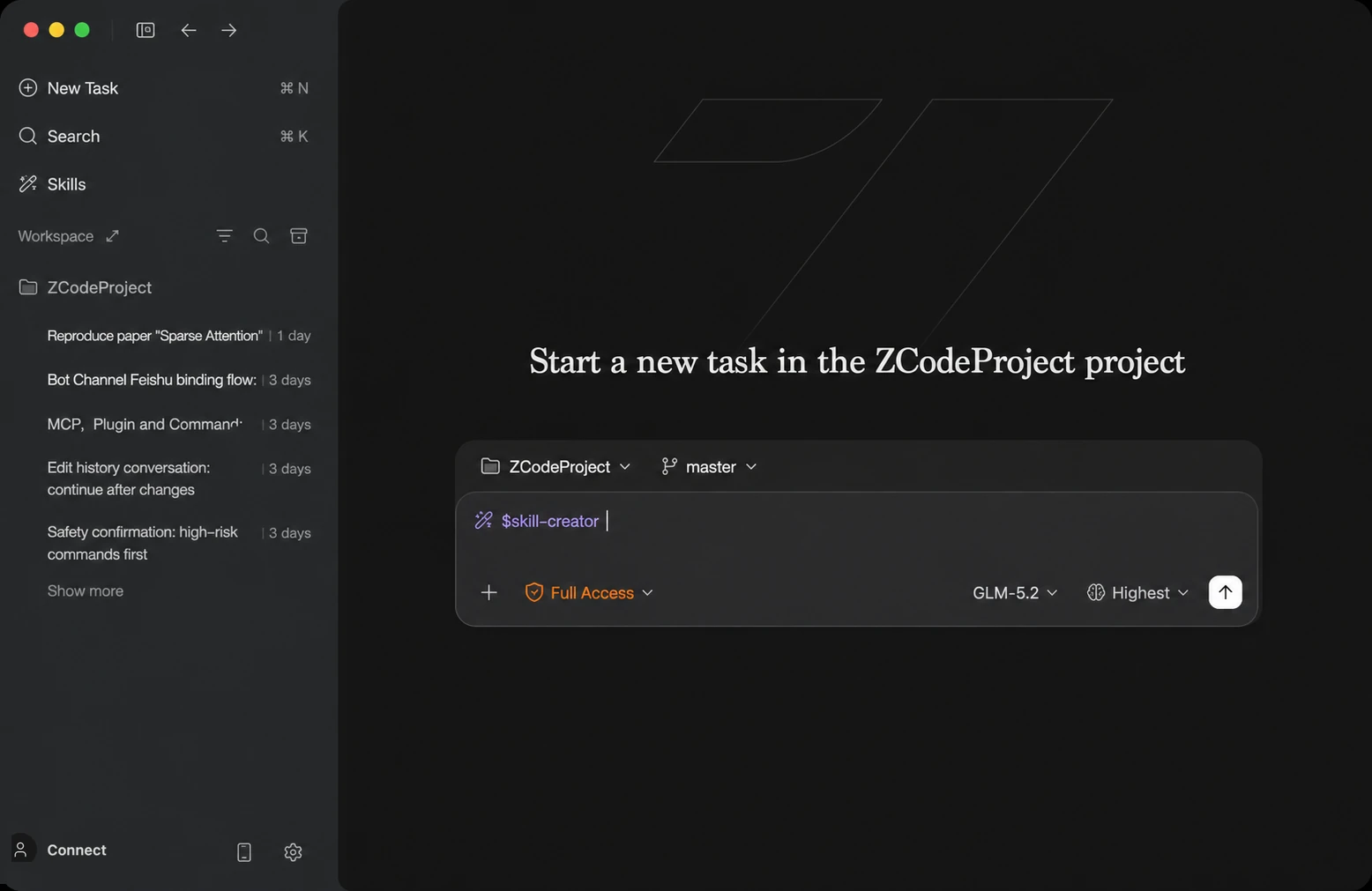
Examples:
$code-review-checklist review my current changes
$release-notes write release notes for this change set
ZCode passes the referenced skill to the active Agent so it follows the instructions in that skill.
Besides $, the slash menu also has a Skills group — typing / finds them too.
The Built-in Configuration Guide
ZCode ships with a zcode-configuration-guide skill, installed and enabled by default with nothing to set up. It collects the configuration locations, scopes, and precedence rules for skills, commands, MCP servers, hooks, plugins, and AGENTS.md in one place:
$zcode-configuration-guide I want to add a command that only applies to this repository — where should it go?
A set of companion diagnostic skills covers the "why isn't this working" cases: skills not being picked up, commands not appearing, MCP servers failing to connect, hooks not firing, plugins refusing to install. The Agent can walk through them symptom by symptom to find the cause and the fix.
Syncing Skills to a Remote Host
User-level skills live on your machine, so the Agent in a remote workspace can't see them by default. Once connected over SSH or WSL, use Sync Skill in the Sync dropdown of the workspace header to copy them over. See Remote Development → Syncing local configuration to the remote.
What Should Become A Skill
- The task follows a repeated workflow, such as code review, API debugging, release notes, or test reports.
- The team expects a consistent output format.
- The workflow needs background knowledge, checklists, templates, or examples.
- The same capability will be reused across projects or conversations.
Use Command for a simple saved prompt. Use Skill when you need a complete working method.