Automations
Some work doesn't need you to kick it off every time: summarizing code changes each morning, putting together a release note every Friday, checking dependency risks once a month. Automations let ZCode Agent run on the cadence you set and leave the results in a session for you to review.
There are two kinds of automations:
- Scheduled tasks — you pick the time and repeat rule, and they run automatically. This page covers them.
- Idle-time task — no schedule; it queues up and runs for free when spare capacity is available. See Idle-time Task.
Click Automations in the left sidebar to open the management page. It belongs to the current project's workflow rather than to Settings — opening it doesn't disturb your session list, and you can go back to your previous session at any time.
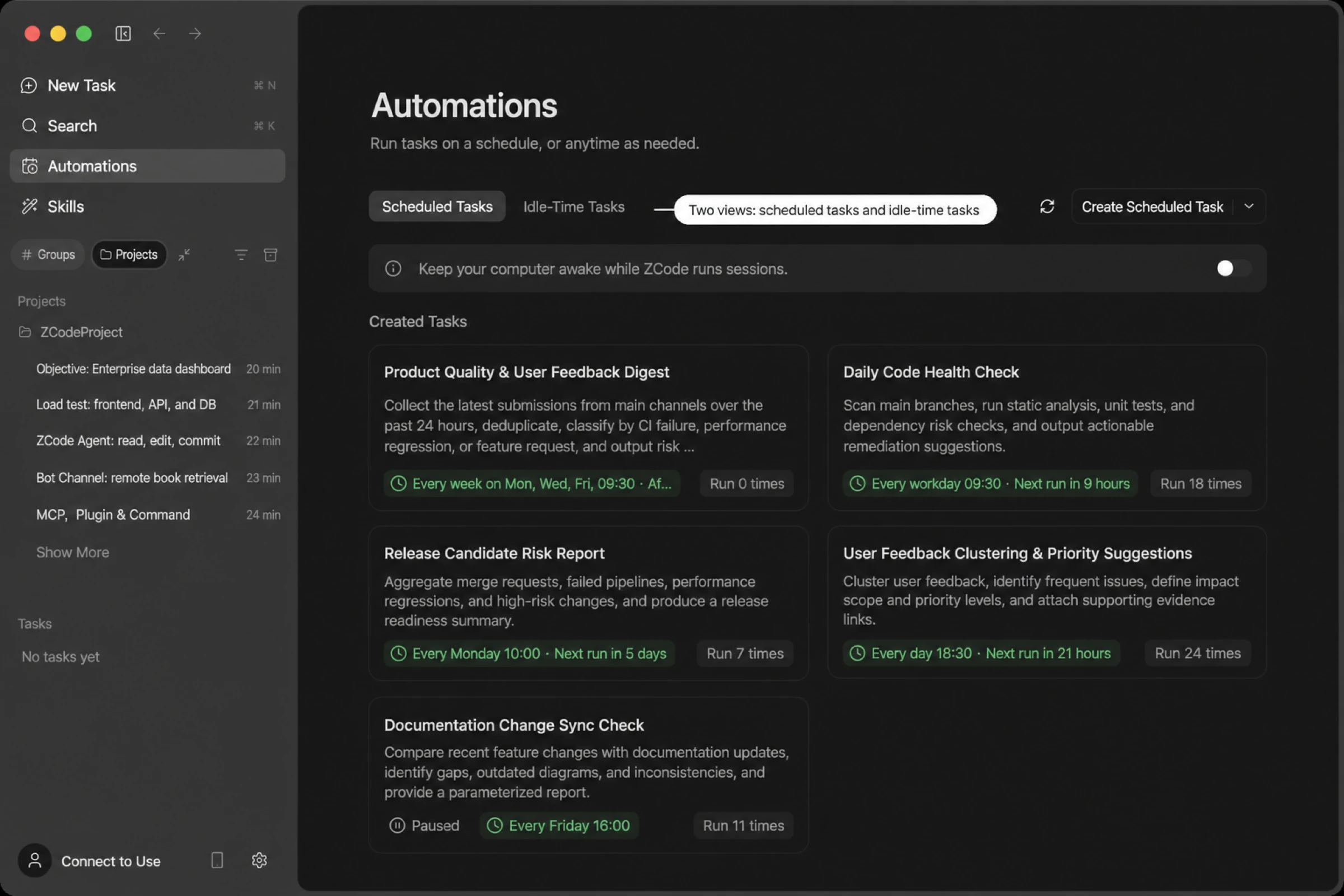
Creating a Scheduled Task
There are three ways to do it. They produce the same result, so use whichever fits.
From the Form
Click Create scheduled task on the Automations page and fill in four things:
| Field | Description |
|---|---|
| Task title | How you'll recognize this task in the list and history |
| Schedule | When and how often it runs — see Schedule Rules |
| Instructions | What gets sent to the Agent on each trigger; be clear about the work and the expected output |
| Project / permission / model / thought level | The toolbar under the instructions field — see Task Configuration |
From a Chat Session
Click the arrow next to the create button and choose Create in chat. The composer prefills an example you can edit, for instance:
Every weekday at 9am, summarize this project's code changes and open follow-ups.
A task created this way is bound to the current session: every trigger delivers its results back to that same session instead of opening a new one. This is handy when you want all output collected in one place. Once created, a task card appears in the session, and Go to scheduled task takes you straight to its detail page.
From a Template
The Automations home page offers four ready-made templates that prefill complete instructions:
- Weekday standup digest — yesterday's progress and today's focus
- Daily risk scan — surface potential problems in the codebase
- Friday release brief — collect the week's changes into release notes
- Wednesday doc sync check — verify docs haven't drifted from the code
All four follow the same constraints: read-only analysis, only verifiable facts from the repository, explicit acknowledgment when evidence is thin — no speculation and no code changes.
Schedule Rules
Pick a frequency: Hourly / Daily / Every weekday / Weekly / Monthly / Custom.
Choosing Custom opens a repeat-rule dialog for finer control:
| Dimension | Options |
|---|---|
| Repeat unit | Hour, day, week, month, year |
| Interval | Run every N units, e.g. "every 2 hours" or "every 3 days" |
| Specific timing | Days of the week, days of the month, months, plus the exact hour and minute |
| By date or by weekday | For monthly repeats, choose "the 15th" or "the third Monday" |
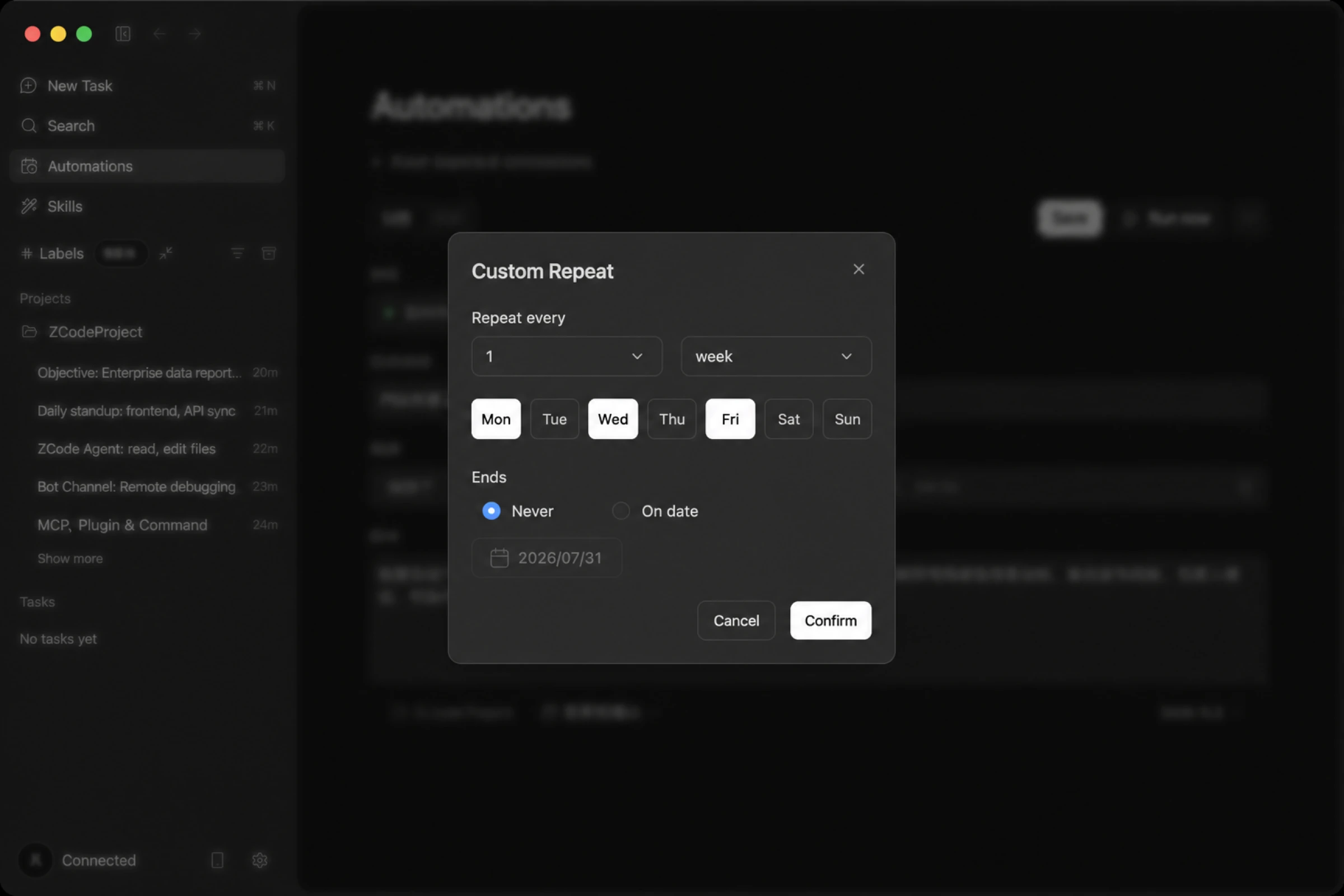
Once confirmed, the schedule row collapses into a short summary that you can click to edit again.
When It Stops
Scheduled tasks repeat indefinitely by default. To have one stop after a certain date, open the custom repeat dialog and pick a date under Ends; once it passes, the task moves to Completed and stops triggering.
There's no "run at most N times" field in the form. When you do need a fixed count, ask the Agent in a conversation to create the scheduled task and say how many times it should run.
About time: everything is computed in your computer's local timezone. Task cards show the next run time — relative (like "in 3 days") within a month, and an absolute date beyond that.
Task Configuration
The toolbar under the instructions field determines what the task can do when it runs:
- Project: which project directory it runs in. Only local projects currently open in the window are selectable, and this can't be changed after creation.
- Permission: the same four execution modes as a regular session, controlling how much the Agent can change on its own. The icon stays orange when Full access is selected.
- Model: the model used during execution; leave empty to follow the project default.
- Thought level: how deeply the model thinks; leave empty to follow the project default.
Since scheduled tasks run while you're not watching, the execution mode deserves a moment's thought — open it up if you want the Agent to change code on its own, keep it read-only if all you want is a report.
Managing and Running
Run Now
Run now in the card menu runs the task straight away. It doesn't disturb the schedule — the next run time, the run count, and whether the task is enabled all stay as they were.
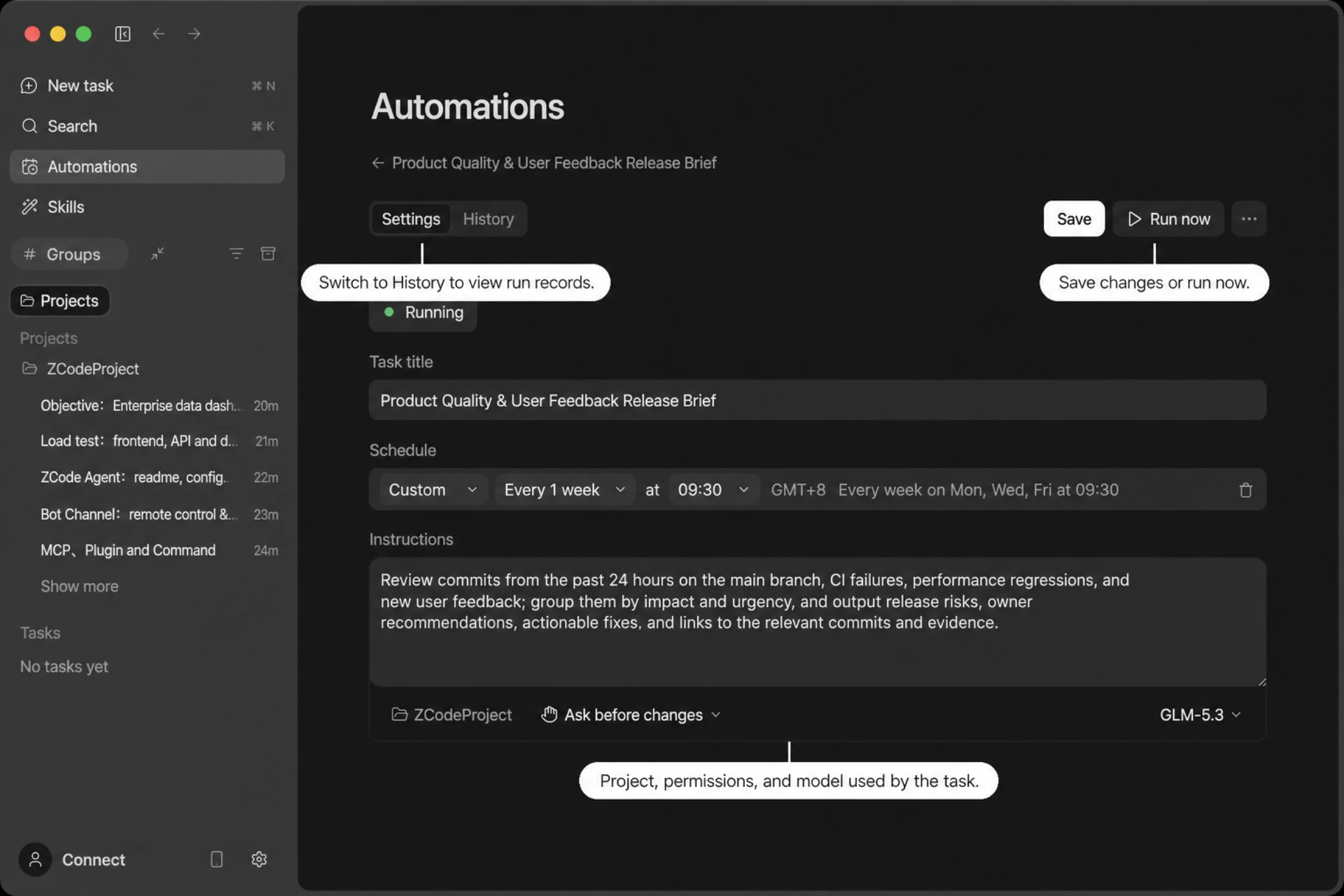
If the previous run hasn't finished, clicking again won't queue a second one; you'll see a "previous run still in progress" notice instead.
Pause, Edit, and Delete
Tasks have four states: active, paused, completed, and failed.
Pausing keeps the task but stops it from triggering; the schedule and run count on the card dim to make that clear, and you can resume whenever. If you leave the editor with unsaved changes, you'll be asked to confirm before discarding them.
Run History
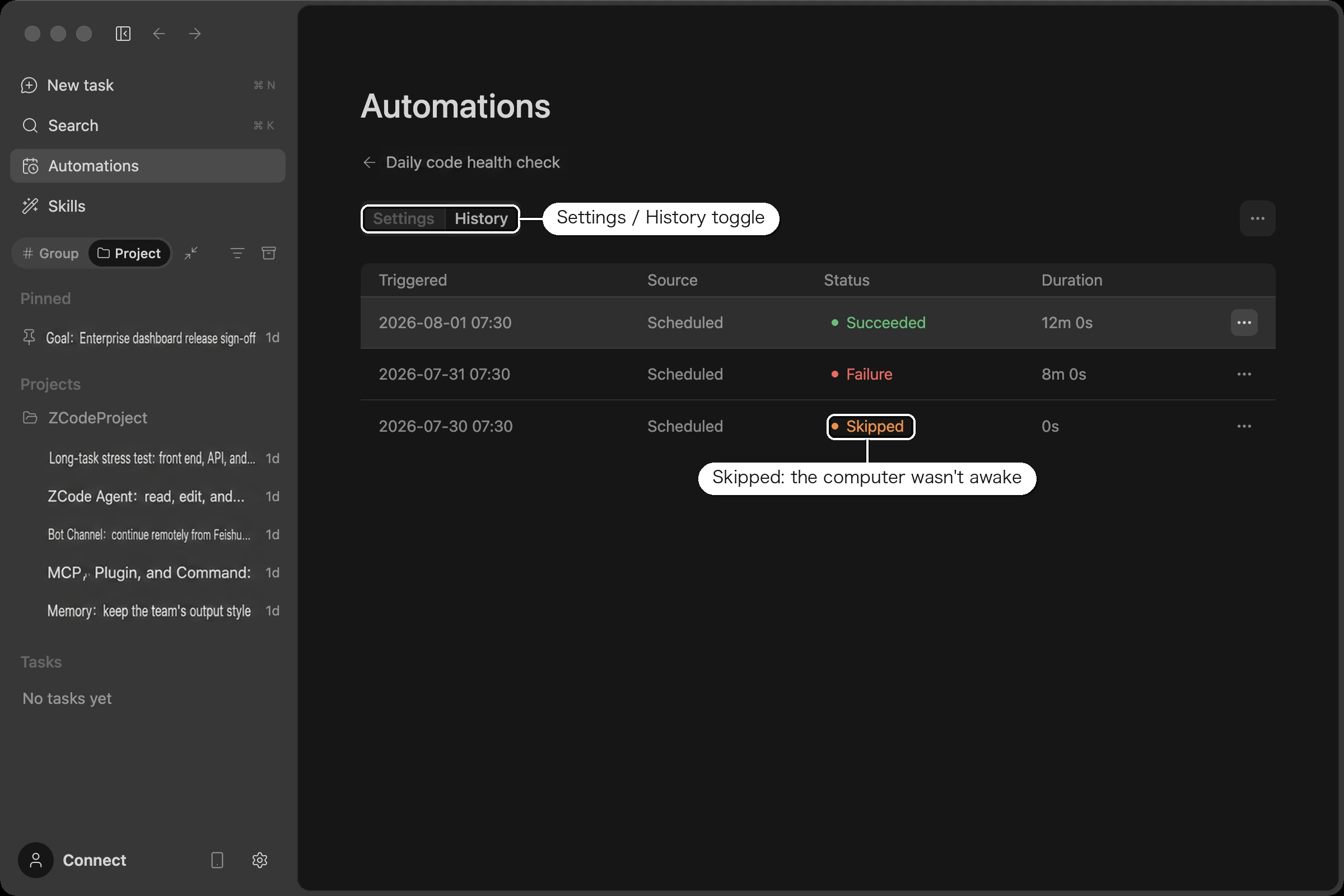
The task detail page toggles between Settings and History. History records every trigger — in progress, succeeded, failed, and the ones skipped because the computer was asleep. Records with a session let you jump straight to what happened.
Limitations Worth Knowing
Your computer must be awake. Scheduled tasks run on your machine, so nothing triggers while it's asleep or the app is closed, and a missed one-time run is recorded as skipped rather than replayed. For tasks scheduled overnight, turn on Keep awake on the Automations page — it's a global switch shared with idle-time tasks.
Twenty tasks maximum. That's the total across all projects, and paused, completed, and failed tasks still occupy a slot — only deleting a task definition frees one up. New tasks are blocked once you hit the limit, so clear out ones you no longer need. If the Agent hits the limit while creating a task from chat, it tells you and stops rather than deleting anything on its own.
Local projects only. New tasks can only target local projects open in the current window; remote workspaces aren't supported (existing remote tasks remain viewable and manageable). Automations don't appear in the mobile remote control interface.