Command
Commands invoke built-in ZCode Agent capabilities and can also save prompts you use often. After saving prompts for code review, commit messages, release checks, file explanation, or similar repeatable work, you can invoke them from the input box with /.
Commands are designed around the ZCode Agent workflow. For daily work inside ZCode, save the prompts your team repeats often so the first-party Agent can execute stable routines.
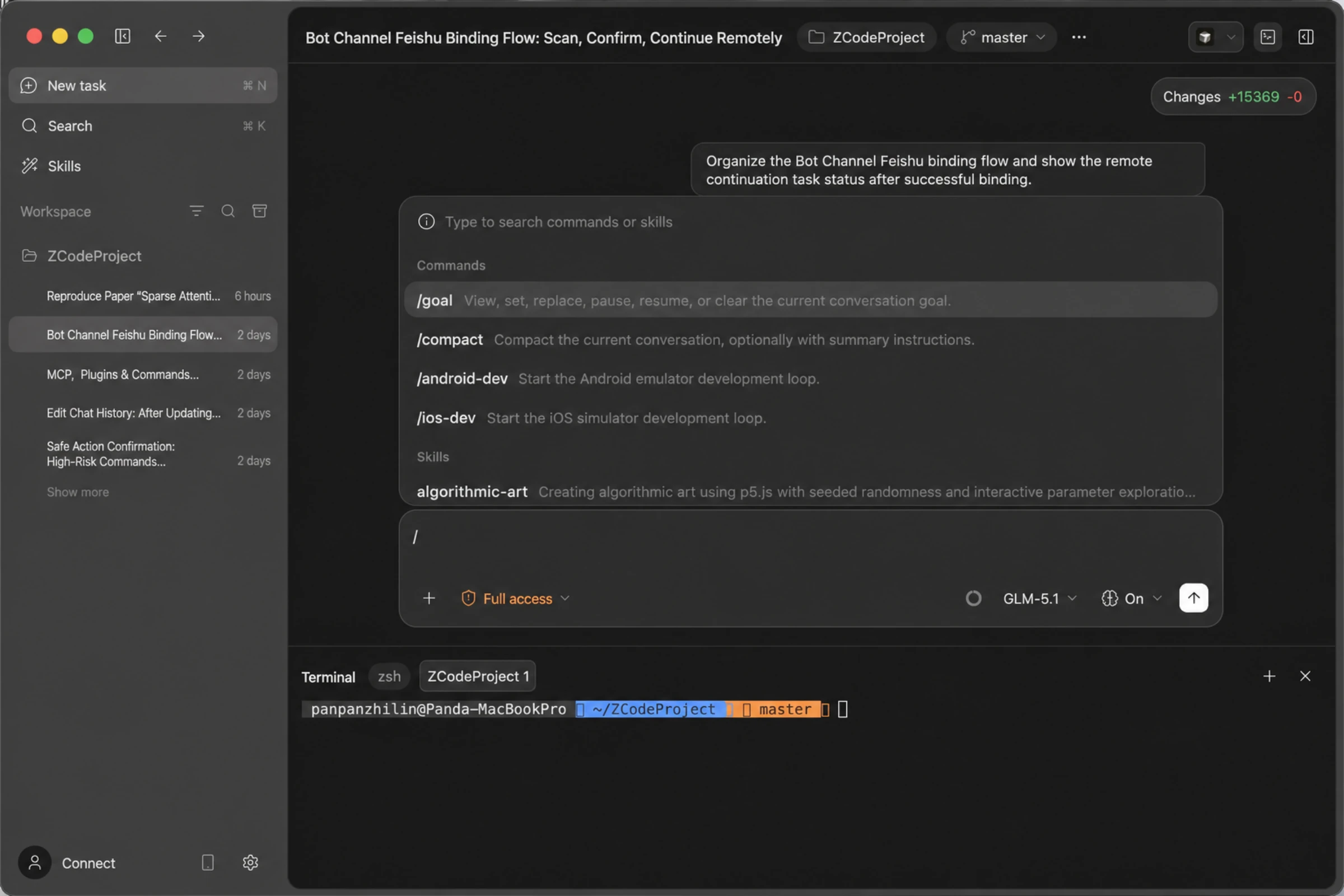
Use In ZCode Agent
- Type
/in the input box to open the command panel. It is organized into Commands and Skills groups, and you can keep typing to filter. - Select a command, or keep typing to filter by command name.
- If the command expects arguments, add a path, module name, or extra instruction after it.
ZCode Agent currently includes two built-in commands:
| Command | Purpose |
|---|---|
/goal | Show, set, replace, pause, resume, or clear the current session goal, useful for long-running tasks |
/compact | Compact the current conversation context while preserving key information, useful for continuing long conversations |
For example, use /compact to clean up context in a long task, or /goal to keep the agent working toward a long-term objective. To invoke a skill, use $ or pick it from the Skills group in the / panel.
Create A Command
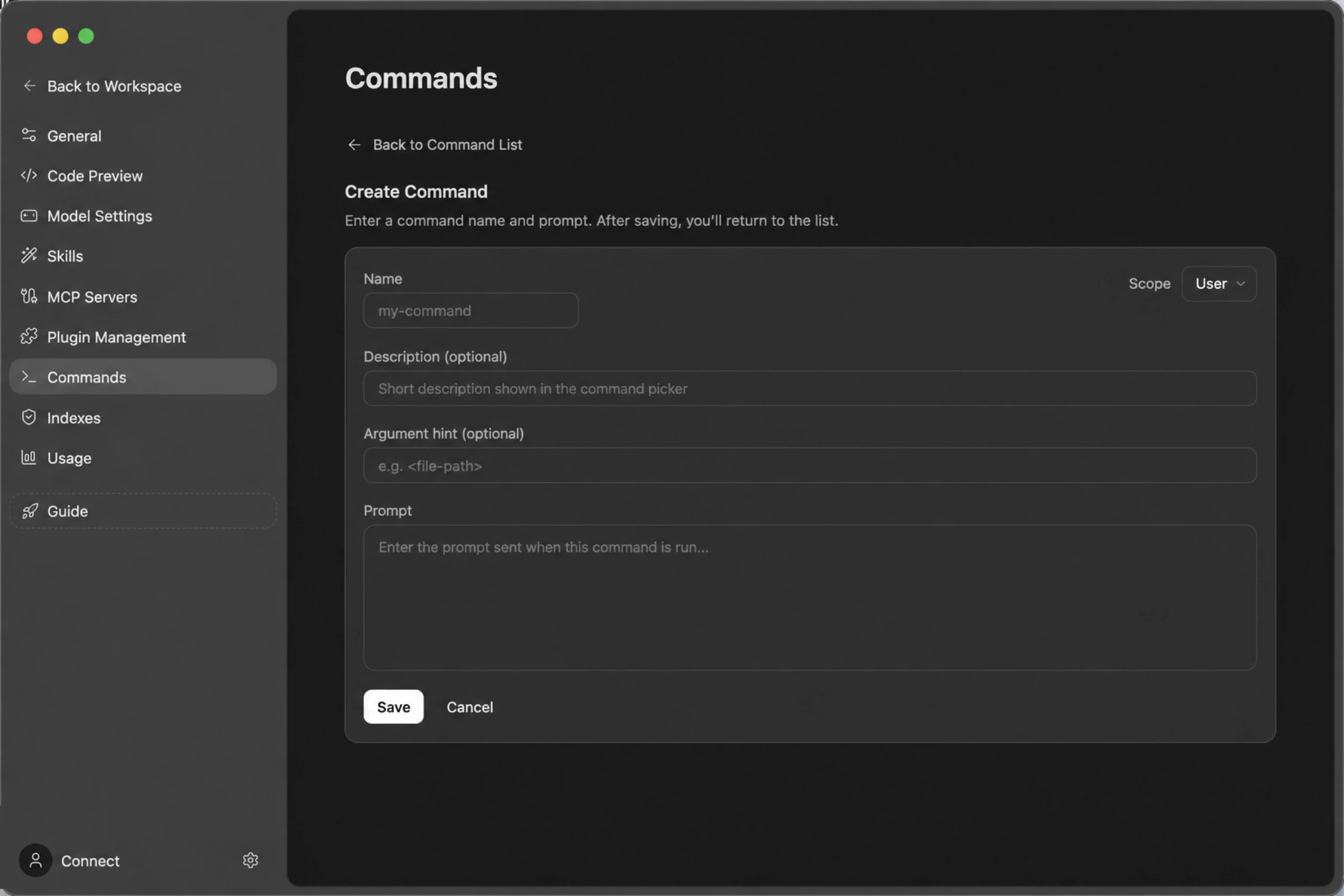
Open Commands in ZCode settings, then create a new command and fill in the fields:
| Field | Description |
|---|---|
| Scope | Choose User (available in all workspaces) or Workspace (current project only) |
| Name | Command name, invoked as /command-name after saving |
| Description | Optional short text shown in the command picker |
| Argument hint | Optional parameter hint, such as <file-path> |
| Prompt | The prompt content sent to the agent when the command runs |
Custom commands are stored as .md files under ~/.zcode/commands (workspace-level commands live in the project directory). After saving, invoke the command with /command-name in the task input box.
Import From An External Agent
If you already maintain commands in an external Agent such as Claude Code, there's no need to recreate them in ZCode. On the Commands page, click Import commands from external Agent in the top-right corner to bring your existing external-Agent commands directly into ZCode.
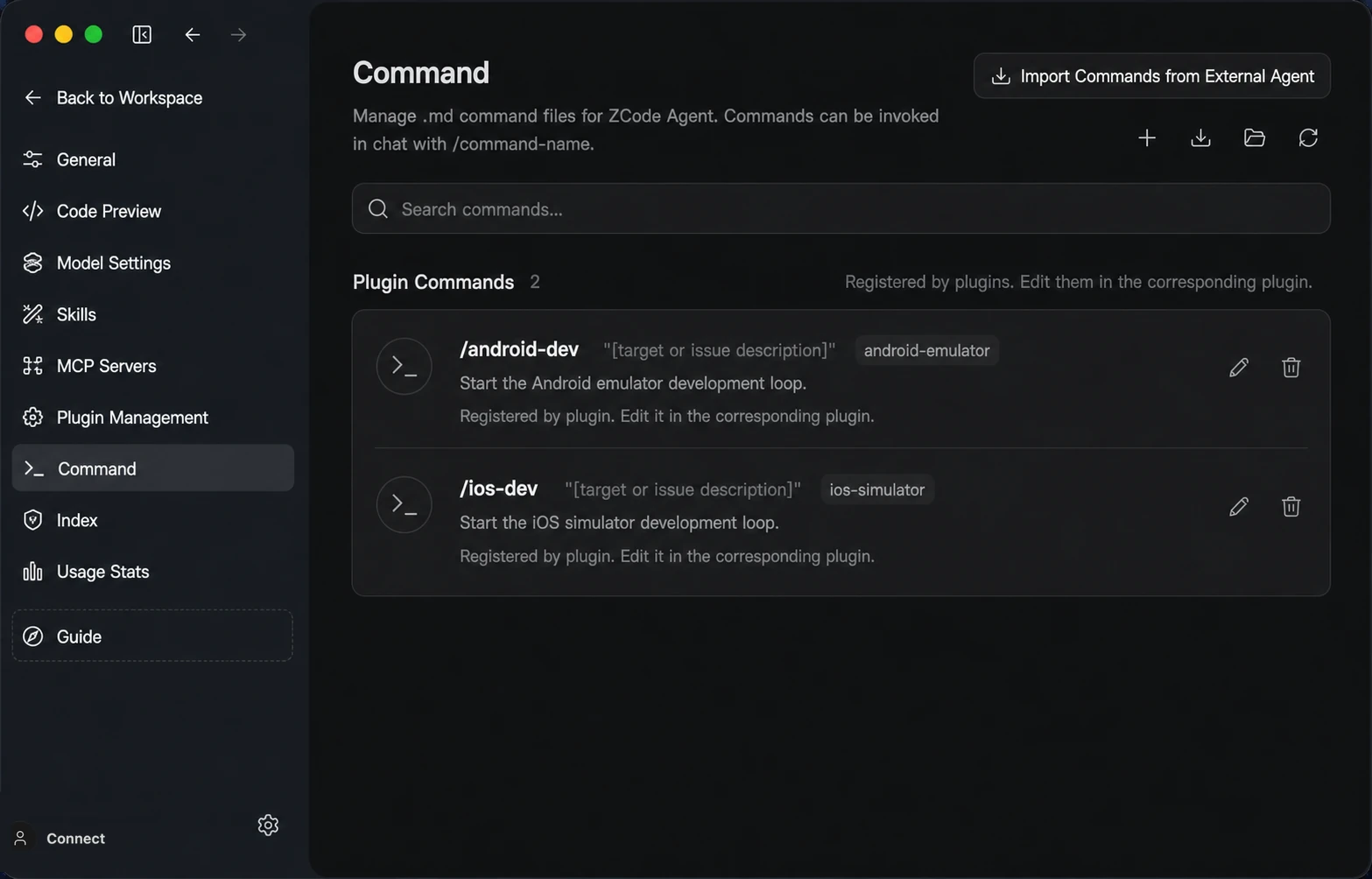
- Open the Commands page in ZCode settings.
- Click Import commands from external Agent in the top-right corner.
- Pick the external-Agent commands you want, confirm, and they are imported into ZCode.
Imported commands behave like ones you created yourself: they appear in the command list, are invoked with /command-name, and you can keep editing their name, description, argument hint, or prompt inside ZCode.
Usage Notes
Use a command when you only need to save a simple prompt. If the workflow needs scripts, templates, or example files, consider using Skill instead.