Idle-time Task
Not every task needs to start right away. Producing a codebase analysis, backfilling a round of comments, running a documentation sync check — getting those results a few hours later usually costs you nothing.
That's what an idle-time task is for: submit it, and it joins a queue that runs during periods of spare computing capacity. The run is free and doesn't consume your subscription plan quota.
Rolling out gradually. Idle-time tasks are being released to subscribers in batches, so the entry points may not be visible in your client yet. This note will be removed once the feature is generally available.
The difference from Scheduled tasks is clear-cut: a scheduled task runs at times you choose and can repeat; an idle-time task has no schedule, runs once, and starts whenever the queue reaches it.
Prerequisites
Idle-time tasks require an active Coding Plan subscription. Personal Coding Plans from both ZAI and BigModel work; Start Plan and plain API key mode are not supported. Support for team plans is still rolling out — creating a task while a team-plan connection is selected may fail for now; switch to a personal plan in the meantime.
Without a subscription, clicking the entry point prompts you to upgrade. If your subscription is fine but no matching model connection is selected, the submit button stays disabled with a tooltip — pick a connection in Connect a Model first.
If you see "Unable to verify eligibility right now, please refresh and retry", the eligibility check is still in flight or temporarily failed (e.g. a network hiccup) — it does not mean your account is ineligible. Refresh the page or try again shortly.
Creating an Idle-time Task
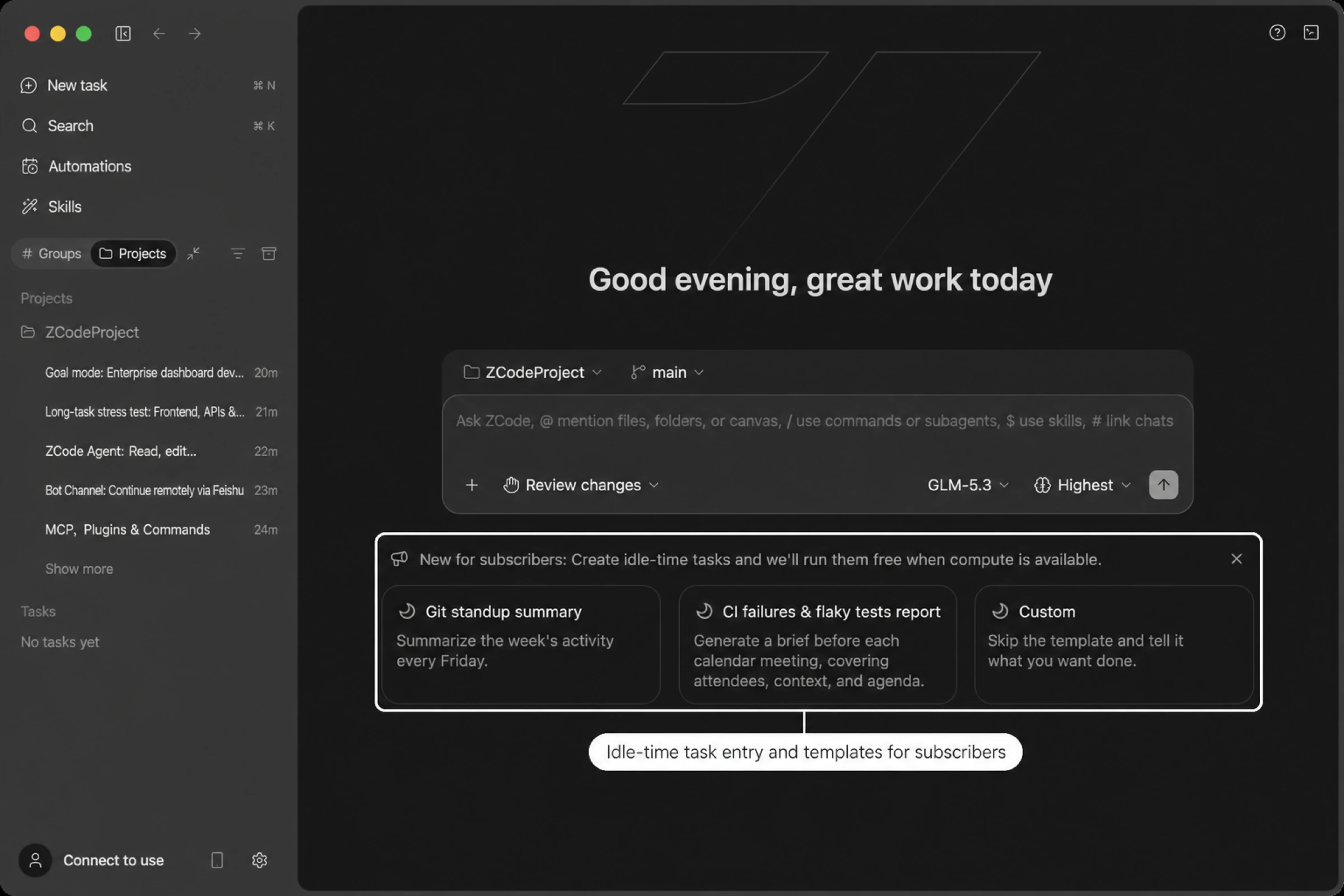
Click Automations in the left sidebar, switch to the Idle-time task tab, and click Create idle-time task. You can also use an idle-time template on the new task home page, which prefills the instructions and takes you to the creation form.
The form asks for:
| Field | Description |
|---|---|
| Task title | Defaults to "Untitled" — rename it to something recognizable |
| Instructions | The entire task. Since it runs unattended, make them complete and self-contained |
| Project | Only local projects open in the current window; can't be changed after creation |
| Permission | The same four execution modes as a regular session; defaults to Ask before changes |
| Model / thought level | Chosen from the models available to idle-time tasks |
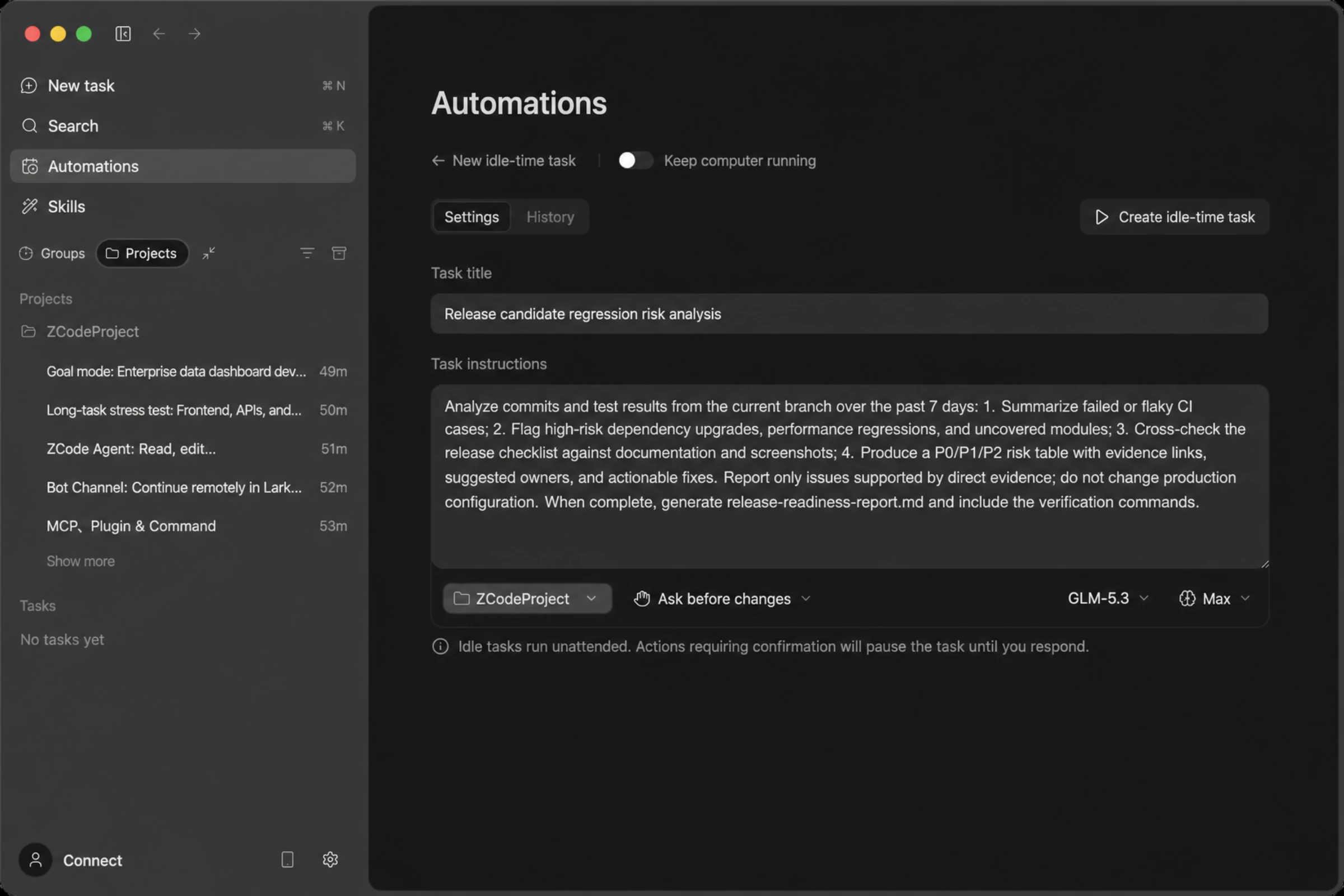
The more complete the instructions, the closer an unattended run lands to what you expect — the example above spells out what to analyze, what format to produce, and how to verify it, and works well as a reference.
Because the task runs while you're away, committing your work to Git first is a good habit — it gives you a clean way back if you don't like the result.
Queueing and Execution
Once submitted, the task joins a global queue ordered by creation time, first come first served, and the card shows where you currently are in line.
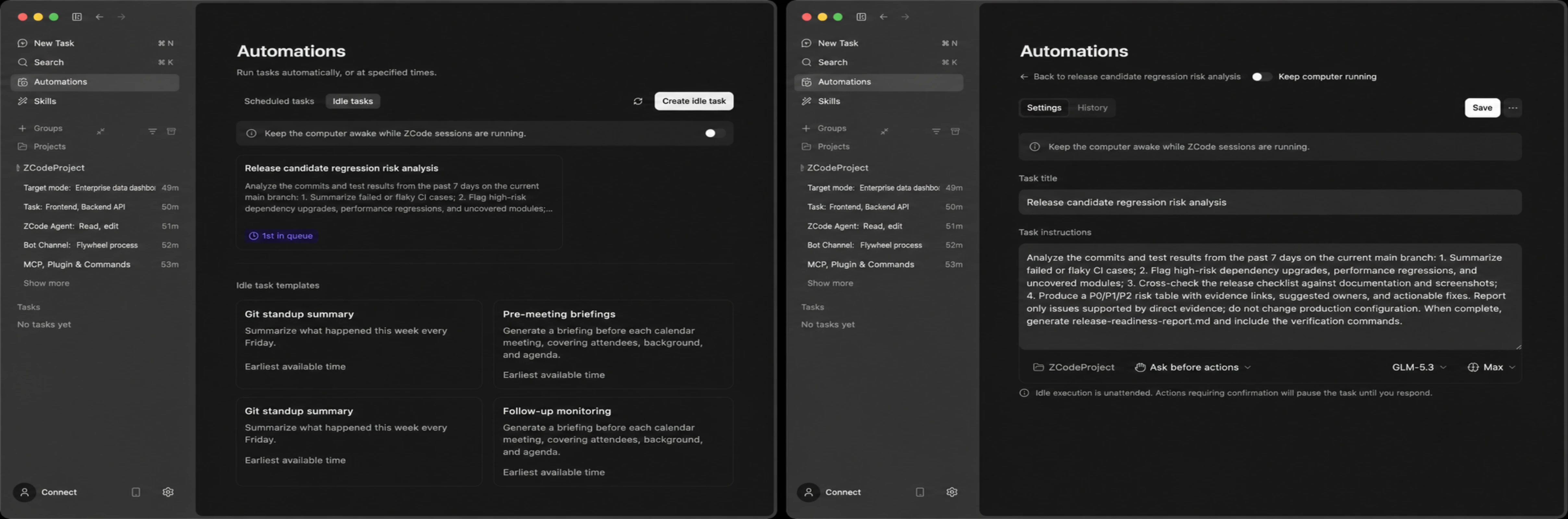
You don't have to sit and wait while it's queued: open the task to double-check what you filled in and fix anything you missed, and the templates below the list stay available so you can queue another one on the spot.
When your turn arrives the task starts on its own and moves to Running. A few things characterize this stage:
- You don't need to be around: it runs in the background, and you're free to do other things or even close the session for that project.
- Long tasks pick up where they left off: if a run reaches its time limit, the task goes back in the queue and continues in the same session rather than starting over. Restarting the app doesn't lose it either.
- No promised start time: the queue depends on overall spare capacity, so the interface doesn't estimate when your task will begin. It waits as long as it takes — cancel it if you'd rather not wait.
If the Agent hits something that needs confirmation mid-run, it waits for you in the session just like a regular conversation, and the task stays in Running.
What's Free and What Isn't
The entire automatic run is free: every model request made while the task executes on its own — the tool-calling loop, automatic context compaction, and foreground subagents — goes through the dedicated idle-time channel and consumes none of your plan quota. When a long task continues across segments, every segment is equally free.
Messages you send yourself are not free: anything you type into the same session during or after the run — including nudges like "continue" or "do it now" — is billed to your plan against your currently selected model. The free allowance covers only what the idle queue dispatches automatically, never the messages you send yourself. This is by design.
Chiming in and interrupting are not the same thing, and they bill differently. The session is never locked, so you can type during a run — but the two options lead to different outcomes:
- Type without interrupting: your message goes into the session queue and is only sent once the current automatic turn finishes. That message and the turn it drives are billed to your plan against your currently selected model; the idle-time task itself is unaffected, and if it still needs more segments, those automatic segments remain free.
- Interrupt with
Esc: you end the current automatic turn, and the idle-time task reaches a terminal state with it — it will not go back to the queue to continue. Everything you do in that session afterwards is an ordinary paid conversation. That is what taking over means: your own model, your own plan quota.
Approving a permission is not taking over: when an unattended run stops for confirmation, approving or rejecting it stays inside the same automatic turn and keeps using the free idle-time channel — a human clicking the button does not make it billable.
Tip: If you only want to see how far the task has gotten, just open the session and read it — viewing costs nothing. When you genuinely need to change the instructions, queueing the new requirements as a fresh idle-time task beats interrupting the current run; you can check the actual consumption in Usage Stats.
While the task runs, the session UI keeps showing the model you configured; the execution model actually used by the idle-time channel is assigned server-side, doesn't touch your model settings, and everything is back to normal once the run ends. Log entries showing a temporary model switch are part of this mechanism and expected.
Two subagent-related limits:
- Foreground subagents work normally during idle-time runs (and are equally free).
- Background subagents are not supported. The Agent gets an explicit error if it tries; a custom subagent configured with
background: truewill fail when invoked inside an idle-time task.
Managing Tasks
Tasks have six states: queued, paused, running, completed, failed, and cancelled. The card menu changes with the state:
| Current state | Available actions |
|---|---|
| Queued | Pause, Delete |
| Paused | Continue, Delete |
| Running | Cancel |
Pausing keeps the task but stops it from being dispatched. Note that a task left paused for a long time rejoins the queue at the back, so it may end up waiting longer than before.
Failed tasks aren't retried automatically — review the instructions and configuration, then submit a new one. File changes already made are never rolled back automatically.
In the Sidebar
Once an idle-time task has started running, a row appears under the Idle-time tasks group in the left sidebar, marked with a moon icon. Click it to open the session and see what the Agent did.
Queued and paused tasks don't appear in the sidebar; they're managed only on the Automations page.
Run History
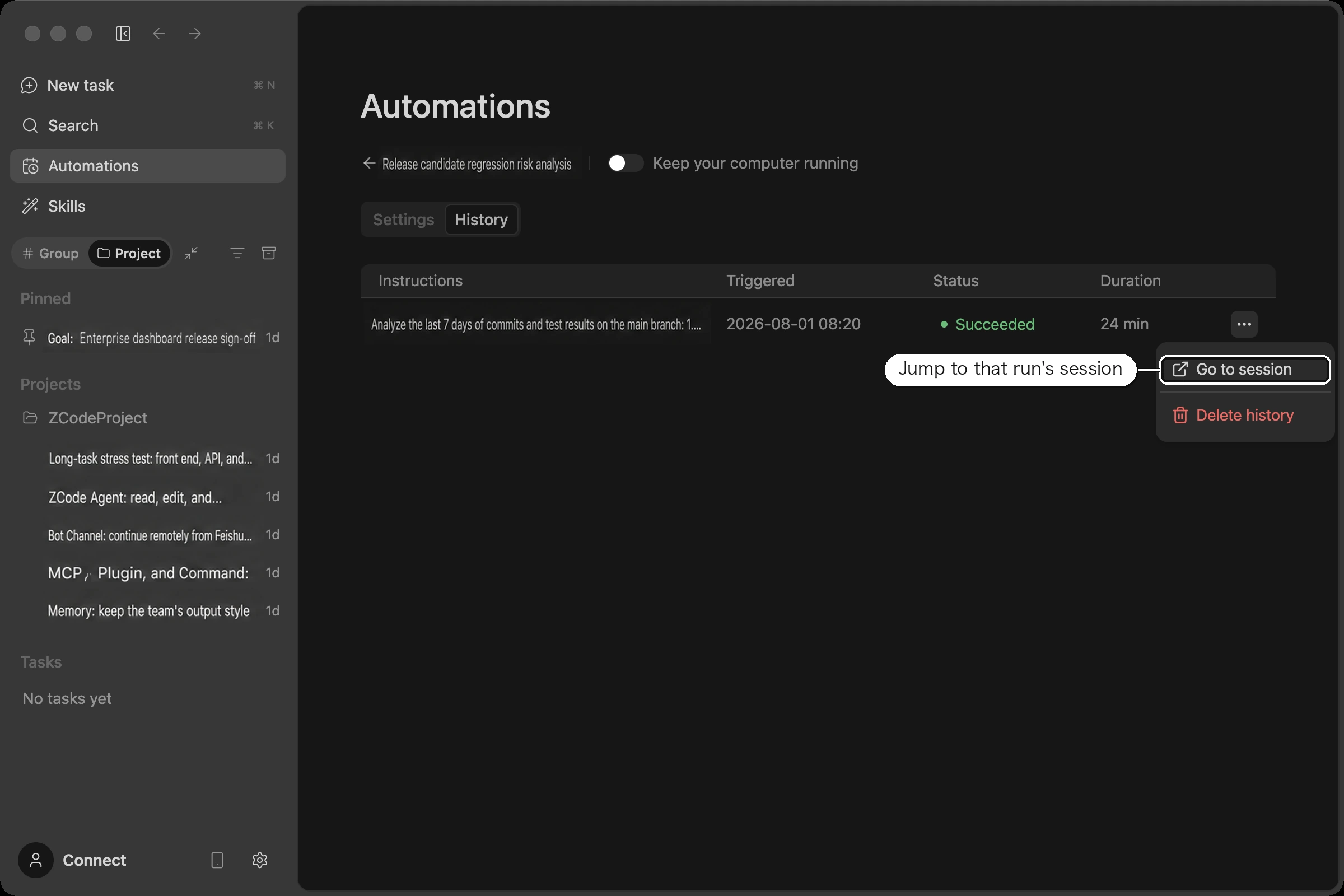
The task detail page toggles between Settings and History. Because an idle-time task runs once, history holds at most one record, showing the outcome and linking to the session.
Limitations Worth Knowing
Your computer needs to stay awake. Like scheduled tasks, idle-time tasks run on your machine. Nothing progresses while it's asleep, but nothing is lost either — it keeps queueing once you're back. Turn on Keep awake on the Automations page if you want it to finish overnight.
There's a daily cap on how many you can create. Once the quota runs out the create button greys out — hover it to see when it comes back. It reopens on its own.
Desktop and local projects only. Remote workspaces aren't supported in the current version, and automations don't appear in the mobile remote control interface.