ZCode Agent
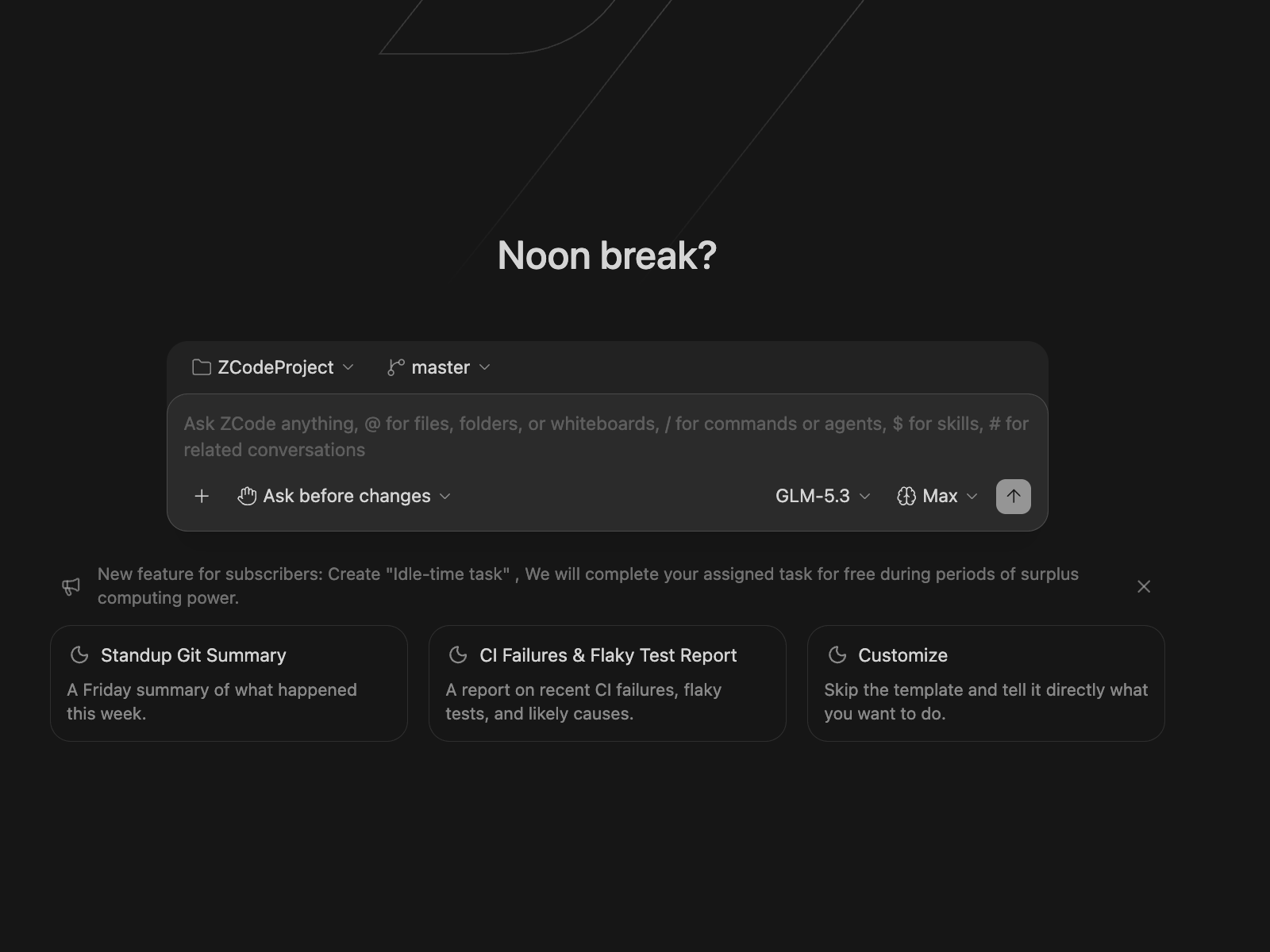
ZCode Agent is the default self-developed agent in ZCode and the primary entry point when creating a new task. You can describe the goal, add context, reference files, run commands, and choose the model and execution mode that fit the current task.
As ZCode's core agent capability, ZCode Agent is deeply adapted for the GLM-5.3 model family. It performs especially well on complex project understanding, long-task planning, multi-turn context retention, and continuous code changes. For Long Horizon Tasks that need sustained progress, ZCode Agent can combine workspace state, file references, execution mode, and Git branch context to move from requirement understanding to concrete implementation.
Deep integration with GLM-5.3
GLM-5.3 is built for long-horizon tasks — the focus is not raw parameter scale or ordinary coding benchmarks, but stable execution across long context, long chains of work, multi-turn tool calls, and complex engineering tasks. Key model-side capabilities:
- Stable 1M context: reliable long-task execution across a 1M-token context — the goal is not "fitting more tokens" but staying dependable along real coding-agent trajectories.
- Stronger long-horizon coding: approaches or surpasses several closed frontier models on long-task benchmarks, making it one of the strongest open models available.
- Flexible effort: trades off task difficulty, execution speed, and compute cost; hard tasks can unlock deeper reasoning — surfaced in ZCode as the thought level toggle.
- Architecture optimized for long context: index-sharing reduces long-context compute overhead, and improved speculative decoding speeds up long-task generation.
- RL trained for agentic coding: post-training covers long trajectories, multi-turn tool calls, subtask decomposition, and environment feedback, with anti-hack mechanisms so the model optimizes for real engineering work rather than surface rewards.
ZCode Agent's deep integration turns these model capabilities into a practical coding experience: workspace understanding and file references feed the model high-quality context, execution modes control autonomy, and Goal Mode adds objective management, completion verification, and state recovery for long tasks — so the long-horizon abilities GLM-5.3 was trained for are fully released in the product.
Workspace Entry
ZCode Agent understands the ZCode workspace, task list, file references, model picker, execution modes, and Git branch state directly, making it a strong fit for the full development loop from understanding a request to editing code and checking changes before commit.
With ZCode Agent, you can @ reference files in the input box, use / commands, call $ skills, and switch models, execution modes, and branches inside the same task. For everyday development work, it is usually the most stable starting point.
Working Without a Project
Sometimes you just want to ask a question, work something out, or draft a piece of text — nothing to do with a particular repository. You don't have to pick a folder first: choose Work outside a project in the workspace menu above the input box, or click the new-task button next to the Tasks section in the sidebar. On first launch with no session to restore, ZCode starts here by default.
These conversations live in the sidebar's Tasks section and can be pinned, grouped, archived, and dragged just like project tasks.
Two things to keep in mind. Files the Agent creates in these conversations stay on disk and are not cleaned up when you close the conversation — delete them yourself when needed. And once you've sent your first message, the conversation is fixed in this mode; to work inside a project instead, start a new conversation. The Git branch picker is hidden in this mode too.
Adding Context
Click the + button at the bottom-left of the chat input to quickly add context to the current task: upload attachments, reference files, link past conversations, or run commands. You can also type the matching symbol directly in the input box to trigger the same actions.
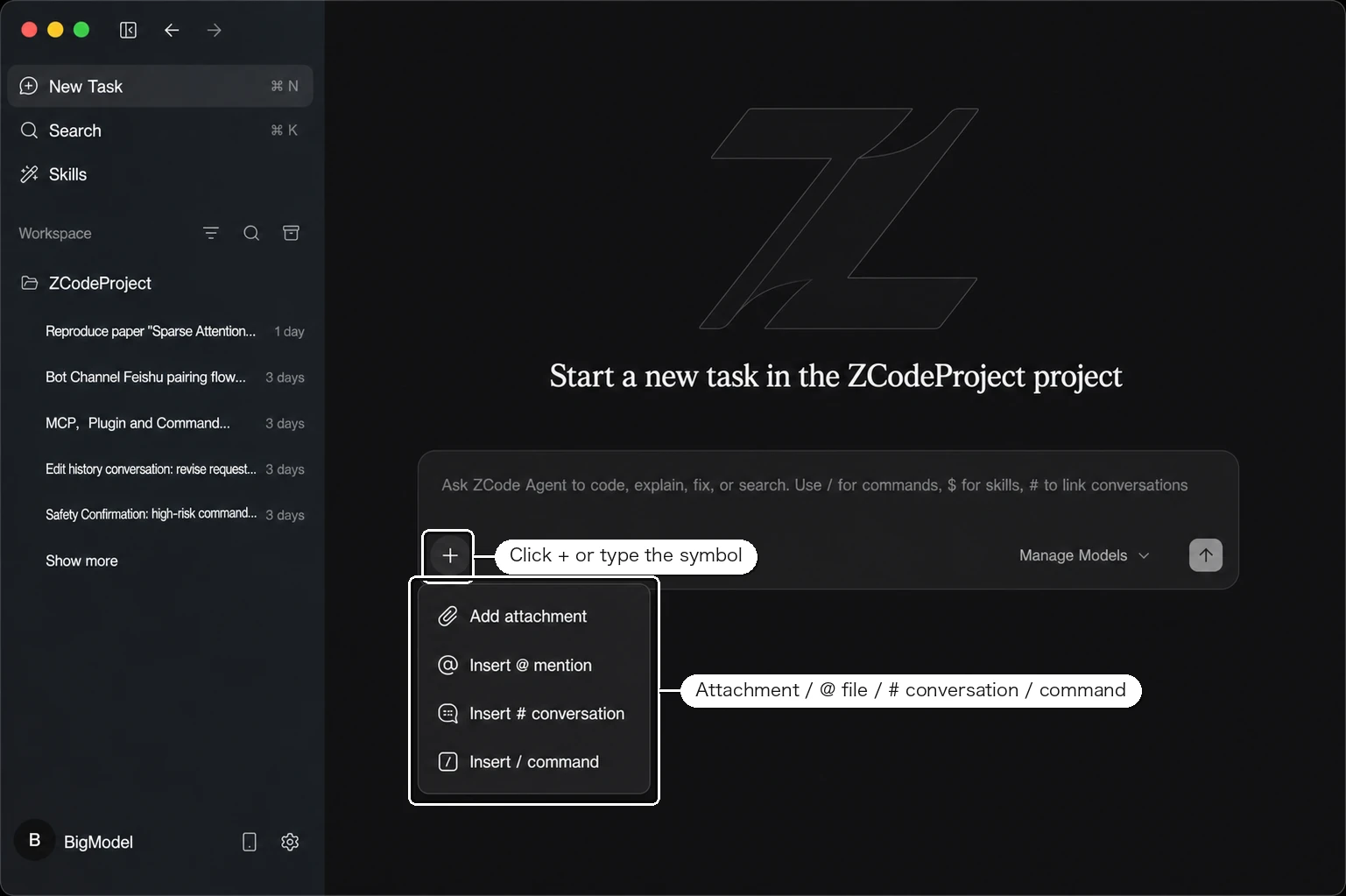
| Entry | Trigger | What It Does |
|---|---|---|
| Add Attachment | — | Upload screenshots, documents, and requirement material as context for the current task |
| Insert @ Mention | @ | Reference a file or an entire folder in the workspace so the Agent can locate the relevant code precisely |
| Insert # Conversation | # | Link a past conversation to bring its context into the current task |
| Insert / Command | / | Call a saved command to reuse a fixed prompt or workflow |
Tip: Besides these entries, the input box also supports
$to call skills. Describe the goal first, then use@,#,/, and$to add precise context — this usually helps ZCode Agent understand and complete the task faster.
Pasting a large block of text won't flood the composer — anything past a certain length automatically becomes an attachment, leaving a single entry in the input box while the full content still reaches the Agent.
Asking About Selected Text
Any passage in the conversation can become context. Select part of an assistant reply, its reasoning, a code block, or a tool result, and a small toolbar appears next to your selection. Click Add to current task and that text is appended to the input box as a reference, alongside whatever you've already typed.
You can select from a reply that's still streaming; the text is frozen as it was at the moment you clicked.
There's a cap on how much you can attach this way. If a selection runs long, or you've already added several, ZCode tells you instead of silently trimming the text — your existing references and whatever you've typed are left as they are. Only single-line selections work right now; dragging across lines won't bring up the toolbar.
Project Instructions File
To keep long-term instructions for ZCode Agent, add an AGENTS.md instructions file. ZCode reads it when starting a task and provides its project conventions, coding rules, validation steps, and other notes to the Agent.
ZCode currently reads two sources:
| Source | Path / Lookup | Description |
|---|---|---|
| User global instructions | ~/.zcode/AGENTS.md | Good for cross-project personal preferences, collaboration style, and reusable conventions. |
| Workspace instructions | AGENTS.md in the current Workspace | Good for project-specific engineering conventions. |
When both sources exist, ZCode appends the user global instructions first, then the workspace instructions. The workspace instructions are treated as the primary project source for the current task. When neither source exists, no project instructions are injected.
CLAUDE.md is not continuously read by ZCode Agent at runtime. For existing Claude Code projects, ZCode only uses it during onboarding as a one-time migration source: existing content can be copied into AGENTS.md, and future runs use AGENTS.md.
Project instructions are a good place for stable, reusable team conventions, such as:
- The project stack, directory structure, and important modules.
- Code style, naming rules, and validation commands to run before completion.
- Extra care needed for high-risk files, production configuration, or permission-sensitive operations.
- Collaboration preferences you want the Agent to follow, such as planning first, avoiding unrelated refactors, and preferring existing tooling.
Tip: ZCode only reads the user global
AGENTS.mdand the current WorkspaceAGENTS.md. It does not merge multipleAGENTS.mdfiles across directory levels. It also does not scan child directories, expand@import/@include, or choose rule files automatically by task type. Put the most important and stable project rules in the current WorkspaceAGENTS.md.
Project Memory
AGENTS.md is something you maintain by hand; Memory is what the Agent accumulates on its own. Once enabled, ZCode distills reusable facts in the background after each successful turn and brings them along automatically when you start a new session in that project — no more re-explaining that this project uses pnpm or which command runs the tests.
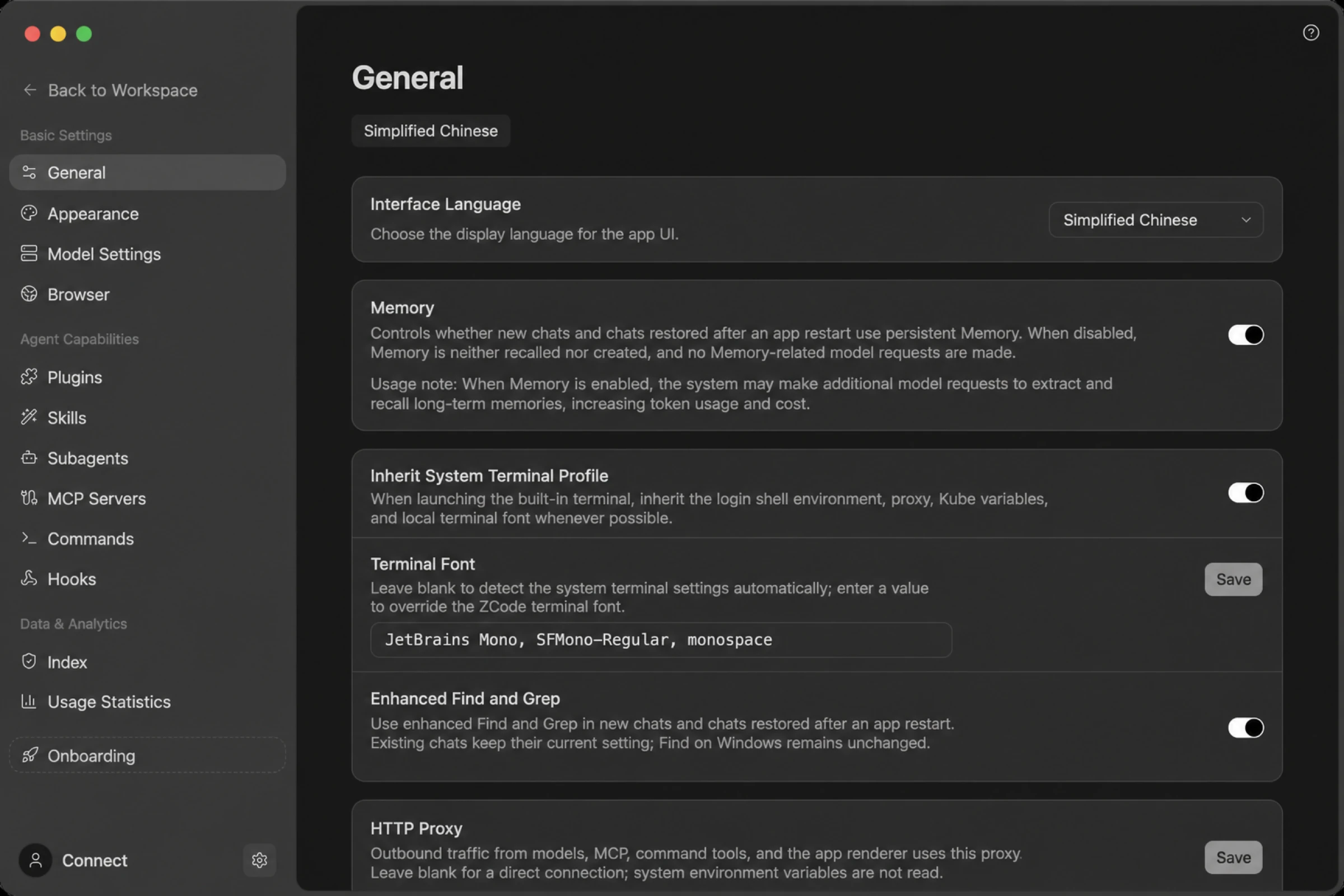
Turn it on under Settings → General → Memory. The switch is off by default, so you have to enable it yourself.
It isn't the same thing as AGENTS.md:
AGENTS.md | Project memory | |
|---|---|---|
| Who writes it | You do | The Agent, automatically |
| Where it lives | In the repository, versioned with your code | On your machine only, never in Git |
| Good for | Team conventions and coding standards that deserve review and sharing | Incidental facts picked up while working |
Three things to know before enabling it:
- It uses extra tokens. Building up and recalling memories takes additional model requests.
- The switch applies to new sessions. Conversations already underway keep their current behavior.
- You can't browse or clear memories yet. Turning the switch off stops ZCode using them, but there's no way to review what's been remembered from inside the app.
Project memory applies to the main conversation only — subagents neither read nor write it.
Driving the browser
Beyond reading and writing files and running commands, ZCode Agent can drive the built-in browser directly: open URLs, click, fill forms, take screenshots, and decide what to do next from the page's actual state. After a front-end change it can open the page and confirm the result itself, or walk through a whole flow to check nothing breaks.
This comes from the official Browser Use plugin and is on by default; if it has been turned off, re-enable it under Settings → Browser → Enable built-in browser control, and it applies to new sessions. You can watch the agent work in the browser panel on the right. See Browser Automation for the full details.
Execution Modes
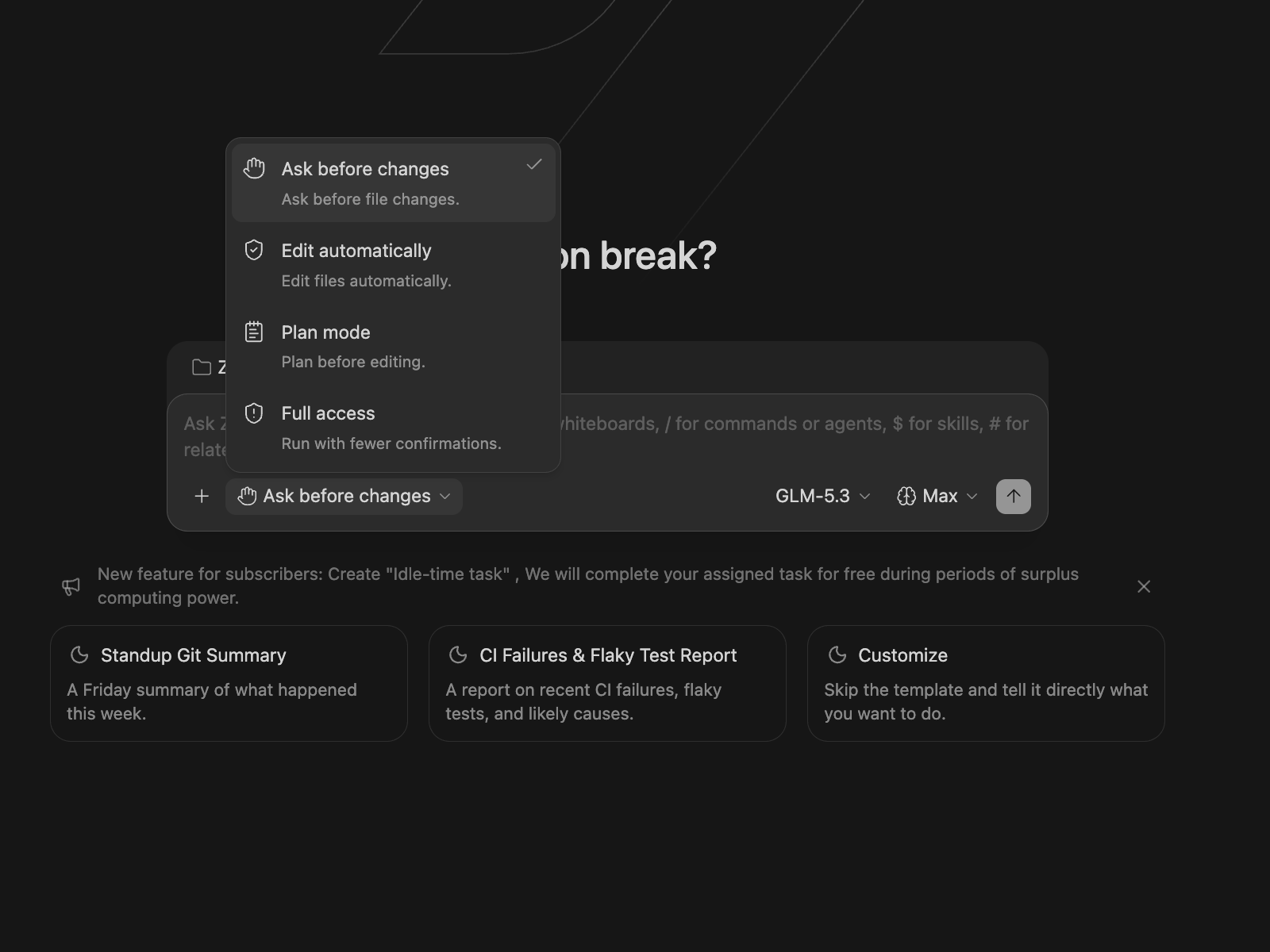
Execution modes control how ZCode Agent asks for confirmation before editing files or running commands: confirm every step, plan first, or work through the task as continuously as possible. You can switch modes based on task risk, complexity, and how much hands-on involvement you want.
Available Modes
The ZCode Agent execution mode menu currently includes the following modes. Press Shift + Tab while the chat input is focused to cycle through them:
| Execution Mode | How It Works | Best For |
|---|---|---|
| Ask before changes | Asks for confirmation before every file edit or command; this is the default | Critical code, production configs, and other high-risk changes |
| Edit automatically | Applies file edits automatically while commands still require confirmation | Routine iteration where you want fewer edit confirmations |
| Plan mode | Reviews the code and proposes a plan first, then starts editing after confirmation | Complex or multi-step tasks where you want to align on the approach first |
| Full access | Reduces interruptions and lets the Agent proceed more continuously | Clear, lower-risk tasks where you want faster progress |
Tip: For critical files, shell commands, or broad changes, start with Plan mode or Ask before changes. For routine edits or clearly scoped tasks, Edit automatically or Full access can reduce interruptions.
Thought Level
The thought level controls how much deep reasoning the model invests before answering: higher levels think more thoroughly and are usually more reliable, at the cost of slower responses. Switch it via the thinking icon next to the model name in the bottom-right of the chat input — this is the product surface of GLM-5.3's flexible-effort capability.
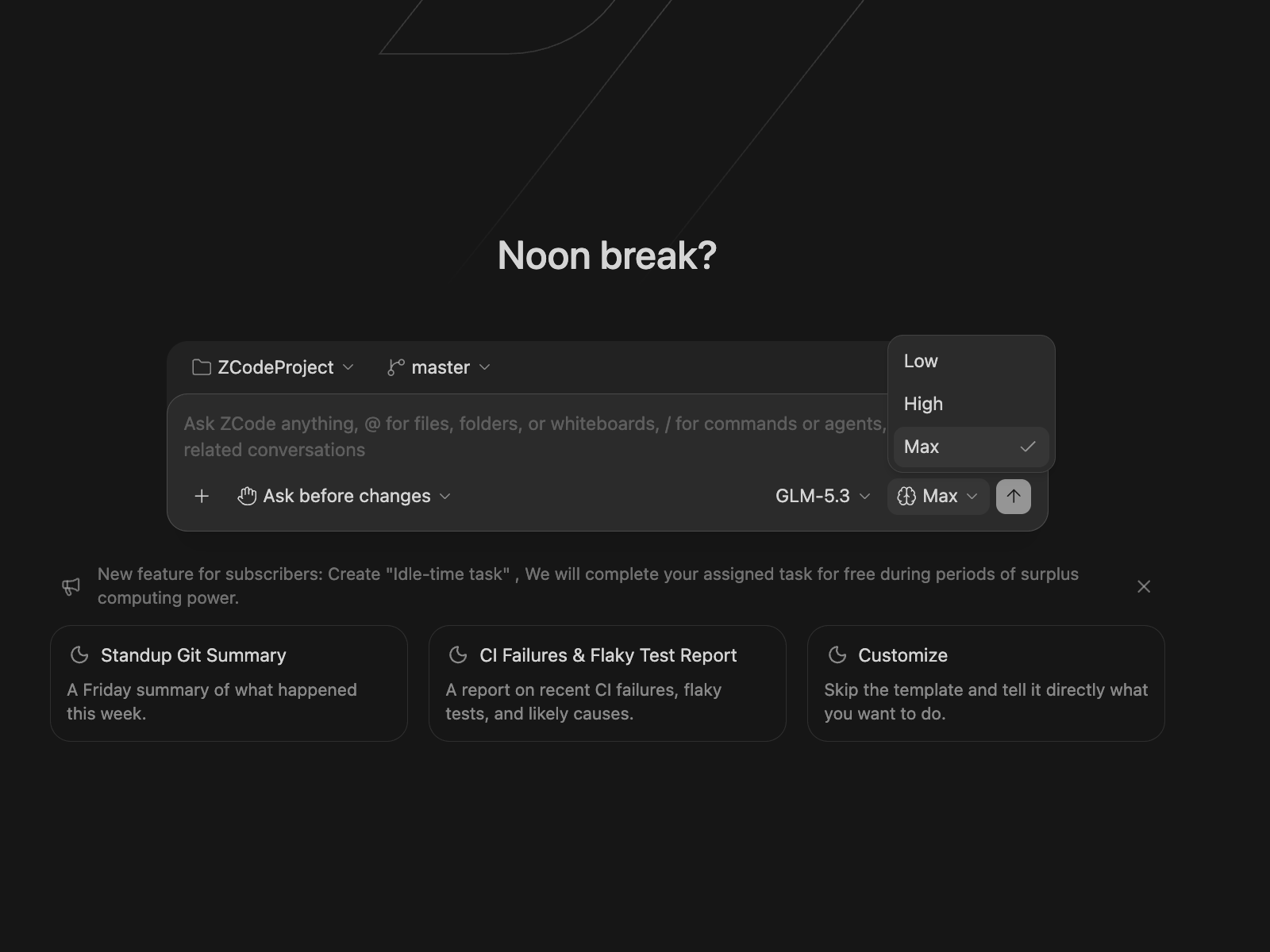
For GLM-5.3 there are three levels, with Max as the default:
| Level | Behavior | Best for |
|---|---|---|
| Low | Uses a lighter reasoning effort to prioritize response speed | Simple Q&A and small, well-defined edits — fastest response |
| High | Thinks deeply while keeping responses reasonably fast | Everyday development tasks balancing speed and quality |
| Max | Thinks at the deepest level (default) | Complex architecture design, tricky bug hunts, and long-running tasks |
Other connected models (Claude, GPT, etc.) also support thought-level adjustment; the available levels depend on the model, switched from the same entry.
Tip: the default Max level suits most complex tasks; drop to High for faster responses, or Low for simple Q&A and clearly scoped small edits.
Side Conversation
Your main task is mid-flight and you want to ask "what does this function actually do?" without derailing it. That's what a side conversation is for: a separate tab in the right-hand panel that runs alongside the main conversation without interfering with it.
How to open one
- From a selection: select text in the main conversation and click Ask in side conversation in the popup — the selected text comes along as a reference.
- Shortcut command: type
/sideor/btwin the main conversation and select it from the command menu to create or open a side conversation immediately. Both commands do the same thing and are not sent as messages. - The
+menu: at the top of the right panel, pick Side conversation. - The start screen: when the right panel has no tabs yet, the entry appears there too.
The shortcut commands, + menu, and start-screen entry open a blank conversation with no reference attached. The + menu and start-screen entry remain available even while the main task is running or waiting on a permission prompt or a question — so when the main conversation is blocked, you can still ask something else beside it. The selection popup behaves the opposite way: it doesn't appear while the main conversation is waiting on a permission, question, or plan confirmation.
Shortcut availability:
/sideand/btware only offered in the desktop input box for an existing main conversation. They are hidden before a new task has started, inside a side conversation, in read-only sessions, and on mobile.
What it inherits
A side conversation uses the main session's history as model context, so you can ask directly without restating the background. Visually, though, it starts blank — the timeline, search, and pagination only ever show what you asked here.
It's a fully capable conversation: it can call tools, edit files, and go through permission confirmations. It just doesn't inherit the main task's goal, queued messages, or background work.
Capabilities and limits
| Aspect | Details |
|---|---|
| Not available | Goal mode, editing a sent message, forking |
| Per window | One side conversation per task at a time; clicking the entry again returns to the existing one |
| Across windows | That limit is per window. With several windows open, the same task can have its own side conversation in each |
| Platform | Desktop only; the entry isn't offered on mobile |
Selection references have their own caps on length, count, and total size. Going over them produces a message rather than a silent truncation, and your existing references and draft are left alone. Only single-line selections are supported — dragging across lines won't bring up the popup.
When it closes
Side conversations are deliberately temporary, which is worth knowing up front.
Switching to another task and back keeps it, along with its draft and references. But closing the tab, deleting or archiving the parent task, or quitting the app closes it along with its contents, and it can't be recovered — it isn't in the task list and doesn't go to "recently closed".
For discussions you want to keep, start a proper task instead.
Forking a Conversation
To try a different direction from a certain point without losing where you are now, fork the conversation.
Hover over an assistant message that has finished answering and click Fork in the action row. ZCode creates a new task starting from that message, titled Fork of <original title> and marked "Forked from conversation" in the task row. The new session inherits the history up to the fork point, the model and thought level in effect at the time, and any goal-mode progress. The original session is preserved and continues to run unchanged.
Worth noting:
- You can only fork from a cleanly completed assistant message. Interrupted or failed partial replies have no fork entry, and neither do user messages or tool results.
- Forking only affects conversation history — it does not roll back files on disk. Both sessions operate on the same workspace.
- The queued messages, in-flight work, and background tasks aren't copied to the new session.
- Forking isn't available while a compaction is running.
Workflow Suggestions
- Start by describing the goal: tell ZCode Agent what you want to implement, fix, or analyze so it can establish the task objective. For long multi-round tasks, set a verifiable session goal with Goal Mode.
- Add context next: use
@to reference key files, or attach screenshots, documents, and requirement material. - Use commands and skills for repeatable work: use
/for commands and$for reusable skills when the task follows a known process. - Choose execution mode based on risk: use a faster mode for routine edits, and use Plan mode first for critical files, shell commands, or pre-commit checks.
- Keep the task continuous: continue asking follow-up questions, adding constraints, reviewing changes, and confirming the final result in the same task.