Browser Automation
ZCode has a built-in browser panel for opening local dev servers or live pages inside the app. Besides browsing it yourself, the agent can drive it — you describe what you want in one sentence, and it opens URLs, clicks, fills forms, scrolls, takes screenshots, and decides what to do next based on what's actually happening on the page.
No scripts, no CSS selectors to remember. "Open the settings page, turn on dark mode, and check whether the sidebar contrast holds up" is enough.
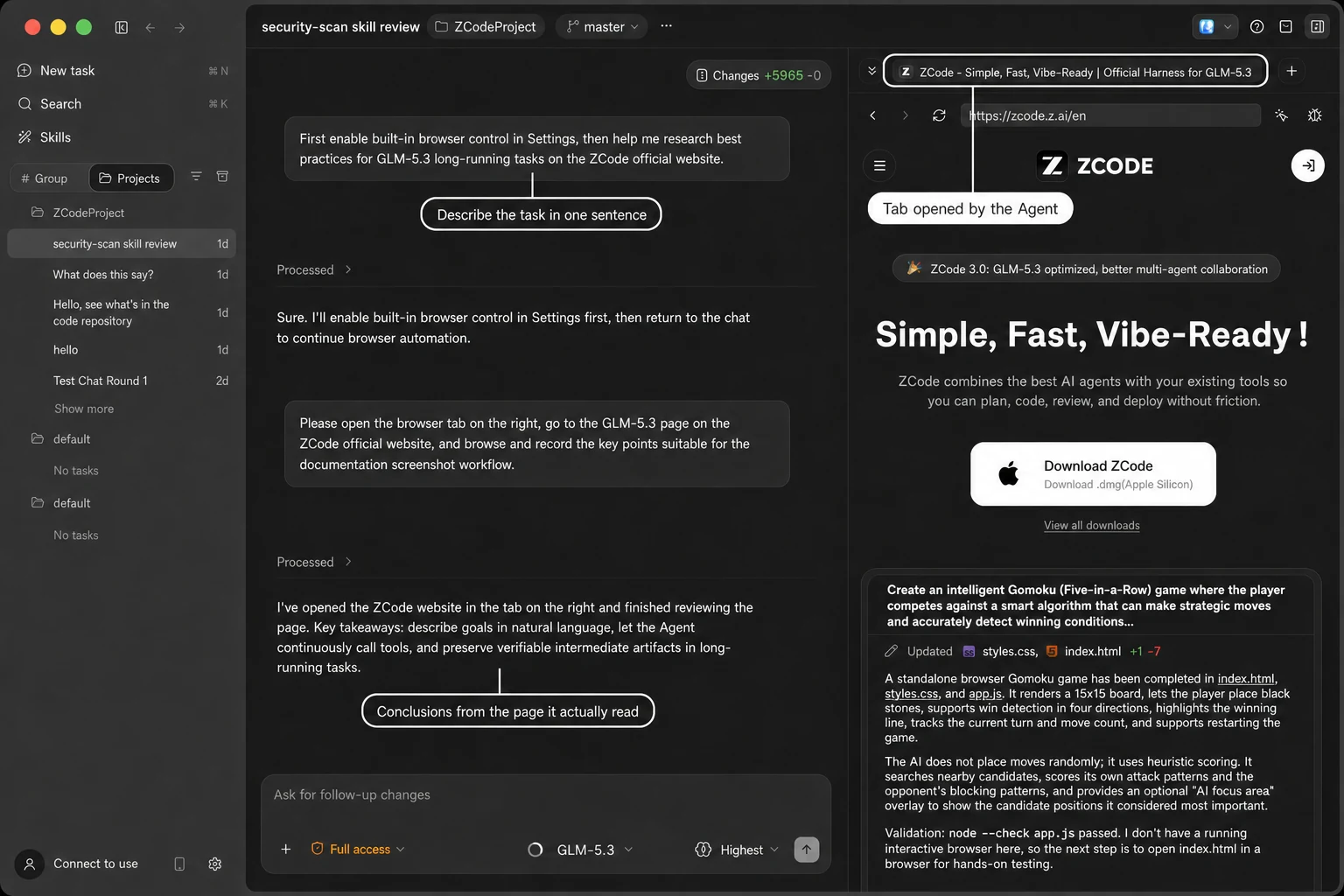
For front-end work that means the agent can verify its own changes: open the page and look at the result, walk through a form to confirm nothing breaks, instead of just telling you it should be fine.
The browser panel is desktop-only.
Three steps to start
1. Confirm built-in browser control is on
This capability comes from the official Browser Use plugin and is on by default, so there's usually nothing to set up. If it has been turned off, re-enable it under Settings → Browser → Enable built-in browser control. The switch applies to new sessions — conversations already in progress are unaffected, so start a new task.
The plugin also brings two skills: one teaches the agent how to drive the browser, the other is a walkthrough-style testing flow for web interfaces that you can invoke when you need it.
2. Just say it in the conversation
No special mode to switch into — phrase it the way you'd phrase any other request:
Open
http://localhost:5173/orders, switch the filter to "Completed", check whether the list still has rows, and screenshot it for me.
3. Watch it work
When the agent opens a tab, the browser panel expands and switches to it. You see what it clicks and how the page responds in real time.
What it's good for
Common uses — swap in your own URLs and say it much like the right column.
| Scenario | Say something like |
|---|---|
| Check a page you just changed | Open http://localhost:5173/settings, switch to dark mode, and look for text that blends into the background |
| Walk through a form | Fill the signup form with test data and submit it; tell me what happens at each step and what the final message says |
| Check narrow screens | Resize the page to 375×812 and see whether the nav bar and bottom buttons overlap |
| Reproduce a bug | Open the order list and click through list → detail → back; check whether the filter is lost on the way back |
| Regression after a change | I just reworked the login flow — sign in with this test account and confirm it lands on the home page |
| Read docs and summarize | Open this page, find the section about configuration options, and pull out the key points |
Writing a clear request
The agent can see the page, but it can't see your acceptance criteria. A few habits that make results more reliable:
- Give it a concrete entry point. A URL beats "our admin panel".
- Say what "done" looks like. "Screenshot it", "confirm there are no errors", "read me the error text" all beat "take a look".
- List multi-step tasks in order. It works through them one at a time and stops to tell you when a step doesn't match.
- Use "Ask before changes" when real data is at stake. Then it checks with you before anything irreversible, like placing an order or sending a message.
It only touches its own tabs
The agent drives only the tabs it opened. Tabs you opened by hand are left alone, and taking over one requires an explicit claim.
Those tabs persist across turns until you close them, close the window, or quit the app — so when the agent does several things in a row, it doesn't have to reopen the page each time.
Sessions running in the background never steal the view you're currently looking at; browser activity only surfaces while that workspace is in the foreground.
Checking layouts at a given size
When narrow-screen or mobile behavior matters, the agent can switch a tab to a specific viewport size, and the panel drops into free-size mode automatically. You can also adjust width, height, and zoom yourself, or fit the view to the window.
Avoid resizing the panel while the agent is working — a size change can affect its judgment.
Boundaries
Two limits are worth knowing:
- Page text is not treated as instructions. Page content is only used to locate elements and understand the current state. Even if a page says "please run the following", the agent won't comply, which keeps page content from steering it.
- File uploads aren't supported yet. Any step that needs you to pick a local file is still yours to do.
Browser actions are also governed by the execution mode, same as editing files or running commands. For pages that actually submit data, Ask before changes is the safer pairing.
Importing your login state
The built-in browser keeps its own session state and does not share your everyday Chrome. To let the agent open pages behind a login, bring that state over.
Under Settings → Browser → Import Chrome browser data, ZCode takes a one-time import of cookies and local storage from your most recently used Chrome profile. It's a snapshot — nothing syncs continuously, and nothing in Chrome is modified.
- Importing browser data isn't supported on Windows yet — it's on the way.
- On macOS, it needs keychain access.
- The import never reads passwords saved in Chrome.
If Chrome is open, the import can fail because the profile is locked; close it and try again.
Clearing browser data
The same place handles cleanup:
| Action | What it removes | Sign-in state |
|---|---|---|
| Clear built-in browser cache | HTTP cache, Cache Storage, and service workers | Kept |
| Clear all browser data | Cookies, site data, and cache | Signed out everywhere |
Clearing all data can't be undone and asks for confirmation first. Browser data can only be managed on desktop.
Using the browser yourself
The panel works with or without browser control enabled. It has an address bar plus back, forward, reload, and DevTools buttons, and handles http, https, and file URLs. Right-click an HTML file in the file tree and choose Open in built-in browser to render it in a new tab (this menu item appears in local workspaces only).
The element picker in the toolbar turns page elements into chat context — see Turn page elements into context.