Remote Development
Z Code's Remote Development feature lets you control your desktop development session from a mobile device. No need to carry your laptop — you can respond to urgent issues directly from your phone whenever you're away.

When to Use
Remote Development shines in the following scenarios:
-
Urgent production issues — Instantly connect from your phone to your desktop session. Check error logs, locate problematic code, and execute fix commands without waiting to get back to your computer.
-
Long-running development tasks — After kicking off a code refactor or test suite, monitor the progress from your phone without being tied to your desk.
How It Works
Remote Development uses a centralized real-time control architecture built on WebSocket + Tauri to securely stream your desktop Z Code session to your mobile device. The desktop runs as the server, and the mobile device connects as a controller through the browser.
Once connected, you can see a real-time view of your desktop session on your mobile device and interact with Z Code via text input. All code operations still execute on the desktop — the mobile device only handles display and input, ensuring a consistent development environment.
Quick Start
Start the Remote Development Service
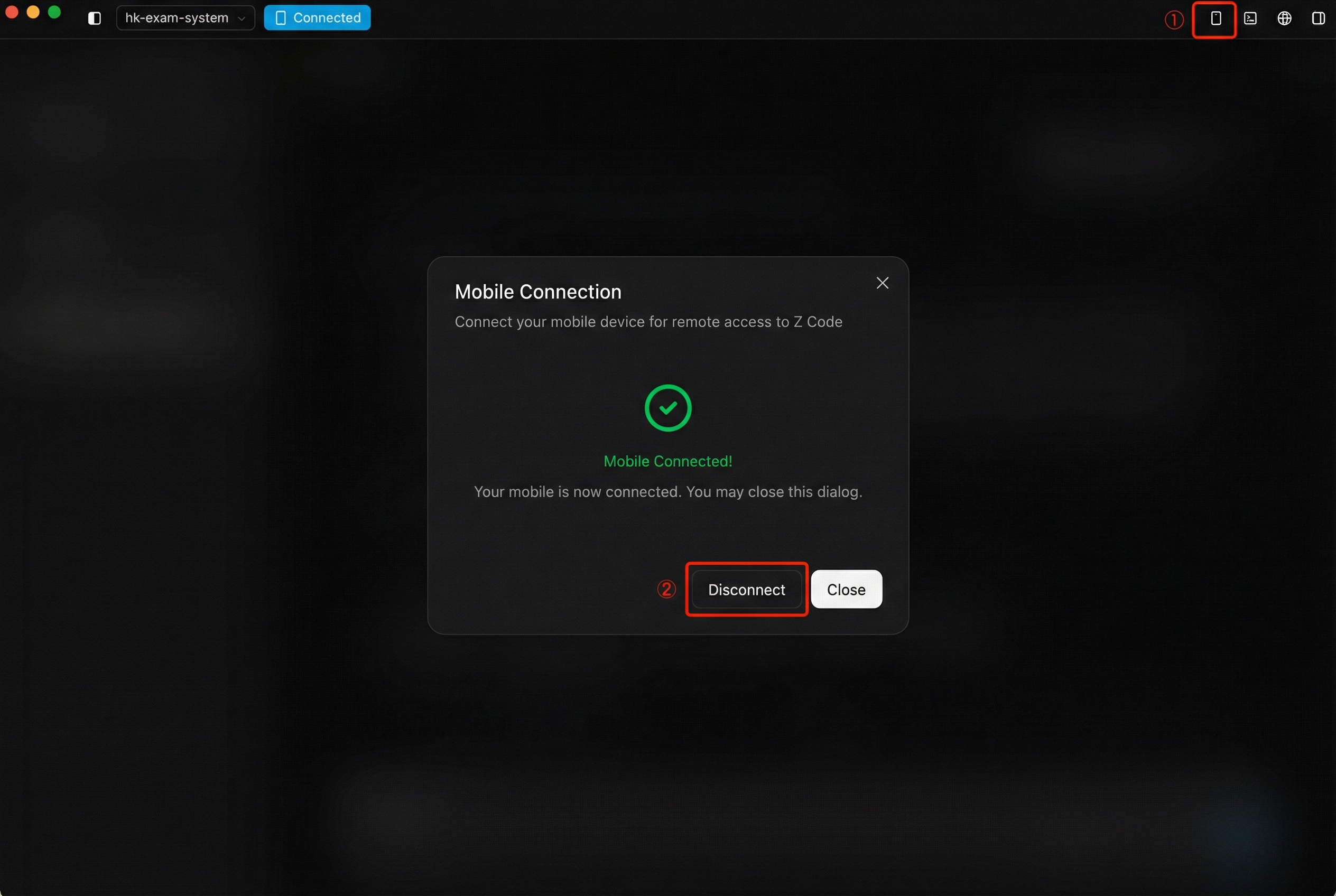
- In Z Code on your desktop, click the "Remote Development" icon in the top-right corner.

- Wait for the service to start. A QR code will appear on screen.

- Scan the QR code displayed on your desktop, or manually enter the connection address.

- Wait for the connection to establish. Your mobile screen will display the desktop session. Select your project and start chatting.
Stop the Remote Development Service
There are three ways to end a Z Code Remote Development session:
- Close the browser on your mobile device
- Select "Disconnect" on the desktop
- Z Code stops running, and the connection is automatically terminated
FAQ
Can I still connect after the desktop shuts down?
No. Remote Development requires the desktop to remain running. If the desktop shuts down or goes to sleep, the connection will be lost.
Can multiple mobile devices connect at the same time?
Currently, each desktop session supports a maximum of 1 connected mobile device.