Integration

Safety Confirmation

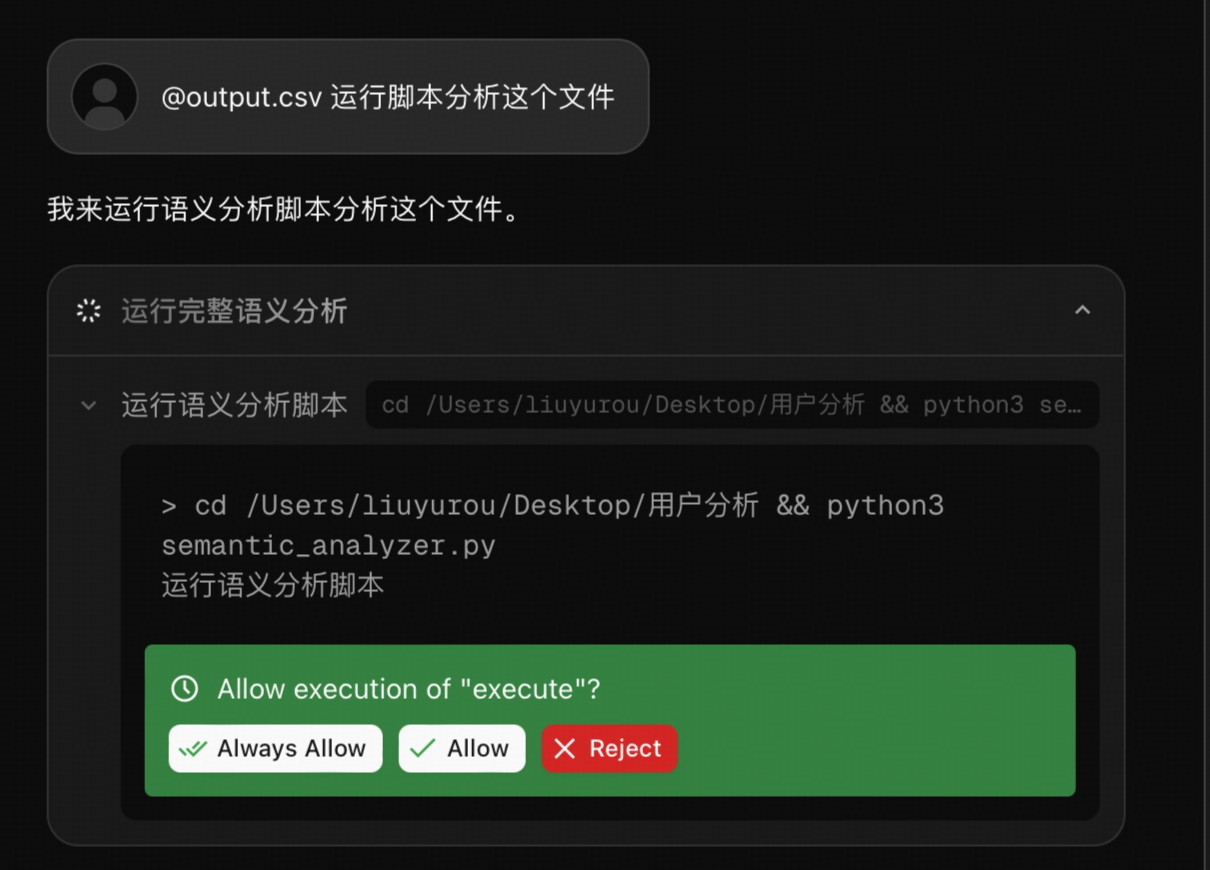
To ensure that all actions initiated by the Agent that might affect your local system are under your full control, Z Code enables a Manual Confirmation Mechanism by default.

This mechanism is a core part of our security strategy, giving you the Final Veto Power over Agent behavior to prevent accidental or unauthorized operations.

Safety Tip: Always carefully read the content about to be executed before granting permission.

Safety Confirmation


Workflow

  1. Trigger Confirmation: When the Agent attempts any potentially risky action (such as running command-line scripts, accessing network resources, or modifying critical files), its execution flow pauses automatically.
  2. Pop-up Request: A clear confirmation request appears on the interface, containing the specific command or action the Agent plans to execute.
  3. User Decision: You must manually confirm the request for the Agent to proceed.

Decision Options

OptionDescriptionRecommended Scenario
AllowAuthorizes the Agent to execute only this specific action.Temporary or uncertain single tasks.
RejectProhibits the Agent from executing the current action. The Agent will abort the current task.When instructions don't match expectations or represent a security risk.
Always AllowAuthorizes the Agent to execute the current and all future actions of the same type in this session without asking again.When the operation is trusted and needs to be executed frequently (e.g., routine compilation).

Note: "Always Allow" temporarily upgrades Agent permissions. Please use it only when you are certain the operation is safe and trustworthy.

Applicable Scenarios

  • Running Third-Party Scripts: When the Agent attempts to run Python, Shell, or Node.js scripts in your project.
  • Network Requests: When the Agent needs to access external APIs via curl or other methods.
  • System-Level Commands: When executing commands that may modify system configuration or delete files.

Next Steps