连接模型与套餐
ZCode 支持多种方式接入 GLM 模型用于编程工作流。国内用户推荐通过 GLM Coding Plan(BigModel) 在 ZCode 中运行 GLM-5.3,账号登录即可使用,配置简单。
推荐方式
登录 BigModel 或 Z.ai 账号即可在 ZCode 中使用 GLM 模型。若账号已开通 GLM Coding Plan 编程套餐,ZCode 会直接使用该账号下的套餐与额度。
GLM Coding Plan(BigModel)
适合 GLM-5.3 编程工作流、账号登录即用,以及已开通 GLM Coding Plan 的国内用户。
Z.ai Coding Plan
海外用户推荐:通过 Z.ai 账号运行 GLM-5.3(美元计价),同样享受 GLM Coding Plan 套餐与额度。
GLM Coding Plan 已焕新上线。 新版套餐的用量按 积分 计算,并新增每周用量额度;Pro 与 Max 分别对应 Lite 的 6 倍和 14 倍用量额度。账号开通套餐后,ZCode 会直接使用该套餐额度。新旧版本的权益差异与用量规则,请以 套餐改版说明 为准。
其他接入方式
第三方供应商
接入兼容 Anthropic / OpenAI 协议的模型服务,包括团队自建通道。
使用 API Key
如果你自行管理模型访问,可使用 API Key 直接接入模型服务。
配置入口
方式一:首次启动欢迎页
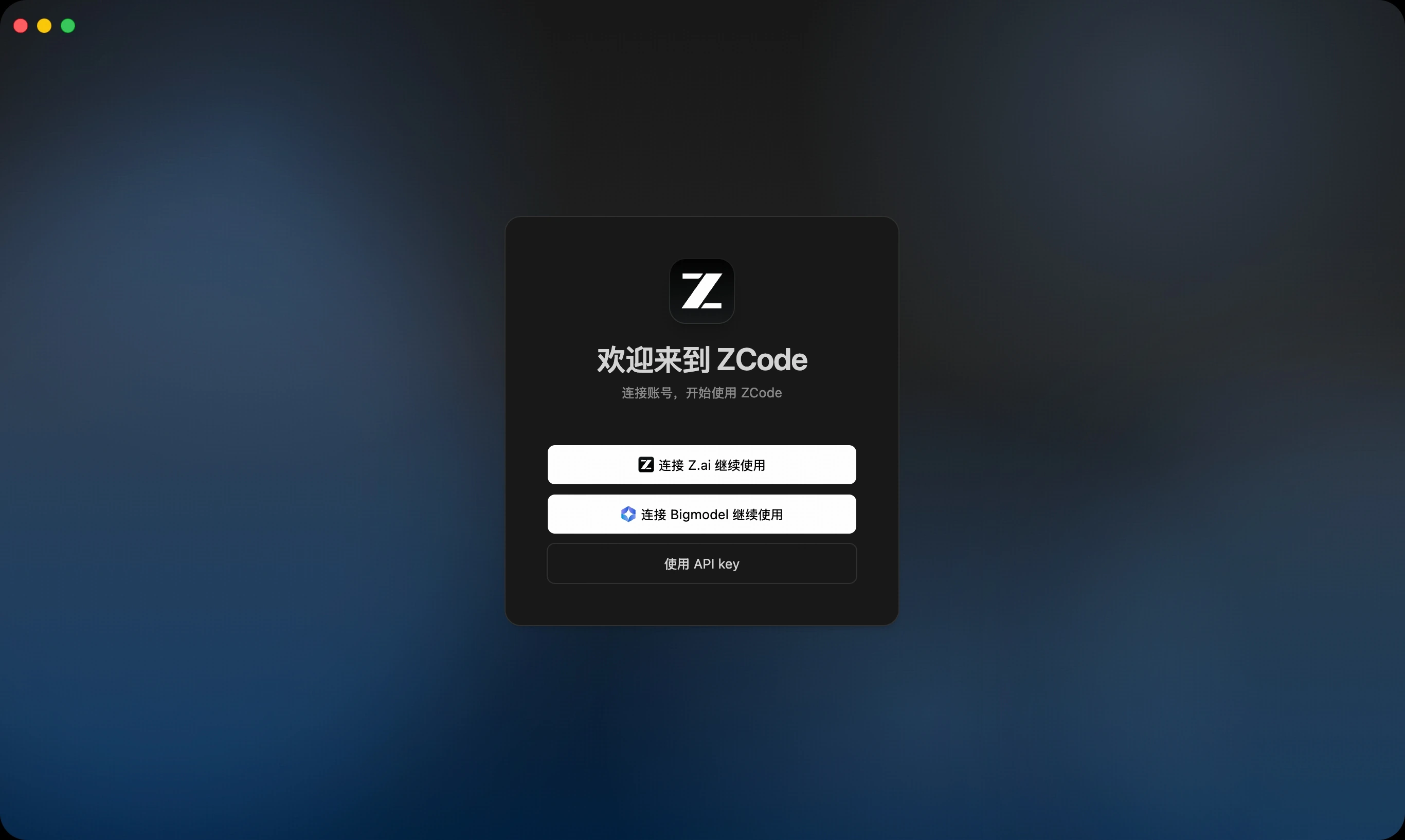
首次打开 ZCode、还没有可用模型时,欢迎页面会直接提供接入选项:
- 连接 Z.ai 继续使用:通过 Z.ai 账号授权登录。
- 连接 BigModel 继续使用:通过智谱 BigModel 账号授权登录。
- 使用 API Key:直接填写 API Key,进入模型供应商配置。
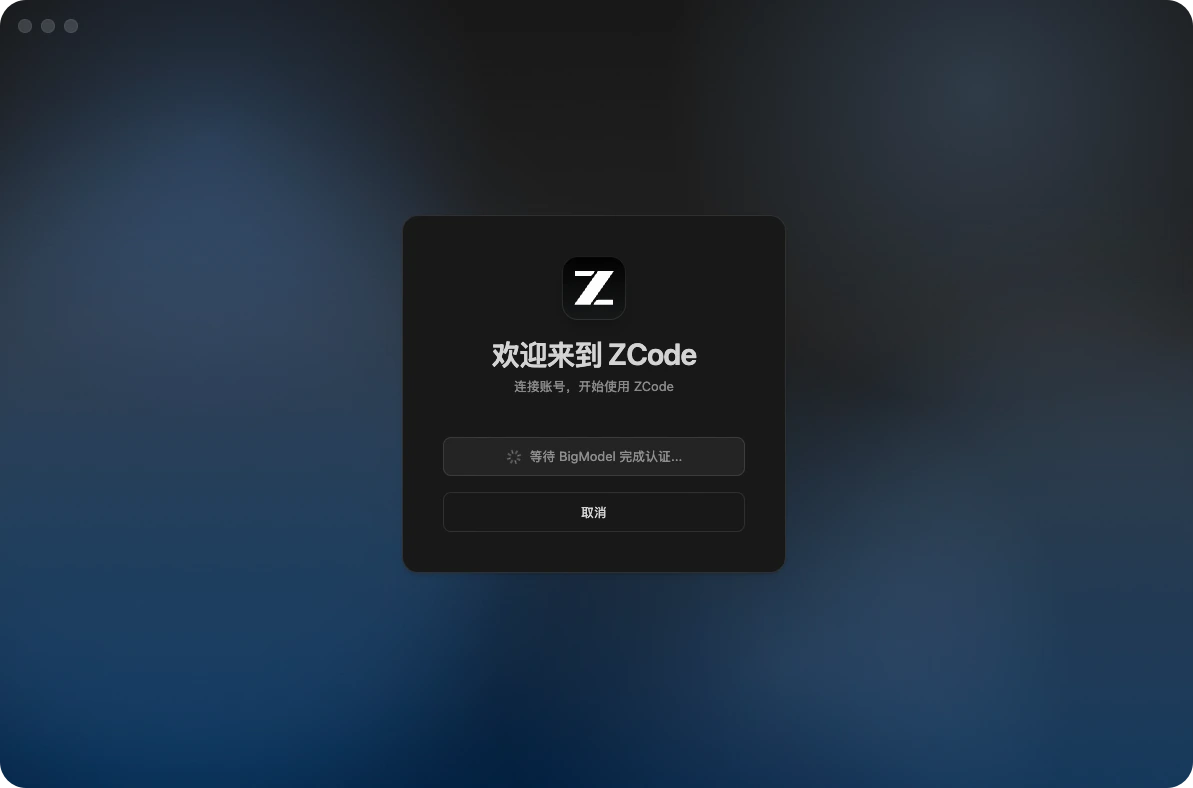
选择「连接 Z.ai」或「连接 BigModel」后,应用会弹出授权窗口并等待平台完成认证,认证通过后即自动绑定账号:
方式二:模型选择器
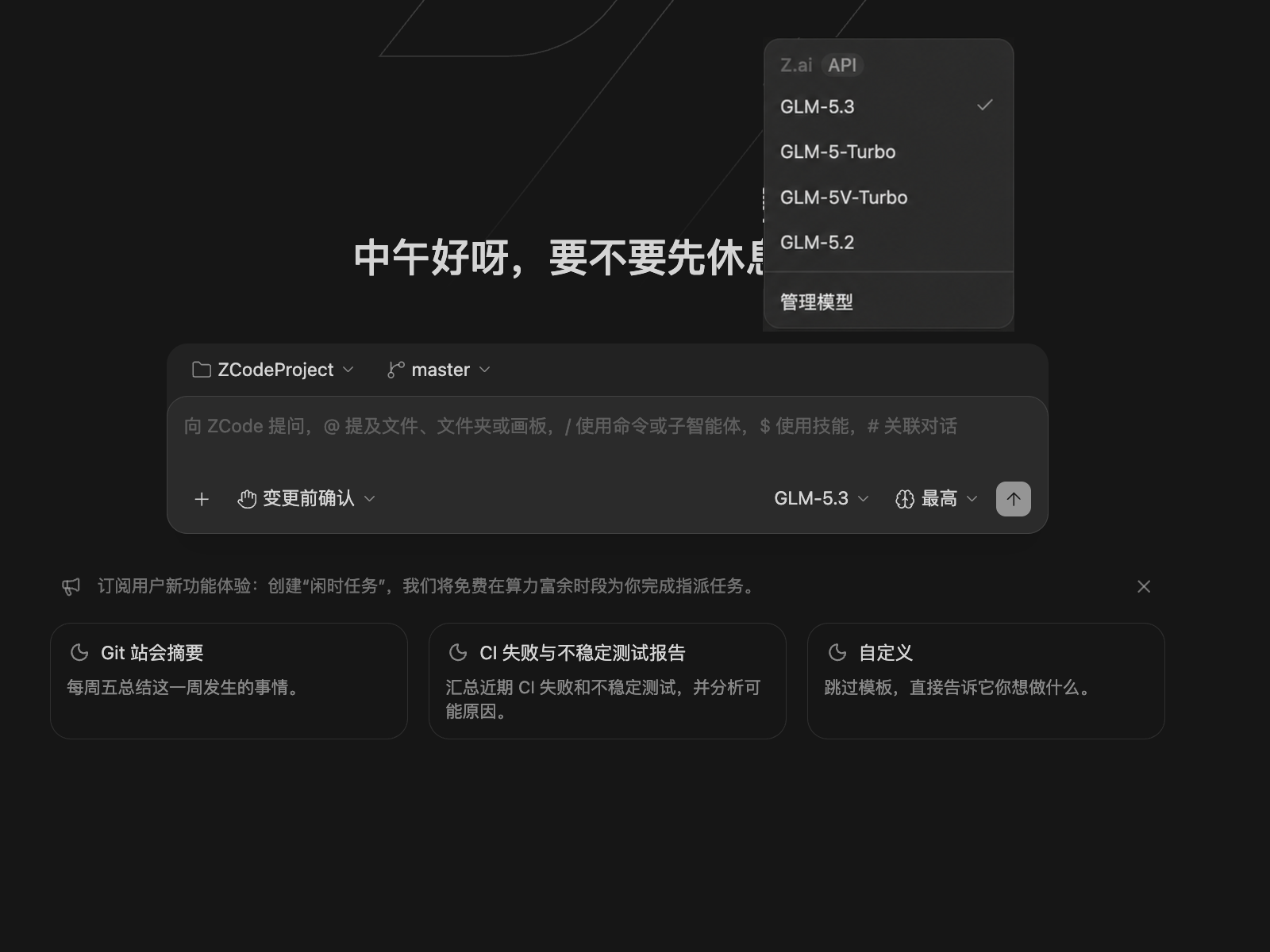
进入 ZCode 后,点击对话框中的模型名称打开模型选择器,在列表底部点击「管理模型」,即可进入 设置 -> 模型设置 面板,管理 ZCode Agent 可用的模型通道。
BigModel(国内)/ Z.ai(海外)API 端点说明
在 BigModel 或 Z.ai 供应商页切换到 API Key 模式后,会出现 OpenAI 接口地址 与 Anthropic 接口地址 两个字段。先选你的账号类型,再按所用平台填写对应地址,并使用对应的 API Key。
GLM Coding Plan 编程套餐
最常用使用已订阅的 Coding Plan 套餐额度,仅限 Coding 场景。
BigModel
Z.ai
资源包 / 充值余额
使用开放平台模型资源包或充值余额等通用 API 场景,填写 OpenAI 接口地址即可。
BigModel
Z.ai
填写须知
- Coding Plan 的 OpenAI 地址必须是 Coding 专用端点(
/api/coding/paas/v4),不要填通用端点/api/paas/v4。 - Coding 端点仅限 Coding 场景,与通用端点不可互相替代,也不会互相消耗额度。
- 若通过右上角 「编程套餐」 授权绑定账号(非 API Key 模式), ZCode 会自动选择正确通道,无需手动填写。
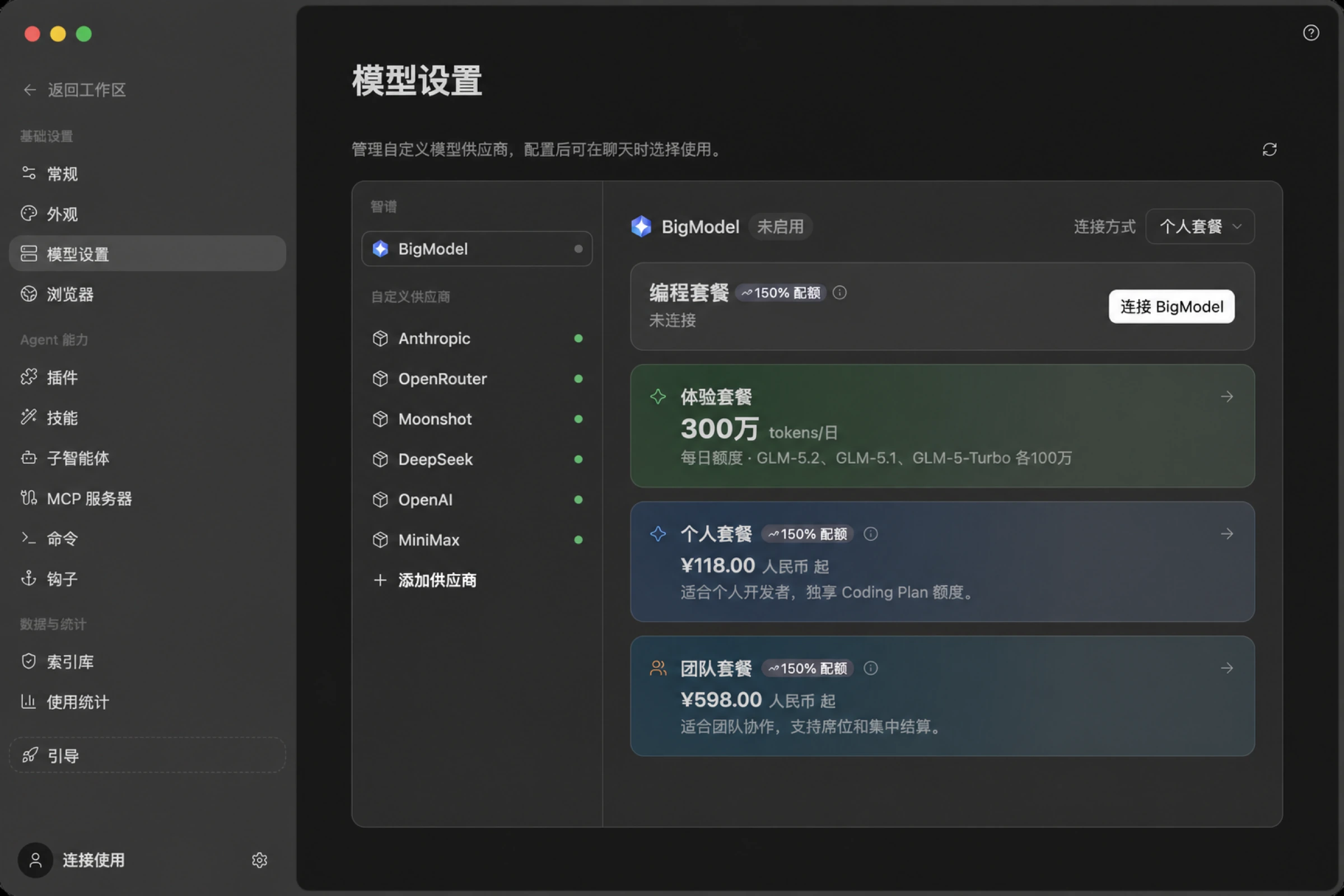
连接 BigModel
- 通过上述任一方式进入 模型设置 面板
- 在左侧供应商列表中选择「BigModel」
- 完成账号连接并开启启用开关,即可按账号权限使用 GLM-5.3、GLM-5.3-Flash 等内置模型
- 右上角可切换连接方式:使用「编程套餐」绑定 GLM Coding Plan,或改用 API Key 接入
免费体验额度
新用户连接 BigModel 账号后,会自动获得 体验套餐:无需付费,在 首次使用起的 5 天内,每天提供 800 万 token 的 GLM 系列模型体验额度,适合先在真实项目里试用 ZCode Agent,再决定是否升级到 GLM Coding 编程套餐。
注意:体验额度仅限 5 天。每日额度只在这 5 天内发放,体验期结束后即失效,并非长期每天都有。
每日体验额度由两类模型额度组成,供应商页面会分别展示每个模型的今日余额和已用量:
| 模型 | 每日体验额度 |
|---|---|
| GLM-5.3 | 300 万 token / 日 |
| GLM-5.3-Flash | 500 万 token / 日 |
体验期内额度每天刷新,具体可用模型、剩余额度与消耗情况以 BigModel 供应商页面实时展示为准。
在 ZCode 内订购编程套餐
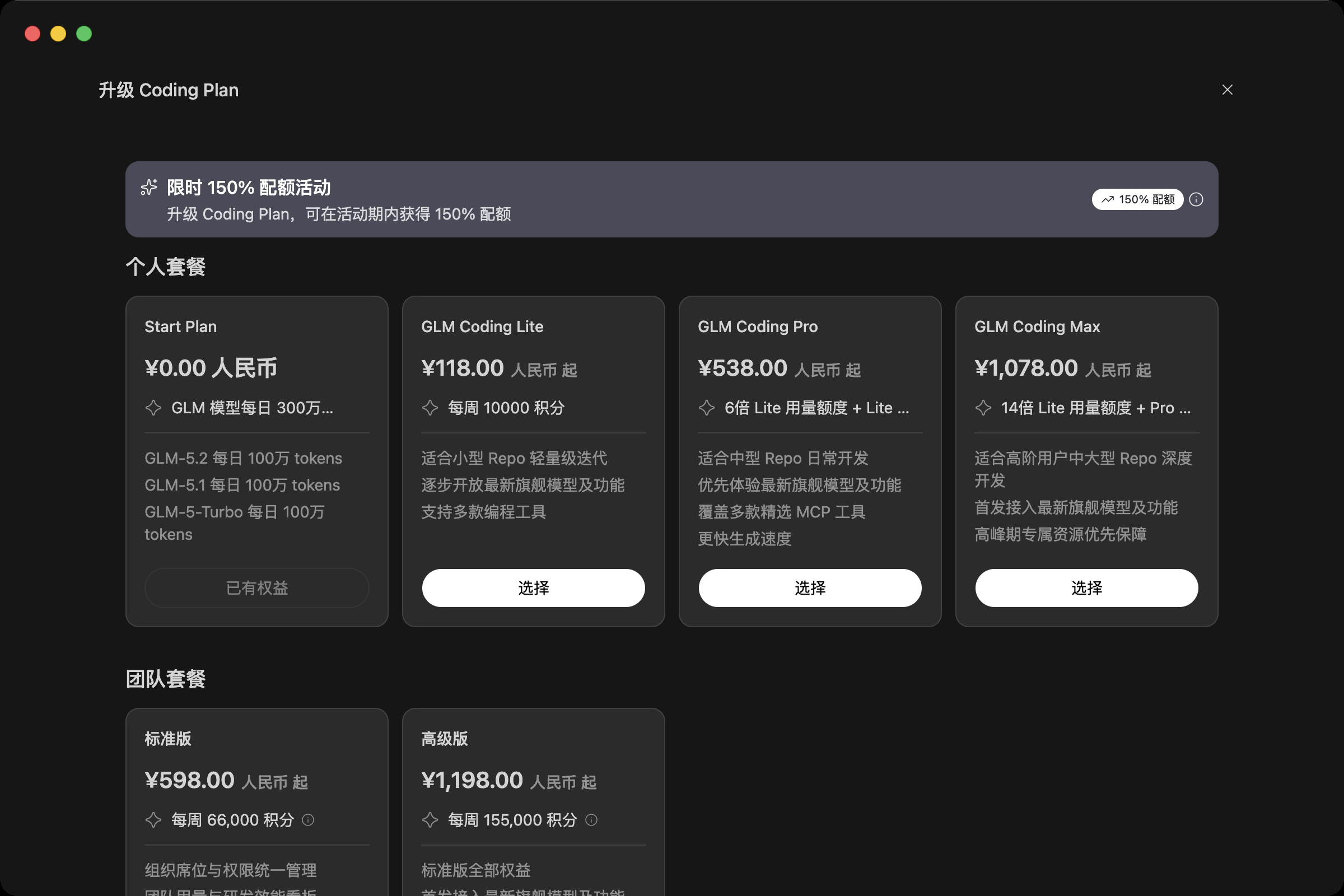
体验额度不够用?不用离开 ZCode:在 BigModel 供应商页面即可浏览 GLM Coding 编程套餐(Lite / Pro / Max),支持包月、包季、包年三种订购方式,登录后直接在应用内完成购买;已订阅用户也能在这里管理当前套餐、查看额度状态。
新版套餐的用量按积分计算,除 5 小时额度外还设有每周额度;各档位的具体权益、积分额度与折算规则以 套餐改版说明 为准。额度用完时可以留意端内的重置机会,见 额度重置卡。
使用团队套餐
如果你所在的团队买了 GLM Coding Plan 团队版,登录后不需要额外配置:在 BigModel 供应商页面的 连接方式 菜单里,你有权限的每个团队会各自显示成一个 团队套餐 条目(按组织名称命名),选中即用该团队的额度跑任务。同一个菜单里也能切回 个人套餐 或 API Key。
切换连接方式后,侧边栏和用量统计展示的额度会跟着切到对应来源,额度卡片上会标明是个人还是团队。
如果菜单里看到团队条目却提示「团队套餐未分配」,说明管理员还没给你分配席位——席位的添加和管理需要到 BigModel 的团队套餐管理页完成,客户端里做不了,页面上有直达入口。
使用 API Key 接入
根据你的账号类型选择连接方式:
方式 A:GLM Coding Plan(编程套餐 API Key)
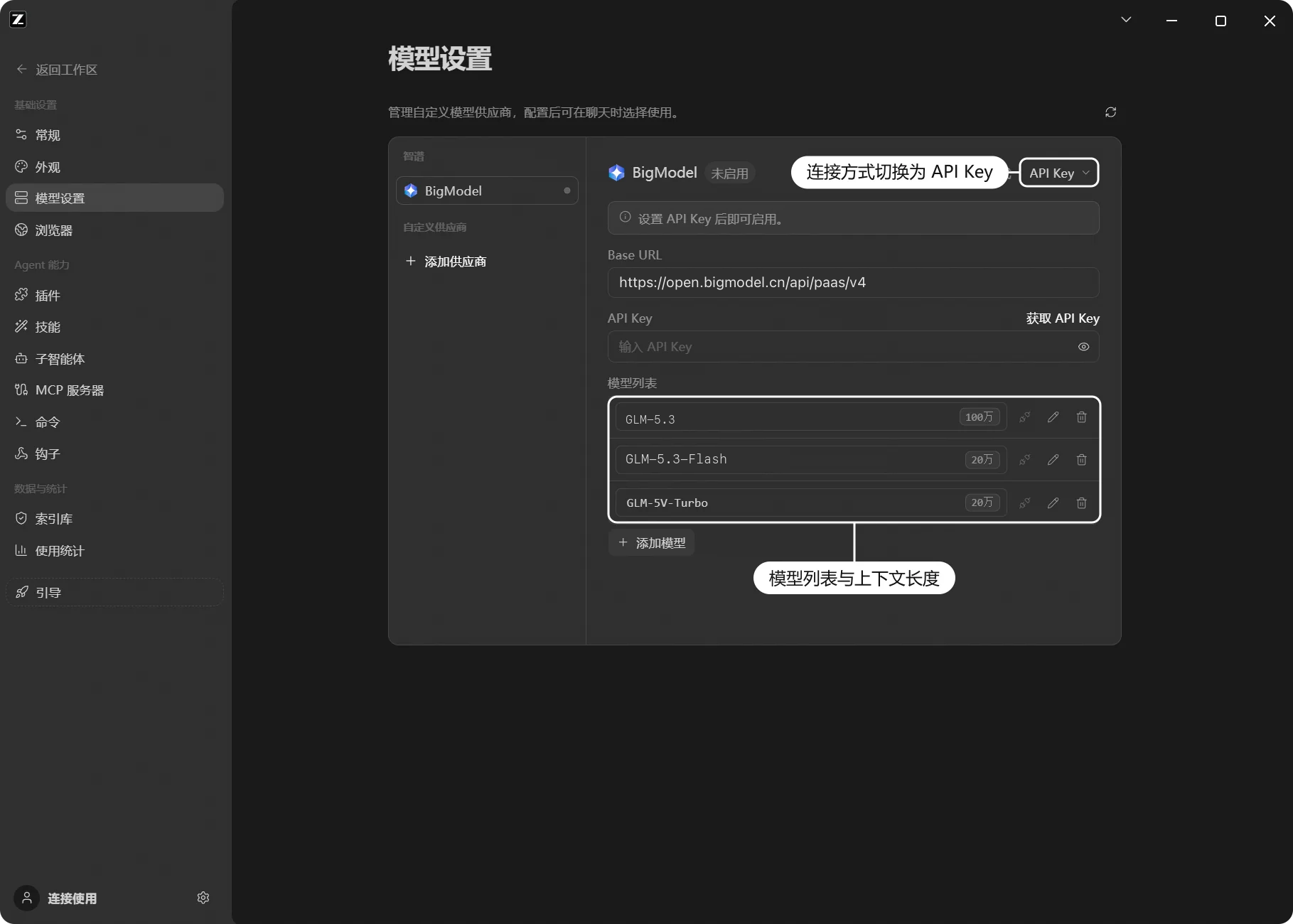
- 在 BigModel 供应商页面右上角,将连接方式切换为「API Key」
- OpenAI 接口地址填写 Coding 专用端点:
https://open.bigmodel.cn/api/coding/paas/v4 - 填入从智谱开放平台获取的 API Key
- 可用模型以账号权限和供应商返回的模型列表为准
注意:Coding 端点不能替换为通用端点
https://open.bigmodel.cn/api/paas/v4。
方式 B:模型资源包 / 充值余额
- 在 BigModel 供应商页面右上角,将连接方式切换为「API Key」
- 使用 OpenAI 协议,将 OpenAI 接口地址填写为
https://open.bigmodel.cn/api/paas/v4 - 填入从智谱开放平台获取的 API Key
- 可用模型以账号权限和供应商返回的模型列表为准;也可以点击「添加模型」补充其他可用模型
资源包 / 充值余额场景不要选择 Anthropic 协议。Anthropic 接口只有在账号从未购买过 Coding Plan且已获得额外加白时才会消耗余额;购买过套餐的账号(无论是否用完、是否到期)不会从余额扣费。因此这里请使用上面的 OpenAI 通用端点。
连接 Z.ai
Z.ai 是面向海外用户的接入方式,配置流程与 BigModel 基本一致:
- 通过上述任一方式进入 模型设置 面板
- 在左侧供应商列表中选择「Z.ai」
- 完成账号连接并开启启用开关,即可使用 GLM-5.3、GLM-5.3-Flash 等内置模型
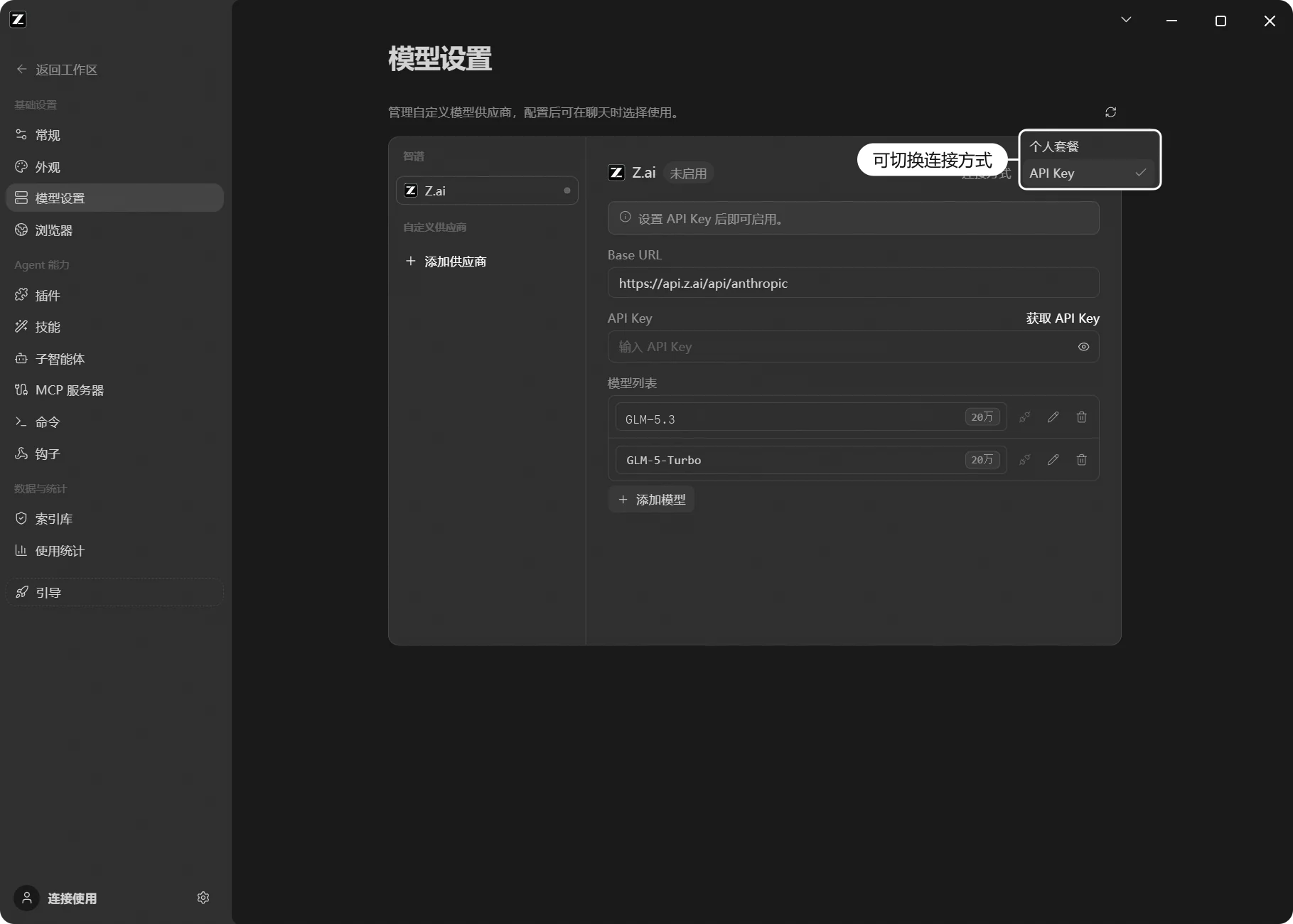
- 右上角同样可以在「编程套餐」与「API Key」两种连接方式之间切换
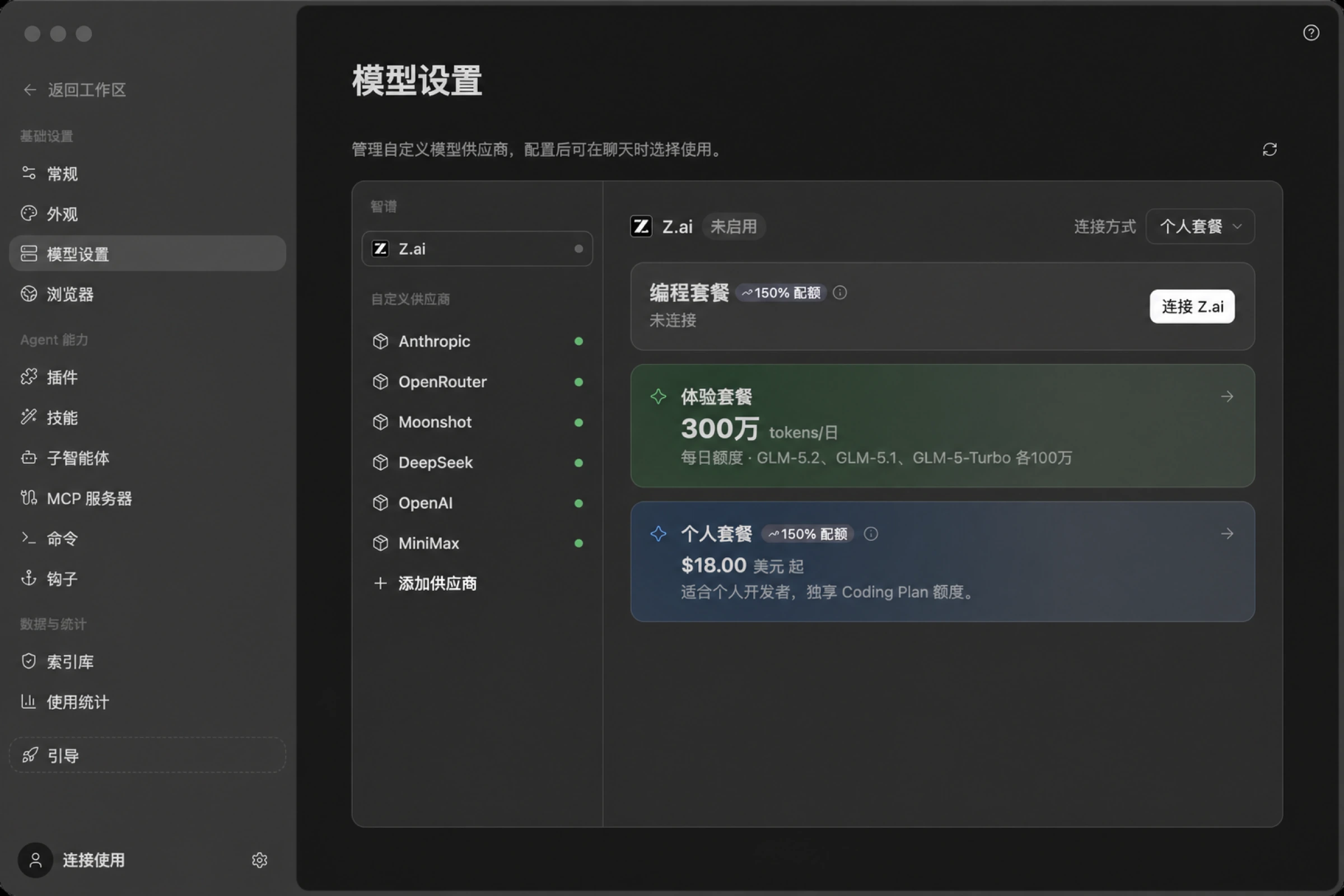
连接后,供应商页面会展示当前套餐与今日各模型的余额、已用量:
体验额度与订购套餐
与 BigModel 相同,新用户可享受每日免费的 GLM 旗舰模型体验额度;也可以直接在页面内浏览并订购 GLM Coding 编程套餐(Lite / Pro / Max,美元计价),支持包月、包季、包年。新版套餐按积分计算用量并设有每周额度,详情见 Coding Plan Revision Notice。
使用 API Key 接入
根据你的账号类型选择连接方式:
方式 A:GLM Coding Plan(编程套餐 API Key)
- 在 Z.ai 供应商页面右上角,将连接方式切换为「API Key」
- OpenAI 接口地址填写 Coding 专用端点:
https://api.z.ai/api/coding/paas/v4 - 填入从 Z.ai 平台获取的 API Key
- 可用模型以账号权限和供应商返回的模型列表为准
注意:Coding 端点不能替换为通用端点
https://api.z.ai/api/paas/v4。
方式 B:模型资源包 / 充值余额
- 在 Z.ai 供应商页面右上角,将连接方式切换为「API Key」
- 使用 OpenAI 协议,将 OpenAI 接口地址填写为
https://api.z.ai/api/paas/v4 - 填入从 Z.ai 平台获取的 API Key
- 可用模型以账号权限和供应商返回的模型列表为准;也可以点击「添加模型」补充其他可用模型
资源包 / 充值余额场景不要选择 Anthropic 协议。Anthropic 接口只有在账号从未购买过 Coding Plan且已获得额外加白时才会消耗余额;购买过套餐的账号(无论是否用完、是否到期)不会从余额扣费。因此这里请使用上面的 OpenAI 通用端点。
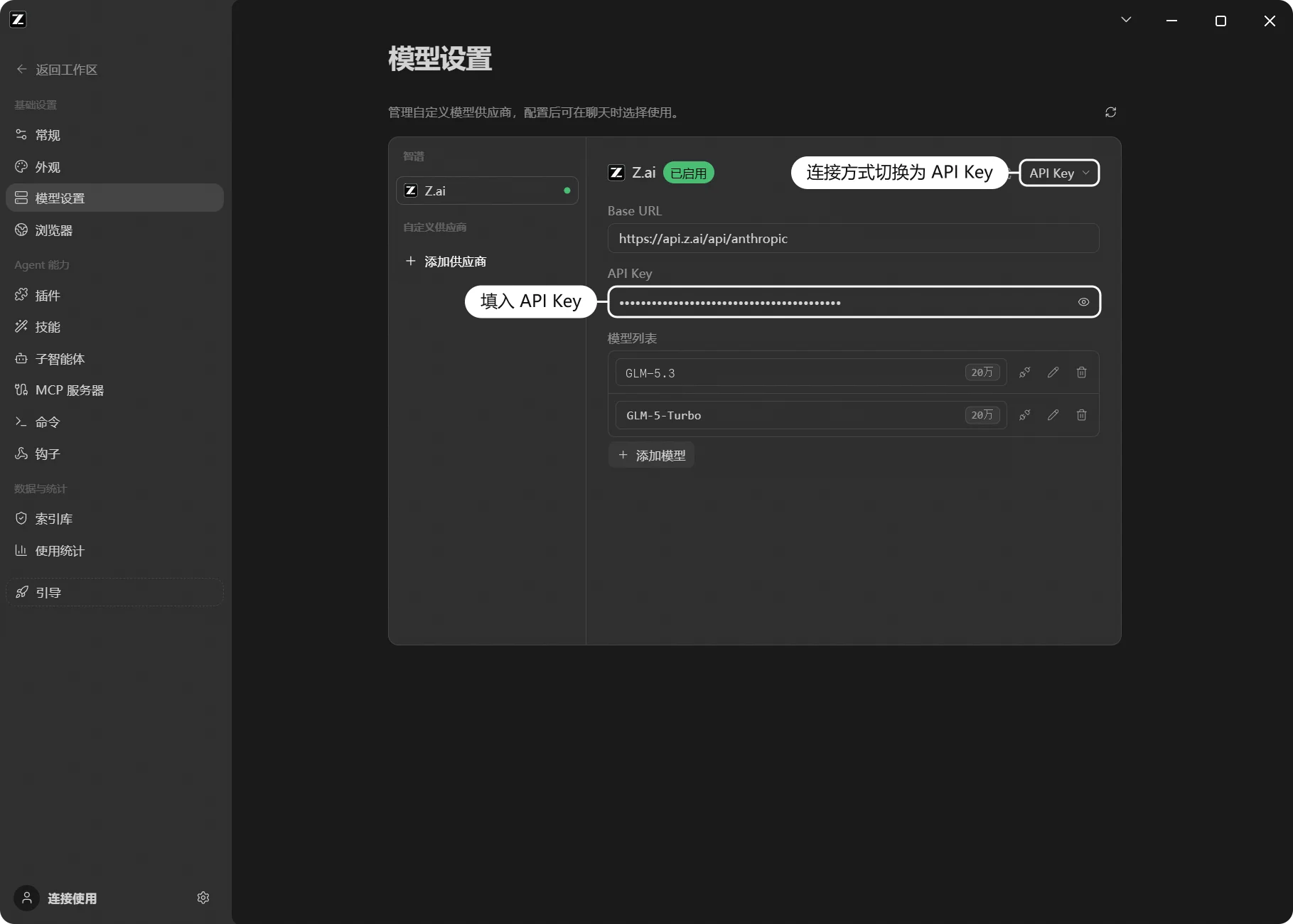
Anthropic(Claude API)
- 通过上述任一方式进入 模型设置 面板
- 在左侧供应商列表底部点击「添加供应商」
- 名称填写「Anthropic」
- Anthropic 接口地址填写
https://api.anthropic.com - 在「API Key」输入框中填入从 Anthropic 平台 获取的 API Key(可在平台内查看用量与套餐)
- 保存后,点击「添加模型」手动填写 Anthropic 支持的模型 ID
- 开启启用开关即可使用
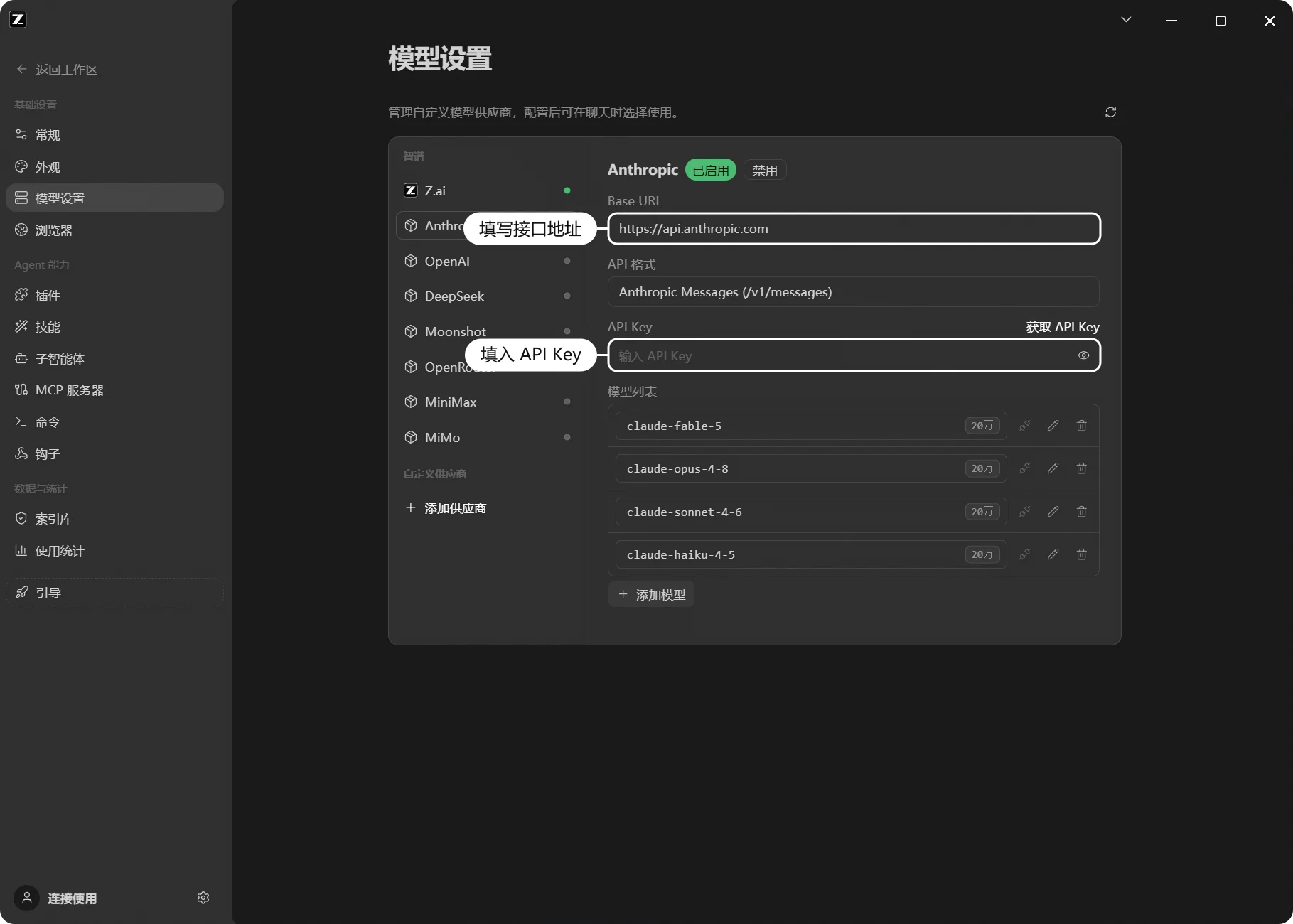
OpenRouter 平台
1. 创建 API Key
前往 OpenRouter 平台,注册账号并创建 API Key。
2. 在 ZCode 中配置
- 进入 模型设置 面板
- 在左侧供应商列表底部点击「添加供应商」
- 名称填写「OpenRouter」
- API 基础 URL 填写
https://openrouter.ai/api - 填入 API Key
- 开启启用开关即可使用
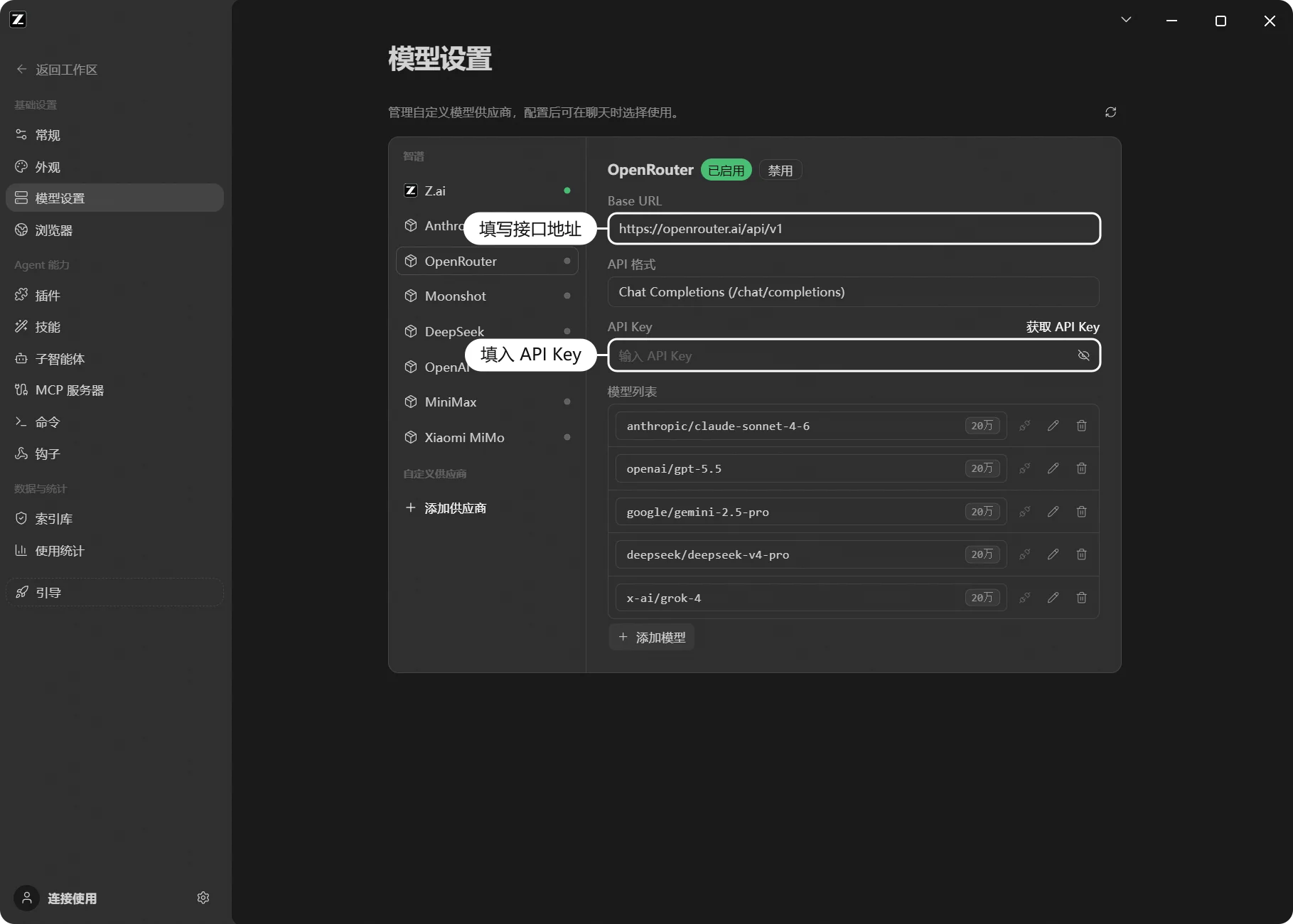
Moonshot
- 进入 模型设置 面板
- 在左侧供应商列表底部点击「添加供应商」
- 名称填写「Moonshot」
- Anthropic 接口地址填写
https://api.moonshot.cn/anthropic - 前往 KIMI 开放平台 获取 API Key(可在平台内查看资源包与用量),并填入「API Key」输入框
- 保存后,点击「添加模型」手动填写 Moonshot 支持的模型 ID,开启启用开关即可使用
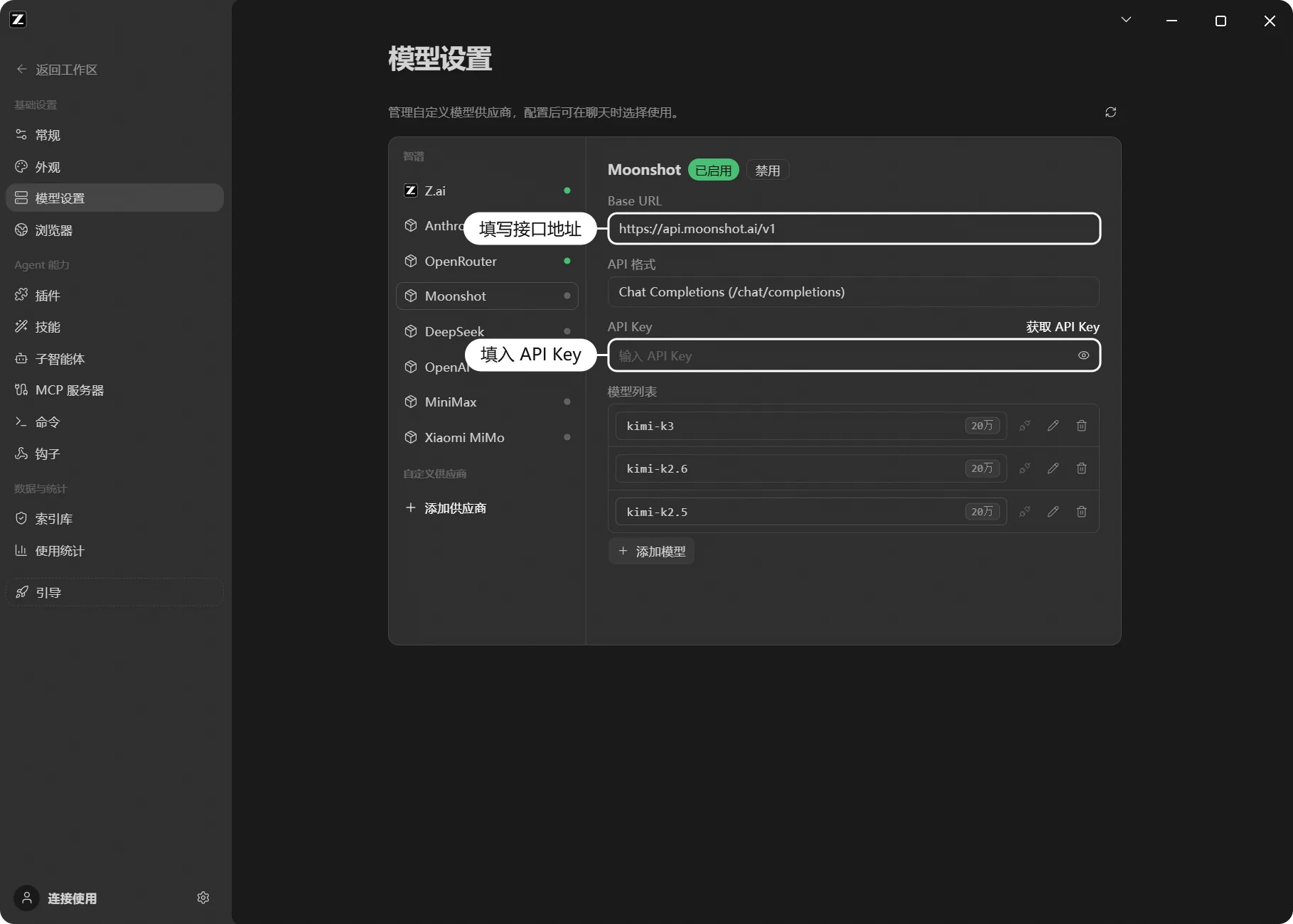
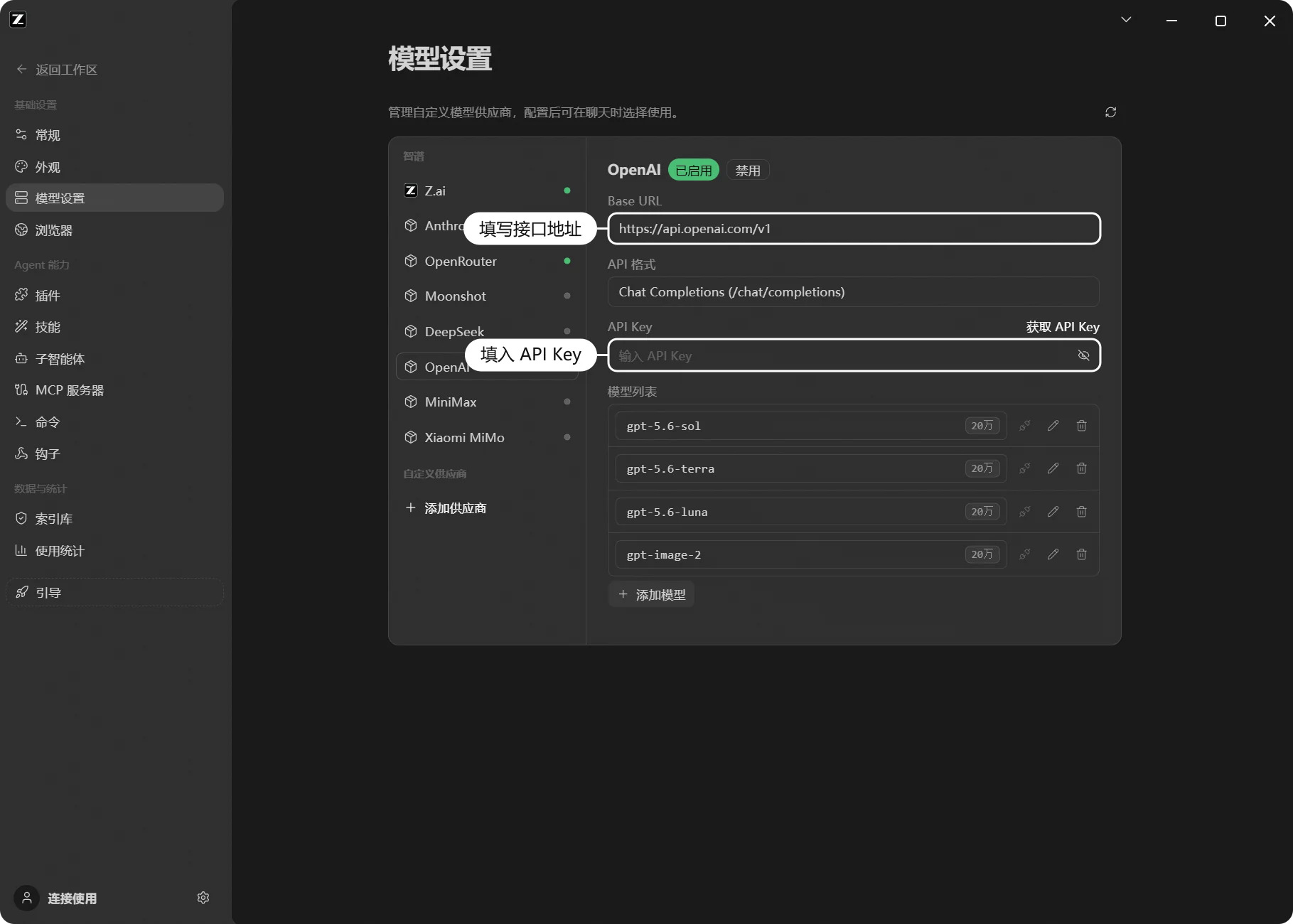
OpenAI
- 进入 模型设置 面板
- 在左侧供应商列表底部点击「添加供应商」
- 名称填写「OpenAI」
- API 基础 URL 填写
https://api.openai.com - 在「API Key」输入框中填入从 OpenAI 平台 获取的 API Key
- 保存后,点击「添加模型」手动填写 OpenAI 支持的模型 ID,开启启用开关即可使用
MiniMax
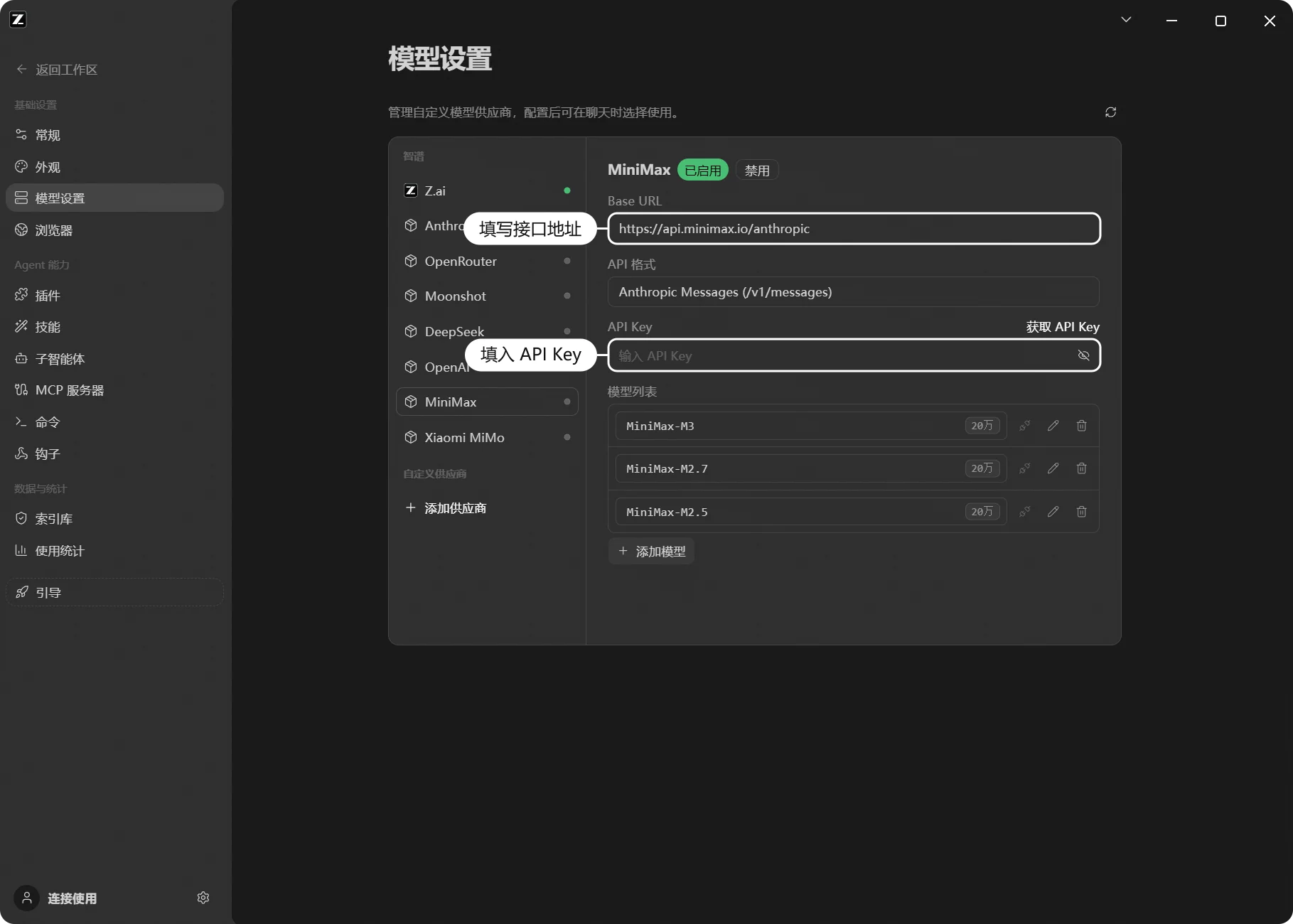
- 进入 模型设置 面板
- 在左侧供应商列表底部点击「添加供应商」
- 名称填写「MiniMax」
- Anthropic 接口地址填写
https://api.minimaxi.com/anthropic - 前往 MiniMax 开放平台 获取 API Key(可在平台内查看套餐与计费),并填入「API Key」输入框
- 保存后,点击「添加模型」手动填写 MiniMax 支持的模型 ID,开启启用开关即可使用
小米 MiMo
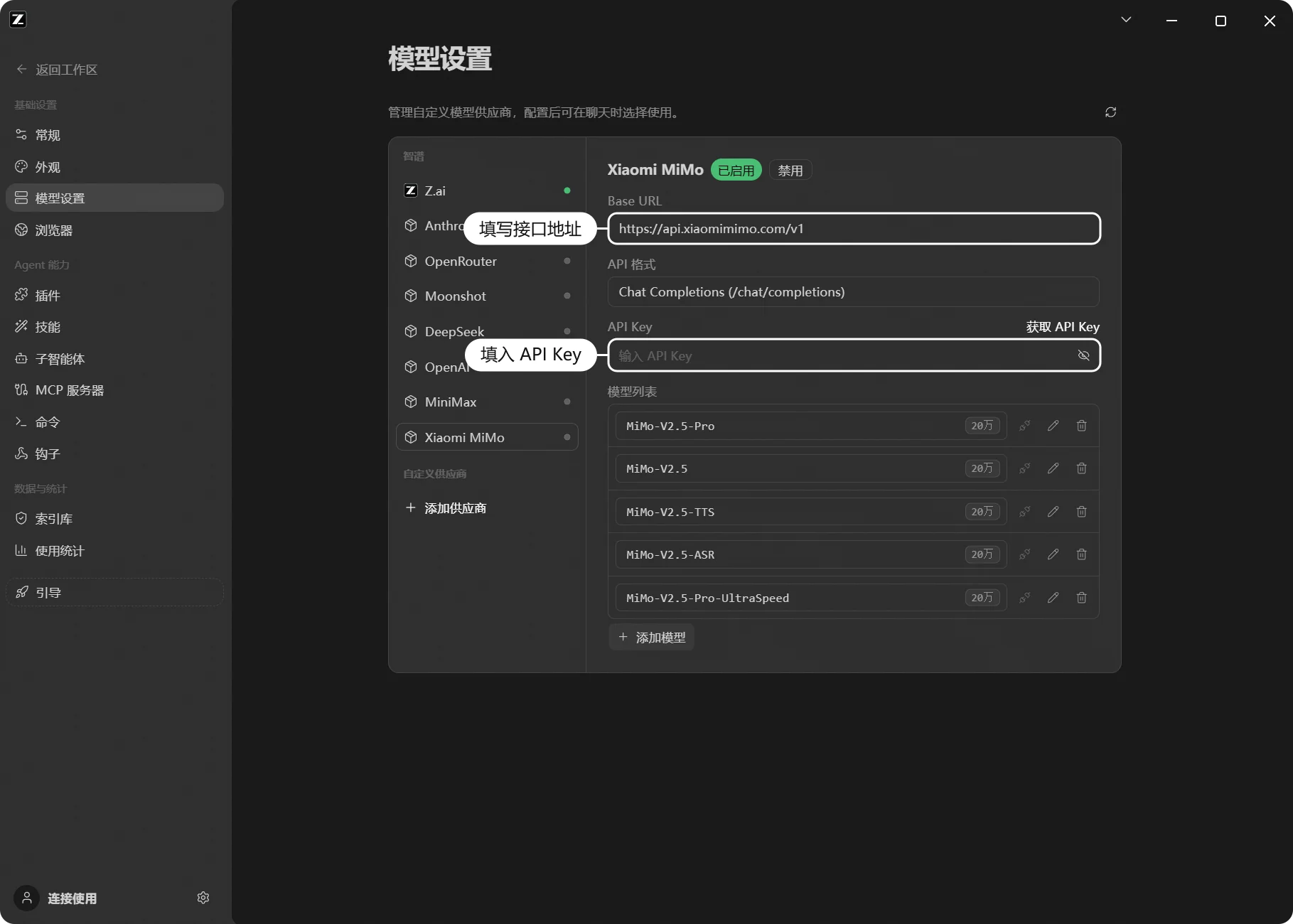
- 进入 模型设置 面板
- 在左侧供应商列表底部点击「添加供应商」
- 名称填写「Xiaomi MiMo」
- API 基础 URL 填写
https://api.xiaomimimo.com/v1 - 前往 小米 MiMo 开放平台 获取 API Key(平台提供 Token Plan 套餐,可按需开通),并填入「API Key」输入框
- 保存后,点击「添加模型」手动填写 Xiaomi MiMo 支持的模型 ID,开启启用开关即可使用
自定义供应商(兼容 Anthropic / OpenAI 协议)
ZCode 支持添加任何兼容 Anthropic / OpenAI 协议 的模型服务作为自定义供应商——既可以是公网模型服务,也可以是团队统一维护的企业模型通道或内网自托管服务。
填写接口地址和 API Key 后,通过「添加模型」手动填写该服务支持的模型 ID 即可使用。
配置步骤
- 进入 模型设置 面板
- 在左侧供应商列表底部点击「添加供应商」
- 自定义填写名称:为供应商命名(如 claude、deepseek 等)
- 选择对应厂商 Base URL:从下拉列表中选择或手动输入 API 基础 URL
- 填写 API Key:输入对应服务的 API 密钥
- 添加模型:点击「添加模型」,手动填写该服务支持的模型 ID
- 开启启用开关后即可开始使用
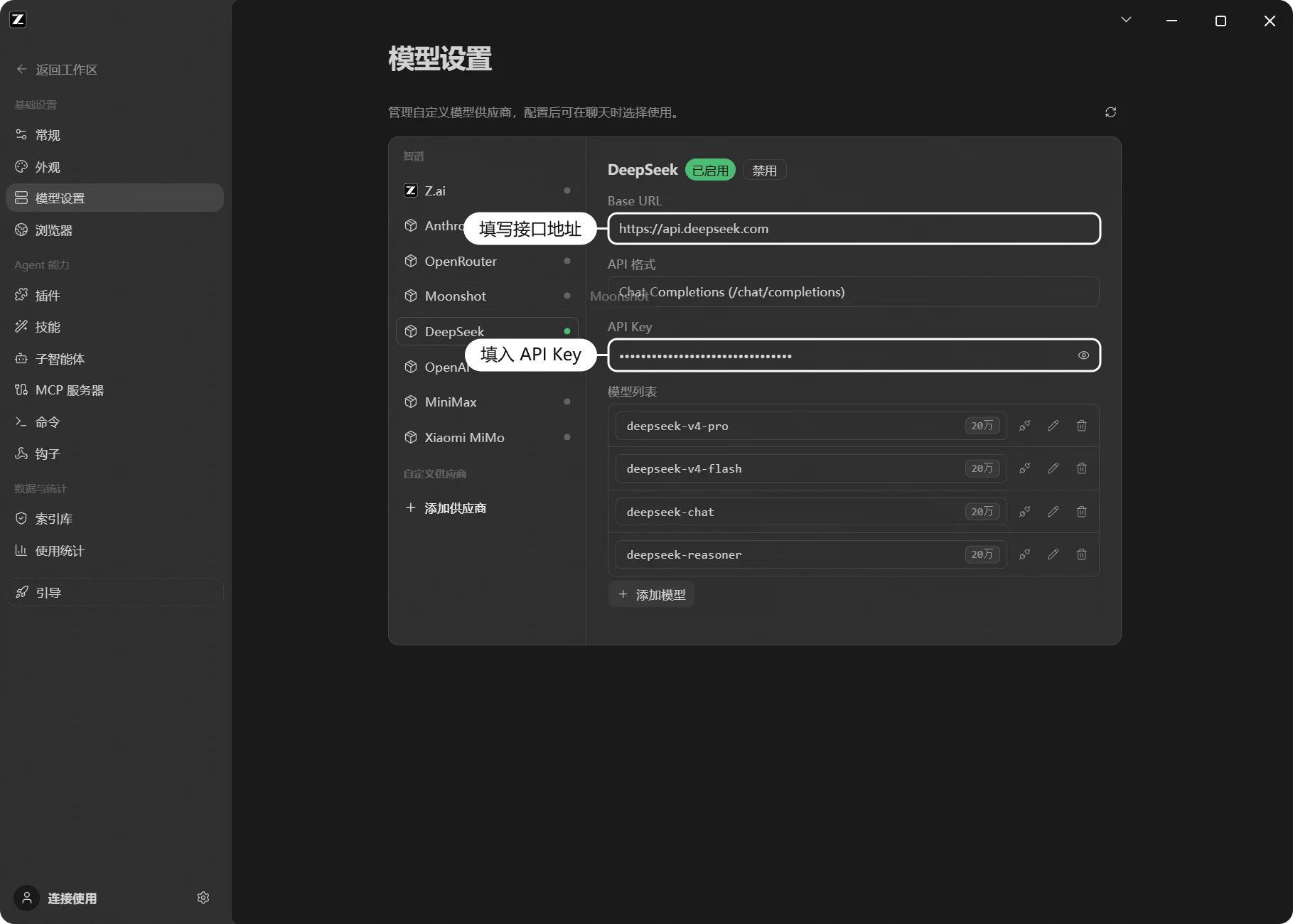
以 DeepSeek 兼容接口为例:
- 名称填写「DeepSeek」
- Anthropic 接口地址填写
https://api.deepseek.com/anthropic - OpenAI 接口地址填写
https://api.deepseek.com/v1 - 填入从 DeepSeek 开放平台 获取的 API Key
- 点击「添加模型」填写 DeepSeek 支持的模型 ID(如
deepseek-chat、deepseek-reasoner),或团队约定的模型 ID - 点击保存即可
团队使用建议:企业模型通道建议由团队统一管理 Base URL、API Key、模型列表与访问权限,保证长任务执行过程中的连接稳定性和可追踪性。如需团队级的席位、用量与权限管理,可了解 GLM Coding Plan 团队版。
单个模型的高级参数
在 设置 → 模型供应商 里点开某个模型,展开 高级,可以为这一个模型单独设置 最大输出 Token——也就是它单次回复的长度上限。
默认留空,跟随模型自己支持的上限,通常保持留空就好。只有当你确定某个模型能输出更长内容、而 ZCode 没有识别到时,才需要手动调大。
调大之后要留意:输出空间和历史对话共用同一个上下文,输出上限调得越高,能带上的历史对话就越少,自动压缩也会来得更早。
上下文窗口:哪些能改、哪些不能
同一个「高级」面板里也能看到模型的上下文窗口。三类模型的行为不同:
- 自定义供应商的模型:可以修改,保存后对新会话生效。
- 编程套餐(Coding Plan / Start Plan)的内置模型:上下文窗口由服务端统一下发,本地修改会在下一次同步时恢复为官方值——这是有意设计,不是配置丢失。
- 名称以
[1m]结尾的模型:固定按 1M 上下文处理,不可修改。
会话的自动上下文压缩会在接近窗口上限前提前触发:系统会为模型输出预留空间并保留安全缓冲(合计约 3.4 万 token),因此压缩点低于窗口标称值属于正常现象——例如 128K 窗口约在 9.4 万 token 时触发,1M 窗口约在 96.6 万 token 时触发。自动压缩目前没有可配置的开关或阈值。另外,输入框上方水位面板的分项占比是本地估算值,与顶部的真实用量口径不同,两者不能直接相加对齐。
思考强度与第三方部署差异
ZCode 会根据当前模型的实际能力显示可用的思考强度(推理档位),不同模型的档位并不相同。当前常见模型的档位如下:
| 模型 | 可选档位 | 默认档位 |
|---|---|---|
| GLM-5.3 | low / high / max | max |
| GLM-5.2 | nothink / high / max | max |
| GPT 系列 | low / medium / high / xhigh | medium |
| Claude 系列 | low / medium / high / xhigh(Opus 4.7 另有 max) | medium |
Kimi K3(kimi-k3 / k3 / k3-256k) | low / high / max | max |
| DeepSeek V4 系列 | high / max | max |
| 其他自定义模型 | 「开启 / 关闭」两档,或不提供档位 | 由模型配置决定 |
界面会按思考强度从低到高排列这些选项。选择档位后,ZCode 再根据接口类型转换请求参数:OpenAI 兼容接口使用顶层 reasoning_effort,Anthropic 兼容接口使用 thinking / effort。如果某个第三方模型没有显示细分档位,通常表示 ZCode 还没有该模型的档位映射,并不是配置丢失。
需要注意:同名模型的第三方部署,接受的档位可能与官方端点不一致。例如 DeepSeek V4 系列在 ZCode 中的最高档按官方端点约定发送 max,而部分第三方部署只接受 xhigh 及以下——此时选最高档会返回 400 参数错误,改选 high 档即可正常使用。非 V4 的 DeepSeek 模型默认使用「开启 / 关闭」两档,不适用上表中的 high / max。
供应商私有思考参数的支持情况:Qwen 系列的 enable_thinking、thinking.type=enabled/disabled 形式的开关已适配;GLM 的 clear_thinking、MiniMax 的 adaptive 思考模式当前不支持在 ZCode 内配置。目前也不支持为第三方模型追加自定义请求参数:~/.zcode/v2/config.json 中供应商的 options 只识别 apiKey、baseURL、apiKeyRequired、headers 等连接参数,手动加入的其他字段(如 reasoning_effort、vl_high_resolution_images)不会写入请求体,也不会有报错提示。
图片输入的支持判定
ZCode 会综合供应商与模型配置、模型目录中的能力信息、内置模型规则,以及当前接口协议,判断所选模型能否接收图片。判断结果分为三种:
- 支持:保留图片,并随请求发送给模型服务。
- 不支持:在请求发出前移除图片数据,并用文字提示替代,避免把不受支持的图片传给模型服务。
- 能力未知:不提前拦截图片,由模型服务最终决定是否接受;如果服务端不支持图片,请求可能直接报错。
通过编程套餐连接 BigModel / Z.ai 时,内置的 GLM-5.3-Flash 是面向截图理解、看图分析和视觉问答的多模态模型,选中它后发送图片会直接按「支持」处理,无需额外配置。
模型 ID 会参与能力匹配,但并非唯一依据。同一个 GLM 模型通过不同供应商或接口协议接入时,判断结果也可能不同。例如,GLM-5.2 通过官方 Anthropic 兼容接口接入时,可保留图片并交由服务端处理;通过 OpenAI Chat 兼容接口接入时,则会按不支持图片处理。对于 glm-5.2-highspeed 这类带后缀的变体,ZCode 还会结合供应商、接口协议和显式能力配置进行判断,不能只凭模型名称推断是否支持图片。
遇到图片相关报错时,建议先使用供应商文档中的标准模型 ID,并确认当前接口本身支持图片输入;如果使用自定义模型或第三方部署,还应在模型配置中明确声明图片能力。无法确认时,请暂时不要在该模型下发送图片。
HTTP 代理的作用范围
设置中的 HTTP 代理并非「全局代理」,它覆盖的流量范围如下:
走代理:模型 API 请求、MCP 服务器(stdio / HTTP / SSE 三种连接方式)、WebFetch 网页抓取、终端命令子进程(注入 HTTP_PROXY 等环境变量)、插件市场、应用内页面加载。
不走代理:桌面端的账号登录与后端服务请求、仓库 Wiki 生成、Web 远程控制通道(WebSocket)、SSH 远程连接。
两点注意:
- ZCode 默认不读取系统的
HTTP_PROXY/HTTPS_PROXY环境变量(仅 WebFetch 在未配置代理时会兜底使用),以设置页里填写的代理为准。 - 修改代理设置后需要重启 ZCode 才会对全部链路生效。
验证配置
配置完成后,在对话框的模型选择器中选择对应通道,发送一句简单指令测试。确认模型可用、响应稳定即可开始使用。