Core Features

SSH Remote Connection (Beta)

Use Z Code on a remote server for development. Code storage and execution all happen on the server side, while your local device only handles display and interaction.


When to Use

SSH Remote Connection provides a better experience in the following scenarios:

  • When you need to develop on a cloud server or remote Linux machine — Connect directly to the server to edit code without syncing files back and forth between your local machine and the server.

  • When your project requires a specific server environment — For example, high-performance GPUs, a specific Linux distribution, or a high-memory machine. Develop and test directly in the target environment.

  • When using ARM architecture servers — Now supports Linux x86_64 / Linux ARM64 (aarch64) / Mac OS (amd64 and arm64) architectures.

PS: Linux currently supports the Ubuntu distribution.


How It Works

SSH Remote Connection connects to the remote server via the standard SSH protocol:

  • Local device: Handles the interface display and receives your input
  • Remote server: Executes all code operations, file I/O, terminal commands, etc.

Two authentication methods are supported:

  • Password authentication: Log in with your server account password
  • SSH key authentication: Use a local SSH private key file (default path ~/.ssh/id_rsa)

Supported system architectures:

  • Linux x86_64 (Intel/AMD64)
  • Linux ARM64 (aarch64)
  • Mac OS (amd64 and arm64)

Quick Start

First-Time Connection to a Remote Server

1. Open the SSH Connection Panel

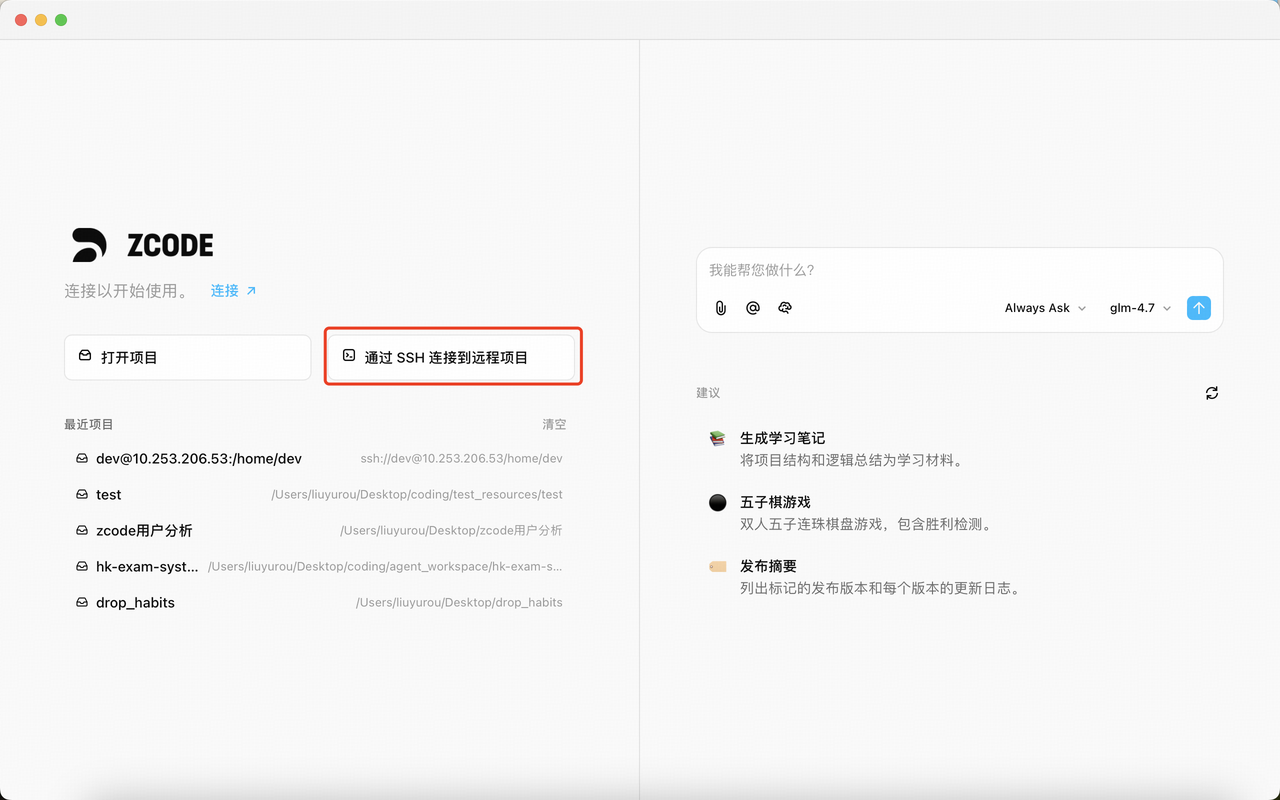
Click the "Connect to Remote Project via SSH" button on the Z Code welcome page:

SSH Entry on Welcome Page

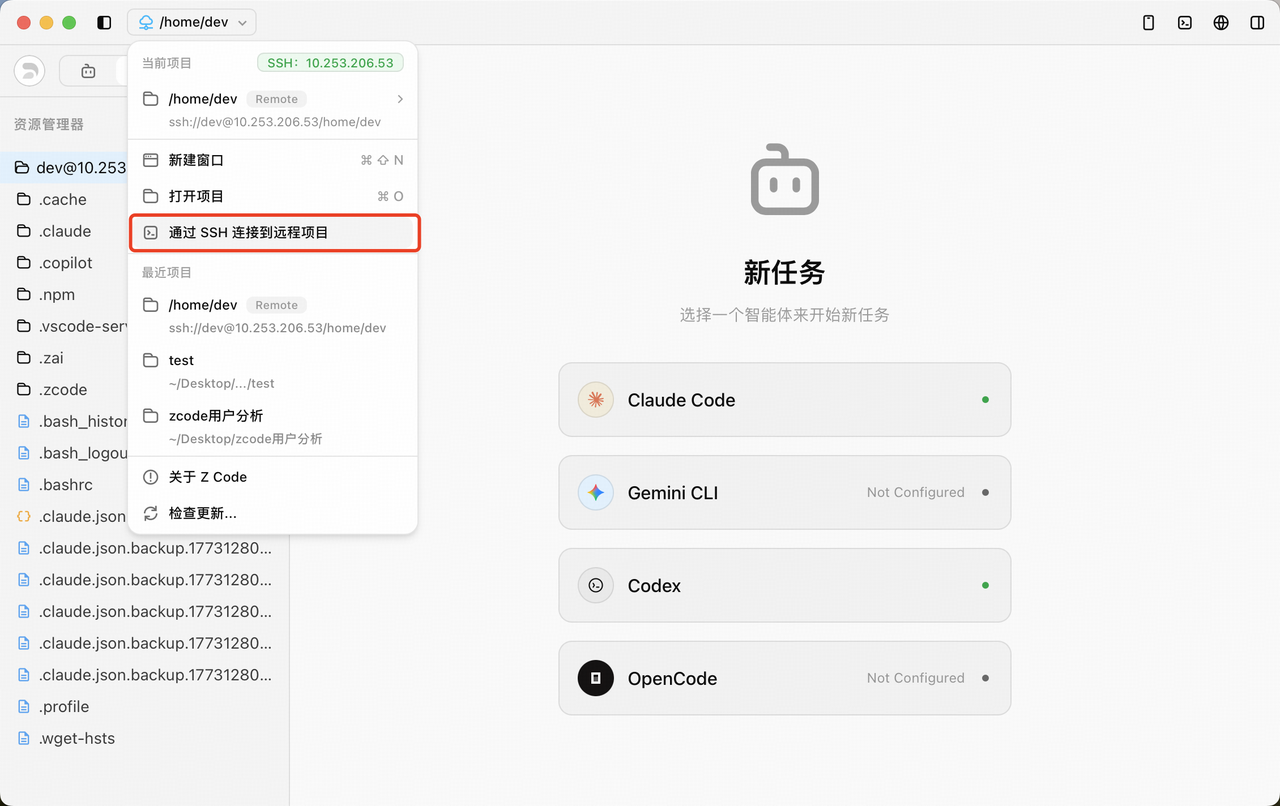
Or, if a project is already open, click the project name dropdown in the top-left corner and select "Connect Via SSH":

SSH Entry in Menu

2. Create an SSH Connection Configuration

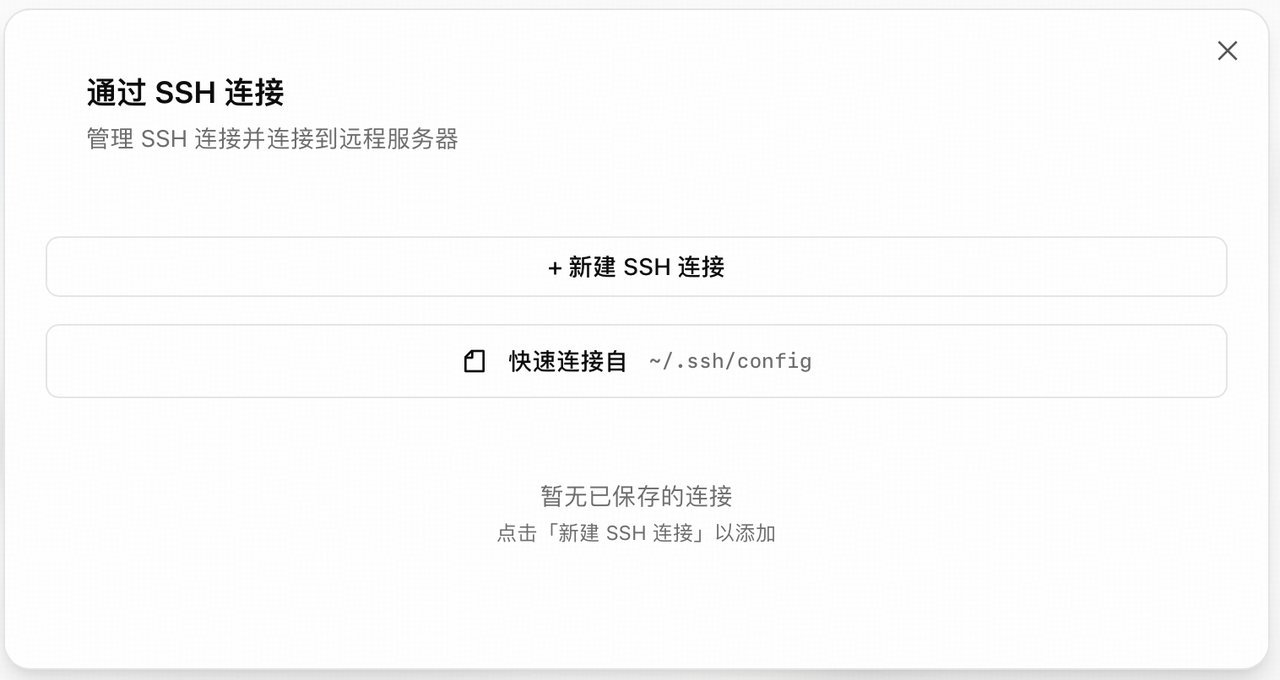
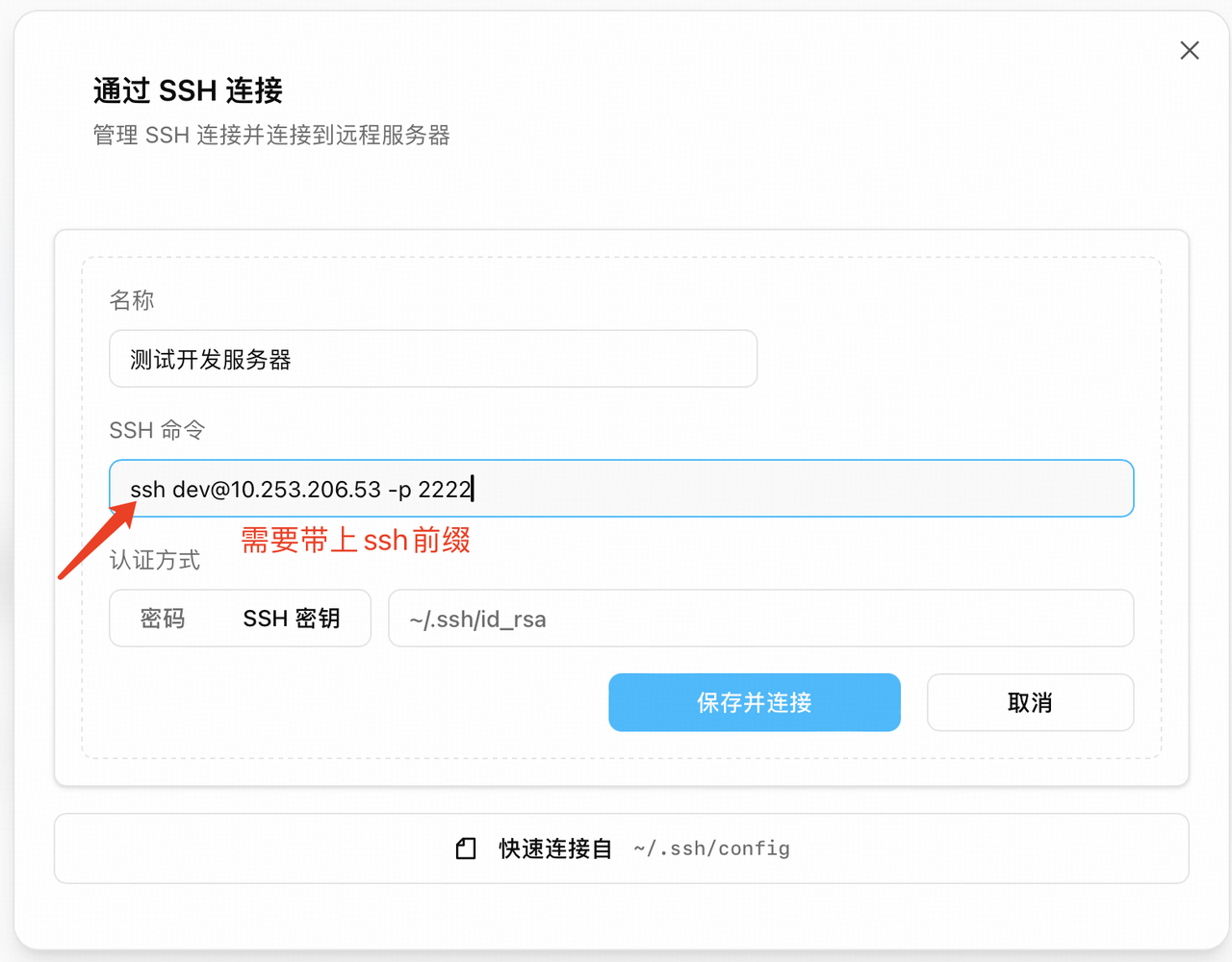
Click "+ New SSH Connection" and fill in the connection details:

  • Name: Give this connection an easily recognizable name (e.g., Dev Server, Production)
  • SSH Command: Enter the full SSH connection command (e.g., ssh dev@10.253.206.53 -p 2026)
  • Authentication Method: Choose "Password" or "SSH Key"
    • Password: Enter the server login password
    • SSH Key: Click "Select SSH Key" to choose the private key file

New SSH Connection

3. Save and Connect

  • Click the "Save and Connect" button
  • Wait for the connection to establish (the first connection will automatically install the Z Code backend service on the server)
  • You can monitor progress feedback during connection, and click "Cancel" at any time to abort

Connection Progress

4. Select a Working Directory

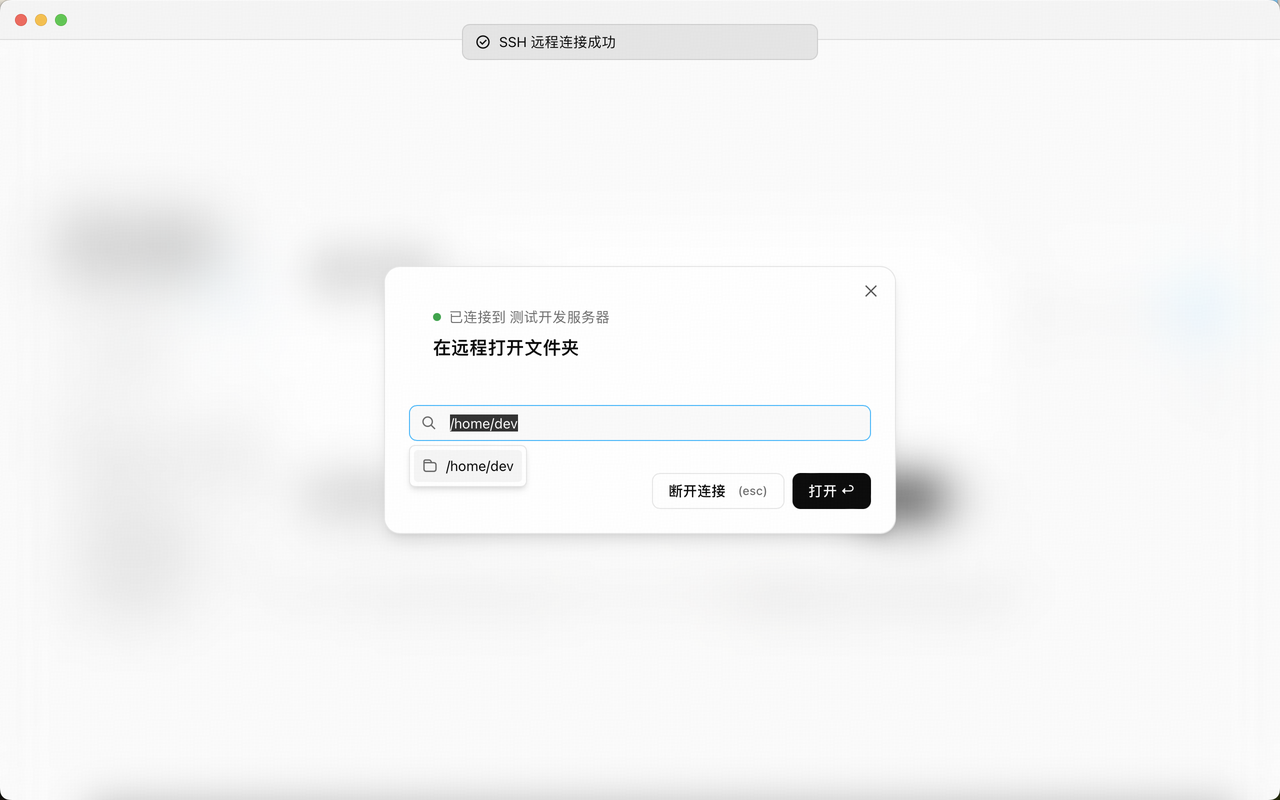
After a successful connection, enter or select the project path on the server (e.g., /home/dev) in the file picker dialog, then click "Open" to enter the remote project.

Select Remote Directory


Reconnecting to a Saved Server

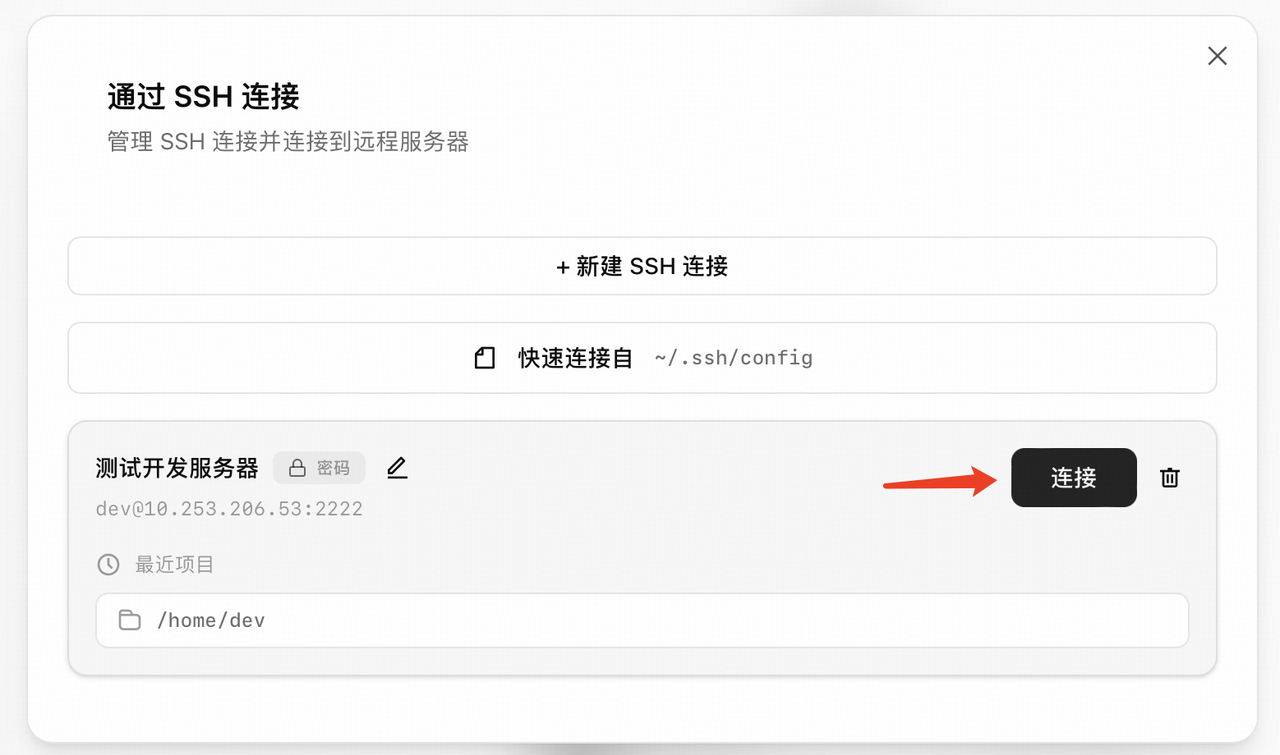
  1. Open the SSH Connection Panel
  2. Find the target server card in the connection list
  3. Click the "Connect" button to connect directly
  4. If there are recently accessed project paths under that server, you can click the path to quickly enter

Saved Connections


Connection Status and Visual Feedback

After connecting to a remote server, Z Code displays the connection status in multiple locations so you can stay informed about your current environment:

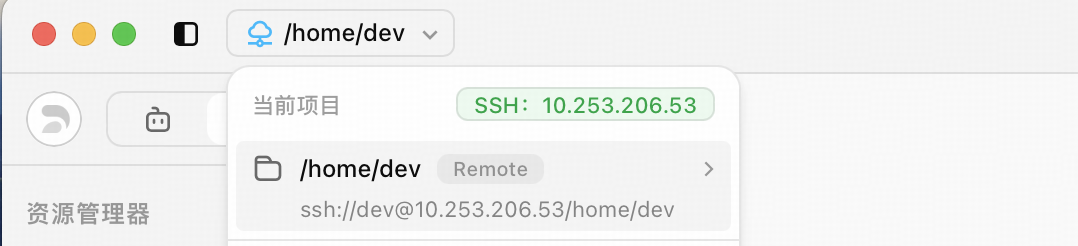
Top-left corner of the new window:

  • A "Remote" tag appears after the project name
  • A blue icon shows when connected
  • When disconnected, the icon changes to a warning state, and a "SSH Disconnected" notification appears at the top

Connected Status

Disconnected Status

Top of the file tree:

  • Displays Host information (e.g., SSH: 192.168.1.100:22)

File Tree Host Info


Troubleshooting

What to Do When Connection Fails

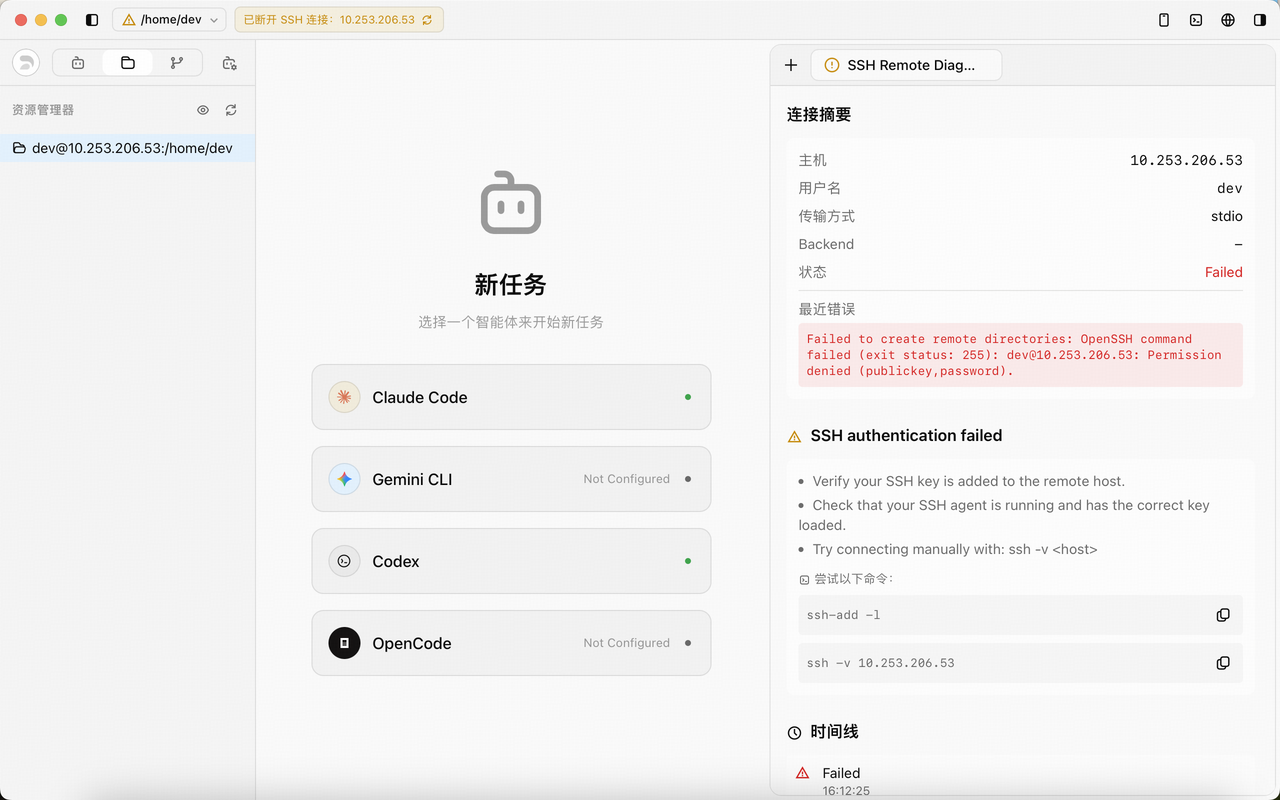
Click "Diagnose" to view detailed error information.

Common issues:

  • Authentication failed: Check if your password or SSH key is correct
  • Connection timeout: Verify the server IP and port are correct, and that the network is accessible
  • Permission issues: Ensure your account has permission to install software on the server

Diagnose Details

What to Do When Connection Is Lost

If the remote connection drops unexpectedly:

  1. A "Disconnected" warning appears at the top of the interface
  2. The Host info at the top of the file tree changes to a yellow warning state
  3. Click "Connect Via SSH" again and select the corresponding server to reconnect

Can I Cancel a Slow Installation?

Yes. During the connection and installation process:

  1. The progress bar shows the current step in real time (e.g., "Connecting to server...", "Installing backend service...")
  2. You can click the "Cancel" button at any time to abort
  3. The download will restart on the next connection attempt

FAQ

Does the SSH connection consume local resources?

No. All code execution and file operations run on the remote server. Your local device only handles the interface display and input transmission, with minimal resource consumption.

Can I connect to multiple remote servers simultaneously?

Yes. You can create multiple SSH connection configurations and open different remote projects in different Z Code windows.

Does it support reading from ~/.ssh/config?

Yes. Click the "Quick Connect From" button to import connection configurations from your ~/.ssh/config file.

What does the Beta label mean?

This feature is still being optimized and may have stability issues or connection interruptions. We recommend:

  • Commit important code to Git promptly
  • If you encounter issues, check the logs via "View logs" and send us your feedback

Does it support Windows?

Currently only Linux servers (x86_64 and ARM64 architectures) and Mac OS servers are supported. Windows is not yet supported.


Next Steps