
API Key Setup
ZCode supports the following ways to access AI services:
- Zhipu GLM Coding Plan, BigModel model resource packages, and prepaid balance
- Zhipu Z.AI
- Native subscriptions for Claude Code / Codex / Gemini
- OpenRouter
- Any AI service compatible with the Anthropic / OpenAI protocol, including self-hosted deployments
GLM Coding Plan
Subscribe to GLM Coding Plan to unlock powerful coding models such as GLM-5.1 and get a cost-effective AI coding experience.
API Setup Entry
Method 1: Through Connect
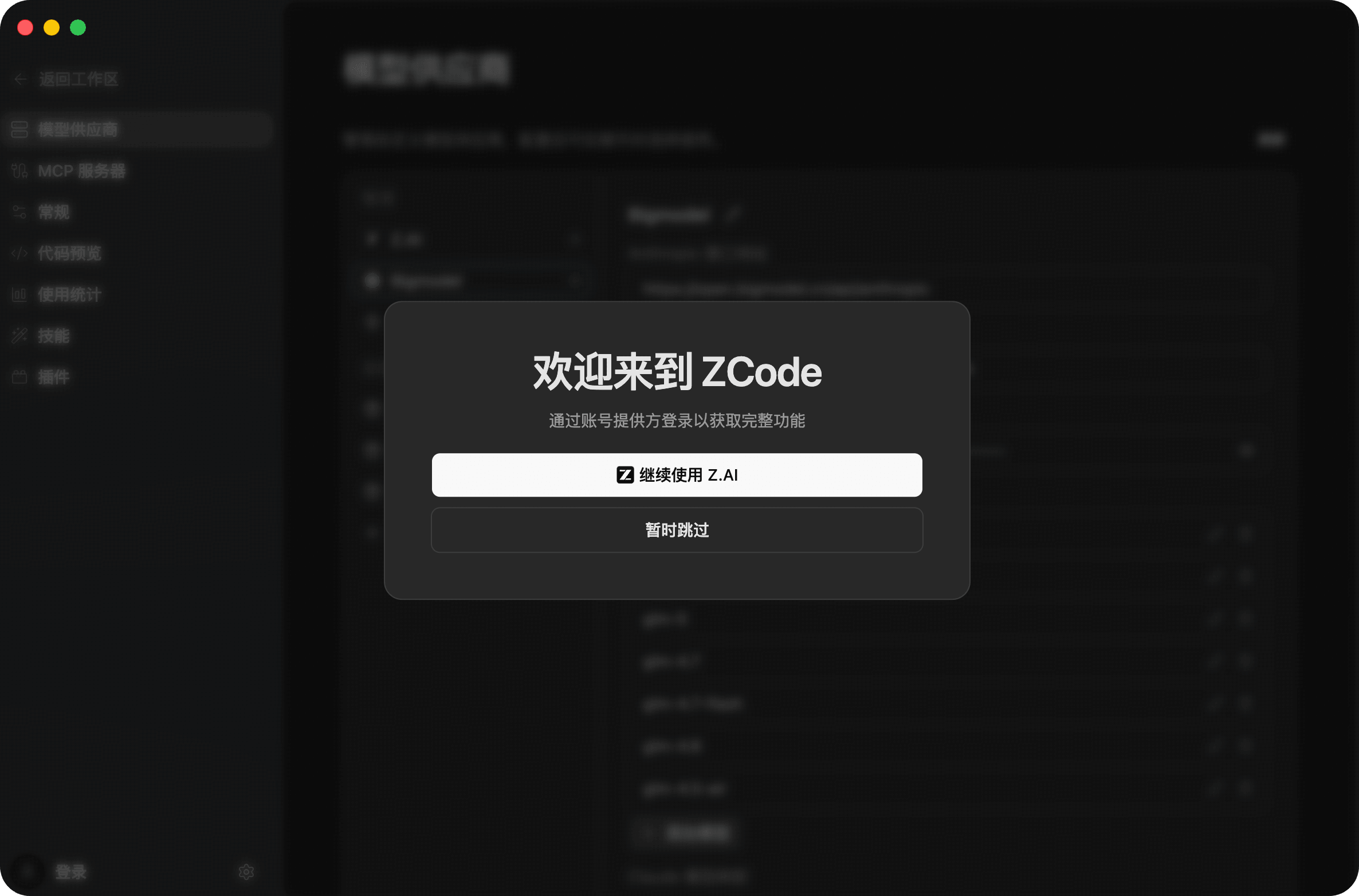
This is best when you want to sign in quickly with an account and start using ZCode immediately. After opening the ZCode desktop app, you will see a welcome dialog.
Click Continue with Z.AI to sign in and enter the workspace. If you do not want to sign in yet, you can also click Skip for now and configure API keys later from the model provider page.
Method 2: Through The Model Selector
After entering ZCode, click the model name inside the chat box to open the model selector dropdown, then click Manage Models at the bottom of the list.
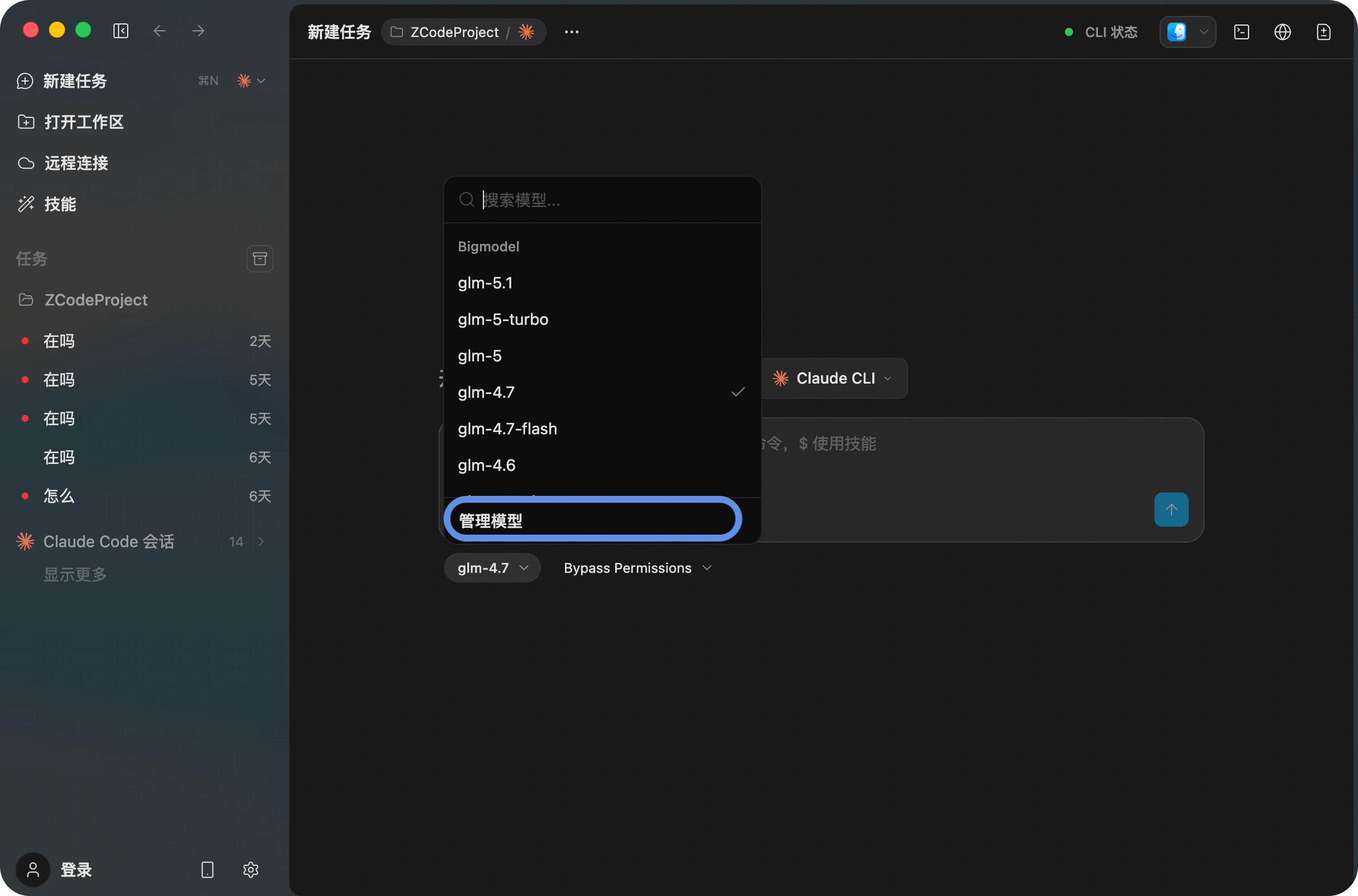
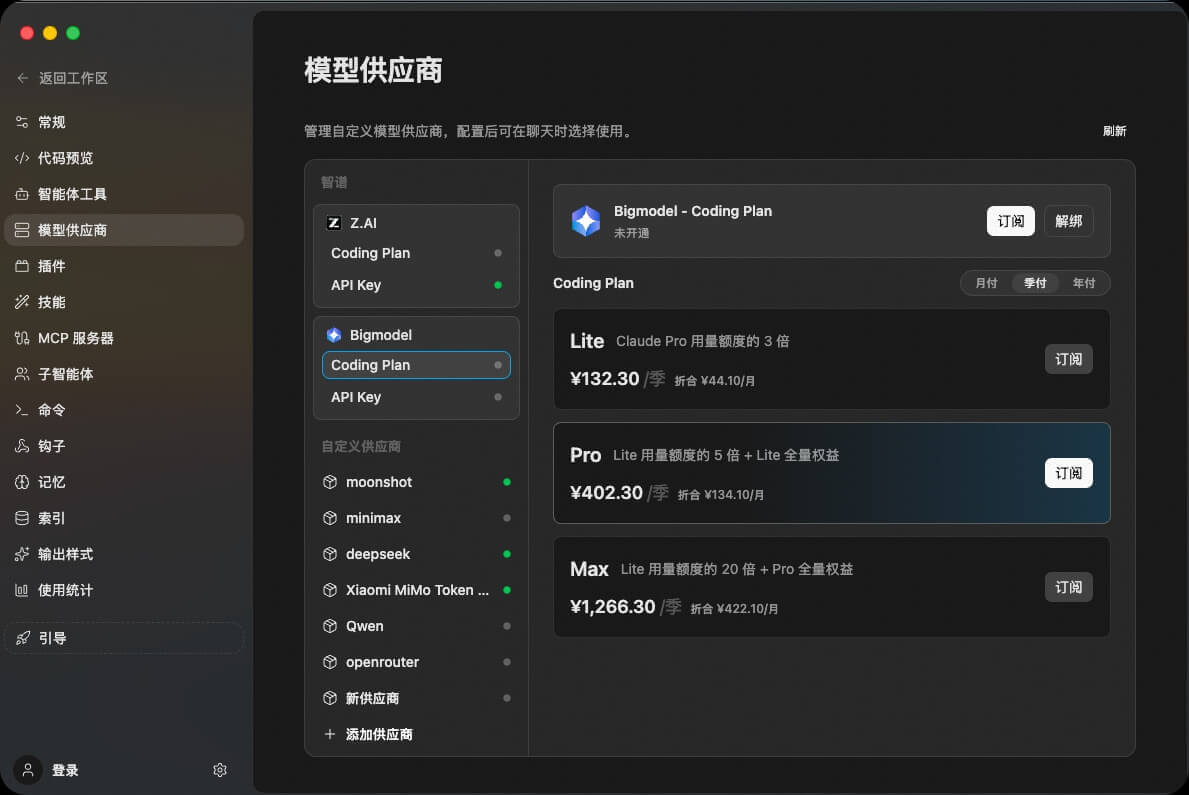
This takes you to the Agents Settings / Models panel, where you can manage all AI service providers.
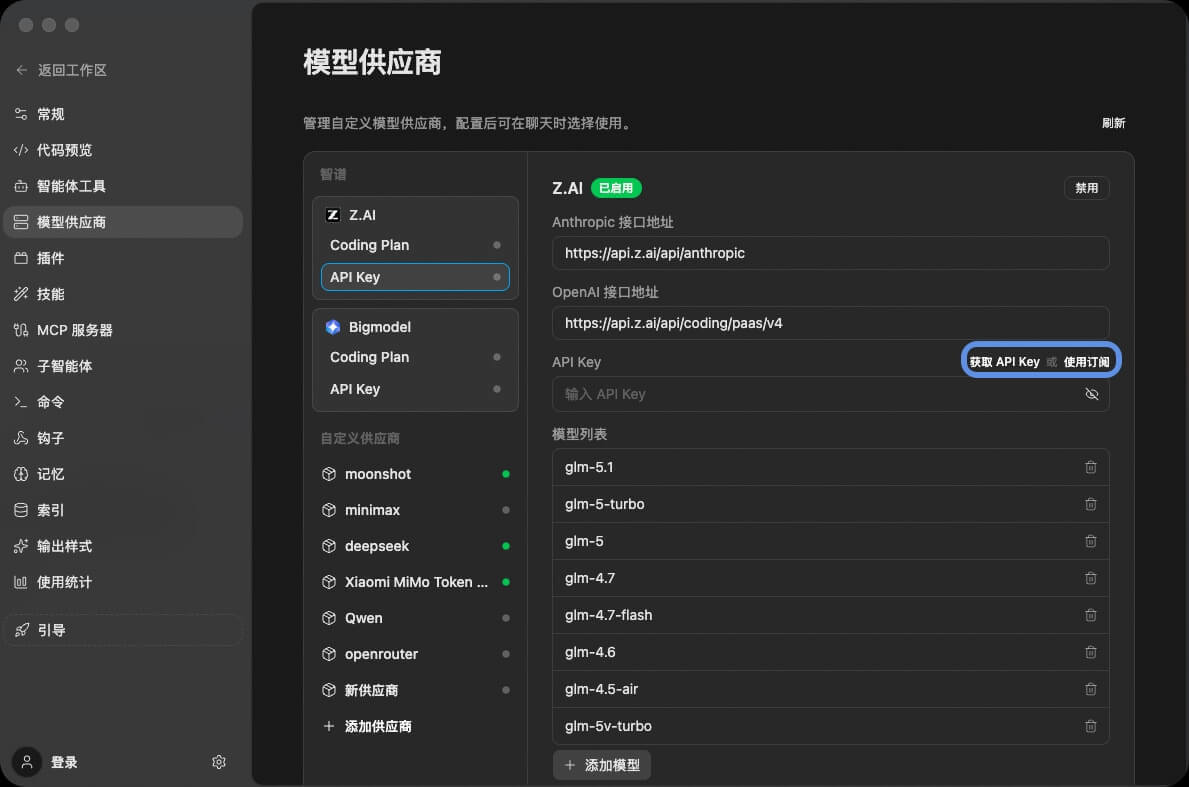
Zhipu BigModel
- Open Agents Settings / Models through either method above
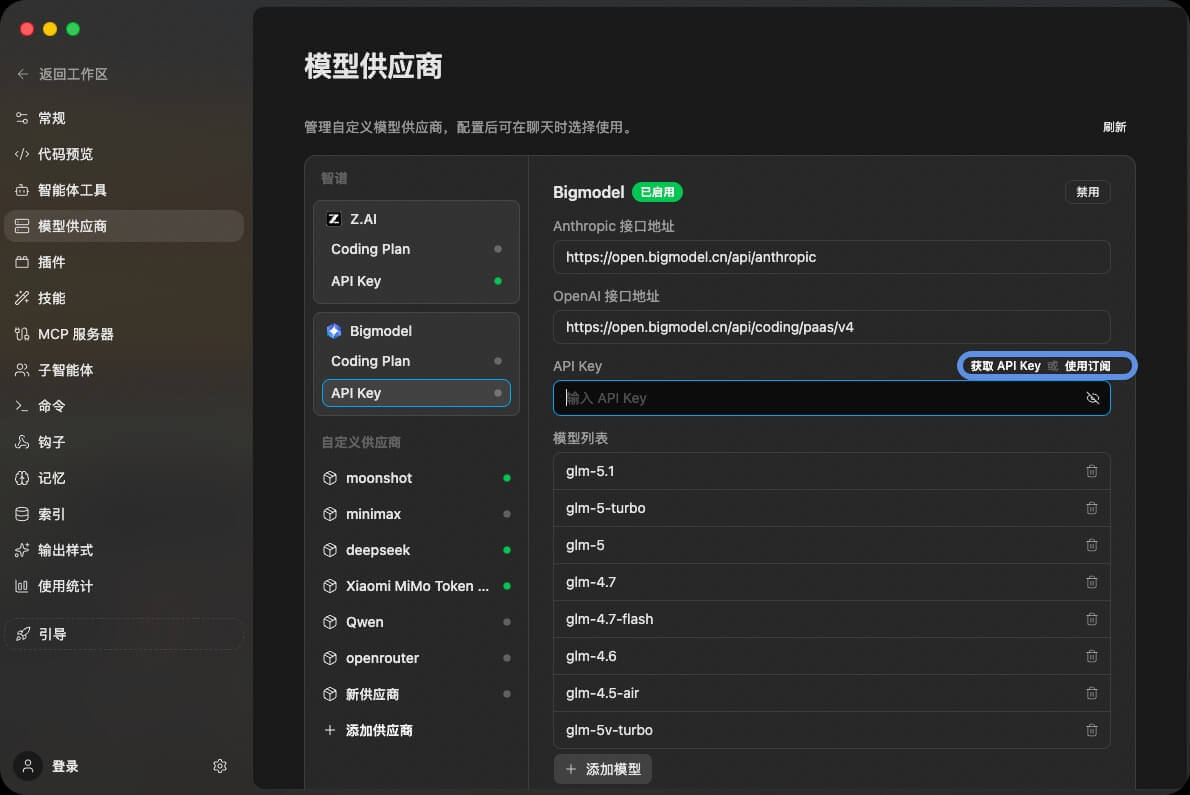
- Select BigModel from the provider list on the left
- Turn on the enable switch in the upper-right corner
- Click Get API Key to open the BigModel platform, or click Use Subscription to bind a GLM Coding Plan
- Fill in your API key and start using built-in models such as
glm-5.1,glm-5-turbo, andglm-5
Zhipu Z.AI
- Open Agents Settings / Models
- Select Z.AI from the provider list on the left
- Turn on the enable switch and complete account binding; you need available balance or an active GLM Coding Plan
Anthropic (Claude API)
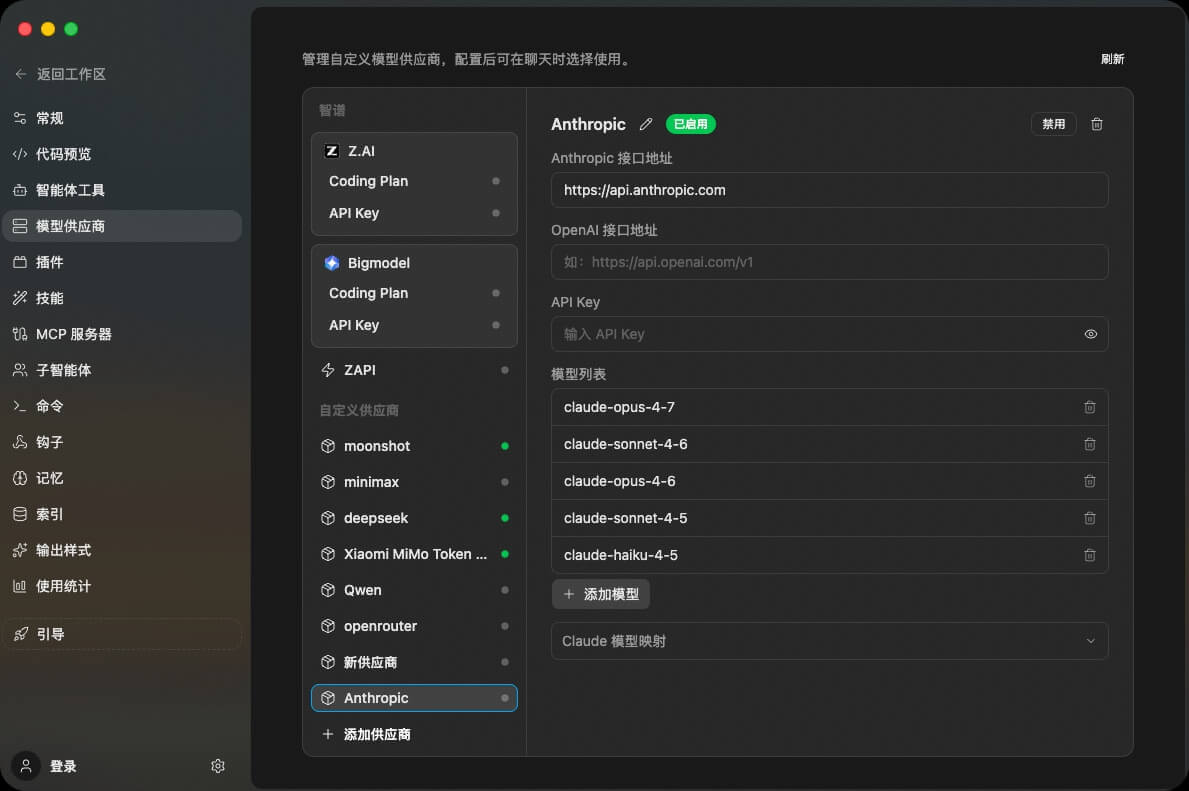
- Open Agents Settings / Models
- Select Anthropic from the provider list on the left
- Turn on the enable switch in the upper-right corner
- Set the Anthropic endpoint to
https://api.anthropic.com - Paste the API key you obtained from Anthropic into the API Key field
- Once filled in, you can use built-in models such as
claude-opus-4-7,claude-sonnet-4-6,claude-opus-4-6,claude-sonnet-4-5, andclaude-haiku-4-5 - You can also add other Anthropic-supported models manually through Add Model
OpenRouter
1. Create An API Key
Go to OpenRouter, create an account, and generate an API key.
2. Configure It In ZCode
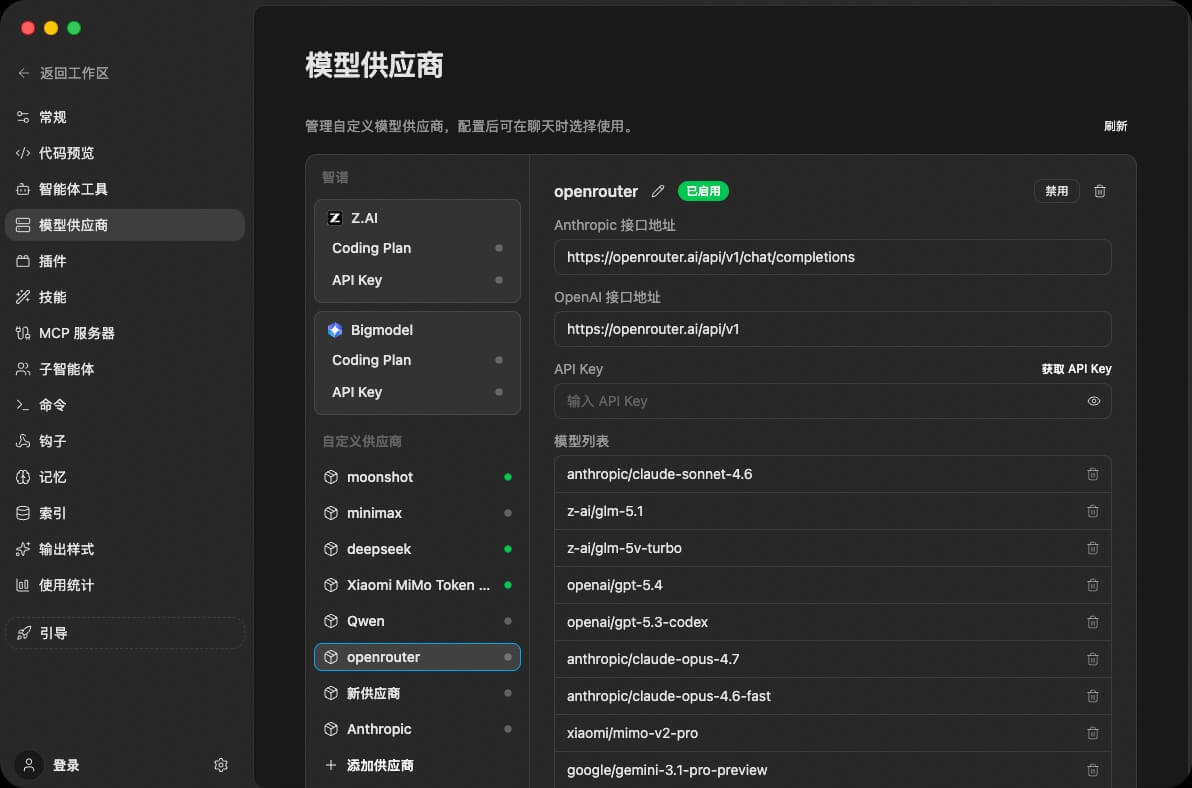
- Open Agents Settings / Models
- Click Add Provider at the bottom of the provider list, or select an existing OpenRouter provider
- Set the name to
OpenRouter - Set the API Base URL to
https://openrouter.ai/api - Fill in your API key
- Turn on the enable switch to start using it
OpenRouter model list: https://openrouter.ai/models
Moonshot
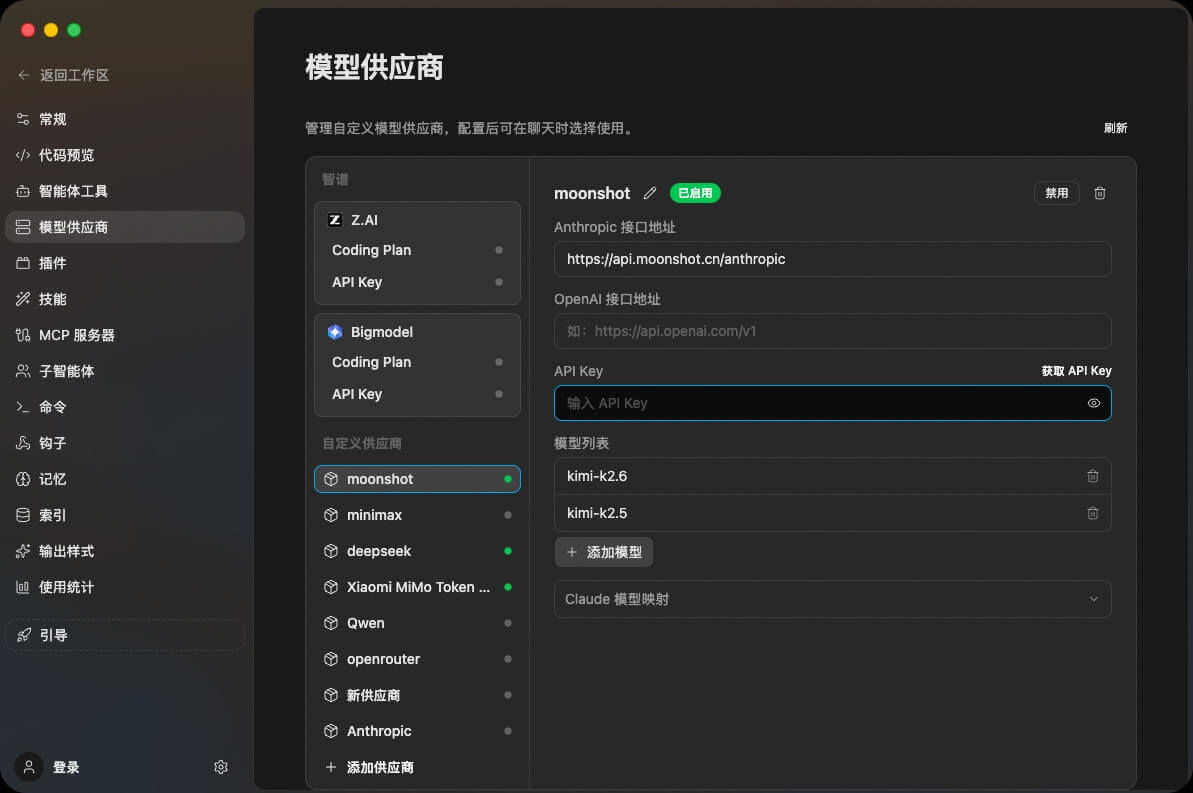
- Open Agents Settings / Models
- Select moonshot from the provider list on the left, or click Add Provider at the bottom to create a new one
- Turn on the enable switch in the upper-right corner
- Set the Anthropic endpoint to
https://api.moonshot.cn/anthropic - Click Get API Key in the upper-right to open the KIMI platform, then paste the key into the API Key field
- Once filled in, you can use built-in models such as
kimi-k2.6andkimi-k2.5. You can also add more Moonshot-supported models manually through Add Model
Custom Providers (Anthropic / OpenAI Compatible)
ZCode supports adding any AI service compatible with the Anthropic / OpenAI protocol as a custom provider.
The experience is more complete in the new release. After you choose a known Base URL or enter a compatible API endpoint, ZCode can automatically detect and load the available model list, so you no longer need to type model names one by one.
Setup Steps
- Open Agents Settings / Models
- Click Add Provider at the bottom of the provider list
- Set a custom name for the provider, such as
claudeordeepseek - Choose or enter a Base URL
- Enter the API Key
- Load models automatically after the endpoint is confirmed
- Turn on the enable switch to start using it
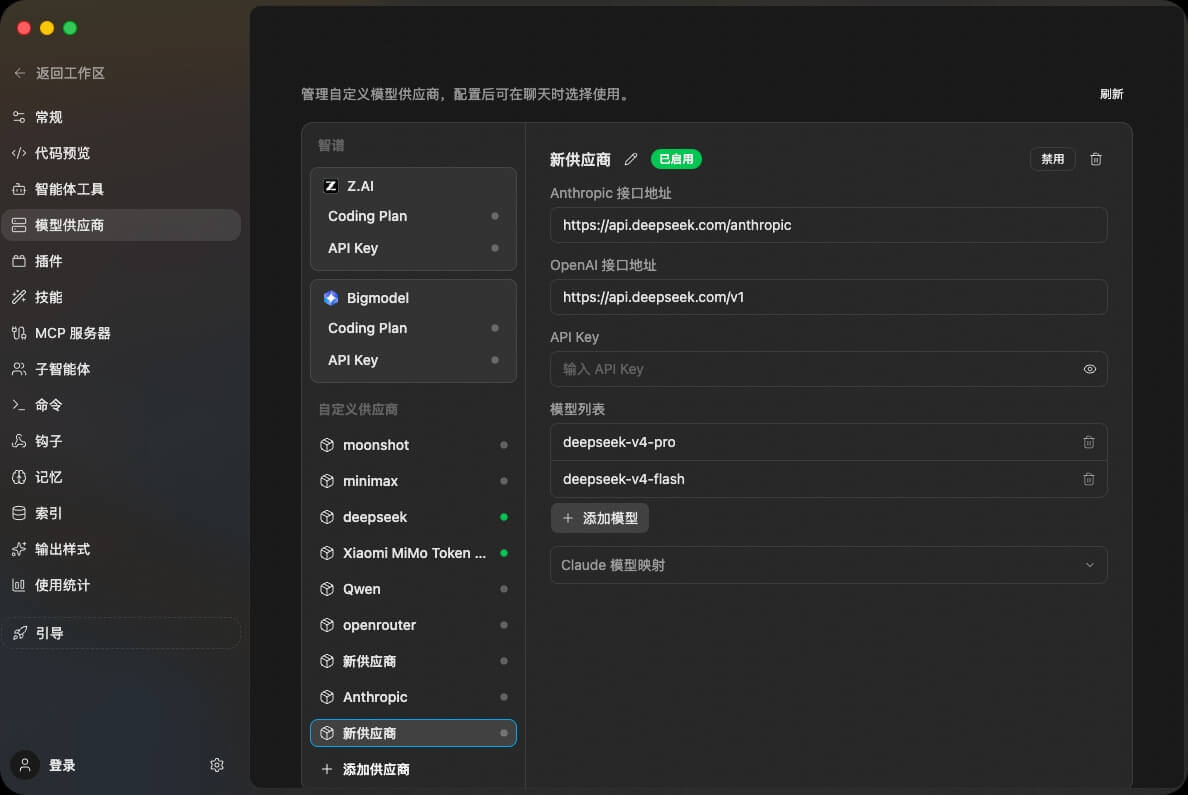
For example, using a DeepSeek-compatible endpoint:
- Set the name to
DeepSeek - Set the Anthropic endpoint to
https://api.deepseek.com/anthropic - Set the OpenAI endpoint to
https://api.deepseek.com/v1 - Paste the API key obtained from the DeepSeek platform
- Add models such as
deepseek-v4-proanddeepseek-v4-flashto the model list - Save the provider
Verify The Setup
After configuration, select the target model from the model selector in the chat box and test it directly.