
Remote Control
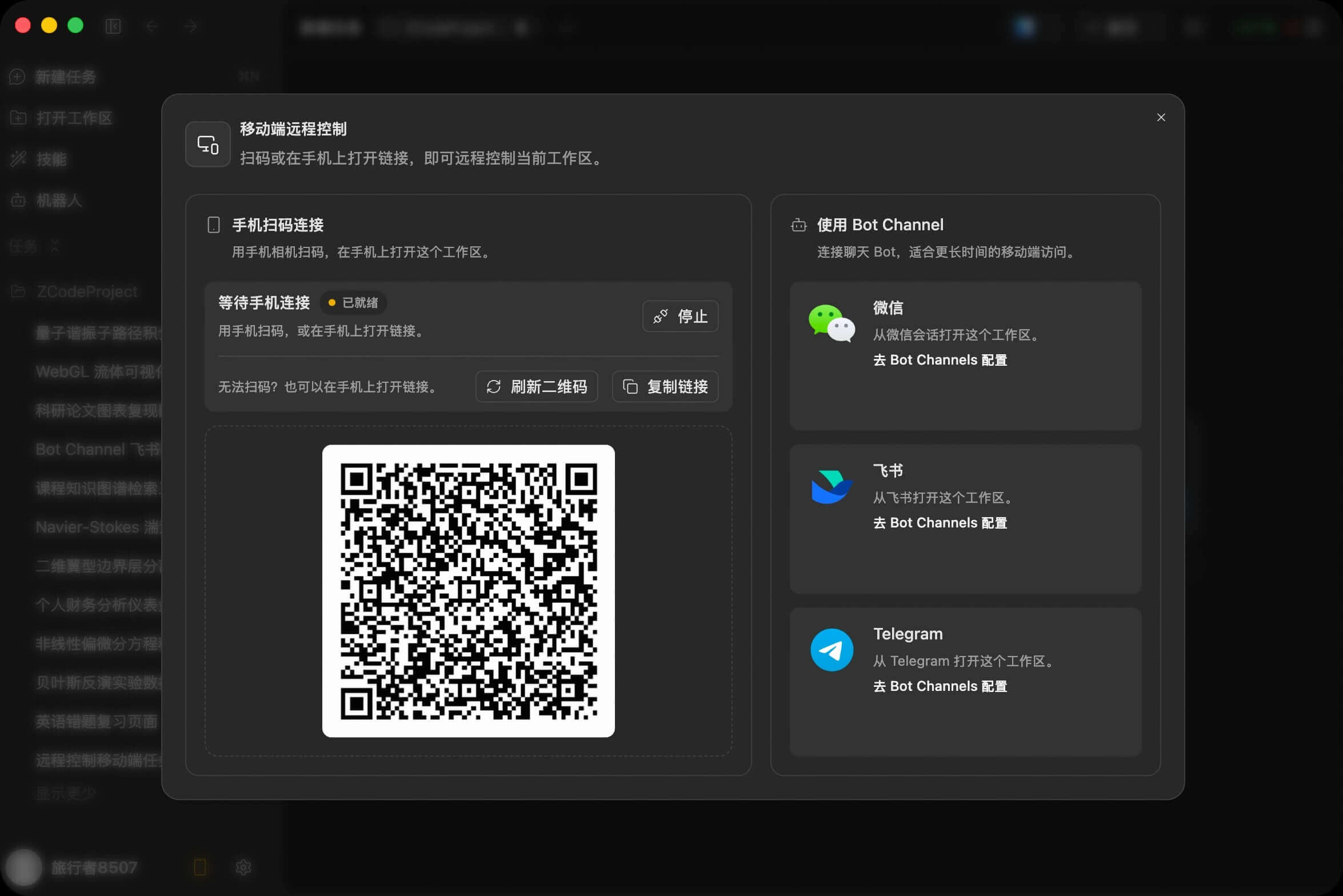
Remote Control lets your phone connect to the current desktop ZCode workspace. You can check the task, type instructions, and keep the Agent moving while the actual code changes, commands, and project environment stay on the desktop.
When To Use It
- A desktop task is already running and you need to step away.
- You receive a quick update and want to add one more instruction from your phone.
- A long task is running and you want to check the Agent status without returning to the computer.
Connect From Phone
Click Remote Connection in the lower-left sidebar of ZCode. The dialog shows a QR code and a link for the current workspace. Scan the QR code with your phone, or copy the link and open it in a mobile browser.
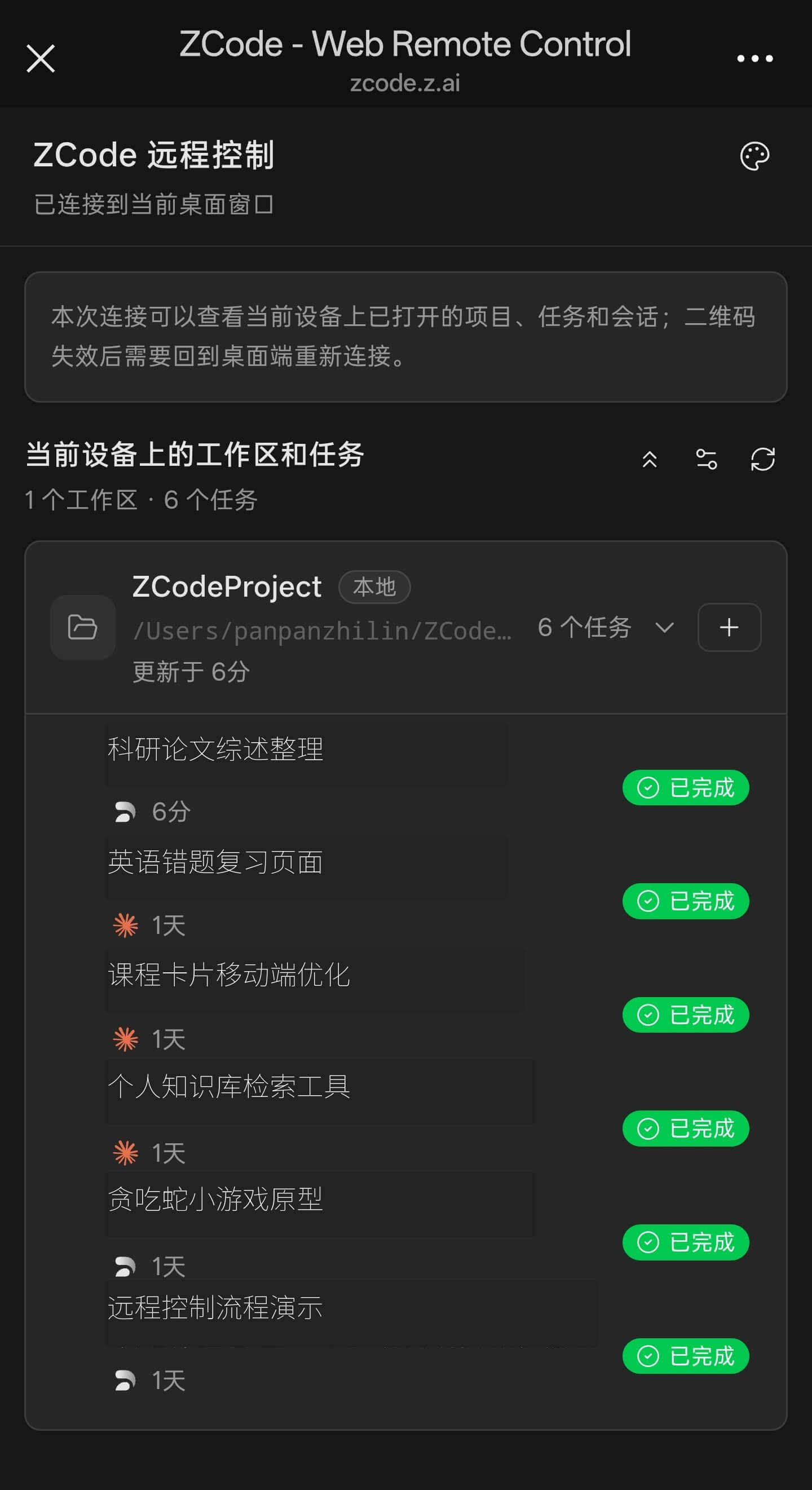
After the connection is established, the phone joins the current desktop workspace. The desktop remains the runtime; the phone is used to read the session, send messages, and trigger actions.
Control Model
Remote Control is useful for lightweight but important actions:
- Read the latest Agent response and task progress.
- Send a new instruction or extra context.
- Confirm, continue, or stop a long-running task.
- Jump back into the current workspace from outside your desk.
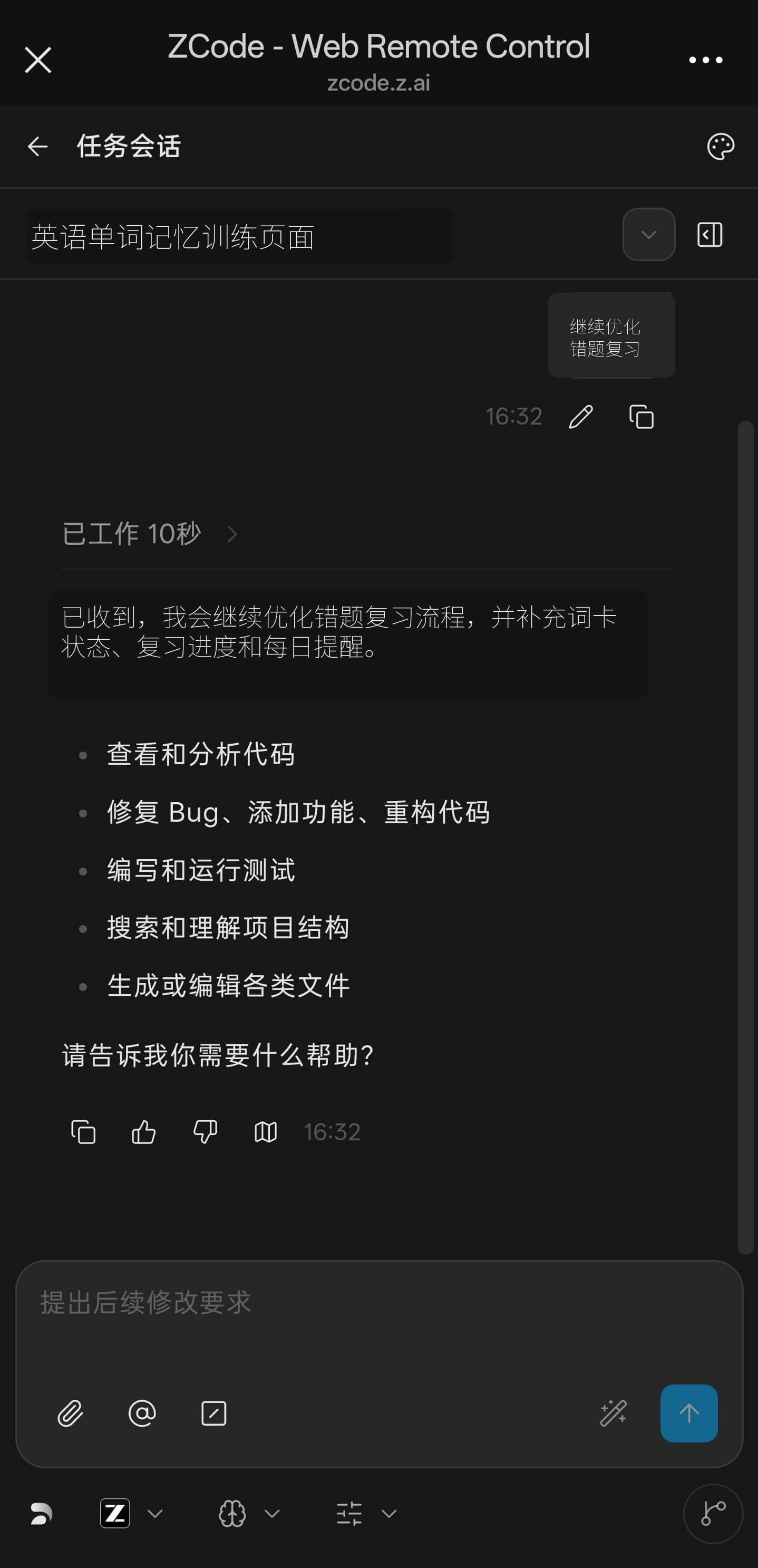
For longer-lived access from chat tools, use Bot Channel.