
MCP Servers
MCP (Model Context Protocol) connects external capabilities such as file systems, browser automation, memory, and databases to Agents. ZCode manages MCP servers by source, so you can keep shared tools under Common or configure dedicated tools for ZCode Agent, Claude CLI, Codex CLI, Gemini CLI, and OpenCode CLI.
ZCode Agent is the primary recommended path. Once common MCP servers are configured, it can use project files, browser automation, memory, and other tools more smoothly during long-running development tasks. It is also well adapted to the GLM 5.1 model family for multi-step coding workflows.
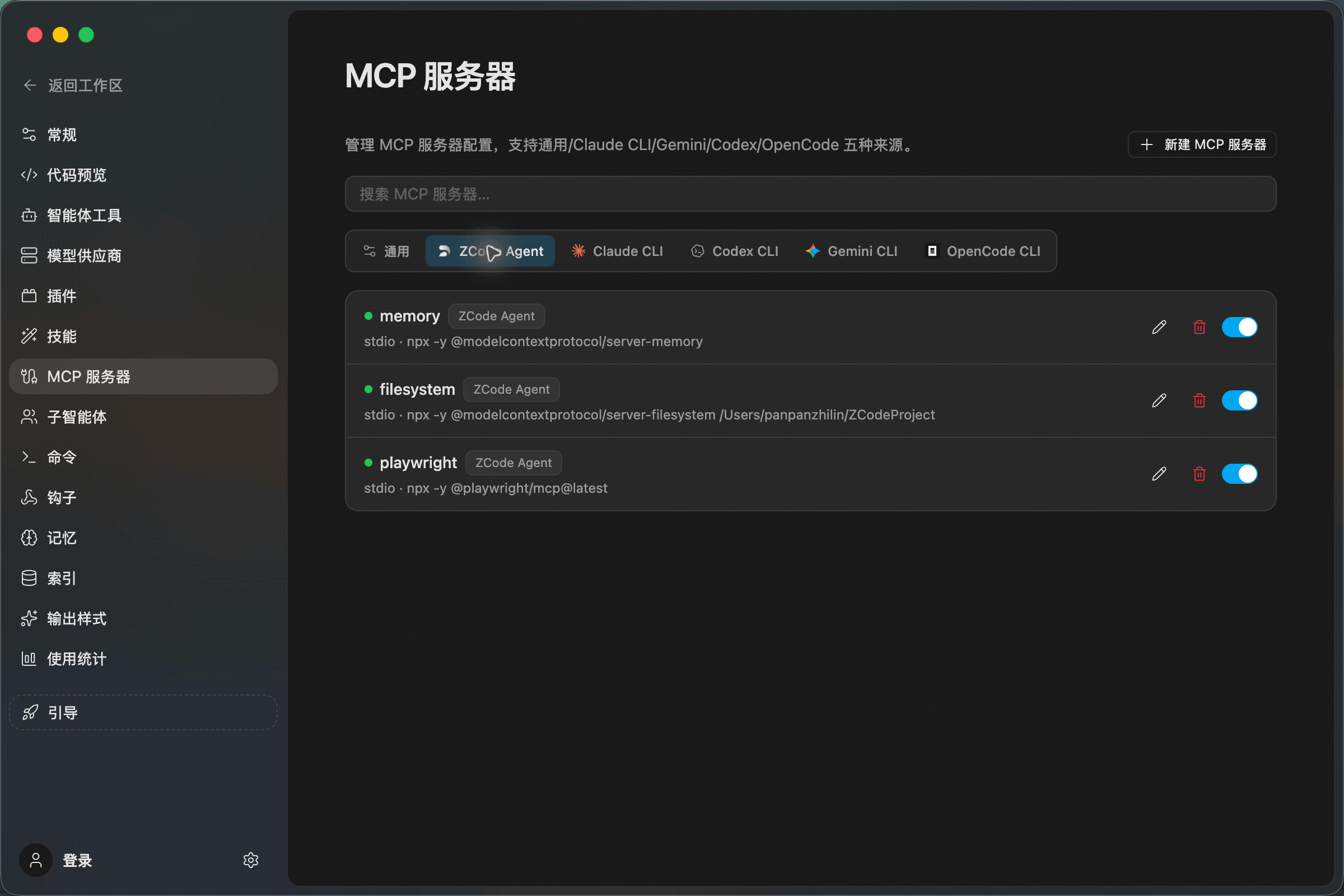
Scopes
- Common: Shared services that multiple frameworks may use, such as memory, filesystem, and browser automation.
- ZCode Agent: Recommended for ZCode's built-in Agent workflows, especially project development and long-running tool use.
- Claude CLI / Codex CLI / Gemini CLI / OpenCode CLI: Framework-specific MCP configurations for teams that already use those CLI toolchains.
Each MCP row shows the name, source, transport, and command. You can edit, delete, enable, or disable a server directly from the list.
Create An MCP Server
Open Settings -> MCP Servers, then click New MCP Server in the upper-right corner. Form mode is the fastest way to add common stdio servers:
- Enter a name, such as
memory. - Keep the type as
stdio. - Enter the command, such as
npx. - Enter arguments, such as
-y @modelcontextprotocol/server-memory. - If the server needs keys or paths, expand Environment variables and add them there.
- Click Add, then confirm the server is enabled in the list.
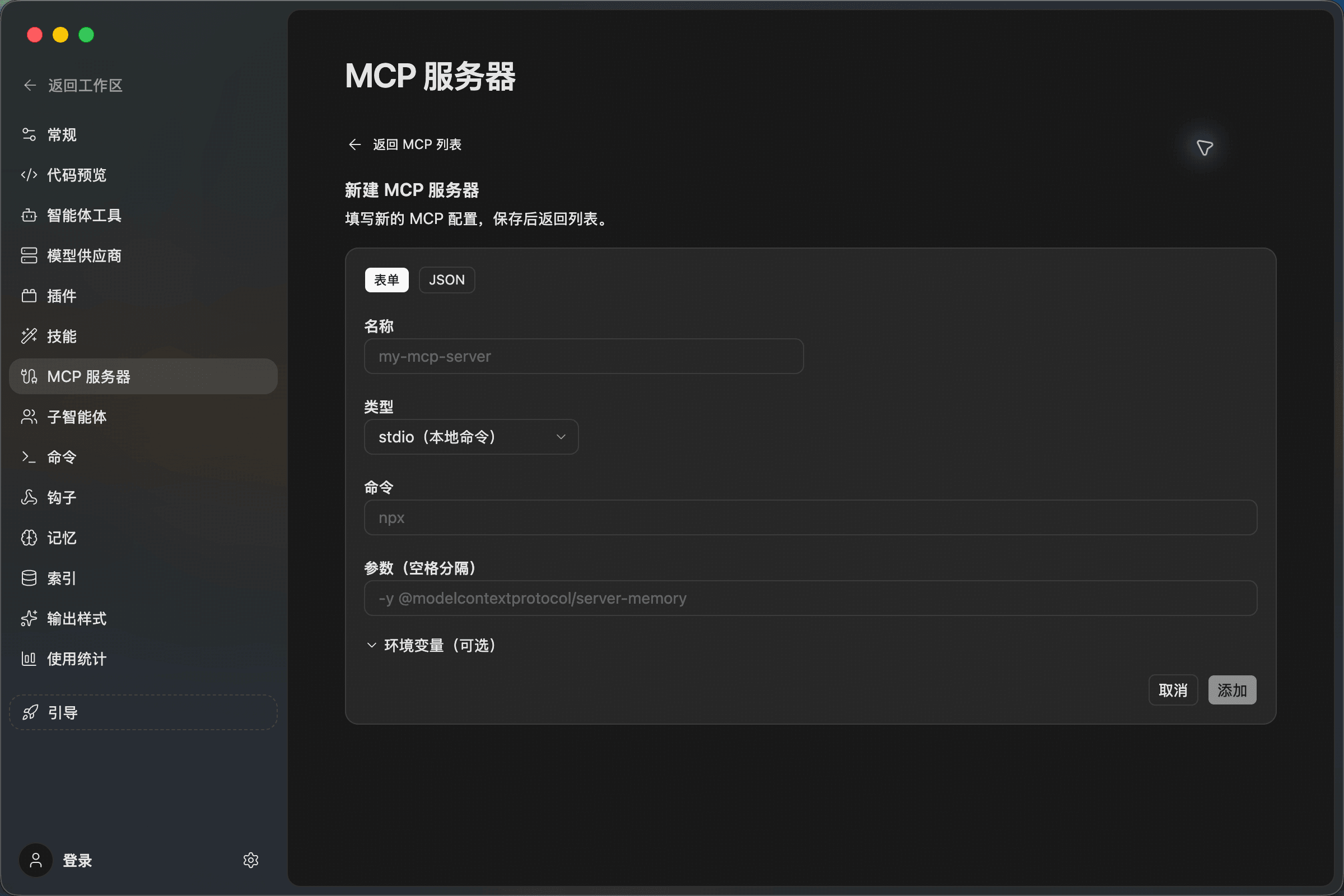
If you already have a JSON configuration, switch to JSON mode and paste it directly. After saving, ZCode adds it to the currently selected source.
Recommended Setup
These Zhipu-related MCP servers are the recommended starting point under ZCode Agent or Common:
zai-mcp-server: Adds visual understanding so the Agent can analyze images, screenshots, and interface context.web-search-prime: Adds web search so the Agent can retrieve up-to-date external information.web-reader: Adds webpage reading so the Agent can parse page content, structure, and key details.
These services usually require a Zhipu API Token. For team usage, place shared Zhipu services under Common and framework-specific servers under the matching tab. This keeps the setup easy to review while avoiding cross-framework configuration noise.