
Edit History
Edit History lets you revise messages that have already been sent to ZCode Agent. When an instruction is unclear, missing a file path, missing a constraint, or needs a different direction, you can edit the original message and let the Agent understand the task from the updated context instead of starting over.
This is especially useful for long-running tasks. You can keep the same model, workspace, branch, and task context, then adjust only the key instruction so the following work continues from the corrected goal.
Find The Edit Entry
In the conversation history, hover over a message you sent. A quick action area appears on the right side of the message. The pencil icon is the Edit entry, alongside other common actions such as copy.
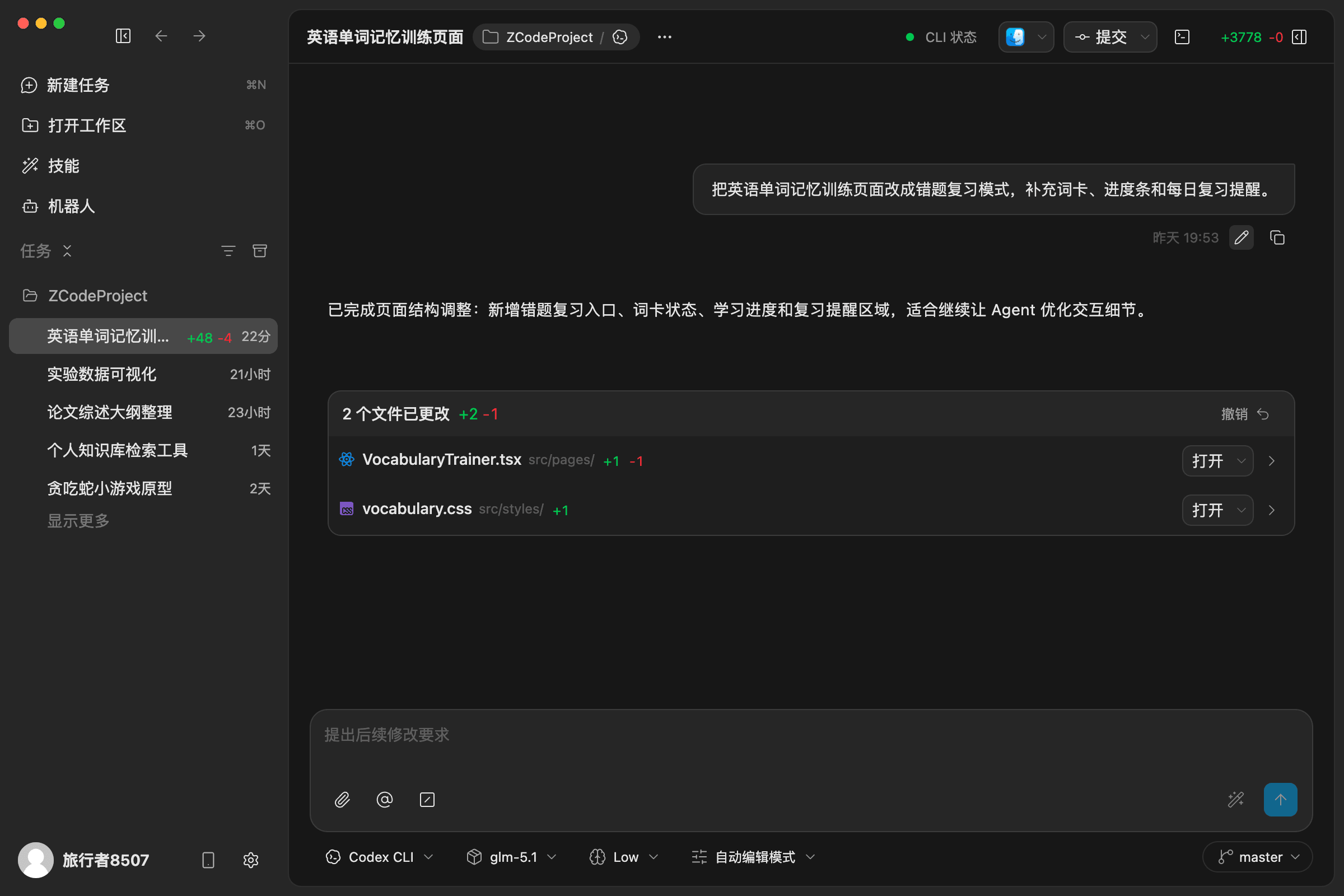
Entry Behavior
- Only for user messages: the edit entry changes your submitted instruction, not the Agent response itself.
- Keeps the message position: the original message node stays in the same place in the task history.
- Designed for quick correction: fix a target, path, or constraint without creating a new task.
Edit And Send Again
After clicking Edit, the original message expands into an editable input. You can rewrite the text directly, continue using @ to reference files, or use / to insert commands. Click Send when the revised instruction is ready, and ZCode Agent will continue from the updated message. Click Cancel to leave the original message unchanged.
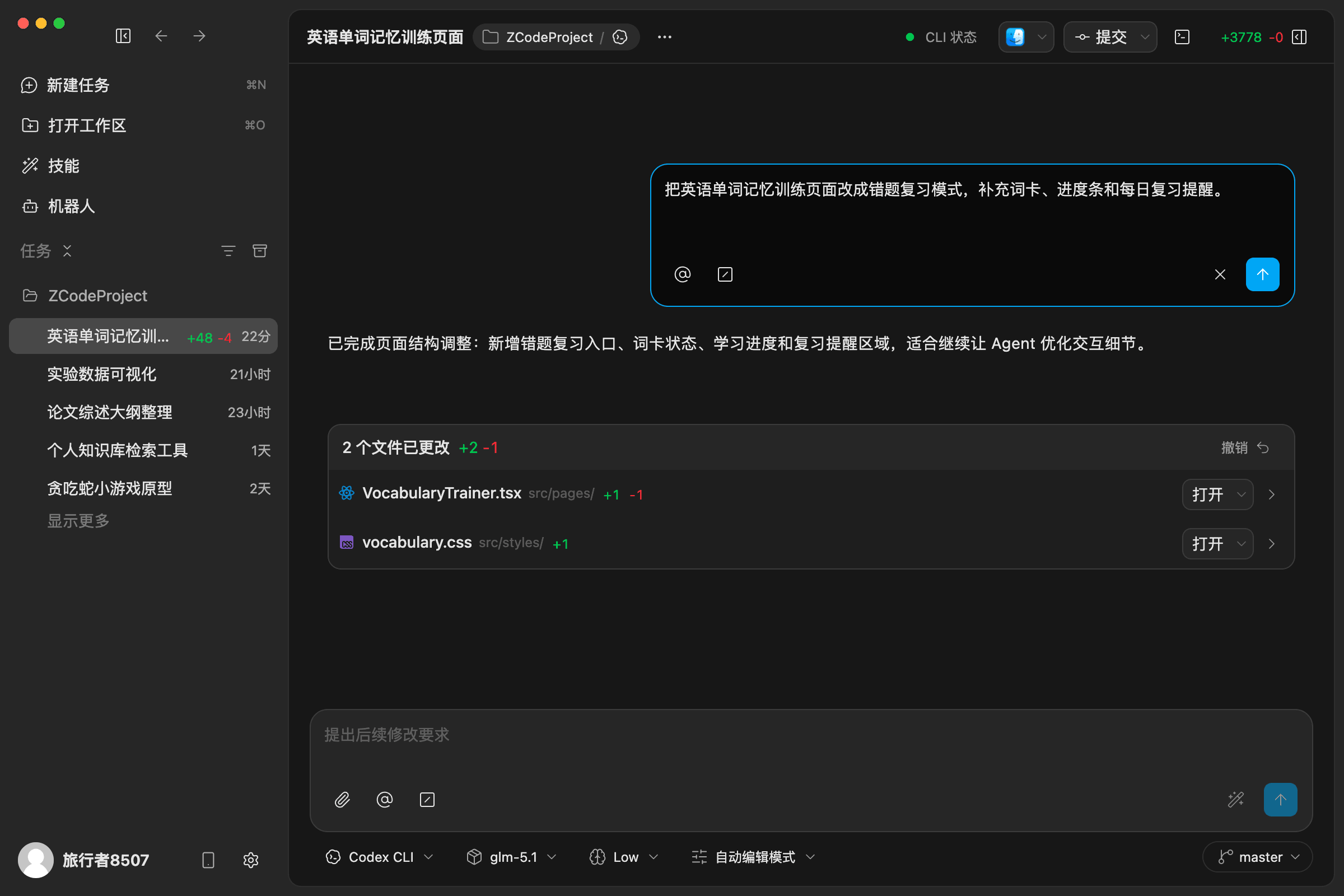
Interaction Flow
- Enter edit mode: click the pencil icon on the right side of your message.
- Revise the instruction: update the original content, add files, paths, goals, or constraints.
- Submit or cancel: click Send to continue with the revised instruction, or Cancel to keep the original message.
Common Use Cases
- Correct the requirement: fix an earlier instruction that was wrong, incomplete, or ambiguous.
- Add key context: append a file path, error log, screenshot note, API parameter, or missing constraint.
- Change task direction: move from "analyze this" to "fix this", or from "implement this" to "plan first".
- Avoid repeated setup: keep the existing task context instead of explaining the same background again.